
Expand
The Expand method in Darty-Ai combines Illustrator’s Expand Appearance and Expand features. It converts objects with complex appearances into editable vector or raster elements—opening the door to advanced manipulation and tagging.
For instance, a path with a Transform effect set to 1 copy would be expanded into a group containing two separate paths—each one editable and taggable.
See the Expand Tool for the visual editor, control behavior, and a safe configuration workflow.
Illustrator Expand Types
The native Expand dialog includes options for:
- Object — Expands text, symbols, and blends into editable shapes.
- Fill — Breaks pattern fills into individual path-based clip groups.
- Stroke — Converts strokes into outlined paths. Pattern or gradient strokes become fills on the resulting shape.
For gradients, Illustrator may use:
- Gradient Mesh — Converts the fill into a mesh object.
- Steps — Breaks the gradient into multiple colored shapes.
Expanded Artwork
Depending on the type of targeted artwork, various results are possible:
- No visible or effective result because the subject artwork was not of the applicable type.
- Artwork in a group — with all
Expandoperations, art will become nested in group-structures.
This depends on the amount of added fills/strokes and effects on art objects, as well as any existing group-structures in the targeted art. - Generated raster images of raster effects such as Drop Shadow.
- Expanding a stroke is the same as outlining a stroke.
- Expanding a text-object is the same as outlining the text-object.
- Clip-Groups — automatically-created structures due to involvement of complex art; patterns typically expand into a grid of clip-group blocks.
- Additional art-objects are created if an appearance effect produces copies of the underying line-art.
Note: Usually additional art can be made with additional strokes and fills as well ascopiesof the Transform Effect, but also could be possible by setting an effect and an appropriate setting with some effects, such as Drop Shadowblurset to zero (0).
Sample Basic Expand Spreadsheet
expand-basic.csv
| house-object | basic-stroke-fill-object | circles-object | |||||
| expand | expand | |||||
| fill:true | stroke:false | object:true | seriesTag:house-or-basic | fill:true | stroke:false | object:true |
| FALSE | TRUE | FALSE | TRUE | |||
| TRUE | TRUE | |||||
| TRUE | TRUE | TRUE | TRUE | TRUE | TRUE | |
| FALSE | FALSE | |||||
| FALSE | TRUE | FALSE | FALSE | TRUE | FALSE | |
| FALSE | FALSE | TRUE | FALSE | FALSE | TRUE |
Sample Download Links (Basic)
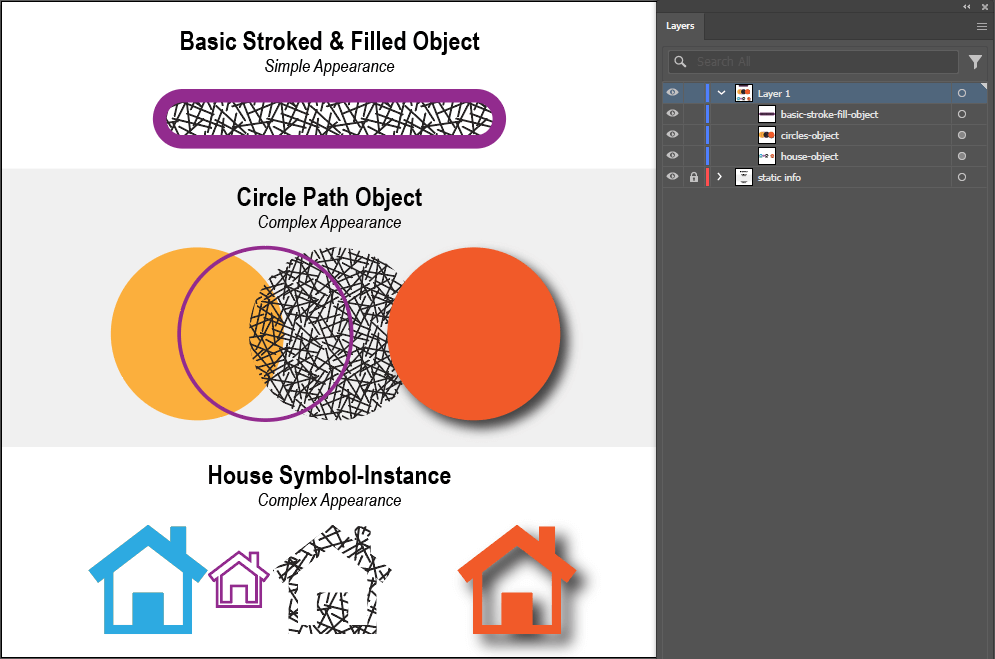
The original Expand example document contains:
- a simple filled and stroked object called "basic-stroke-fill-object"
- an object with multiple added fills and a stroke, includiing a drop-shadow effect on one of the fills.
- a Symbol-instance called "house-object".
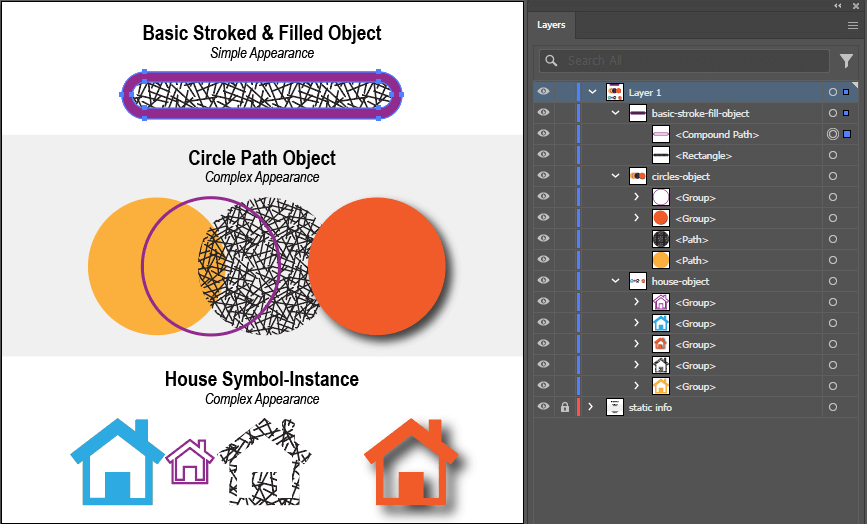
Row 1: Fill = false, Stroke = true, Object = true.
The stroke of the "basic-stroke-fill-object" expanded into a filled compound path.
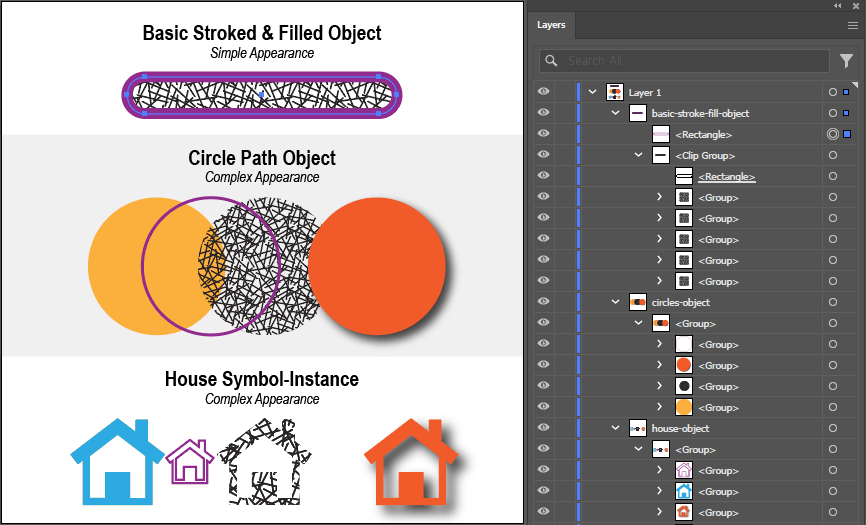
Row 2: Fill = true, Stroke = false, Object = true.
The stroke of the "basic-stroke-fill-object" stayed as a stroke, while the pattern fill expanded into clip-groups.
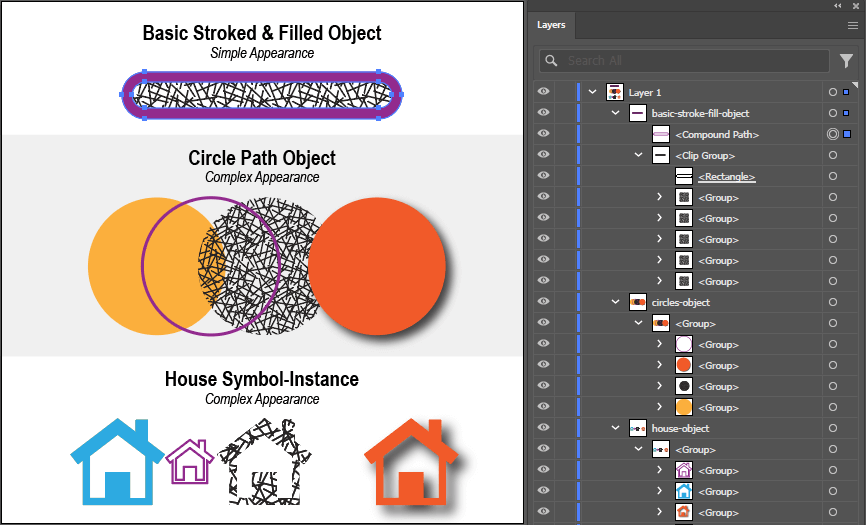
Row 3: Fill = true, Stroke = true, Object = true.
Both strokes and fills were affected: strokes became outlined, while the pattern-fills all expanded into clip-groups.
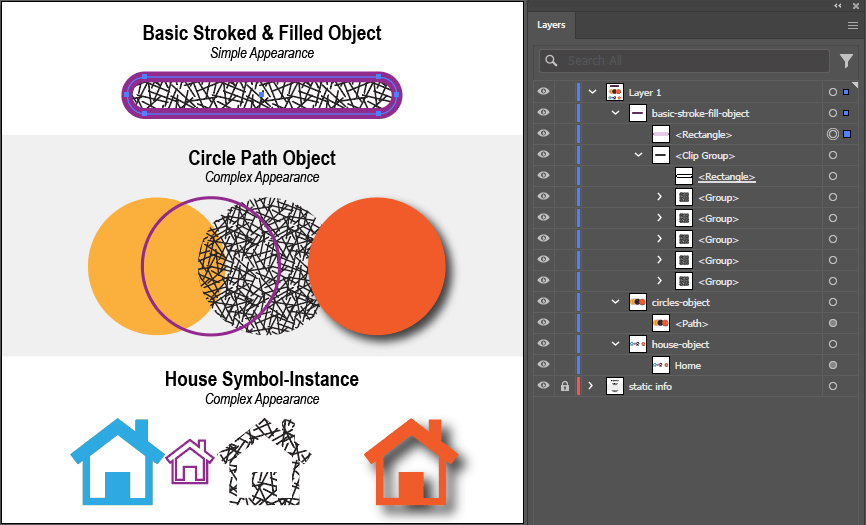
Row 4: Fill = true, Stroke = false, Object = false.
The pattern-fill of the "basic-stroke-fill-object" became clip-groups, its stroke stayed unaffected.
However, the Symbol-instance named "house-object" expanded into a group containing the same Symbol instance, this time under its original name.
The "circles-object" with the complex appearance style also became a wrapper group for a single path, which still has the complete complex style of the original object.
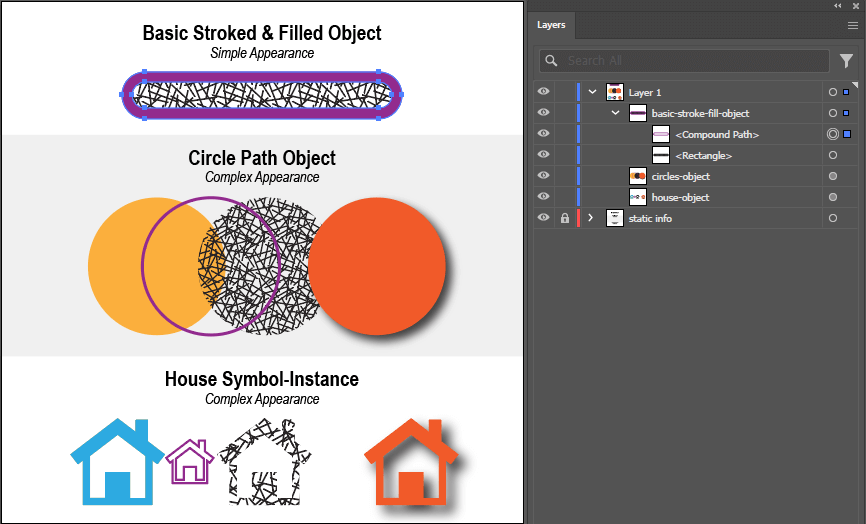
Row 5: Fill = false, Stroke = true, Object = false.
Only the stroked "basic-stroke-fill-object" became expanded. The complex-appearance "circles-object" and the Symbol-instance "house-object" were unaffected.
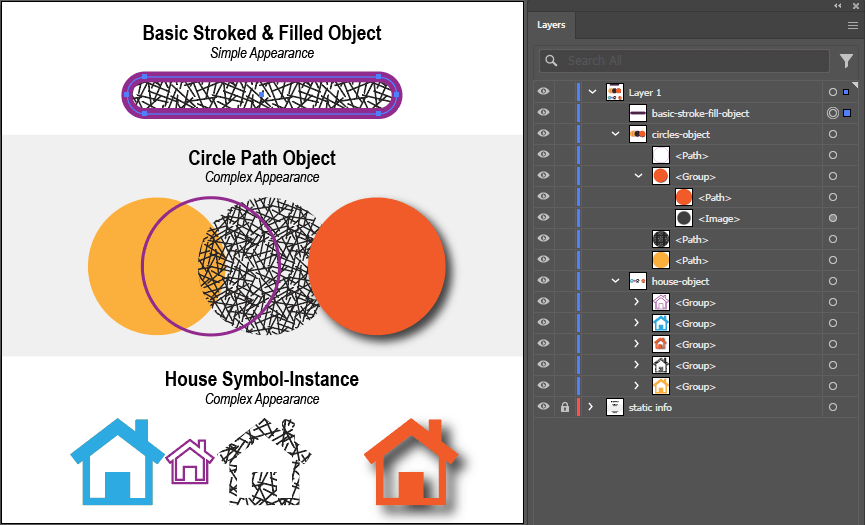
Row 6: Fill = false, Stroke = true, Object = false.
The "basic-stroke-fill-object" path stayed unaffected while both the Symbol-instance "house-object" and
the "circles-object" complex appearance objects became expanded into groups containing various shapes.
Making Use of Expanded Artwork
Once artwork has been expanded, Darty Tags can be applied to the resulting elements. This allows for precise, post-expansion control of generated structures.
Expanding with Tags
Use the parameters seriesTag and seriesStart to apply Darty Tags to items created by the Expand operation.
Parameters: seriesTag & seriesStart
Even though expanded artwork typically becomes a single Group, you can still apply seriesTag with seriesStart to assign uniquely named tags—even to a single item.
This is especially useful when combined with the ungroup method, which lets you access nested elements for further tagging.
Depending on the expanded content and parameters:
- No
seriesTagis applied if the object type isn’t supported by the operation. - Both the original
tagand the newseriesTagmay be present—common with nested appearances where the container remains unchanged. - Ideally, only the new
seriesTagappears—this provides full control over the generated items.
Note: To tag deeply nested items, use the "series-tag-reusing" technique alongside repeated ungrouping.
Sample Advanced Expand Spreadsheet
This example shows how to manage expanded artwork using Darty Tags. The source is a path named "circles-object" with a complex appearance (multiple fills, effects, etc.).
The goal: apply a consistent seriesTag so each generated item has a predictable name (e.g., circ1, circ2, ...), allowing for direct manipulation via your data.
In practice:
- Every record may generate a unique structure depending on its configuration.
- A robust setup anticipates common expansion results—for example, knowing that a certain path usually yields 20 shapes allows targeting
circ11with confidence.
Even partial tagging success (e.g., only some items receiving tags) can still be leveraged effectively.
This project’s aim is to test how consistently Darty-Ai can apply seriesTag to the expanded output of "circles-object" across varied parameters—from no effect, to full tagging, to partial but usable results.
Series-Tag Reuse
Sometimes, particularly during Expand operations which generate a lot of nested groups, it may be necessary to repeately ungroup
the artwork in order to reach the desired level and tag the final nested objects.
In such generated structures where only one object is nested several levels down, it is possible to re-use a single seriesTag
by specifying repeated sets of columns which target tags starting-with (^ see Tag Search Rules)
and using the same seriesTag as the base - in this example, "circ".
This example illustrates the different degrees of utility, yielding to results which can be studied for their efficacy and applied accordingly.
expand-advanced.csv
| house-object | basic-stroke-fill-object | circles-object | * | * | * | * | * | * | ||||||||||||||
| expand | expand | ungroup | ungroup | ungroup | ungroup | ungroup | tagsToName | ||||||||||||||
| fill:true | stroke:false | object:true | seriesTag:house-or-basic | fill:true | stroke:false | object:true | seriesTag:circ | seriesTag:circ | tagSearch:circ1 | seriesTag:circ | tagSearch:circ1 | seriesTag:circ | tagSearch:circ1 | seriesStart:1 | seriesTag:circ | tagSearch:circ2 | seriesStart:2 | seriesTag:circ | tagSearch:circ3 | seriesStart:3 | * |
| FALSE | TRUE | FALSE | TRUE | circles-group | |||||||||||||||||
| TRUE | TRUE | ||||||||||||||||||||
| TRUE | TRUE | TRUE | TRUE | TRUE | TRUE | ||||||||||||||||
| FALSE | FALSE | ||||||||||||||||||||
| FALSE | TRUE | FALSE | FALSE | TRUE | FALSE | ||||||||||||||||
| FALSE | FALSE | TRUE | FALSE | FALSE | TRUE |
Sample Download Links (Advanced)
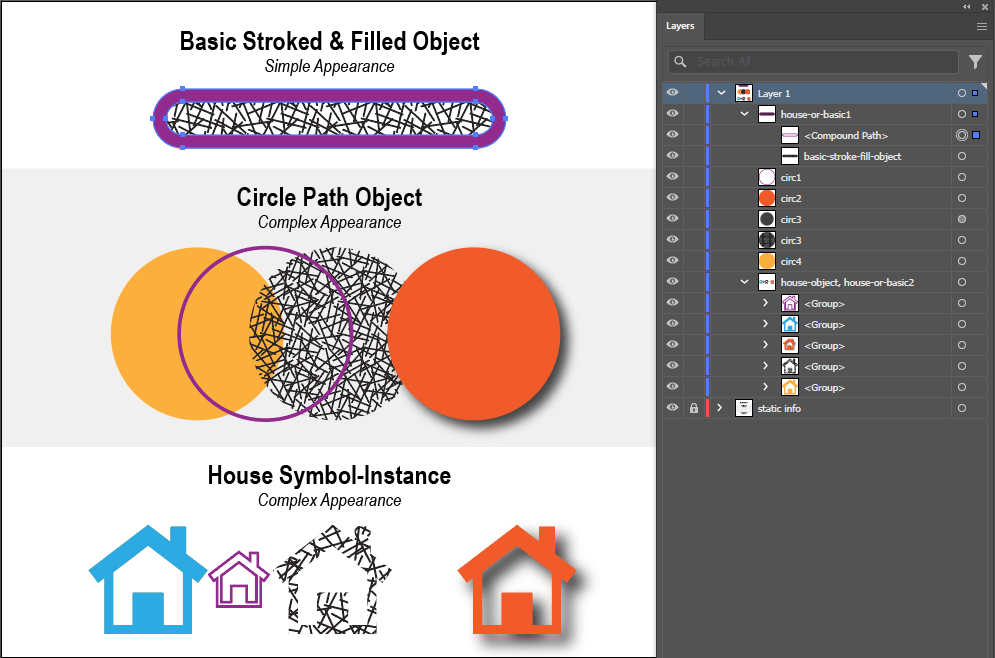
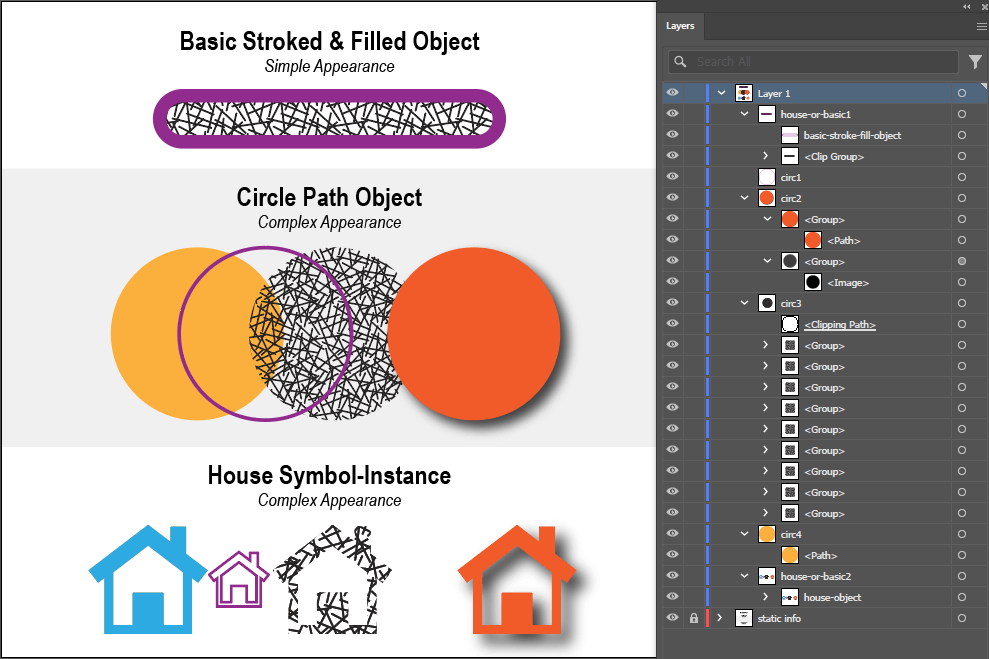
Row 1: The complex-appearance "circles-object" is reduced down to just the final artwork elements
by un-grouping multiple-level groups which appear based on the Expand parameters.
See Expand Basic, Row 1.
However, not all is well, as the name circ-3 appears twice.
The reason is, the orange circle's Drop Shadow effect created a rasterized image, which added to the objects affected by the seriesTag.
If this is a consistent behavior of artwork in the template, though, it could still be highly useful by crafting the data
to work around this and always account for this happening. Because these items will always appear in the same order,
tag-search method-functions such as nthOfType could be used to target the appropriate artwork.
See Tag Search Rules.
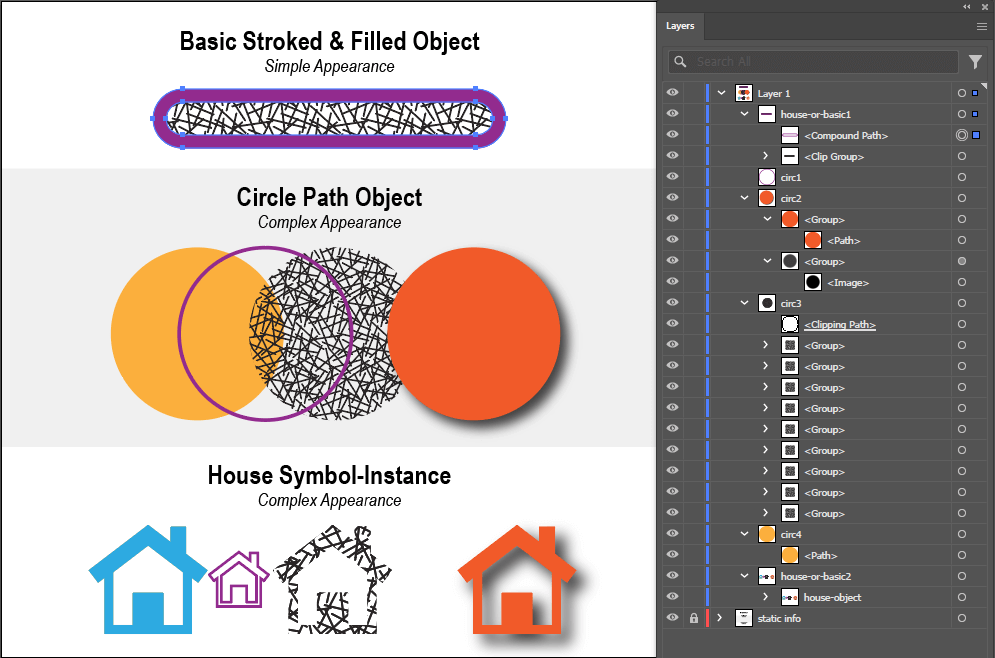
Row 2: The "circles-object" art-item was expanded into groups containing nested objects.
This time, there were only 4 operation-scope-level items created, receiving the proper tags:circ1, circ2, circ3 and circ4.
If any of these items are containers of a final desired item, then they could be focused on for further operations based on the
predictable seriesTag name/index combination.
For example, if to goal was after expansion to always manipulate the orange path specifically,
the tagged item circ2 could be ungrouped further to separate the orange path from the drop-shadow raster-image artifact.
Row 3: Similarly to Row 2, the four groups are rendered with their specific tag-names.
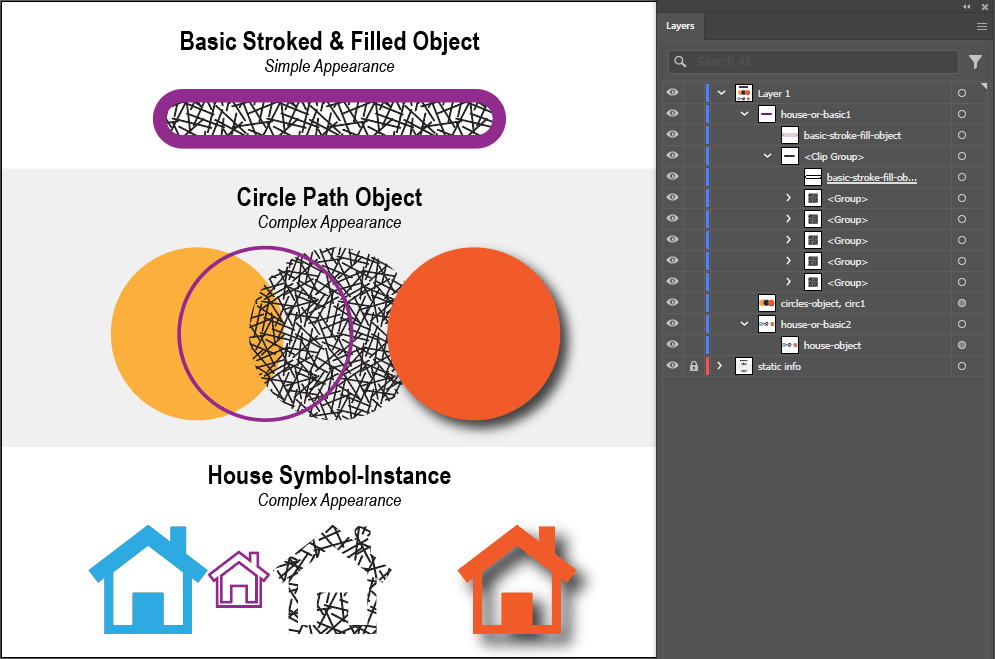
Row 4: with the current row's Expand parameters, the final result is that "circles-object" was not in fact expanded, but got the
first-index Darty seriesTag nonetheless. Although this is not desirable for this task, it is an insight into what is possible
when this kind of artwork is encountered for this operation. If sometimes proper artwork is there, or other times not, such as in this case,
following operations targeting those missing items will fail silently. This enables processing of different kinds of artwork with
columns for fall-back cases.
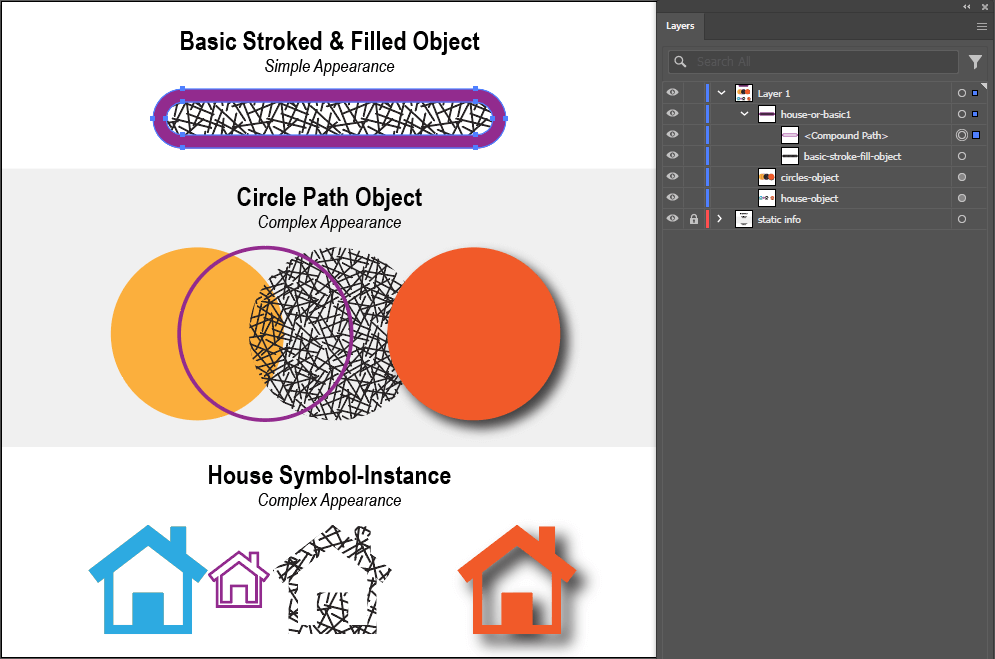
Row 5: In this case, the "circles-object" did not get expanded at all. This set of parameters would only expand stroked items,
meaning that the series of circ1 to circ4 would only be possible if "circles-object" were several stroked art-items tagged with
the same "circles-object" tag.
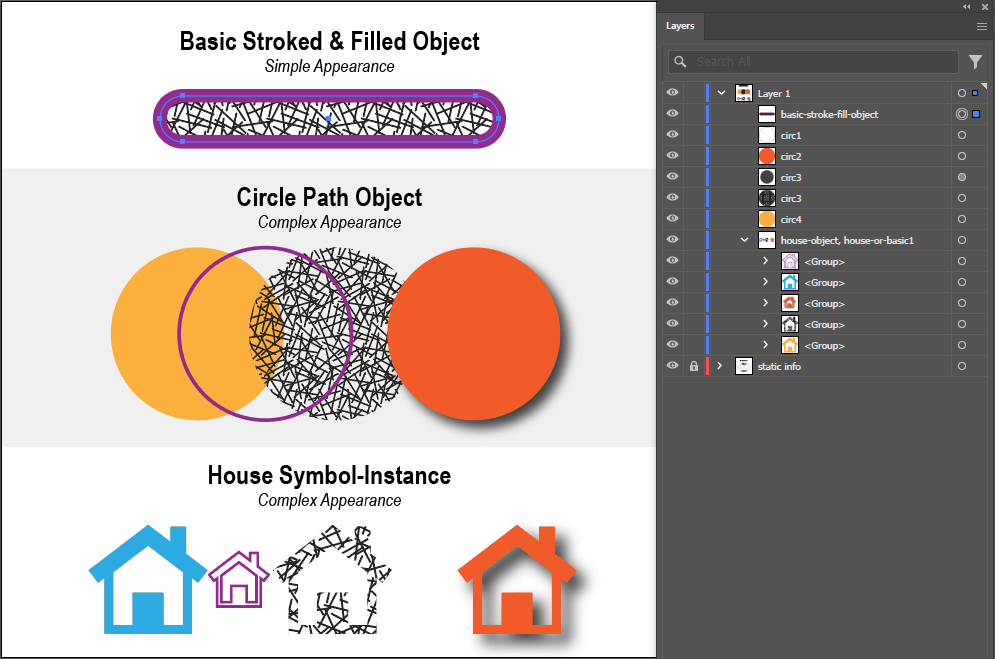
Row 6: With the object parameter set to true, and nothing else, the "circles-object" item is ungrouped to a state almost the same as
Row #1. The difference being the object at circ1 retains its purple-colored path-stroke since the stroke parameter was
set to false.
Expand Properties
| Property | Description |
|---|---|
tagSearch | The tag search of the items to expand. |
seriesTag | A shared prefix for numbered tags applied to artwork generated by Expand. The exact number and nesting of tagged results depend on the source artwork and enabled expansion options. Sample Values: person, cat |
seriesStart | The first number appended to seriesTag. For example, seriesTag:cat with seriesStart:5 begins the generated result tags at cat5. Sample Values: 1, 5, 11 |
object | When set to true (default), expands Symbol, Blend and Text objects. |
fill | When set to true, expands the fills of the object. |
stroke | When set to true, expands the strokes of the object. |
gradientMesh | If set to true and the object to expand contains an applicable gradient, the gradient is converted into a Gradient Mesh item. |
gradientSteps | A numeric count of the discrete colored shapes used when expanding an applicable gradient into stepped artwork. Higher values create more shapes and a smoother visual transition. |
skip | skip is a generic property for all methods, when set to true, the method will be skipped. See * and Skip for details. Valid Values: true or false |
Advanced Techniques
Using Darty Tags along with the Expand and ungroup methods can yield procedural results.
Explore the following topics:
- Expand-O-Matic Strokes - distributing objects along a path using a dash-array, expanded into placeholders.
- Copy Artwork - using Expand to generate copies of paths to fill in later with their own complex appearances.
- Pathfinder & Warp for Clipping & Painting - leveraging the Pathfinder and Warp Effects to create new unique procedural paths which can be painted with new art or a path to be used as for clipping another object.