
zOrder
The zOrder method is for changing the zOrder of tagged artwork, relative to a target, i.e. where the artwork appears on the layers panel.
For moving layers see the Layer Methods. For moving artboards see the Artboard Methods.
See also the Arrange Method for a simple method of moving artwork and layers, backwards and forwards and to the front and back.
See the Z-Order Tool for the visual editor.
Target and Location
To move the artwork to a specific z position, set a targetTagSearch and / or a targetLayerName or targetLayerNumber and set the relative location.
For example tagSearch: cat location: below targetTagSearch: tree targetLayerName: Background Scene.
Set the location value to aboveAll or belowAll to move the artwork at the top or bottom of the document.
Set the location value to top and bottom to move the artwork to the top or bottom of a layer or group.
Set the location value to above and below to move the artwork above or below a tagged target artwork or layer.
Example Spreadsheet and Screenshots
Compare each row in the spreadsheet below with its associated screenshot below.
| * | ||||||
| zOrder | ||||||
| tagSearch: cat | layerName | layerNumber | location | targetTagSearch | targetLayerName | targetLayerNumber |
cat | above | tree & left | ||||
cat | Background | above | tree & left | |||
| tree & middle | below | 1 | ||||
cat | 2 | top | Foreground | |||
cat | aboveAll |

Original Artwork
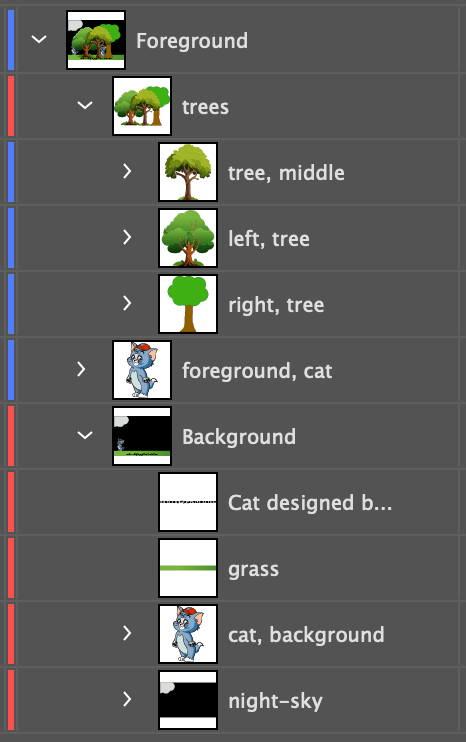
Original Layers Panel

Artwork After Row 1move tagSearch: cat location: above targetTagSearch: tree & left
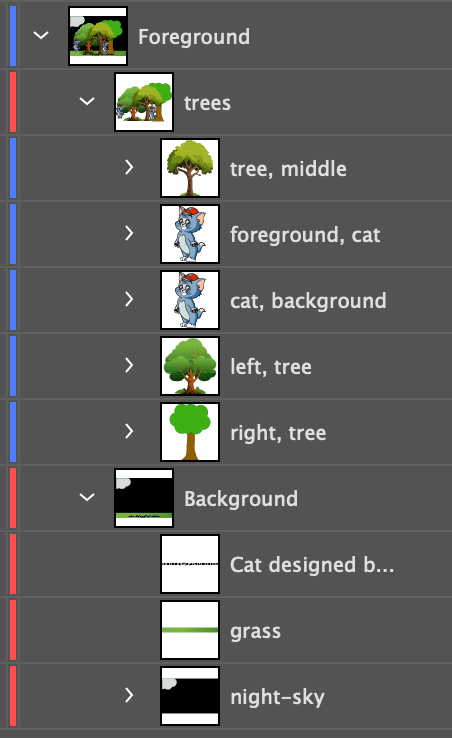
Layers Panel Row 1

Artwork After Row 2move tagSearch: cat layerName: Background location: above targetTagSearch: tree & left
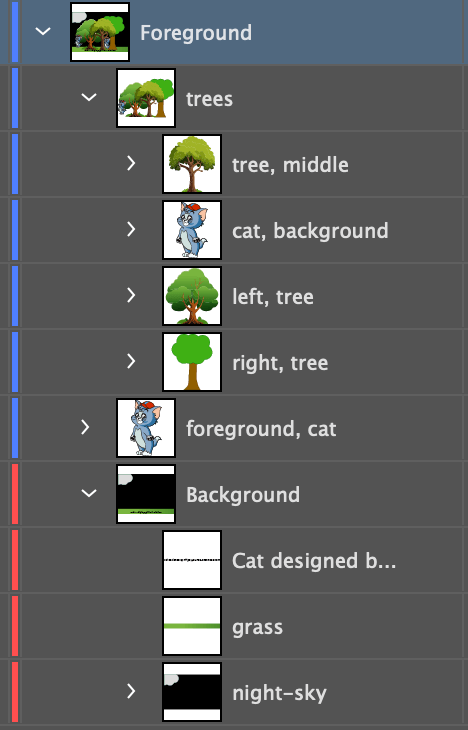
Layers Panel Row 2

Artwork After Row 3move tagSearch: tree & middle location: below layerNumber: 1
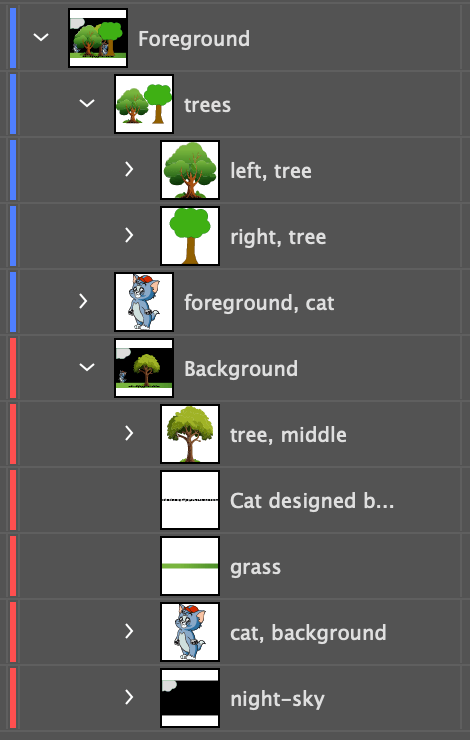
Layers Panel Row 3

Artwork After Row 4move tagSearch: cat layerNumber: 2 location: top targetLayerName: Foreground
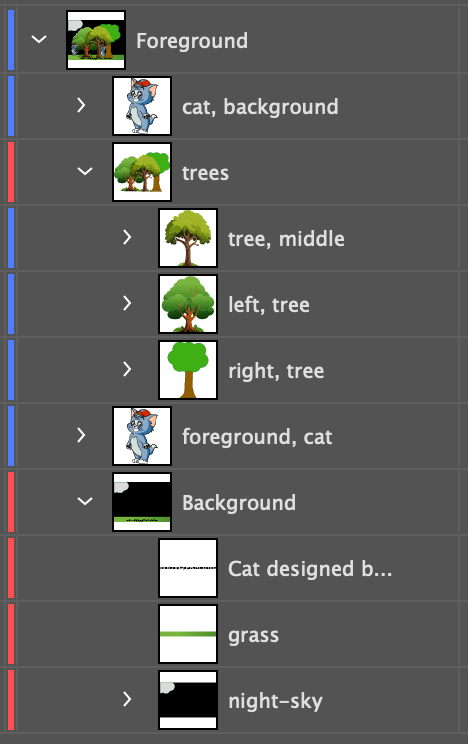
Layers Panel Row 4

Artwork After Row 5move tagSearch: cat location: aboveAll
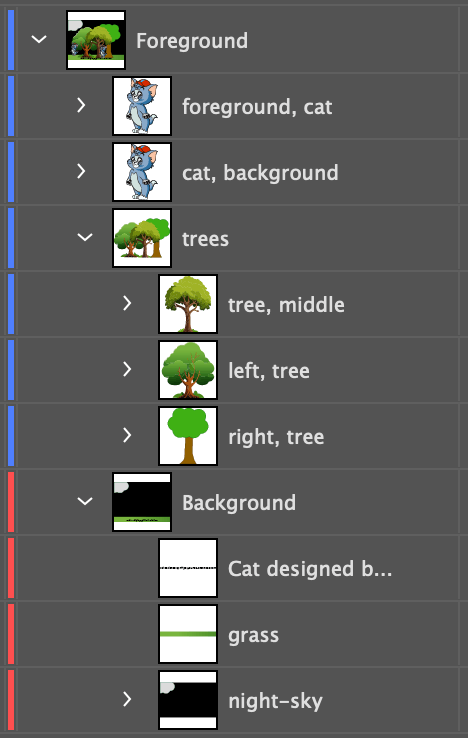
Layers Panel Row 5
zOrder Properties
| Mode | Description |
|---|---|
layerName | The layer name containing the tagged artwork. If no layer is provided then the tagged artwork will be moved regardless of it's containing layer. Sample Values: Layer 1, Layer 2 |
layerNumber | The layer number containing the tagged artwork. If no layer is provided then the tagged artwork will be moved regardless of it's containing layer. Sample Values: 1, 2 |
location | Where the tagged artwork should be moved relative to the target. Use aboveAll or belowAll to move the artwork at the top or bottom of the document. Use top and bottom to move the artwork to the top or bottom of a layer or group. Use above and below to move the artwork above or below a tagged target artwork or layer. Valid Values: aboveAll, belowAll, above [Default], below, top insideOnTop insideTop, bottom insideOnBottom insideBottom |
skip | skip is a generic property for all methods, when set to true, the method will be skipped. See * and Skip for details. Valid Values: true or false |
tagSearch | The tag search of the artwork to move. Sample Values: animal, animal | tree , cat & tabby, animal & !cat |
targetLayerName | The layer name that contains the artwork or the layer itself that the original artwork should be moved relative to. See useSingleTarget below. Sample Values: Layer 1, Layer 2 |
targetLayerNumber | The layer number that contains the artwork or the layer itself that the original artwork should be moved relative to. See useSingleTarget below. Sample Values: 1, 2 |
targetTagSearch | The tag search of the artwork that the original artwork should be moved relative to. See useSingleTarget below. Sample Values: animal & !cat |