
🏃♂️ Intro 🏃♂️
In this guide, we will explore the structure of a Darty-Ai spreadsheet, focusing on the header rows and method blocks. We will also include tips on how to effectively use defaults and paths, as well as common pitfalls to avoid when setting up your spreadsheet. Spend some time familiarizing yourself with this structure, as it is key to leveraging the full power of Darty-Ai for automating your Illustrator workflows and getting up and running quickly.
Darty-Ai Header
Darty-Ai Header - Method Blocks
The Darty-Ai header consist of 4 rows, [1] Tag Search, [2] Method, [3] Properties, and [4] Labels. These make up the structure of each method block.
| Method Block 1 | Method Block 2 | Method Block 3 | ||||
|---|---|---|---|---|---|---|
| A | B | C | D | E | F | G |
| Tag Search 1 | Tag Search 2 | Tag Search 3 | ||||
| Method 1 | Method 2 | Method 3 | ||||
| Property 1: Optional Default Value | Property 2: Optional Default Value | Property 1 | Property 2 | Property 3 | Property 1 | Property 2 |
| Label 1 (Optional) | Label 2 (Optional) | Label 3 | Label 4 | Label 5 | Label 6 | Label 7 |
🗒️ Header Rows 🗒️
The Darty-Ai header consists of 4 rows:
- Tag Search – The artwork to apply the method to.
- Method – The method to apply - What you want done.
- Properties – The properties to set for the method.
- Labels – Optional labels for referencing or commenting on columns.
Row 1. Tag Search
Tag searches are used to specify the artwork to which a method is applied.
For methods that do not require a tag search, use an * in place of a tag search.
If you want to apply a method to all artwork, you can use !* for the tag search.
Only write a tag search in the first column of each method block.
See our tag search documentation and tag workflow guide for more information on tag searches.
Tag artwork using Darty-Ai's Tags tab, where you can also find documentation on tags in Darty-Ai's Tags tab, by clicking the info icons next to the set and find tag fields.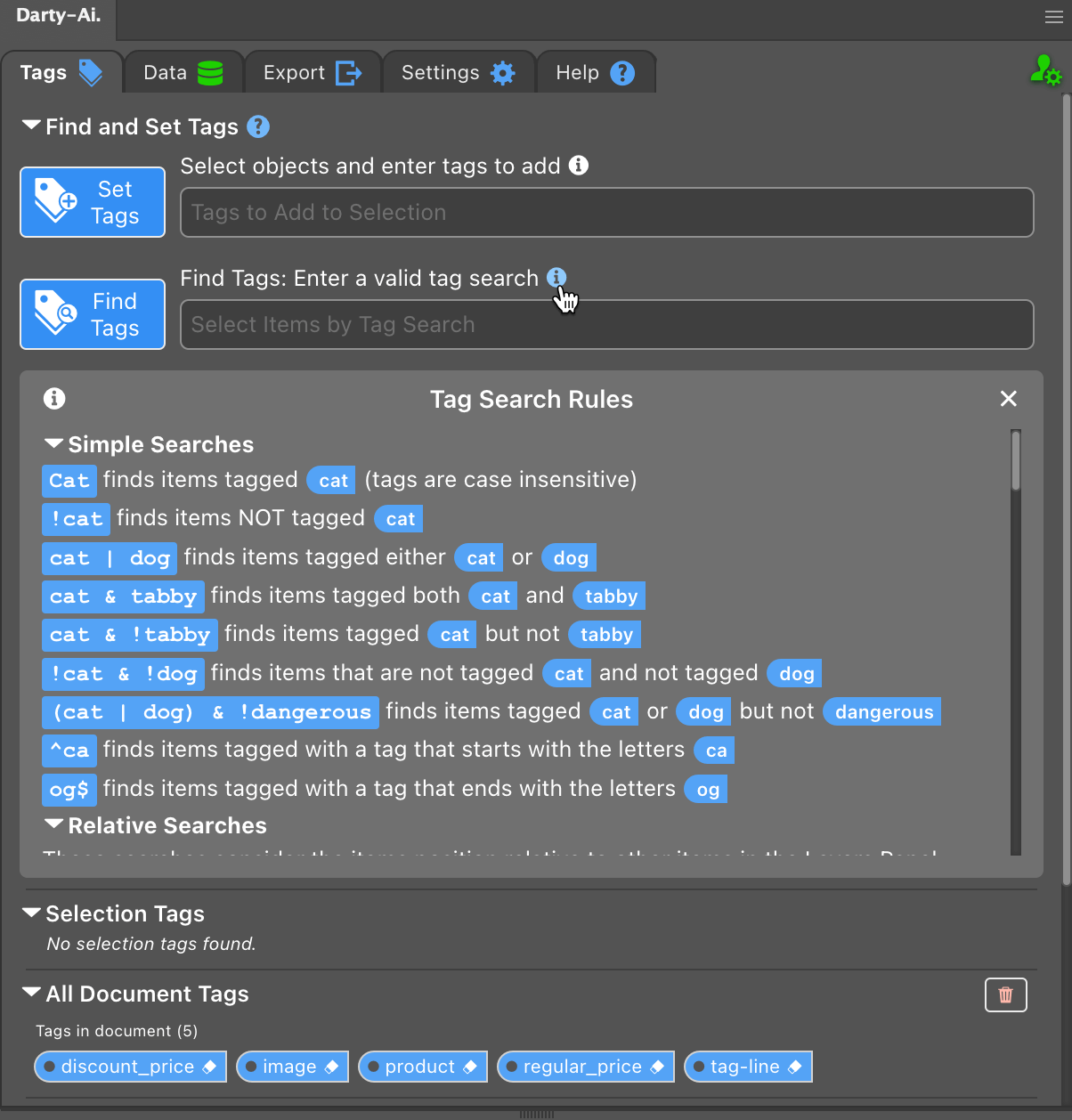
Row 2. Methods
The method is what you want done.
Only write the method name in the first column of each method block.
Methods mostly correspond to Illustrator's panels, such as the Appearance, Artboards, Attributes, and Layers Panels and so on, and menu items like Make and Release Clipping Mask or Compound Shapes.
The method name is normally the same as the panel or menu item name, but in the singular form.
For example, the Artboard method corresponds to the Artboards Panel, the Layer method corresponds to the Layers Panel, and so on.
Casing and spacing or use of underscores and hyphens are flexible.
For example, the releaseClippingMask method that corresponds to the Release Clipping Mask menu item in Illustrator, releaseClippingMask, Release Clipping Mask, release_clipping_mask and release-clipping-mask are all acceptable.
Some methods, like the Text method, correspond to multiple panels, in this case the Character and Paragraph Panels and Find and Replace Panel and more.
See our methods documentation for a full list of available methods. Click on each method for details on its properties and usage.
Row 3. Properties
Properties are the settings to be applied for the selected method.
Each method has its own set of properties. As a rule, for properties that exist in Illustrator's panels, those names are used.
See our methods documentation for a full list of available methods. Click on each method for details on its properties and usage.
When you include a property in the header row, you can optionally include a default value for that property, separated by a colon. For example, in the Text method, find: name, will set the find default value to "name".
See the section on Defaults for an important explanation of them. Defaults are SUPER useful.
Row 4. Labels
Labels are optional for each column in the method block.
Labels can be used to reference specific columns when exporting.
For example, labeling a column as product allows you to write: /Folder/Path/{{@product}} in the export tab.
This is frequently used to generate file names or folder structures.
This row must always be present, though it may be left blank if labels are not needed.
Labels can also serve as simple comments for your team to know what the column or method block is about.
🧠 Think Method Blocks 🧠
A method block is a group of columns that define a specific operation to be performed on tagged artwork.
Each method block consists of:
- Tag Search (Row 1) – Specifies the artwork to which the method will be applied.
- Method (Row 2) – The operation to be performed.
- Properties (Row 3) – The settings for the method.
- Labels (Row 4) – Optional labels for each column in the method block.
When Darty-Ai processes the spreadsheet, it reads the method blocks from left to right, applying the specified method and properties to the tagged artwork.
Think, "I want to apply to artwork tagged X, method Y, with properties A, B, and C."
Make sure to only include the tag search and method name in the first column of each method block – they carry on to the next columns in the block.
A new method group is started if either a tag search or method name is included in a column.
Tag searches and method names, carry on from one block to the next, so if you are applying multiple methods to a given tag search, you only need to place the method name at the beginning of the new blocks, the tag search only needs to be included in the first column of the first block. Similarly, if you are applying the same method to multiple tag searches, you only need to put the tag search at the beginning of each block, the method name only needs inserting in the first method group.
Place the properties in the row below the method name, each property in its own column. If your want to apply a method with no properties, just leave the property cell blank.
Finally, labels can be included in the row below the properties, each label in its own column, this row must be included even if no labels are set.
🏆 Property Defaults 🏆
You can set default values for properties in the header row by including a colon followed by the default value after the property name; property_name: default_value. When Darty-Ai processes the sheet, if a property value is not provided in a cell of a specific column, it will use the default value specified in the header.
Default Usages
- Default Values - Set default values when all, or the nearly all the values of a column are the same. For example
find: namefor replacing the template string{{name}}. Instead of placingnamein every cell of the data column, just include the default value. - Setting Path Bases – If you use
path: imagesor the like in theplacemethod, the default path will be set to the images folder located in the folder containing the template file. You can also set an absolute path as the default path/Users/You/Downloads/Images/, then if you putmy-pic.pngin a data cell, the path will be resolved as/Users/You/Downloads/Images/my-pic.pngSee the Paths Section for more details on paths. - Default Units – For properties that use units, if you include a unit in the default, that unit will be used for all values that do not contain a unit. For example,
width: mm, if you place10in a data cell, it will be considered as10mm, if you put20"in a data cell, it will ignore the defaultmmvalue. You can also set a value likewidth: .5"any blank data cells in the column, will take the value.5", cells with a number but no unit, will use"as their unit. - Default Remove Text – As a general rule, if you leave a data cell blank and have not set a default value, the property will not be set. So if you have set in the
textmethod areplaceproperty without providing a default value, the text will not be replace. Often, you might want the template string removed when you leave the data cell blank. You can usereplace: "", then for blank cells in the column, the string to be replaced will be removed.
You can set default values in the data cells too. Place :red in a data cell, the default color for blank cells below the default value will be set to red, you can change the default values as much as you like throughout the data cells.
📂 Paths 📂
When a property requires a file path, you can provide either an absolute path or a relative path. An absolute path specifies the full path to the file on your system, such as /Users/username/Documents/image.png.
A relative path specifies the path to the file relative to the location of the template file, such as ./images/image.png, which points to the "images" folder located in the same directory as the template file.
Or if you have set a base directory, relative paths are resolved relative to that base directory. Using relative paths can make your sheet more portable, as it allows you to move the entire folder containing the sheet and its assets without breaking the links.
The can also allow users on multiple systems to use the same sheet without needing to adjust the paths.
See our post Placing Images in Darty-Ai for more details and examples on using paths in Darty-Ai, including an interactive spreadsheet that demonstrates how paths are resolved.
🔧 Special Path Variables 🔧
Darty-Ai supports special path variables that can be used in path properties to make them more dynamic:
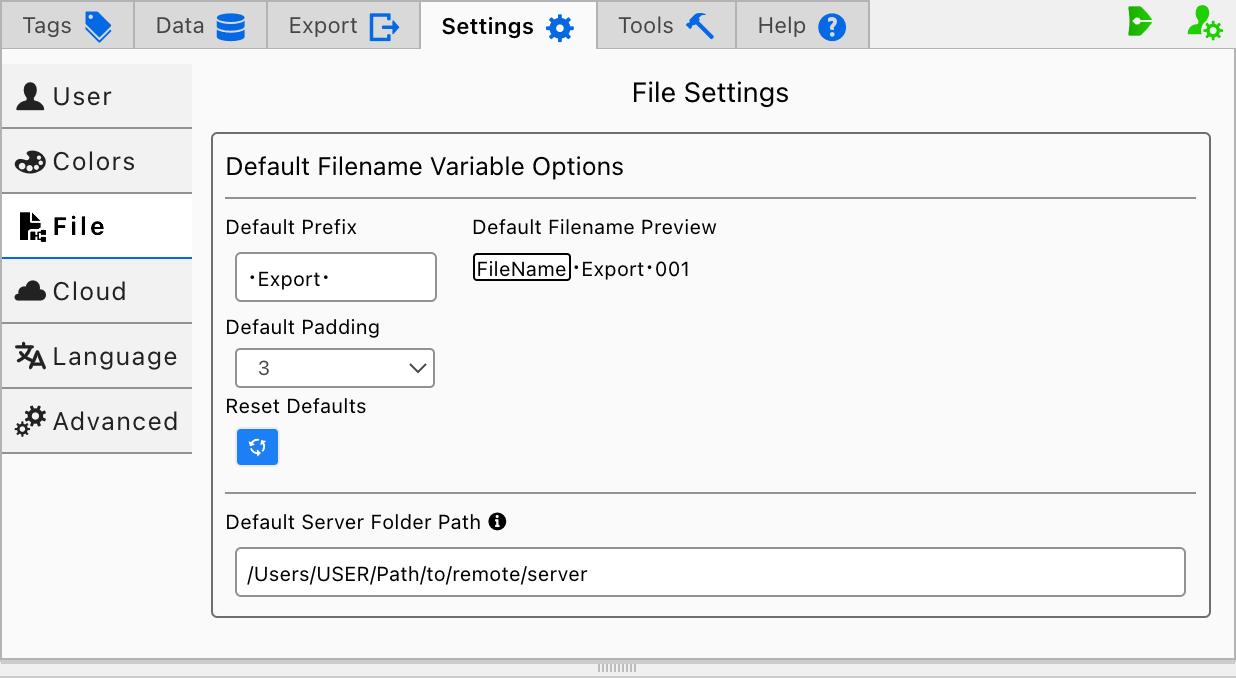
{{TEMPLATE}}– This variable resolves to the location of the Illustrator template file. Use this variable when you want to reference files located relative to the template file. By default, relative paths are resolved relative to the template file.{{DATA}}– This variable resolves to the location of the spreadsheet file. Use this variable when you want to reference files located relative to the spreadsheet file. It only works when the spreadsheet is stored locally and not in the cloud.{{SERVER}}– This variable resolves to a custom base path set in the Darty-Ai settings. This is useful for referencing files stored on a server or a shared network location, that on one system might beM:and on another system might be\\server\shared\.
Set the {{SERVER}} variable in Darty-Ai’s
Settings > File > Default Server Folder Path
field to define your custom
server path.
Example usage:
{{TEMPLATE}}/images/image.png– References an image located in the "images" folder that is in the same directory as the template file. This is the same as using a relative path like./images/image.pngorimages/image.png.{{DATA}}../assets/logo.svg– References a logo file located in the "assets" folder located in the folder that contains the folder that contains the spreadsheet file.{{SERVER}}/projects/project1/image.png– References an image located in the "projects/project1" folder on the server or shared network location.
🤓 Relative Path Generator 🤓
To help you generate relative paths, we have included a simple relative path generator tool below. Just select the path variable, and paste in the absolute paths of the base and target folders to get the relative path that you can use in your sheet.
You can easily copy the absolute path of a folder on your system by shift right-clicking the folder and selecting "Copy as Path" (Windows) or using ⌘⌥C (Command Option C) (Mac).
Copy the resulting relative path and paste it into your sheet.
Example: If your template file is in /Users/User/server/darty-ai/template-files and your images are in /Users/User/server/darty-ai/template-files/images, select the NONE or {{TEMPLATE}} variable options, enter those absolute paths, and the generator will give you the relative path ./images or {{TEMPLATE}}/images to use in your sheet header. In the data cells, you can then just use the file name (e.g. dog.png) and Darty-Ai will resolve it to {{TEMPLATE}}/images/dog.png when placing the file.
🗂️ Folder Path List Generator 🗂️
If you need a list of the files in a folder, including selected subfolders, use the Folder Path List Generator on the Placing Images page. It generates relative, absolute, or {{TEMPLATE}}, {{DATA}}, and {{SERVER}} paths, view the results, and download them as Excel or text. You can filter the folders to include. This can be super useful for generating a list of images to place in your Darty-Ai spreadsheets and Illustrator templates.
📋 Customer Data 📋
The data you receive from your customers, or the data that is convenient for you to enter will not be in the form of a Darty-Ai spreadsheet. You can utilize the power of Excel and Google Sheet formulas to transform customer data into the format required by Darty-Ai.
We will write a future article on this topic. The basic principal is to use the first sheet in the workbook for the Darty-Ai formatted data, and additional sheets for customer data, use formula transformations to transform the customer data into the required format.
Sample Spreadsheet - Customer Sheet
Raw data from customer
| A | B | C | D | E |
|---|---|---|---|---|
| product | price | discount price | image | tag line |
| Richy the Rhino | $20.90 | $19.99 | 000001 | Make your point |
| Leo the Lion | $2,090 | $1,999 | 000002 | Buy a cute cat with a bite. |
| Buff | ¢1000 | ¢100 | 000003 | Best Big Beautiful Buffalo |
| Rolls Royce | €706360 | €56,36 | 000004 | You won't find a better bargain EVER! |
| Ted | ฿50,323,001 | ฿50,323,000 | 000005 | A friend for life |
| Dart the Darty Cat | ₹1000000 | ₹100000 | 000006 | Darty-Ai's star cat |
| Beautiful Bouquet | ¢99 | ¢59 | 000007 | From Holland's Hights |
| Soft Chair | ¥199.99 | ¥99.99 | 000008 | Poodle included for FREE |
| Holiday Hotel | ฿1000 | ฿863 | 000009 | FIVE STARS with style |
| Paradise Hut | £11 | £9.99 | 000010 | Find your soul, with pool included |
| Darty | $100 | $90 | 000008 | Darty Sample |
Sample Spreadsheet - Darty-Ai Sheet
This is the sheet that Darty-Ai processes. It can be generated from the Customer sheet using formulas to transform the data into the required structure.
| A | B | C | D | E | F | G | H | I | J |
|---|---|---|---|---|---|---|---|---|---|
| image | product | tag-line | regular_price | discount_price | * | ||||
| place | text | text | text | ||||||
| path: images | fittingMethod: fill | replace | color | replace | find: r-price | replace | find: d-price | replace | fittingMethod: shrinkToFrame |
| image file | product | ||||||||
| 000001.jpg | Richy the Rhino | Aero | Make your point | $20.90 | $19.99 | ||||
| 000002.jpg | Leo the Lion | "Amaranth Deep Purple" | Buy a cute cat with a bite. | $2,090 | $1,999 | ||||
| 000003.jpg | Buff | 255 130 50 | Best Big Beautiful Buffalo | ¢1000 | ¢100 | ||||
| 000004.jpg | Rolls Royce | #d0eea9 | You won't find a better bargain EVER! | €706,360 | €56,36 | ||||
| 000005.jpg | Ted | 100 40 30 20 | A friend for life | ฿50,323,001 | ฿50,323,000 | ||||
| 000006.jpg | Dart the Darty Cat | lab "New Swatch" 100 30 -70 | Darty-Ai's star cat | ₹1000000 | ₹100000 | ||||
| 000007.jpg | Beautiful Bouquet | Amazon | From Holland's Hights | ¢99 | ¢59 | ||||
| 000008.jpg | Soft Chair | "Metallic Orange" | Poodle included for FREE | ¥199.99 | ¥99.99 | ||||
| 000009.jpg | Holiday Hotel | ANPA 702-0 AdPro | FIVE STARS with style | ฿1000 | ฿863 | ||||
| 000010.jpg | Paradise Hut | "Dark Brown" | Find your soul, with pool included | £11 | £9.99 |
🛠️ Troubleshooting 🛠️
If you encounter issues with methods not working as expected, double-check the method names and property names for typos. Darty-Ai will indicate any errors and suggest corrections, but it's best to ensure accuracy. Click the 🔴 that will show at the beginning of the methods and properties rows containing errors, to jump to cells with unrecognized methods or properties.
Ensure that the tag searches are correctly specified and that the artwork is properly tagged in Darty-Ai. You can test a tag search in the Tags tab of Darty-Ai to verify it selects the intended artwork.
The tag search will also be highlighted in red if no artwork is found for the specified tag search. 🔴 means the tag search is invalid, 🟡 means that no artwork is found by the tag search, 🟢 means that artwork has been found. Refer to the methods documentation for guidance on correct usage.
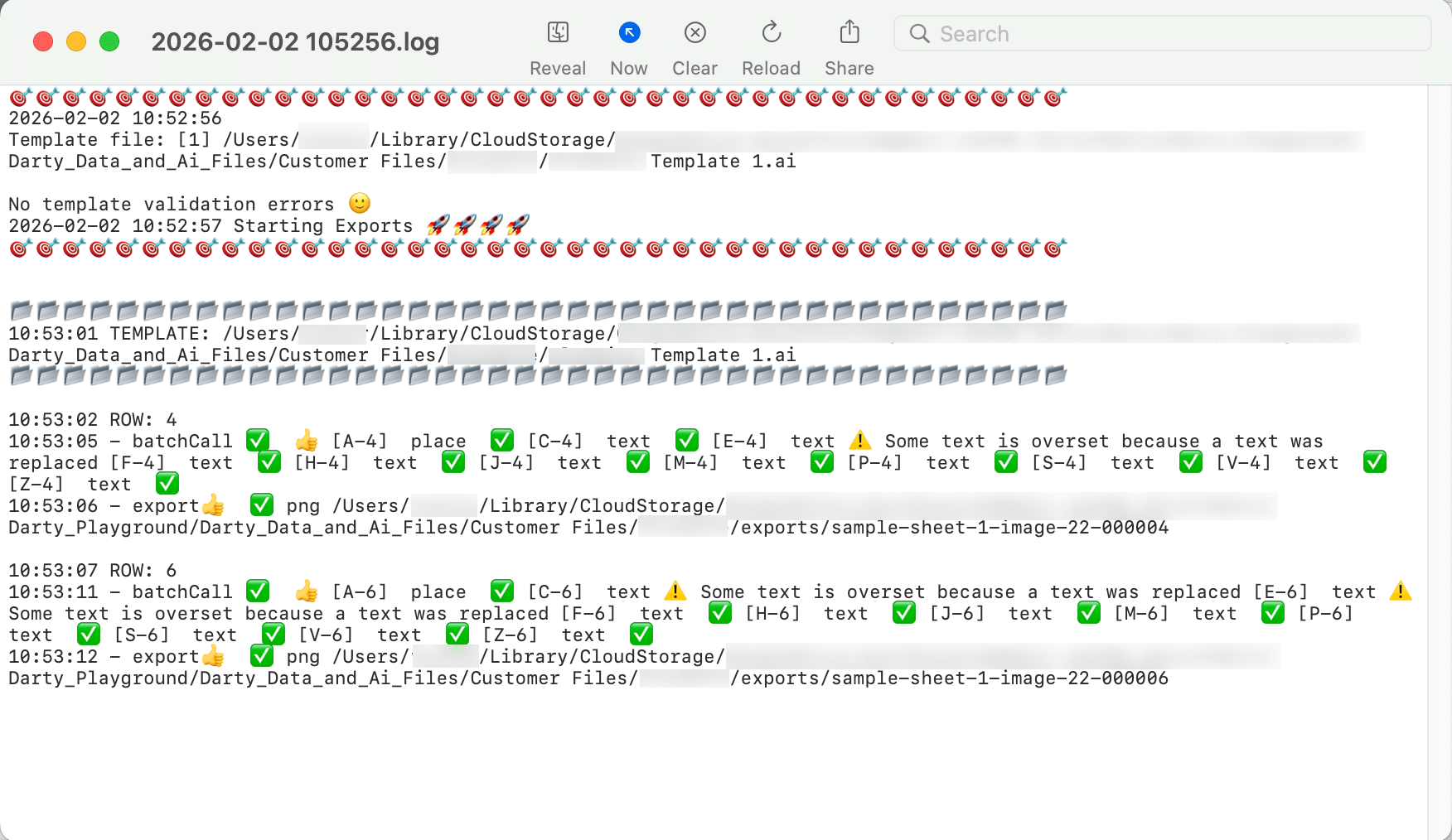
Check out Darty-Ai's help tab for tips and links, and the export error logs for more information on any issues encountered. 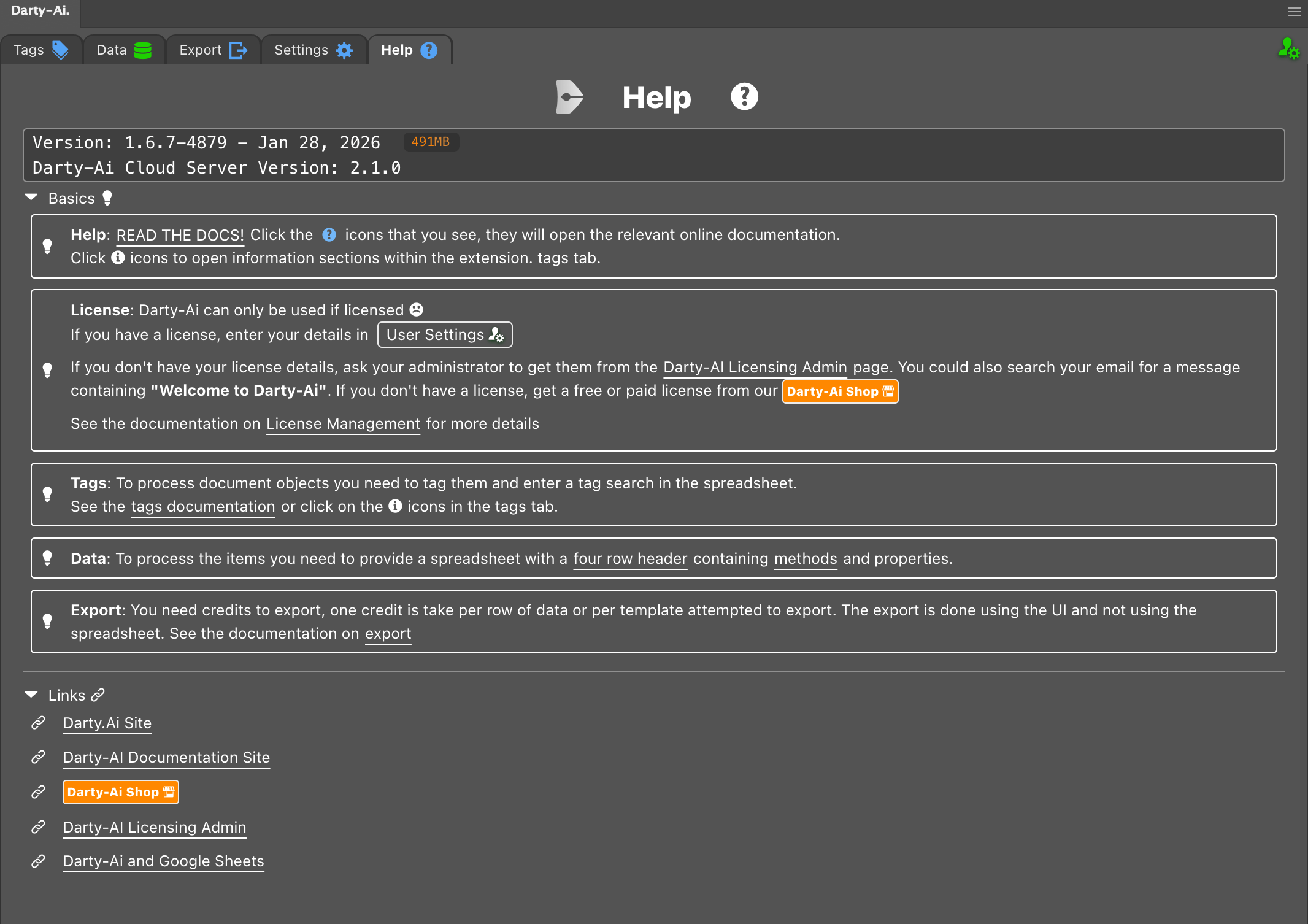
❌ Common Mistakes to Avoid ❌
To ensure smooth operation with Darty-Ai, avoid these common mistakes when setting up your method blocks:
- 😬 Including tag searches or method names in multiple columns of a method block.
- 🙃 Misspelling method names or property names.
- 😕 Using incorrect syntax for default values.
- 😲 Forgetting to include row 4 - the label row, even if unused.
- 🙄 Not verifying tag searches select the intended artwork.
By being mindful of these pitfalls, you can create effective and error-free spreadsheets for Darty-Ai.
📚 Additional Resources 📚
For more detailed information on using Darty-Ai, refer to the following resources: