
Update
Darty-Ai now supports private Google Sheets through Google’s official OAuth authorization system 👍This lets you securely use Google Sheets shared with your business email, without making them public.
We now recommend this method instead of the service account workflow.
Please see our Using Private Google Sheets with Darty-Ai article for the latest setup instructions.
Public Sheets
For publicly shared Google Sheets, click the cloud icon. 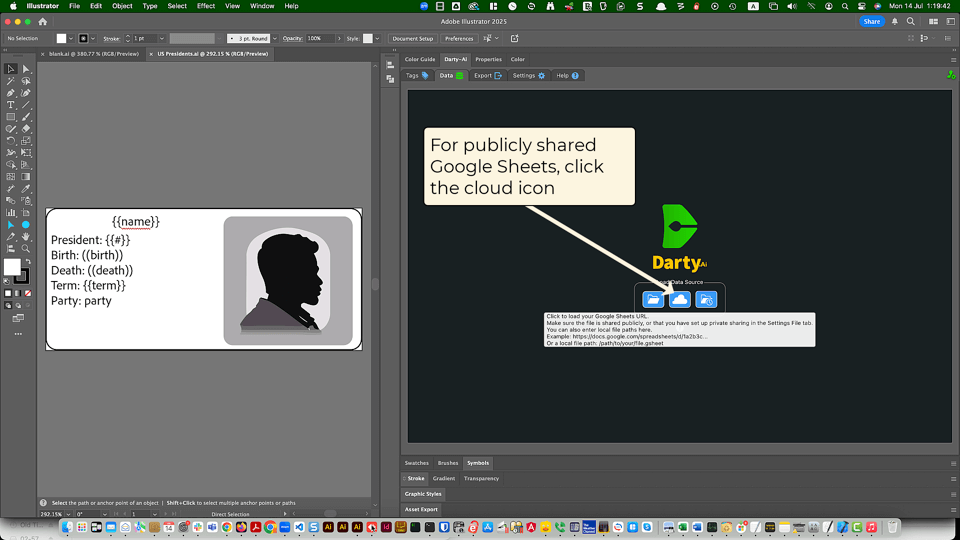
Paste the Google Sheet URL (address) you see in the browser bar or in the share panel, Then click import. 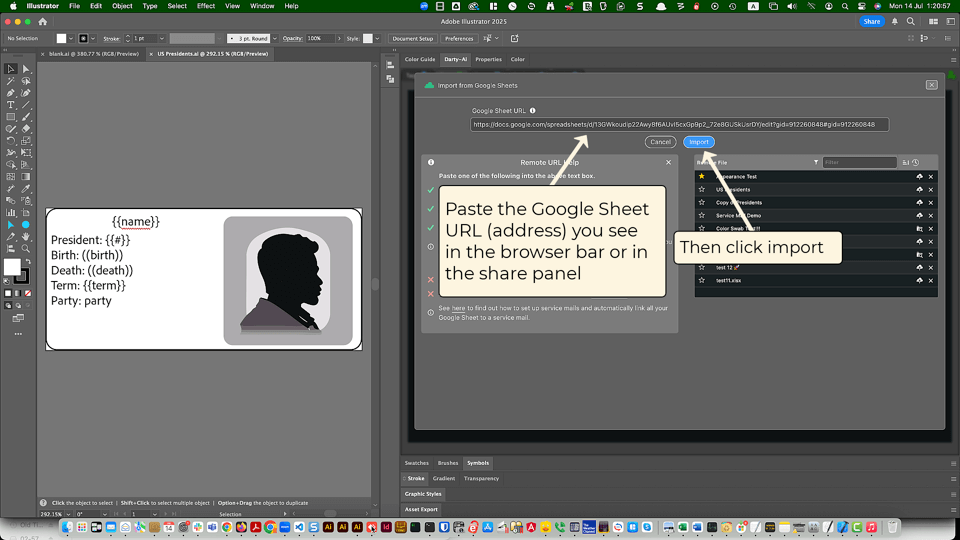
Private Sheets - Setting Up A Service Account
Update
Darty-Ai now supports private Google Sheets through Google’s official OAuth authorization system 👍This lets you securely use Google Sheets shared with your business email, without making them public.
We now recommend this method instead of the service account workflow.
Please see our Using Private Google Sheets with Darty-Ai article for the latest setup instructions.
To work with privately shared Google Sheets in Darty-Ai, you'll need to set up a Google Service Account. A service account is a special kind of Google account that lets apps like Darty-Ai access your sheets securely, without using your personal email. Darty-Ai cannot access sheets shared with personal emails like email@gmail.com, only public sheets or those shared with a service account. Don’t worry if the steps seem unfamiliar — you don’t need to understand them! Just follow along with this video or this written guide, which includes screenshots of every step.
To set up a private Google Service Account. Enter console.cloud.google.com in the browser address tab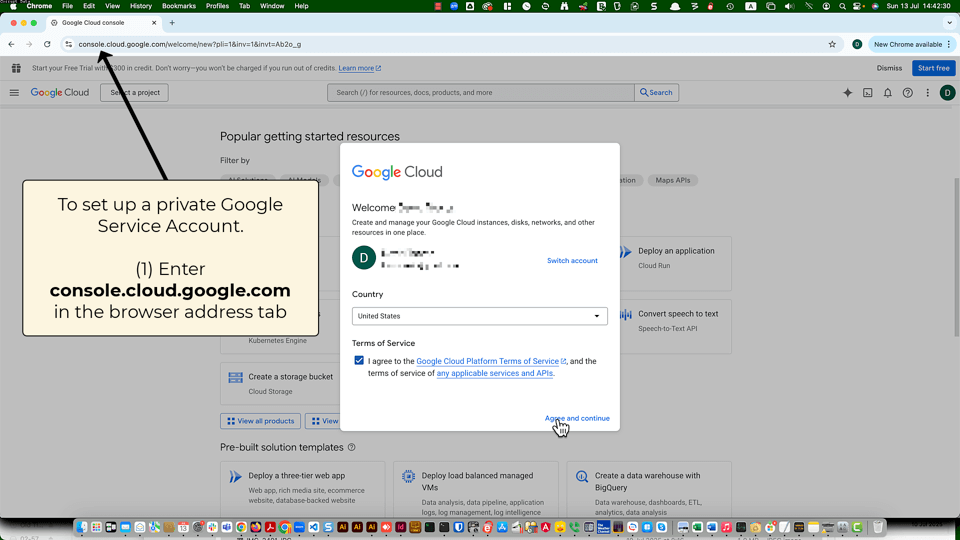
To set up a private Google Service Account. Enter console.cloud.google.com in the browser address tab
Add a project by clicking Select a project 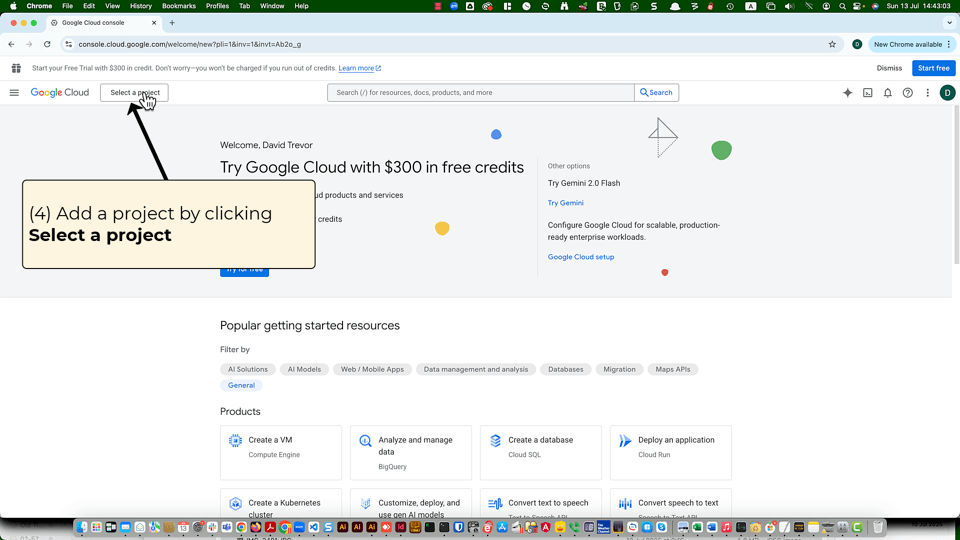
Click New Project 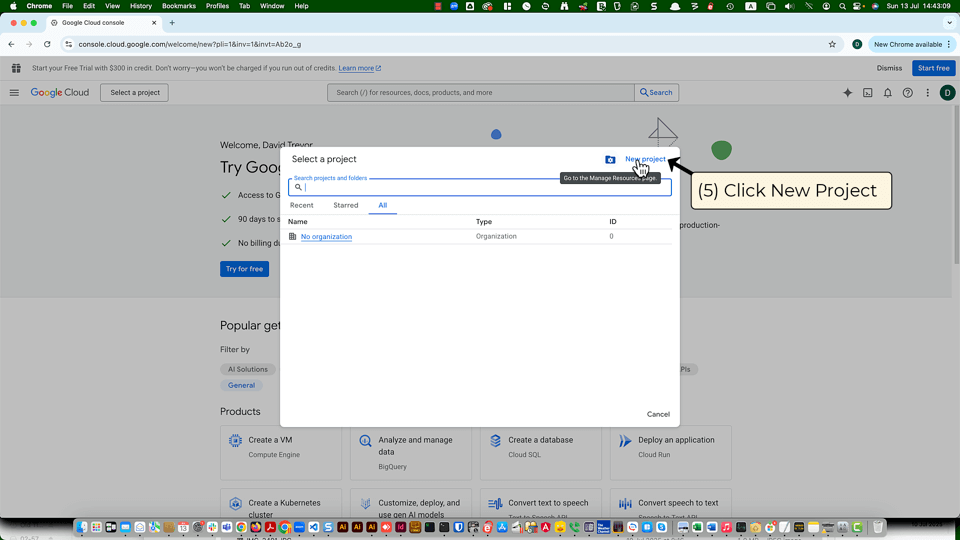
Pick a project name. Any name you like. Pick a project ID. This will be included in the end part of the email you share. Ignore the location field unless you know what you are doing. Click on Create. 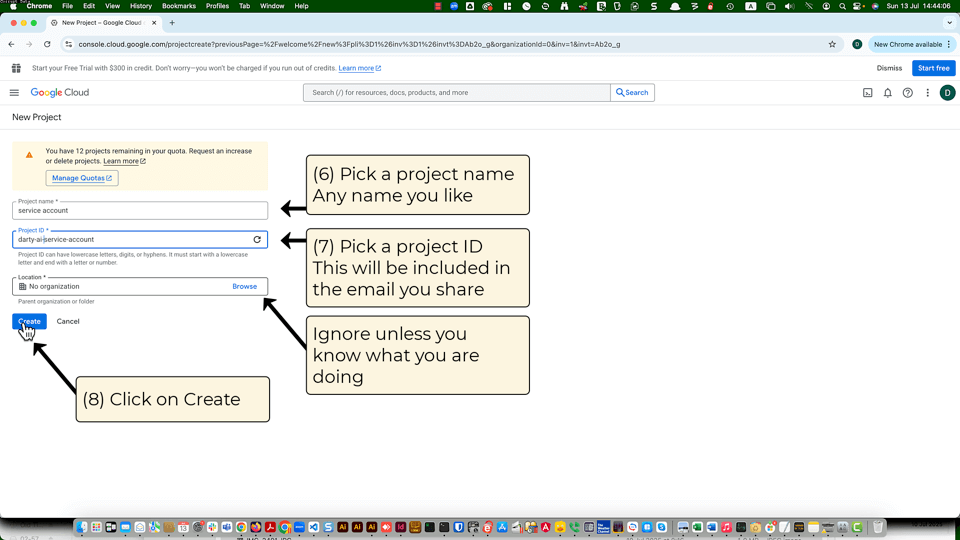
Select the Enabled APIs & services option from the APIs & services entry in the left side menu. 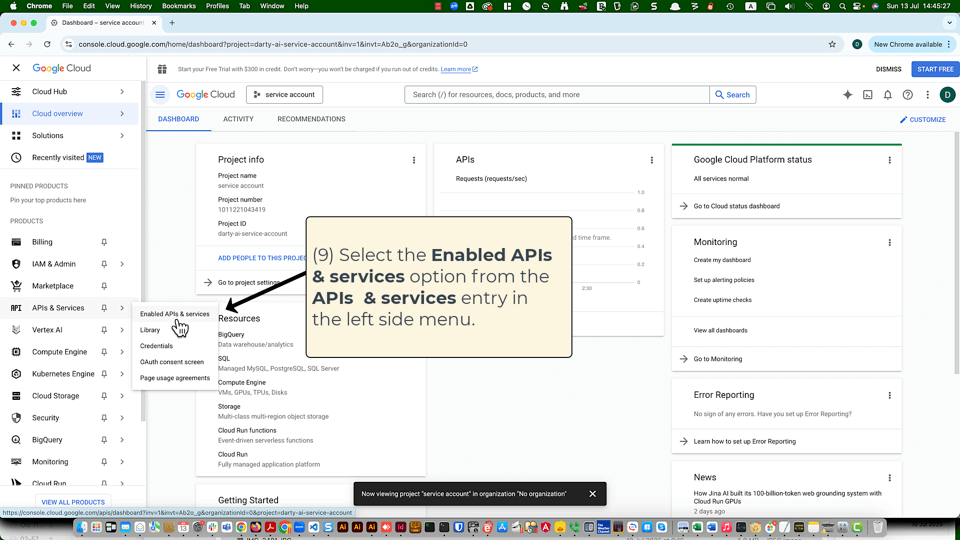
Enter Google Sheets in the search bar. 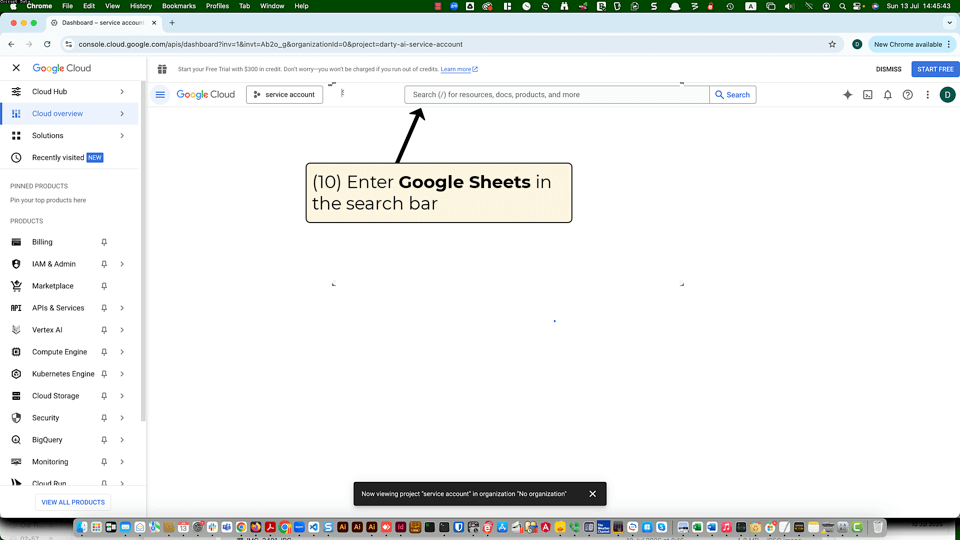
Click Google Sheets. 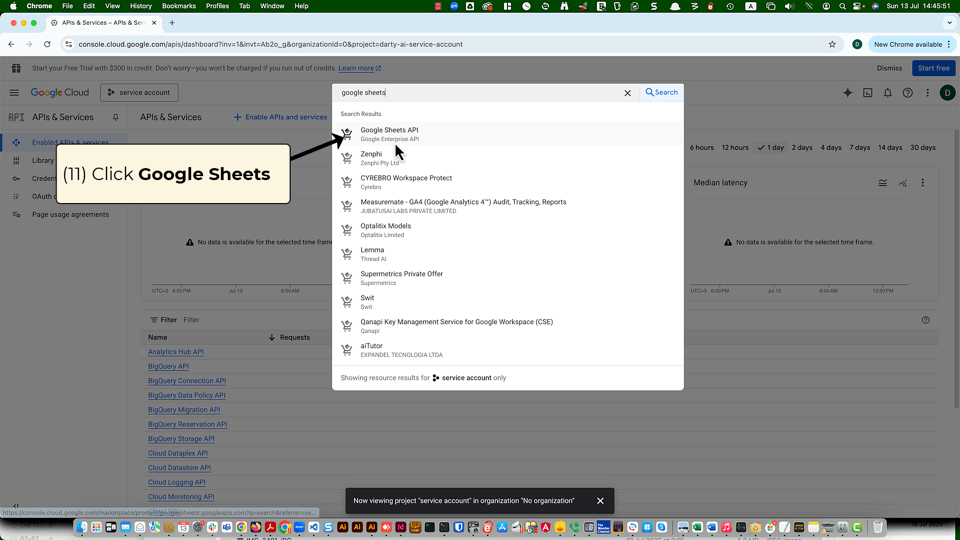
Click Enable 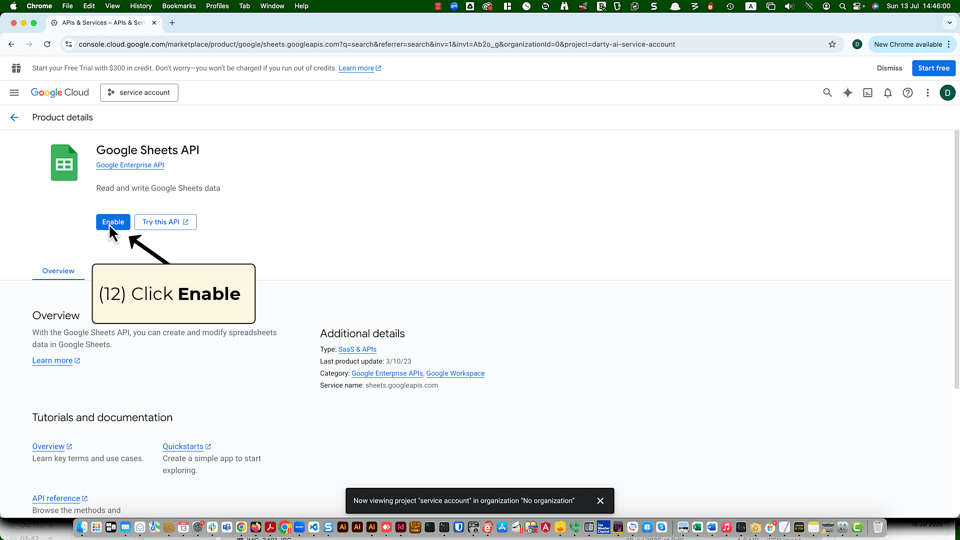
Type service account in the search bar. Then click on service accounts. 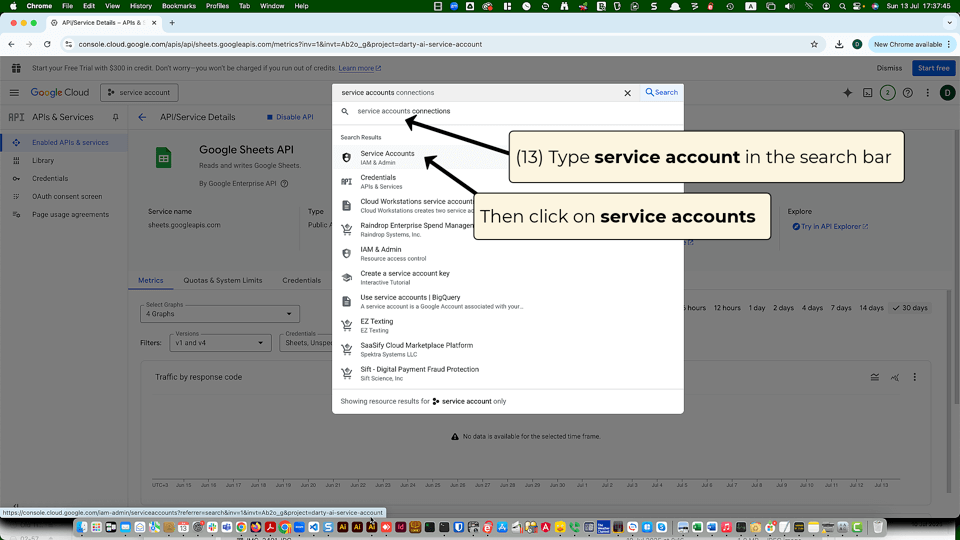
Click Create service account. 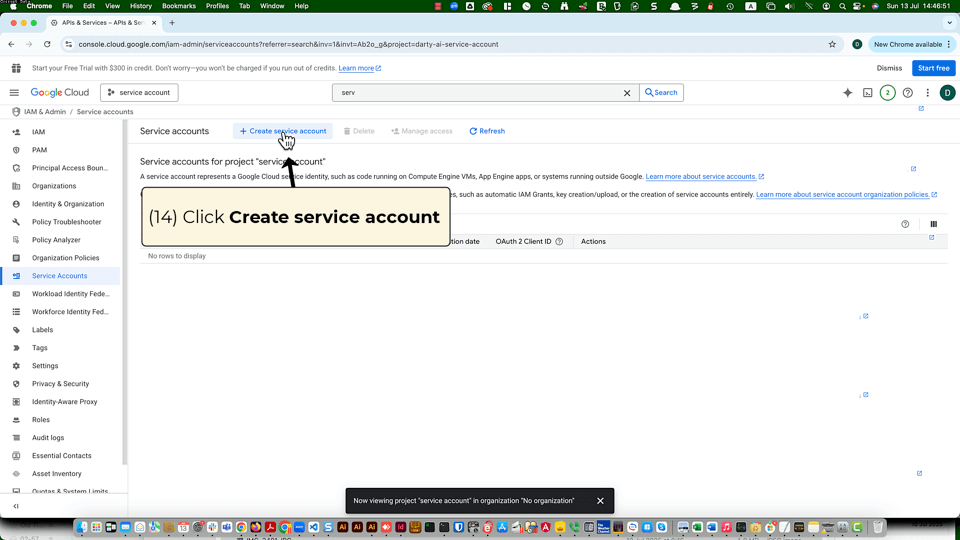
Enter a name for the service account. Enter an ID. This will be the first part of the email you share. Enter a description, something like, "My Darty-Ai Service Account" Click on Next or Permissions. 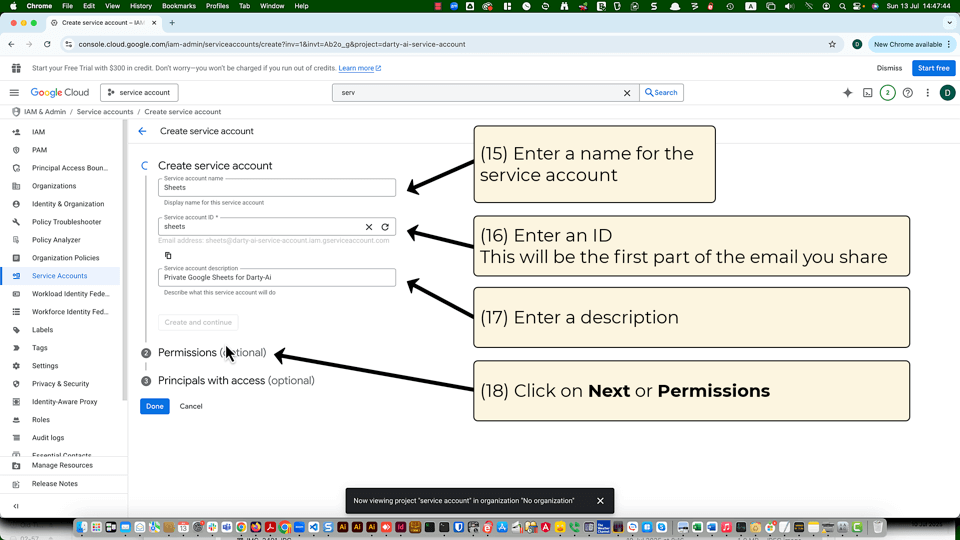
Click on Basic and then Viewer 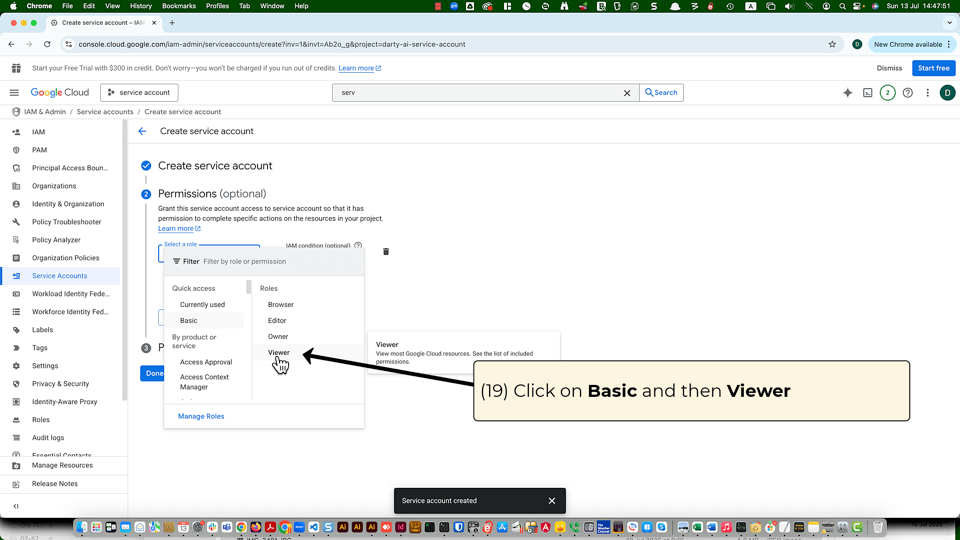
Click Done 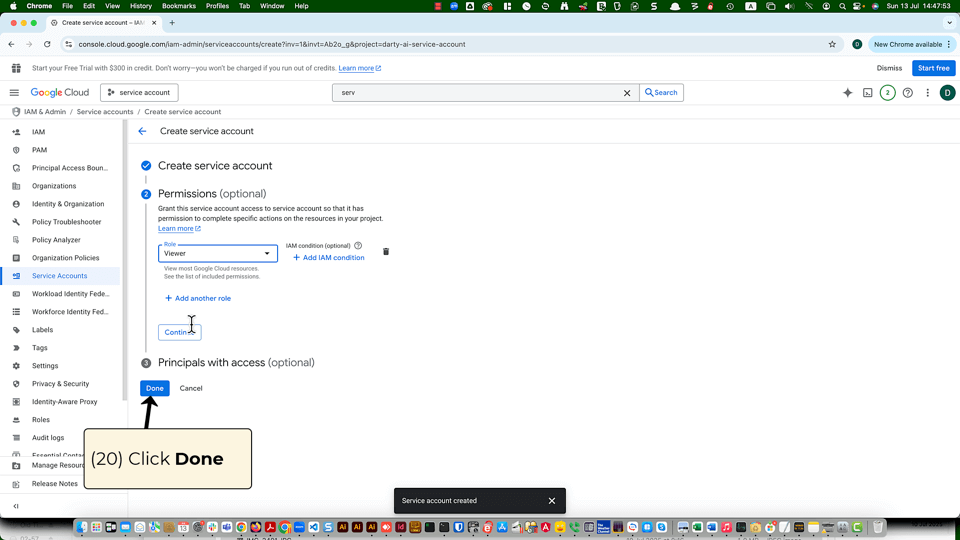
Click on Actions and then Manage Keys. 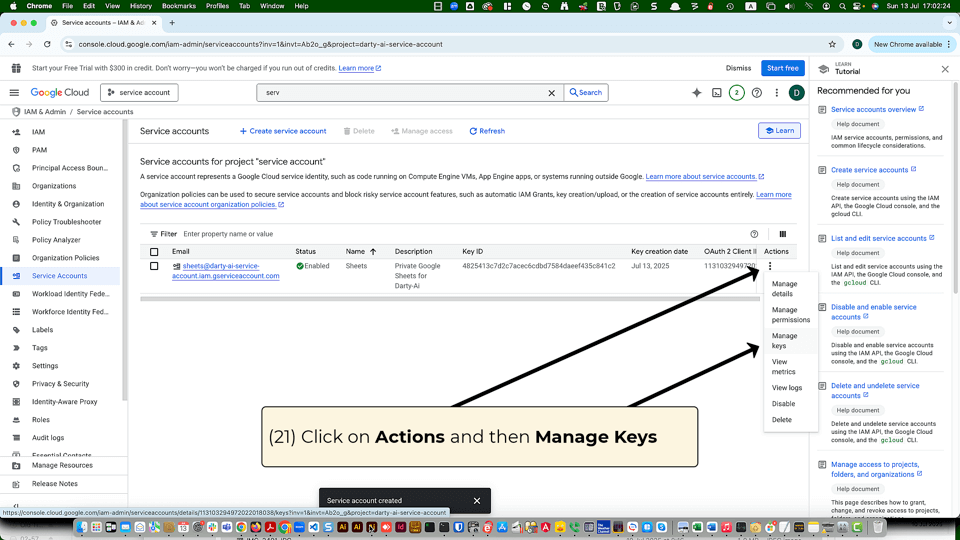
Click on Add key and then Create new. 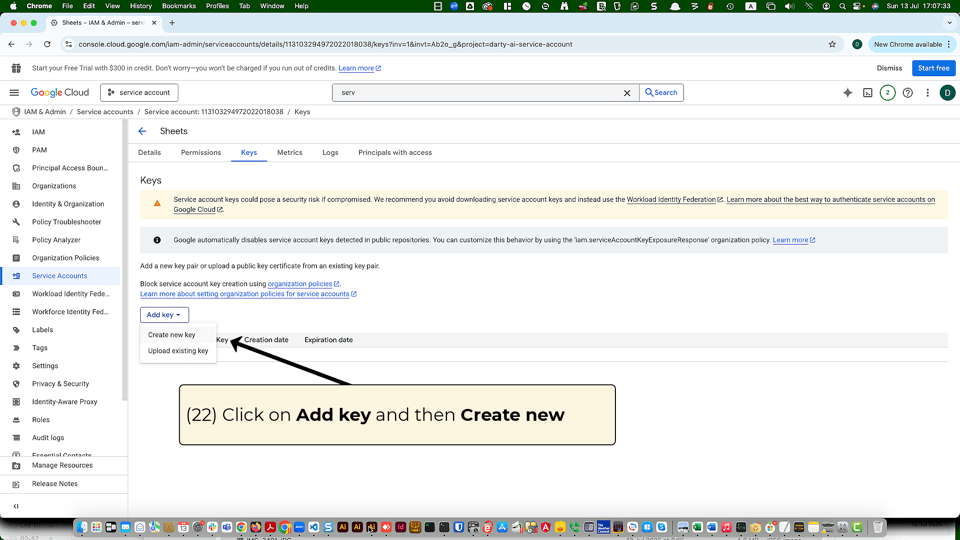
Leave on JSON and then click Create 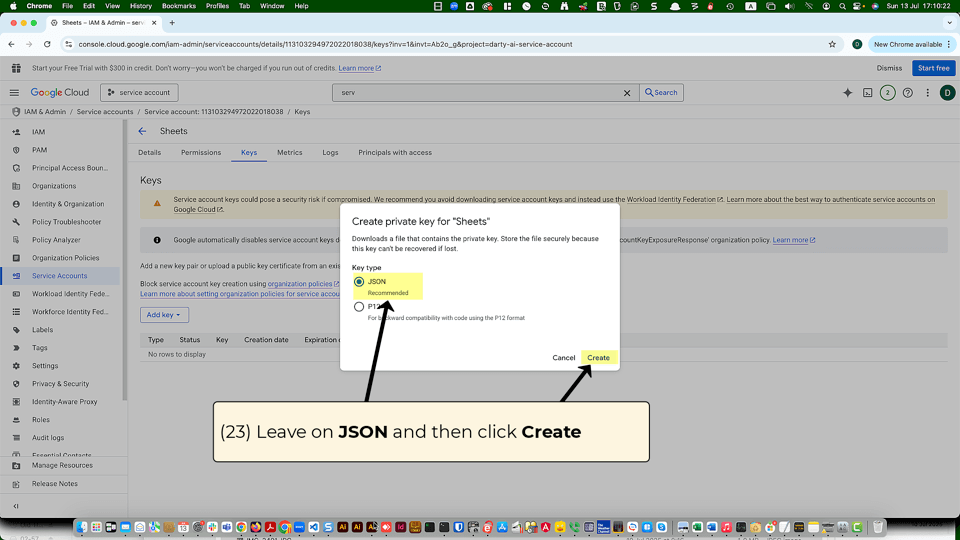
Your Service Account is now downloaded and ready for use! 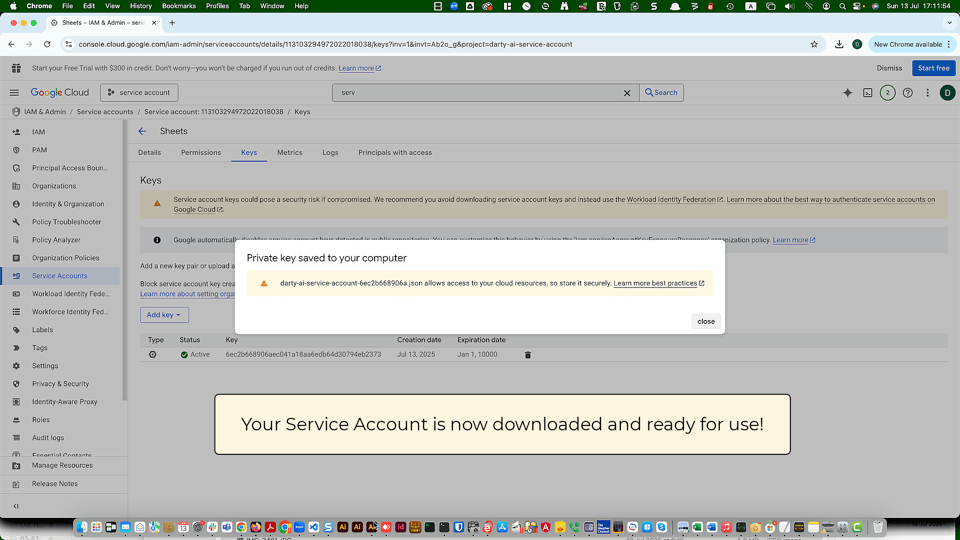
To use your service account with Darty-Ai, open the Settings tab, go to the Cloud sub-tab, and click either Load Private Google Sheet or Add Account. 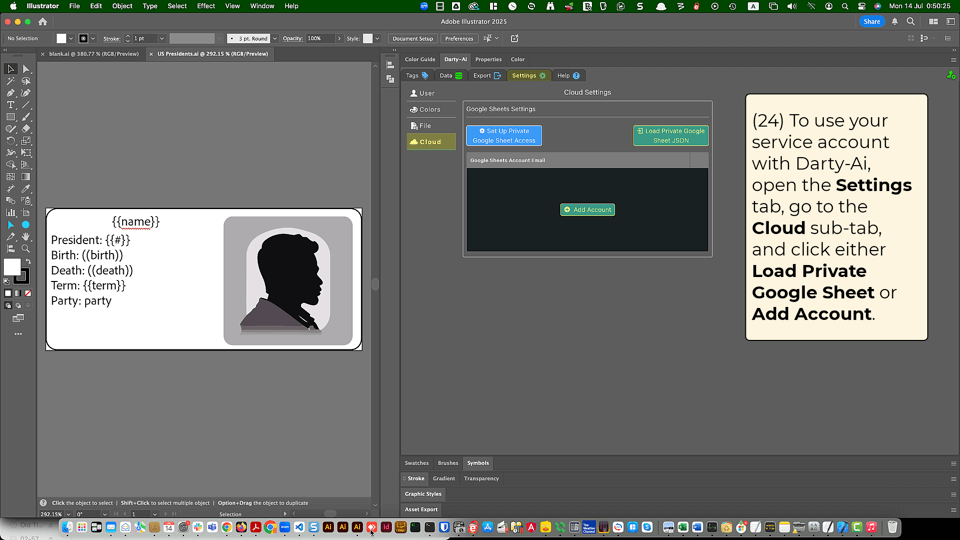
Select the service account JSON file that you created using Google’s console. 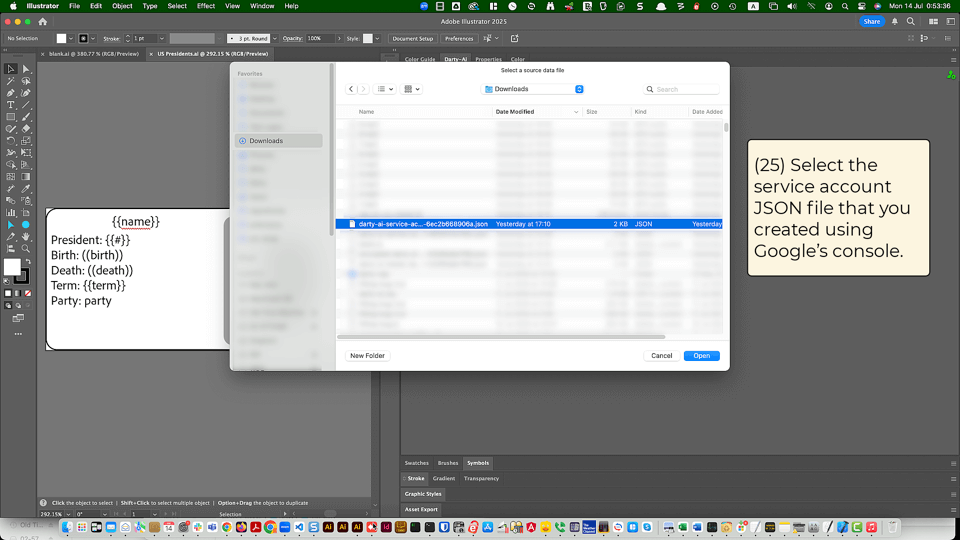
You have added the service account to Darty-Ai and it is ready for use! 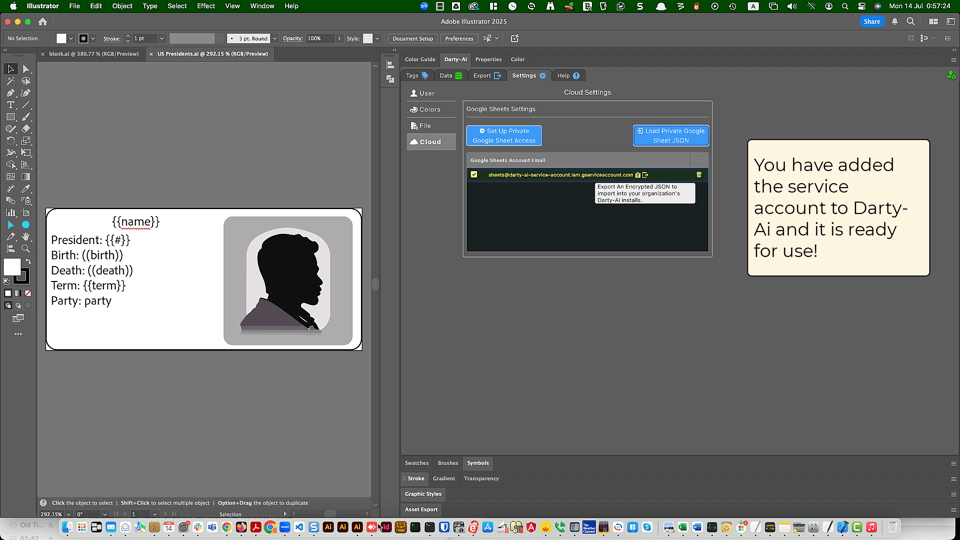
To share your service account securely with team members on the same Darty-Ai license, click Export. The encrypted file is locked to your license and can’t be used elsewhere. 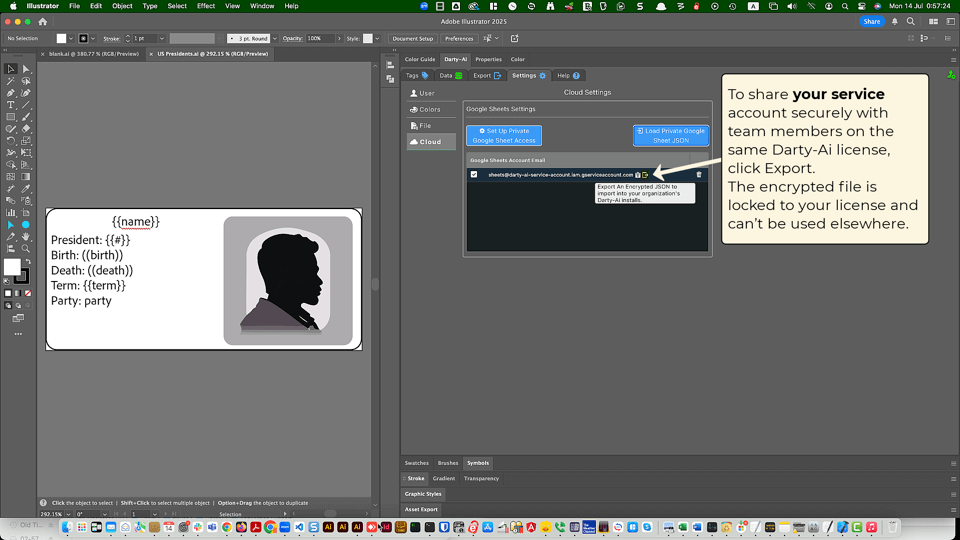
Click the Copy Email icon to copy the service account email to your clipboard for easy sharing. 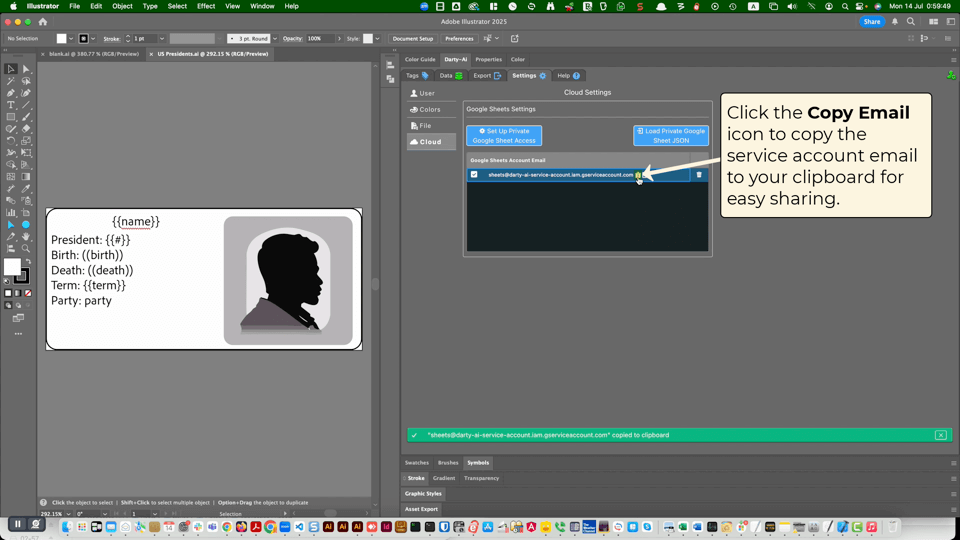
To share a sheet with your service account, simply click Share and paste the service account email into the Add people field. 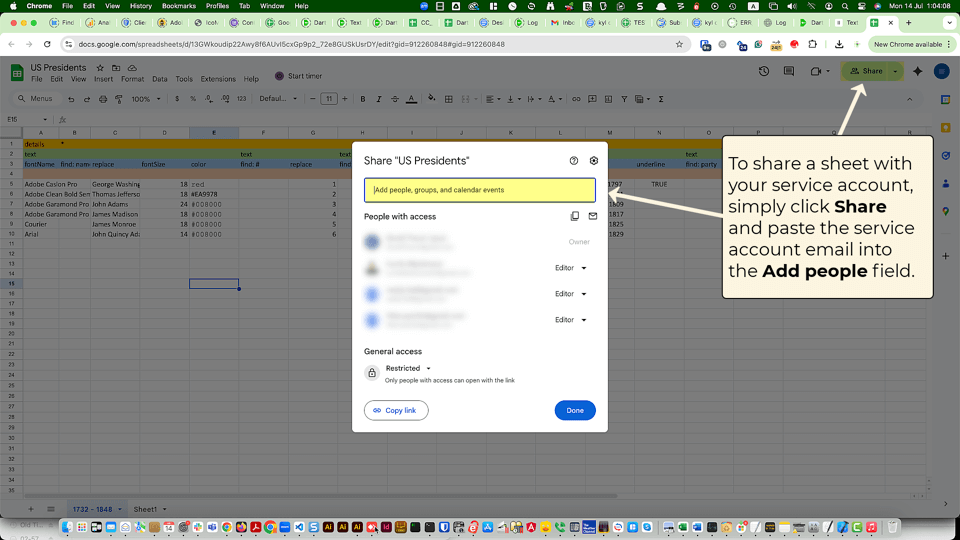
For maximum security, choose Viewer access. 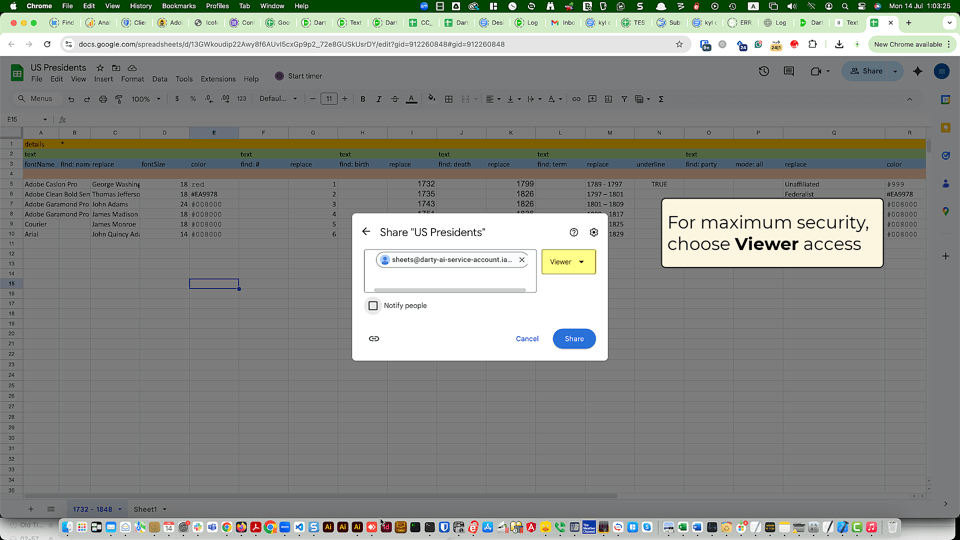
We hope you can now easily set up a service account, so you can work with Google Sheets without needing to make your sheet public. Keep in mind: unlike public sheets, which can be accessed as Excel or CSV files, sheets shared with a service account must remain in Google Sheets format.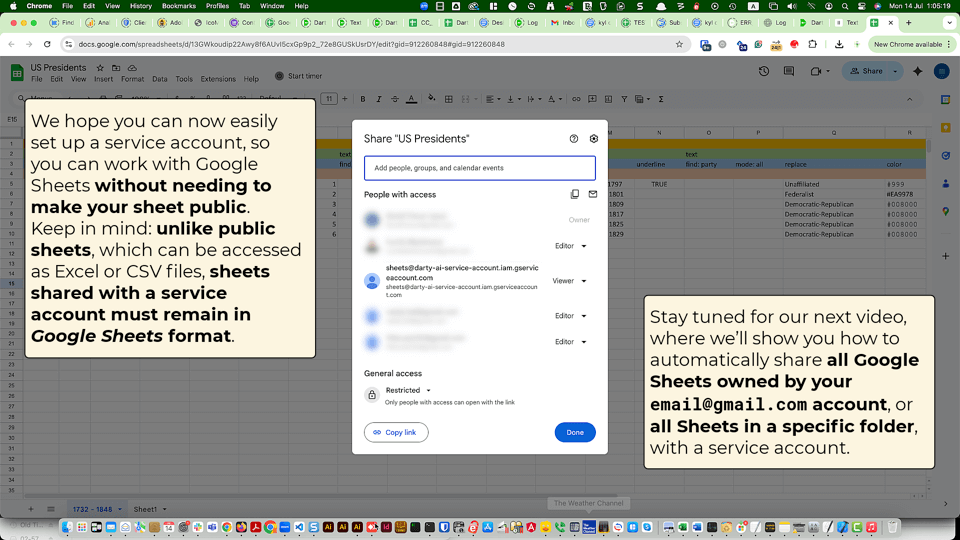
Stay tuned for our next video, where we’ll show you how to automatically share all Google Sheets owned by your email@gmail.com account, or all Sheets in a specific folder, with a service account.