
Group Tool
Use Tools → Methods → Group when several tagged objects should become one Illustrator group. Grouping preserves the artwork inside the result while letting later Darty rows move, transform, duplicate, or otherwise address the collection as one object.
Group does not merge paths or flatten appearances. Use Compound Path, Pathfinder, or Clipping when the intended result is a new path structure or clipping group.
For spreadsheet syntax and accepted properties, see the Group and Ungroup method reference.
Choose the Artwork to Group
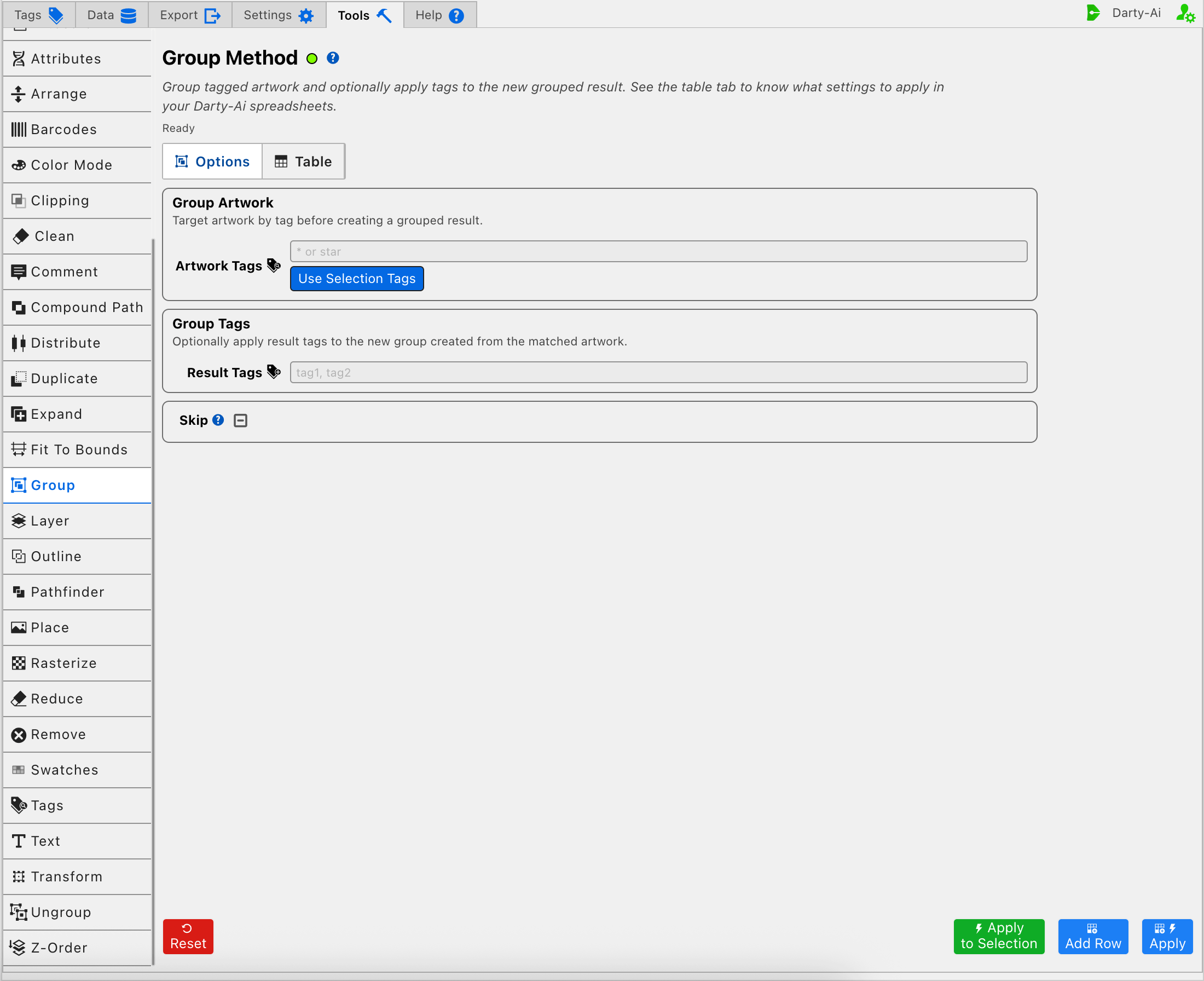
Artwork Tags identifies the objects that will become members of the new group. Enter the tags shared by the intended set, or use a tag-search expression when the members are found through different tags.
For example, front | back | label can collect artwork carrying any of those tags into one grouped result. Review the matched artwork carefully: one Group row acts on the complete matched set, rather than creating a separate group for every tag in the expression.
The * target is deliberately broad and may collect unrelated eligible artwork. Prefer a specific search unless the entire working set is meant to become one group.
Use Selection Tags copies Darty tags from the artwork currently selected in Illustrator into Artwork Tags. It helps construct a reusable target expression; it does not group the selection immediately.
Apply to Selection runs the current Group configuration against the selected artwork for a direct test. This is different from Use Selection Tags: one fills the reusable target field, while the other performs the method on the current selection. See Tools Method Actions and Apply Modes.
Tag the New Group
Result Tags writes tags for the newly created group. Use these tags when another method should find the group as one object after its members have been combined.
A practical handoff is:
- Target the member artwork with tags such as
front | back | label. - Give the result a stable tag such as
assembledProduct. - Use
assembledProductas the target of a later Transform, Duplicate, Arrange, or Export-related row.
Result Tags apply to the group created by this operation; they do not replace the Artwork Tags search that selects its members. Multiple result tags can be entered as the tag list accepted by Darty.
Leave Result Tags blank if no later method needs to find the grouped result by a new tag. The grouping operation can still run, but the result will be less convenient to target as a unit in subsequent rows.
Skip the Group Row When Needed
Skip is a three-state checkbox that writes skip only when True or False is selected.
- True writes
skip:trueand prevents Group from running for that data record. - False writes
skip:falseand explicitly allows it to run. - Unset omits the property and leaves the row to its normal behavior.
This is useful when one reusable sheet handles products whose artwork sometimes arrives pre-grouped. See Skip and * for the equivalent spreadsheet patterns.
Avoid Common Grouping Problems
- Target at least two appropriate objects when the desired result is a meaningful group.
- Use narrow tags so unrelated artwork is not pulled into the same group.
- Do not expect Group to combine path geometry; the members remain separate objects inside a group.
- Assign Result Tags when later rows need to treat the new group as their target.
- Test structural changes on representative artwork before applying the row across a full data set.
Build a Useful Group Configuration
- Decide which objects must behave as one unit after this row.
- Enter a focused Artwork Tags search, or use the current selection to collect its tags.
- Enter Result Tags if another row must find the new group.
- Set Skip only when the method must vary by data record.
- Use Apply to Selection for a direct structural test, or Add Row to capture the reusable configuration.
- Inspect the Table preview before using Apply across the intended records.
Control-to-Property Summary
| Editor purpose | Darty property |
|---|---|
| Artwork that becomes group members | Target header / tagSearch |
| Tags assigned to the newly created group | tags |
| Skip Group for a data row | skip |
Capture, Apply, and Review
- Tools Method Actions and Apply Modes explains Reset, Add Row, Apply, and Apply to Selection.
- Tools Method Table Preview explains how to inspect, edit, reorder, copy, download, and apply captured Group rows.
- Group and Ungroup method reference documents the spreadsheet properties and examples.