
Outline Tool
Use Tools → Methods → Outline to convert tagged Illustrator text into vector outlines. The result preserves the text's rendered letter shapes but is no longer editable as text, so Outline is best used near the end of a production workflow—after the wording, font, and text formatting are final.
Outline is useful when a deliverable must not depend on installed fonts, when letterforms need to become ordinary vector artwork, or when later Illustrator operations must work on shapes rather than live text.
For spreadsheet examples and the underlying nested-group behavior, see the Outline method reference.
Outline Editor
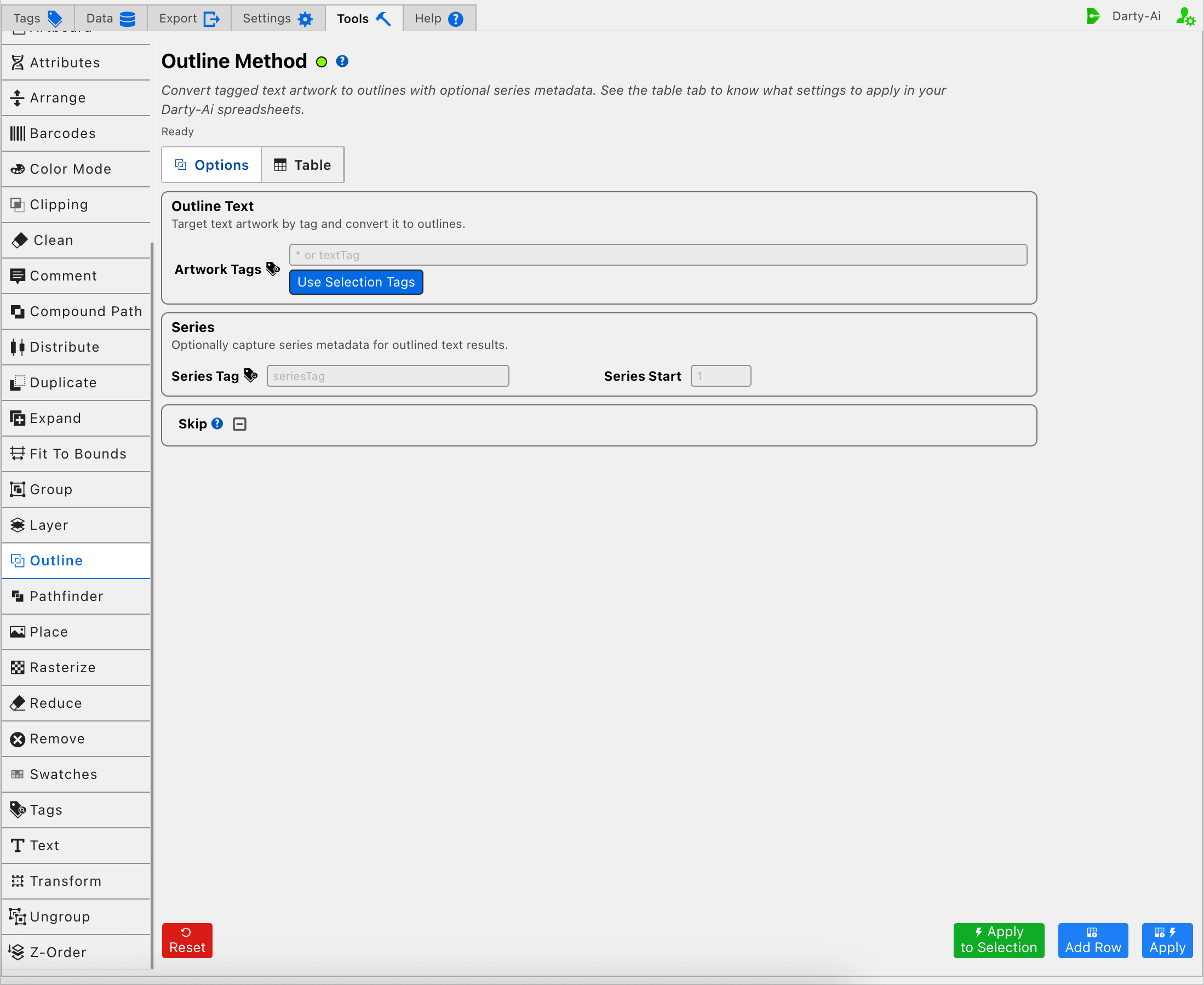
Choose the Text to Outline
Artwork Tags identifies the text artwork or containers to process. Its value becomes the Darty sheet's target header rather than a property column.
Enter a Darty tag search such as headline, legal-copy, or a more specific expression. The target does not have to be a text frame itself: if a tagged group contains text, Outline converts text throughout that group, including text nested below the group's top level.
This makes a group tag convenient when an entire labeled design region should be finalized at once. Use a tag directly on the text when only that specific frame should be converted.
If Artwork Tags is left blank, the Table preview normalizes the target to *, allowing the method to outline text throughout the document. Because outlining cannot be reversed by another Darty method, use that broad target deliberately.
Use Selection Tags reads the existing Darty tags from the artwork currently selected in Illustrator and copies them into Artwork Tags. It does not create tags or outline the selection. When several tags are found, the editor can build an OR search such as front | label.
For tag operators and matching behavior, see Darty Tags.
Test the Current Selection
Apply to Selection is the safest way to test an Outline configuration on the artwork currently selected in Illustrator. Darty temporarily targets that selection, runs the method once, and does not add a row to the Outline Table.
Before testing, save the Illustrator document or keep an editable copy. After conversion, the resulting paths can be transformed like vector artwork, but the original characters, font assignments, and normal text editing are no longer available from those paths.
Apply to Selection also honors nested contents: selecting a group for the one-time operation can outline the text inside that group.
Give Outlined Results Numbered Tags
The Series section is optional. Use it when later rows need predictable Darty tags for the outlined results.
Series Tag writes seriesTag and supplies the shared prefix. Series Start writes seriesStart and chooses the first number appended to that prefix.
For example, Series Tag outlined-label with Series Start 1 produces numbered tags beginning with outlined-label1, followed by outlined-label2, and so on as the method tags its results. A later row can target one exact result or use a starts-with search to address the whole outlined series.
Series Start has no effect without Series Tag and must contain a number. Leave both fields blank when the existing target tags are sufficient and the outlined results do not need new numbered identities.
Series tags are especially useful when outlining a group can produce several pieces that must be processed separately afterward. Confirm the generated structure in Illustrator before assuming which number belongs to a particular result.
Plan the Method Order
Outline changes the artwork type from live text to vector paths. That changes which later methods can work with it:
- Run text replacement, font selection, font size, paragraph formatting, and other text-specific operations before Outline.
- Run shape-based operations such as Transform, Align, Pathfinder, or appearance changes after Outline when those operations should act on the vector result.
- Outline before handing a document to a production environment that may not have the original fonts.
- Keep an editable source document when future copy or typography changes are possible.
The Outline row does not provide a keep-original option. Duplicate the text first when the document needs both editable text and an outlined copy.
Skip a Reusable Outline Row
Skip is a three-state checkbox that writes skip and controls whether Outline runs for the current data record.
- True writes
skip:trueand leaves the matching text editable for that record. - False writes
skip:falseand explicitly allows outlining. - Unset omits the property.
Unset does not mean False; it leaves the row to follow the method's normal behavior. Skip is useful when one reusable spreadsheet contains some outputs that require outlined type and others that must retain live text. See Skip and *.
Build a Useful Outline Configuration
- Finish every text, font, and formatting operation that depends on live text.
- Save the Illustrator document or preserve a separate editable source.
- Enter a narrow Artwork Tags search, or select a small test target for Apply to Selection.
- Add Series Tag and Series Start only when the outlined results need numbered identities for later methods.
- Use Apply to Selection to inspect the resulting vector structure on a controlled target.
- Use Add Row to capture the reusable configuration, or Apply to capture and run it.
- Review the target and optional series properties in the Outline Table before applying the row to an entire document or data set.
Validation, Warnings, and Common Problems
- Apply to Selection reports No selection. Select artwork first. when Illustrator has no current selection.
- Series Start expects a numeric value and has no effect when Series Tag is blank.
- A matching group can cause all text nested inside it to be outlined, not only a text frame at the group's top level.
- Artwork that is already paths is not live text and therefore has nothing for Outline to convert.
- After Outline runs, later text-specific rows cannot edit the converted result as text. Move Outline later when text changes unexpectedly stop working.
- A blank Artwork Tags target becomes
*in the Table preview and can outline text across the document. Inspect that target before applying.
Control-to-Property Summary
| Editor purpose | Darty property |
|---|---|
| Text or containing artwork to outline | Target header / tagSearch |
| Numbered-tag prefix for outlined results | seriesTag |
| First series number | seriesStart |
| Skip outlining for a data row | skip |
Capture, Apply, and Review
- Tools Method Actions and Apply Modes explains Reset, Add Row, Apply, and Apply to Selection.
- Tools Method Table Preview explains how to inspect, edit, reorder, copy, download, and apply captured Outline rows.
- Outline method reference documents spreadsheet behavior and nested-group targeting.