
Tables
The tables method creates editable tables in Illustrator, updates an existing managed table, or replaces tagged placeholder artwork with a table. Use it for price lists, specifications, schedules, and other repeated layouts driven by records.
The result contains text frames, cell backgrounds, and divider paths. It remains visible without Darty-Ai; managed resizing, source reloads, and structural changes require the plug-in. Tables are available in the current mainline product, not the LTS channel.
Start with the Table tool to configure a method or the Tables panel to edit document tables live. Sheet Builder combines tables with other methods.
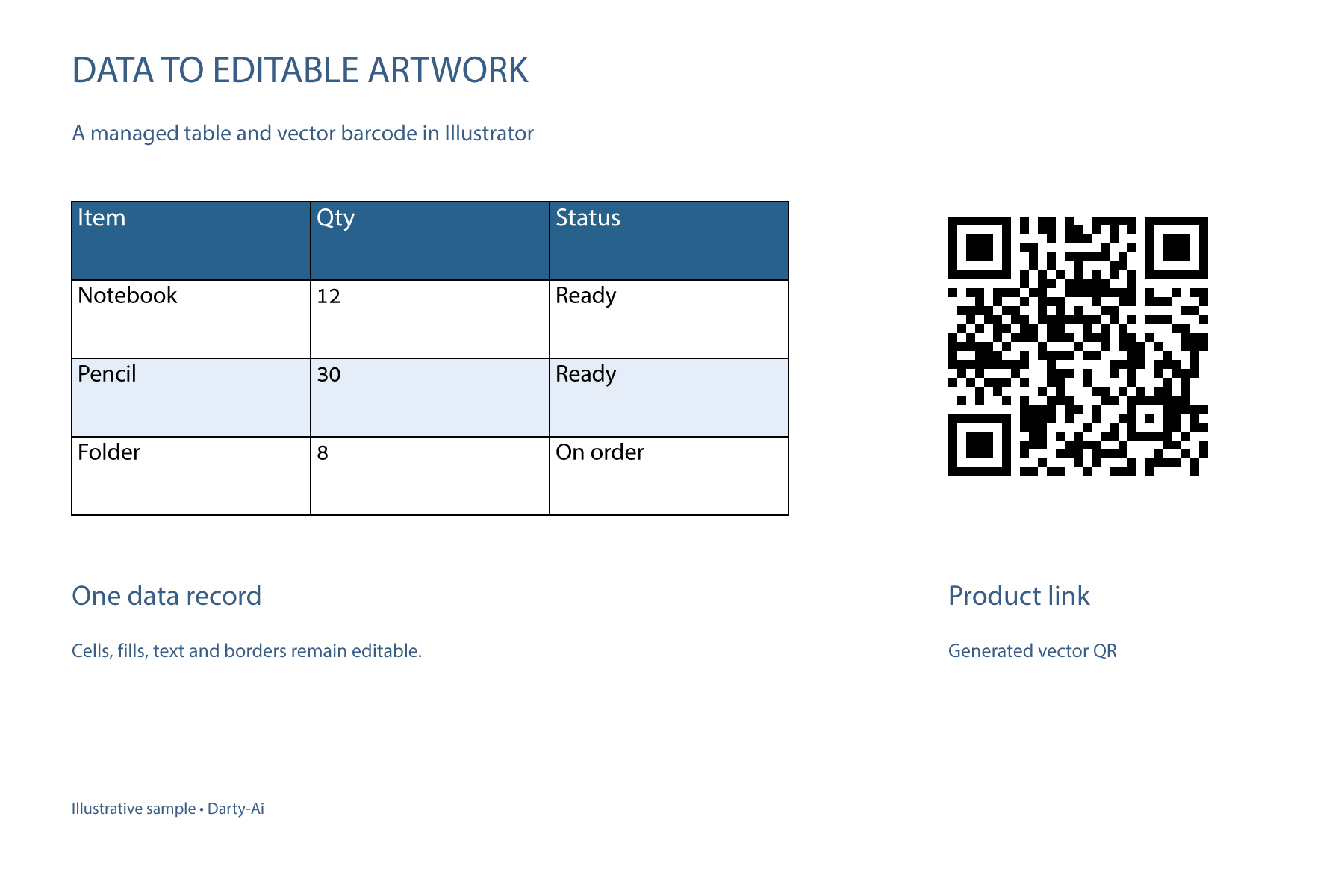
Download the editable Illustrator example. The illustration was generated with the native plug-in; the sheet examples below show how to author records.
Editor controls
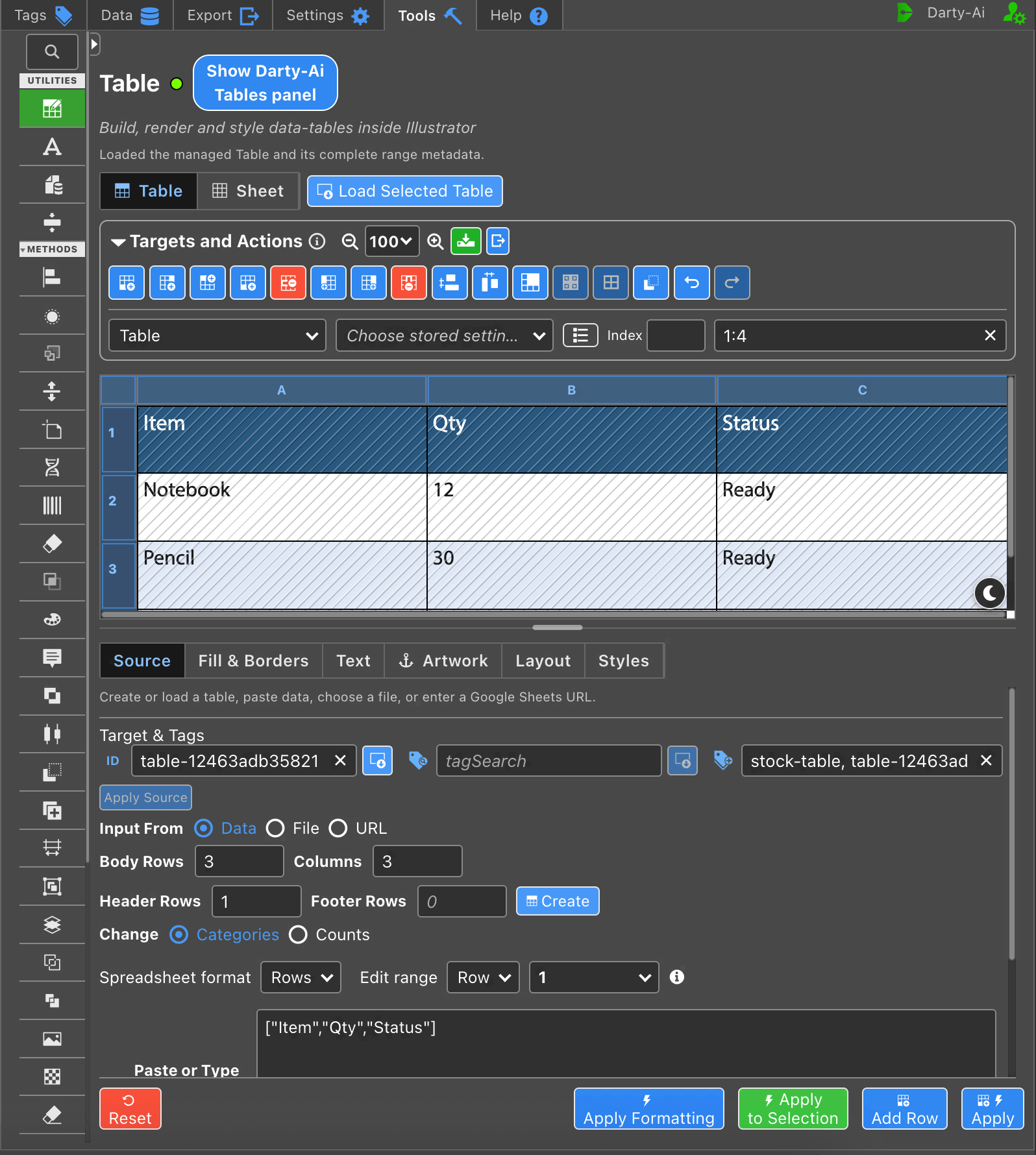
Captured from the running Darty-Ai extension in Illustrator.
Create or update
| Target | Result |
|---|---|
No tableId or tag search | Creates a new table. |
Existing tableId | Updates that managed table. An unknown ID creates a new table with that ID. |
| Tag search matching managed tables | Updates the matching tables. |
| Tag search matching ordinary shapes or text | Replaces matching artwork with tables fitted to the targets. Tagged text can supply delimited cell content. |
Put the tag search in the first header row of the method block. Use semantic tags such as product-specifications; avoid depending on a generated table ID when a reusable template tag will do.
Omitted properties normally preserve an existing table's settings. Supplying cells replaces its cell text; supplying ranges replaces the saved range-rule array. Test a long record followed by a short record when a table changes size.
Ways to enter table data
Choose the entry method that matches how you maintain the data: import a source spreadsheet, supply whole rows or columns, paste a text table, or put the entire table in one nested array. For a small change to an existing table, use an individual cell property such as cell[B3].
Victoria Plum example workbook
Download the Victoria Plum data-entry workbook (XLSX, 130 KB).
The workbook demonstrates seven ways to supply the same four-column nutrition table, including a merged title row and inline Markdown. The downloadable file is the supplied workbook, with all nine tabs intact. Browse its worksheet previews below; the cell contents are shown as authored, including quotes, Markdown, and line breaks.
| Workbook tab | Entry method | When to use it |
|---|---|---|
| 01 - XLSX path | path + sheetName | Keep data in ordinary spreadsheet cells and import a worksheet, including supported formatting. |
| 02 - Google Sheets | url | Maintain the source in Google Sheets. |
| 03 - Rows | row[1] through row[11] | Supply or replace one complete table row per property. |
| 04 - Columns numeric | column[1] through column[4] | Supply columns by one-based number. |
| 05 - Columns letters | column[A] through column[D] | Supply columns using familiar spreadsheet letters. |
| 06 - Markdown multiline | data | Keep the complete pipe-delimited Markdown table in one multiline spreadsheet cell. |
| 07 - Cells nested | cells | Supply the complete table as one nested two-dimensional array. |
| Darty-Ai_Victoria_Plum_Source | Source cells A1:D11 | Ordinary source data imported by 01 - XLSX path; the title is merged across A1:D1. |
| Index | Workbook guide | Describes the examples and their properties. |
Imports the embedded source worksheet using path and sheetName. Keep the downloaded filename, or update path to match its new location.
| Row | A | B | C | D |
|---|---|---|---|---|
| 1 | table | |||
| 2 | tables | |||
| 3 | path | sheetName | parseMarkdown | preserveSourceFormatting |
| 4 | Workbook path | Source sheet | Parse Markdown | Preserve Formatting |
| 5 | {{DATA}}/Darty-Ai_Tables_Selected_Victoria_Plum_Data_Entry_Examples.xlsx | Darty-Ai_Victoria_Plum_Source | 1 | 1 |
Try a workbook tab
- Download the workbook and load it in the Data tab. Select one of the numbered example worksheets. The source and Index tabs are supporting sheets, not method sheets.
- Open an Illustrator document with a managed table or placeholder tagged
table, matching the tag search in row 1. To create a separate table without a tag target, clear that search in a working copy of the example. - Preview the first record, which is worksheet row 5. Rows 1–4 hold the tag search, method name, properties, and column labels.
- For 01 - XLSX path, retain the downloaded filename and keep the workbook available on disk. Its path starts with
{{DATA}}, the folder containing the loaded local spreadsheet, and itssheetNameselects the embedded source tab. If you rename or move the source, update the path. For 02 - Google Sheets, use an accessible Google Sheets URL or substitute your own in cell A5.
The Markdown tab contains 9,996 repeated records in rows 5–10,000. Preview only the first record to try the example; remove the repeated records in a working copy before running it as a single-record batch.
Rows, columns, and individual cells
The row and column tabs store each list in a single spreadsheet cell. For example, the value under row[2] is:
"Nutrient","**1 plum (~50 g)**","**100 g**","Notes"
Each quoted item becomes a cell across that table row. A column property uses the same list form, but fills downward. column[2] and column[B] address the same column; choose one notation rather than assigning both. The title occupies the first table row, so column lists include a first item for it, even when that item is empty.
To change just one value, use cell[B3] with literal text such as ~20 kcal. Row and column replacement can clear cells beyond the supplied list; individual cell properties leave the other cells alone.
A complete table in one cell
Markdown: the data cell in 06 - Markdown multiline contains the whole pipe table with real line breaks. Keep that text inside one spreadsheet cell. You can also use data for pasted CSV, TSV, or custom-delimited text; select the appropriate delimiter when automatic detection is insufficient.
Nested cells: 07 - Cells nested puts every row inside one cells array. This shortened example shows the structure; the workbook includes the title and all data rows:
[["Nutrient","1 plum (~50 g)","100 g","Notes"],["Energy","~20 kcal","39 kcal","Low-calorie fresh fruit"]]
All seven examples enable parseMarkdown so **bold** and _italic_ markup can style cell text. The file and Google Sheets examples also enable preserveSourceFormatting. The row, column, Markdown, and nested-array tabs explicitly merge the title across four columns using:
[{"row":1,"column":1,"rowSpan":1,"columnSpan":4}]
For other local source formats, path also accepts XLSM, ODS, CSV, TSV, text, and Markdown. Use range to import only part of a source sheet. The Table tool lets you configure sources visually, while the Tables panel supports live cell editing and source reloads.
Cell data and sources
| Property | Use |
|---|---|
cells | Nested row arrays, for example [["Item","Qty"],["Notebook","12"]]. Dimensions are inferred. On update, replaces all cell text; [] clears it. |
row[2] | Replaces row 2 with an array such as ["Notebook","12"]. Shorter arrays clear the remainder of that row. |
column[B] | Replaces column B with an array. Shorter arrays clear the remainder of that column. |
cell[B2] | Changes one cell. Use an A1 address; the value is literal text, not an array. |
rows / columns | Explicit total dimensions, each 1–200. Omit when the data determines the shape. Total rows include header and footer rows. |
headerRows / footerRows | Header and footer band counts. Native creation defaults to one header and no footer; configure these deliberately in the editor. |
path | Local XLSX, XLSM, ODS, CSV, TSV, text, or Markdown source. |
url | Google Sheets source URL. |
data | Pasted delimited text or Markdown table. Choose only one of path, url, or data. |
sourceType | Override source detection, for example csv, tsv, delimited, or markdown. Omit for automatic detection. |
sheetName / sheetNumber | Exact worksheet name or one-based worksheet number. Choose one, not both. |
range | Source worksheet range, such as B2:F20. This selects imported data; use range[n]range for formatting targets. |
cellDelimiter | tab, comma, semicolon, pipe, or a literal delimiter. Set this for custom delimited sources. |
rowDelimiter | Omit for automatic line endings. paragraph splits paragraphs; line means Illustrator soft line breaks. |
trim | true removes empty outer rows and columns, preserving interior blanks. Explicit false retains empty entries. |
parseMarkdown | Interprets inline markup in cells. Defaults to false on creation; omission preserves the mode on update. Authored markup is retained when toggling parsing. |
preserveSourceFormatting | Imports supported source formatting and merges; false by default. |
useSourceFonts | With source formatting, uses matching installed Illustrator fonts; true by default. Unavailable fonts produce warnings and retain inherited/default faces. |
Indexes and addresses are one-based: the first cell is A1. For straightforward sheets, use nested cells or A1 cell properties rather than alternate coordinate spellings.
Without explicit dimensions, data edits can trim empty trailing bands. trim:true also removes leading empty bands, after source expansion and dimension padding. 0 and false count as content. An entirely blank trimmed table retains one cell.
Layout and fitting
Lengths below are in points. Use the editor's unit controls when authoring visually.
| Property | Use |
|---|---|
width / height | Total dimensions. Zero clears the corresponding size constraint. |
columnWidths / rowHeights | Arrays for unequal column widths or row heights. |
padding | Uniform cell inset, or an object with top, right, bottom, left. Default on creation: 4 points. |
autoFitColumns / autoFitRows | true fits all; an array selects one-based columns/rows; false disables. Omitted updates retain the setting. |
minColumnWidth / maxColumnWidth | Bounds for column auto-fit. Minimum defaults to 4 points; maximum is unlimited. |
minRowHeight / maxRowHeight | Bounds for row auto-fit. Minimum defaults to 4 points; maximum is unlimited. |
x / y | Position of the chosen anchor; larger Y values are lower on the page. |
anchorPoint | Table point placed at X/Y, such as topLeft, center, or bottomRight. |
rulerSystem | global or artboard; omitted uses the configured ruler setting. |
rulerArtboardName / rulerArtboardNumber | Coordinate-base artboard; number is one-based. Prefer one selector. |
rotation | Clockwise rotation in degrees around the table center. |
autoRotate | Inherits target-shape rotation during replacement; true by default. |
usePreviewBounds | Includes preview bounds when sizing dividers and attached artwork; false by default. |
Formatting the whole table or a range
Use the editor to build formatting rules, then inspect its generated columns. Store fixed styling in the template table and supply only changing content in production records.
| Property | Use |
|---|---|
tableStyle | Exact saved Table-style name or ID. The extension resolves it before running the method. Explicit columns override the preset; a missing style reports a warning. |
formattingOnly | Applies formatting to existing managed tables while preserving their data, structure, and merges. Cannot create tables or replace ordinary artwork. |
fillColor / fillSwatchName | Cell background color or document swatch. |
strokeColor / strokeSwatchName | Divider color or document swatch. |
strokeWidth | Divider width in points; default on creation: 1. |
fillOpacity / strokeOpacity | Opacity for the corresponding appearance. |
borders | Border sides to affect. Use the editor to choose the sides. |
fontFamily / fontStyle / fontSize | Cell typography. |
textFillColor / textFillSwatchName | Text color, separate from the cell background. |
justification / verticalAlignment | Text alignment within cells. |
fittingMethod | Cell text fitting; see Text. |
range[1]group | Semantic target such as header, footer, data, oddRows, or evenRows. Data includes all non-header rows, including footers. |
range[1]range | Explicit target such as B2:D4, B:D, or 2:4. Use either a group or a range for each rule. |
range[1]fillColor | Background for that rule. The same prefix supports text, borders, padding, rowHeight, and columnWidth. |
Number rules from 1: range[1]group, range[1]fillColor, range[2]range, and so on. Table-wide groups are applied first; later explicit rules override earlier rules. Odd/even body-row counting starts after the header. Semantic groups adapt as the table changes size.
For multiple fills, strokes, gradients, or effects, use the Fill & Borders workbench. Its indexed paint properties follow the Appearance model, including range[1]fill[1]... and range[1]stroke[1]....
Merges, artwork, and identity
| Property | Use |
|---|---|
mergedCells | Array of rectangles with one-based row, column, rowSpan, and columnSpan. Rectangles must not overlap. [] removes merges. |
attachments | Artwork attached to cells or borders. Configure tag, symbol, or file sources in the Artwork tab. [] removes attachments. |
tableId | Stable table identifier for updating a specific managed table. Generated when creating without an ID. |
tags | Tags stored with the table. Update these when renaming a managed table's tags so rebuilds retain the intended tags. |
tagSearch | Target search; normally the first header row in a method block. |
skip | true skips this method for the current record. |
Use the panel's structural controls to insert/delete rows and columns, distribute sizes, merge, unmerge, or split cells. For reusable spreadsheet structures, Save Table writes the needed properties, including merges and attachment definitions. Referenced artwork, fonts, and swatches must still be available when rebuilding.
Example: a styled stock table
The first four rows are the tag search, method, properties/defaults, and column labels. The fifth row is one record; the complete nested array belongs in one spreadsheet cell.
| table-1 | |||
| tables | |||
| cells | headerRows:1 | range[1]group:header | range[1]fillColor:230,238,246 |
| Stock | |||
[["Item","Qty"],["Notebook","12"],["Pencil","30"]] |
Download the stock-table CSV. Tag a placeholder or managed table table-1, then load the CSV in Builder or Data and preview the record. To create a new table without a tag target, clear the first header cell. For an existing template table, use its tag and omit fixed formatting columns.
See Tables panel for source reloads, live edits, saved styles, and HTML export.