
Attributes Tool
Use Tools → Methods → Attributes to update Illustrator object metadata, state, path behavior, print flags, and text-wrap settings on tagged artwork. It is useful when the artwork itself should stay in place but the way Illustrator identifies, displays, prints, selects, or wraps around it needs to vary by data row.
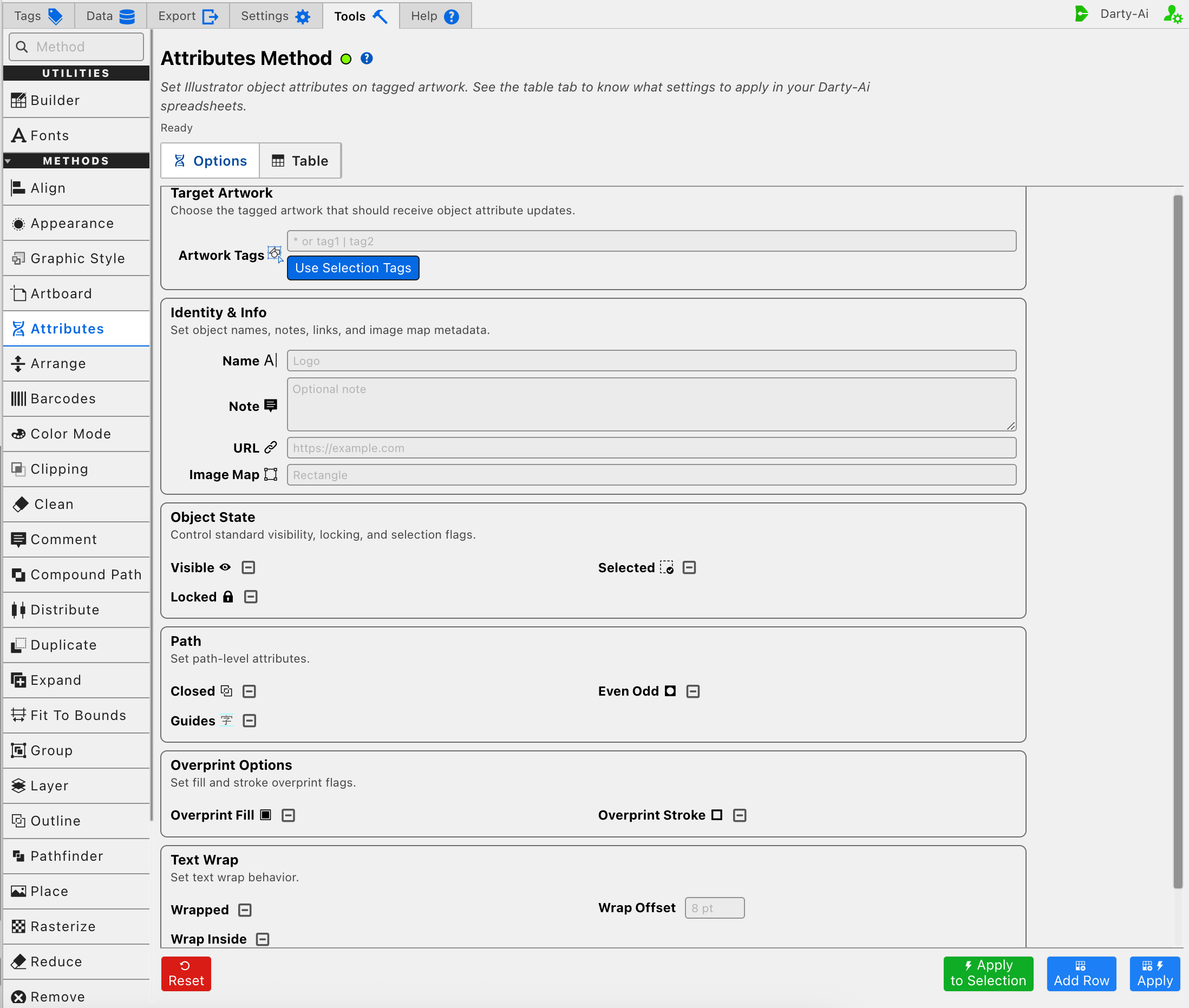
The editor is organized around five questions:
- Which artwork should receive the changes?
- Should its Illustrator name, note, or link metadata change?
- Should its visible, locked, or selected state change?
- Does compatible path artwork need different path or overprint behavior?
- Should surrounding text wrap around or inside it?
For accepted values, spreadsheet examples, and the underlying method behavior, see the Attributes method reference.
Attributes Editor
Choose the Artwork to Change
Artwork Tags identifies the objects that should receive the configured attributes. Its value becomes the Darty sheet's target header rather than a property column.
Enter a Darty tag search such as logo, front | back, or a more specific expression. If the field is left blank, the Table preview normalizes the target to *, which addresses all eligible artwork. Use that broad target deliberately.
Use Selection Tags reads the existing Darty tags from the artwork currently selected in Illustrator and copies them into Artwork Tags. It does not add tags, change attributes, or apply the method by itself. When multiple tags are found, the editor can build an OR search such as front | label.
For tag operators and matching behavior, see Darty Tags.
Apply to Selection is the one-time alternative when the current Illustrator selection should receive the changes without saving its tags as a reusable target. Darty temporarily targets the selection and does not add a row to the Attributes Table.
Set Identity and Information
These values change information Illustrator stores on each matched object. They do not change the object's Darty tags.
Name
Name writes name and changes the object's name shown in Illustrator's Layers panel. This is useful for giving generated objects readable names, preparing a later name-based workflow, or keeping duplicated artwork identifiable.
The name is separate from the target search. A row can find an object by its existing Darty tag and then give it a new Illustrator object name without losing the row's targeting rule.
Note
Note writes note and stores descriptive text in the object's Attributes information. Use it for production instructions, provenance, internal identifiers, or other metadata that should travel with the artwork.
URL and Image Map
URL writes url. Image Map writes imageMap and determines the clickable region associated with that URL when the artwork is used in output that supports Illustrator image-map metadata.
The accepted Image Map values are:
None— no image-map region; the URL is not active as an image map.Rectangle— use a rectangular clickable region.Polygon— follow a polygonal clickable region.
Set Image Map to Rectangle or Polygon when the URL needs to work. URL can be absolute, such as https://darty.ai, or relative when the final output expects a relative destination.
Control Object State
Object State changes how the matched artwork participates in the current Illustrator document.
- Visible writes
visible. Set it to False to hide the artwork or True to ensure it is shown. - Locked writes
locked. Set it to True to protect the artwork from normal manual editing or False when later interaction must remain possible. - Selected writes
selected. Set it to True when the artwork should be selected after the method runs, or False when it should be removed from the selection.
These settings can be combined. For example, a row can make one tagged object visible and selected while unlocking it for the next manual step.
Set Path Behavior
The Path settings affect compatible path artwork. Other Illustrator item types may not support the requested path property, so target known paths when using these controls.
Open or Close a Path
Closed writes closed.
- True joins the path's end back to its beginning.
- False opens a closed path.
Changing this value can visibly change fills and strokes because an open path and a closed shape do not render identically. Use it as a structural path operation, not merely as metadata.
Convert Between Artwork and Guides
Guides writes guides. True converts compatible path artwork into a guide; False returns a guide path to normal artwork behavior.
Because guides behave differently from printable artwork, use a narrow target rather than applying this property to every object in a document.
Choose the Fill Rule
Even Odd writes evenOdd and changes the fill rule used by compatible paths. It controls how overlapping or nested regions of a self-intersecting or compound shape determine which areas are filled.
- True uses the even-odd fill rule.
- False uses the non-zero winding behavior.
For a simple non-overlapping shape, the visual result may appear unchanged. The distinction becomes important when a path crosses itself or contains nested regions.
Set Overprint Behavior
Overprint controls how inks interact during print output. They do not simply change the on-screen fill or stroke color.
- Overprint Fill writes
overprintFilland controls whether the object's fill prints over underlying inks instead of knocking them out. - Overprint Stroke writes
overprintStrokeand applies the same decision to the stroke.
Use these settings only when the print workflow calls for explicit overprinting. Confirm the result with Illustrator's Overprint Preview and the production output process, especially when light colors, spot colors, or knockout behavior matter.
Configure Text Wrap
Text Wrap controls how nearby text responds to the matched artwork.
Enable or Disable Wrapping
Wrapped writes wrapped and is the main switch for whether the artwork participates in text wrapping.
Wrap Inside writes wrapInside and changes the side of the boundary used by the wrap:
- False keeps text outside the object's wrap boundary.
- True allows the text to wrap inside that boundary.
Wrap Inside has an effect only when Wrapped is True.
Set the Wrap Distance
Wrap Offset writes wrapOffset and controls the distance between the artwork's boundary and the wrapped text. It accepts Darty measurements such as 8pt, 3mm, or 0.1in.
Wrap Offset also depends on Wrapped being True. Leave it blank when the row should use the existing or normal wrap distance.
Use Three-State Options Intentionally
The Attributes checkboxes use three states so a row can change one attribute without restating all the others:
- True writes the property as
true. - False writes the property as
false. - Unset omits the property entirely.
Unset does not mean False. It means the row makes no request about that property. For example, setting Visible to True while leaving Locked and Selected Unset changes visibility without interfering with the object's current locking or selection state.
Skip a Reusable Attributes Row
Skip writes skip and controls whether the method runs for the current data record.
- True writes
skip:trueand bypasses the Attributes method. - False writes
skip:falseand explicitly allows it to run. - Unset omits the property.
Skip is useful when the same sheet contains records that do not all need the attribute change. See Skip and *.
Build a Useful Attributes Configuration
A practical order is:
- Enter a narrow Artwork Tags search, or plan to use Apply to Selection for a one-time test.
- Choose the identity, object-state, path, overprint, or text-wrap values that should actually change.
- Leave every unrelated three-state checkbox Unset and every unrelated text field blank.
- Check dependencies: URL needs a Rectangle or Polygon Image Map, while Wrap Inside and Wrap Offset need Wrapped to be True.
- Use Add Row to capture the configuration, Apply to capture and run it, or Apply to Selection for a one-time change to selected artwork.
- Inspect the generated target and properties in the Attributes Table before reusing the row broadly.
Artwork Tags identifies what should change, but a useful row also needs at least one attribute value describing how it should change.
Control-to-Property Summary
| Editor purpose | Darty property |
|---|---|
| Artwork to change | Target header / tagSearch |
| Illustrator object name | name |
| Object note | note |
| Link destination | url |
| Link region type | imageMap |
| Visibility | visible |
| Locking | locked |
| Selection state | selected |
| Open or closed path | closed |
| Guide-path state | guides |
| Path fill rule | evenOdd |
| Fill overprinting | overprintFill |
| Stroke overprinting | overprintStroke |
| Enable text wrapping | wrapped |
| Wrap inside the boundary | wrapInside |
| Distance from wrapped text | wrapOffset |
| Skip the method for a data row | skip |
Capture, Apply, and Review
- Tools Method Actions and Apply Modes explains Reset, Add Row, Apply, and Apply to Selection.
- Tools Method Table Preview explains how to inspect, edit, reorder, copy, download, and apply captured Attributes rows.
- Attributes method reference documents accepted values, spreadsheet examples, and sample files.