
Arrange Tool
Use Tools → Methods → Arrange to change where tagged artwork or an Illustrator layer sits in its current stacking order. Arrange can move the target one position forward or backward, or send it directly to the front or back.
The editor is easiest to understand as three decisions:
- Are you moving tagged artwork or a layer?
- How should that target be identified?
- Should it move one position or go to an end of the stacking order?
Arrange changes stacking order, not the artwork's position on the artboard. For more exact placement in the stack, including moving artwork relative to another object or into another container, see the Z Order Tool.
For accepted property aliases, spreadsheet examples, and illustrated results, see the Arrange method reference.
Configure an Arrangement
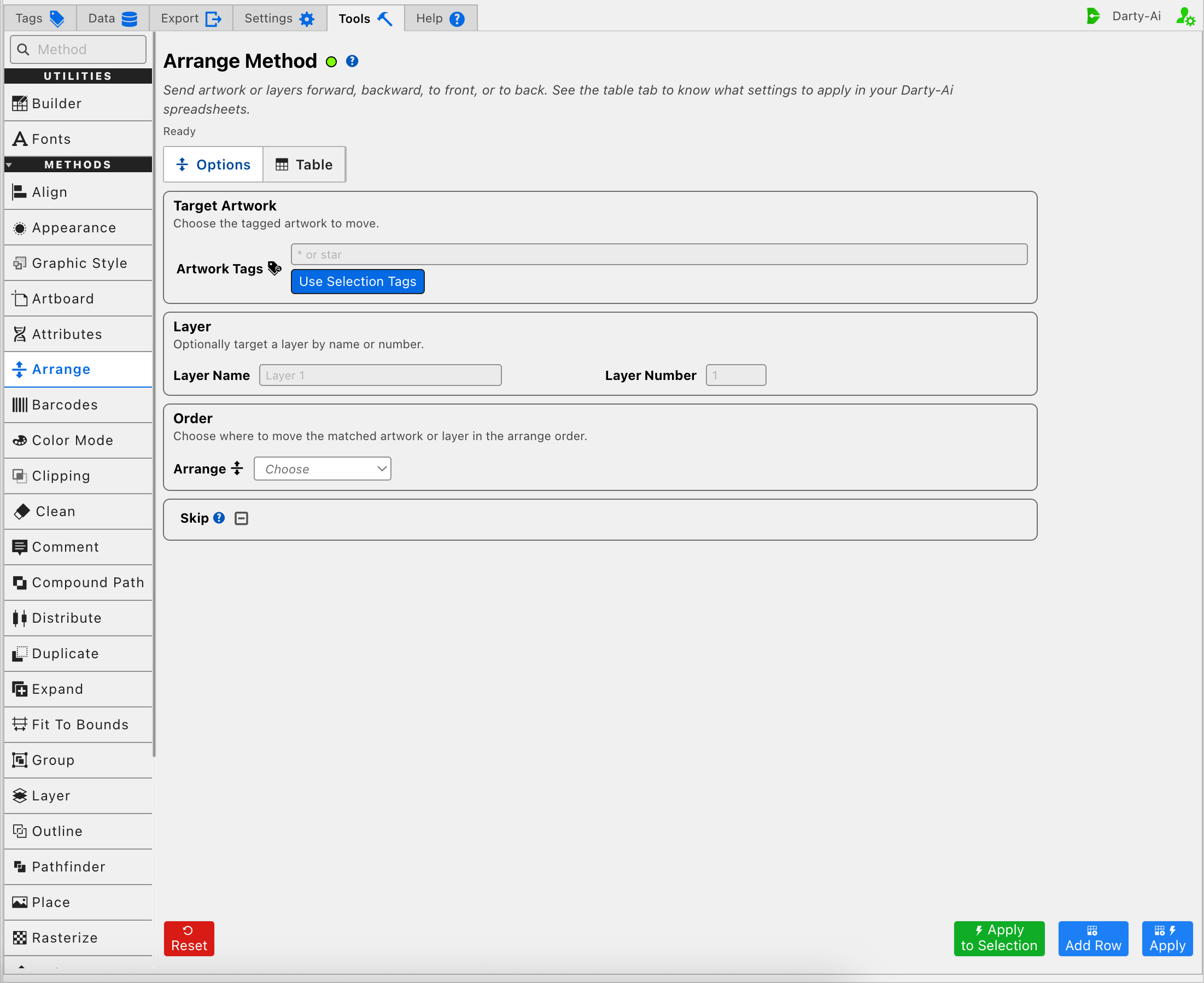
Choose What Moves
Arrange can act on tagged artwork or on a layer. Treat these as alternative target types so the finished row clearly communicates what should move.
Tagged Artwork
Artwork Tags identifies the artwork to move and becomes the generated row's target search. For example, entering star addresses artwork carrying the star Darty tag. Tag operators can create broader searches, such as front | label for artwork carrying either tag. See Darty Tags for the complete search syntax.
Use Selection Tags reads the existing Darty tags from the artwork currently selected in Illustrator and places them in Artwork Tags. It helps construct the reusable search; it does not rearrange the selection or add tags to it. When several selected tags are found, the editor can create an OR search from them.
If Artwork Tags is left blank, the Table preview normalizes the target header to *. For an artwork arrangement, that can address all eligible artwork rather than no artwork. Use a specific tag search when only part of the design should change.
Apply to Selection is the safer one-time test when the currently selected artwork should move regardless of its tags. It temporarily targets that selection, leaves Artwork Tags unchanged, and does not add a row to the Arrange Table.
A Layer
Use the Layer section when the layer itself should move through Illustrator's layer stack:
- Layer Name writes
layerNameand matches the layer's case-sensitive name. - Layer Number writes
layerNumberand identifies the layer by its numbered position in the document's layer list.
Use either the name or the number, not both. A name is usually easier to understand and survives many changes to the layer order; a number is useful when the document structure is fixed and predictable.
Clear both Layer fields when the intended target is tagged artwork. Conversely, when a layer should move, supply one Layer identifier rather than relying on the artwork target. This keeps the generated row unambiguous.
Choose How Far It Moves
Arrange writes the send property. Its four choices describe movement within the target's current stacking context.
| Editor choice | Generated value | Effect on tagged artwork | Effect on a layer |
|---|---|---|---|
| Forward | forward | Moves one position toward the front of its parent layer. | Moves one position toward the front of its current layer stack. |
| Backward | backward | Moves one position toward the back of its parent layer. | Moves one position toward the back of its current layer stack. |
| To Front | front | Moves to the front of its parent layer. | Moves to the front of its current layer stack. |
| To Back | back | Moves to the back of its parent layer. | Moves to the back of its current layer stack. |
Forward and Backward are useful when the target only needs to cross one neighboring object or layer. To Front and To Back jump directly to an end of the applicable stack.
The operation does not place the target at an exact numeric index, choose a different parent, or position it directly before or after a particular reference object. Use Z Order when the workflow needs that level of control.
Choose is the initial placeholder, not an arrangement instruction. Select one of the four operations before capturing or applying the configuration.
Skip a Reusable Arrange Row
Skip is a three-state checkbox that controls whether this method should run for the current data row and writes skip:
- True writes
skip:trueand bypasses the Arrange method. - False writes
skip:falseand explicitly allows the method to run. - Unset leaves
skipout of the generated row.
Skip is most useful after the Arrange configuration becomes part of a reusable spreadsheet in which only some data rows should change stacking order. See Skip and *.
Build a Useful Arrange Configuration
A practical order is:
- Decide whether tagged artwork or a layer should move.
- Enter an Artwork Tags search, or identify one layer by its case-sensitive name or layer number.
- Select Forward, Backward, To Front, or To Back.
- Use Apply to Selection for a one-time artwork test, or use Add Row to inspect a reusable configuration without changing Illustrator.
- Use Apply when the reusable row should also run immediately.
- Open the Table and confirm the target and serialized
sendvalue before copying or downloading the sheet.
For a selection test, leave the Layer fields blank so the current Illustrator selection is the clear target. If nothing is selected, Apply to Selection does not dispatch the method and reports that artwork must be selected first.
If an Apply action cannot resolve the requested artwork tags or layer, review the status near the method title, confirm the spelling and case of the target, and check that the target exists in the active document. A layer number can also become stale after layers are reordered.
Control-to-Property Summary
| Editor purpose | Darty property |
|---|---|
| Tagged artwork that should move | Target header / tagSearch |
| Layer selected by name | layerName |
| Layer selected by number | layerNumber |
| Stacking-order movement | send |
| Skip the method for a data row | skip |
The method reference also accepts aliases for several of these properties and values. The Tools editor uses the property names shown above so the generated rows remain consistent.
Capture, Apply, and Review
- Tools Method Actions and Apply Modes explains Reset, Add Row, Apply, and Apply to Selection.
- Tools Method Table Preview explains how to inspect, edit, reorder, copy, download, and apply captured Arrange rows.
- Arrange method reference documents accepted aliases, sample spreadsheets, illustrated results, and sample files.