
Remove Tool
Use Tools → Methods → Remove when artwork should be deleted from the Illustrator document. The method finds artwork through its Darty tags, so its target deserves the same care as any other destructive selection.
If the artwork should remain in the document but become invisible, use the visible setting in the Attributes method instead. To remove only Darty tags while keeping the artwork, use Tags → Remove Tags.
For the spreadsheet syntax, see the Remove method reference.
Choose the Artwork to Delete
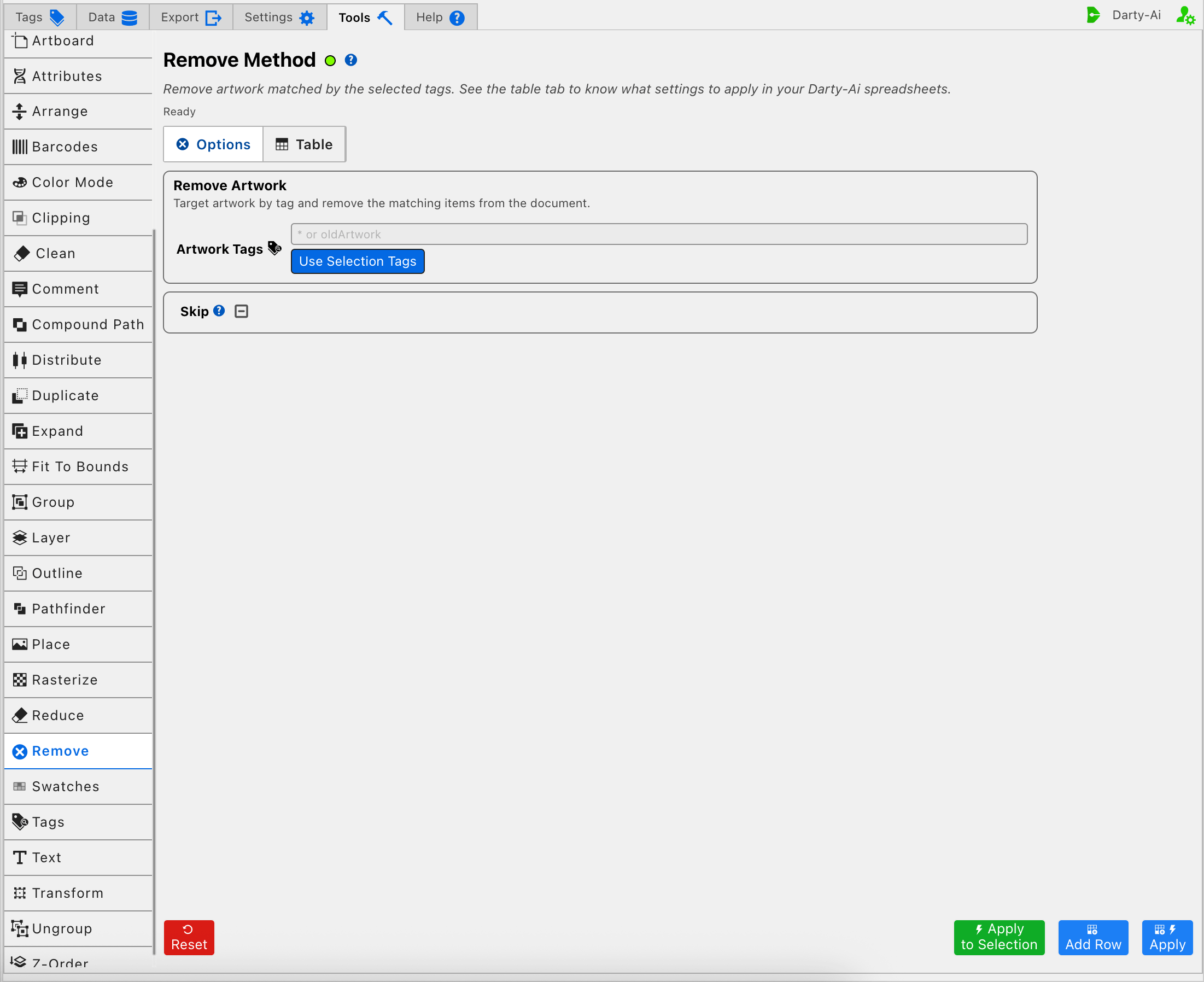
Enter a tag search in Artwork Tags to identify the objects that should be removed. Tag searches can match one tag or a more specific Darty tag expression. Use Selection Tags reads the Darty tags from the current Illustrator selection and places them in this field; it does not limit the later operation to that selection.
Review a broad target such as * especially carefully. It can match far more artwork than a named tag. The table preview is the final record of the value that will be stored in the row, so inspect it before applying a broad or blank-looking target.
The editor represents this search as tagSearch, then places it in the generated sheet's target header rather than creating a separate property column.
Skip the Method When a Row Requires It
Skip is a three-state checkbox:
- True writes
skip: trueand prevents the Remove method from running for that data row. - False writes
skip: falseand explicitly allows the method to run. - Unset leaves
skipout of the row so a header or other inherited value can remain in control.
This is useful when a shared sheet normally removes an optional object, but certain records must preserve it. See * and Skip for the spreadsheet-level alternatives.
Choose How to Run It
- Apply to Selection deletes the artwork currently selected in Illustrator as a one-time action. It does not add a reusable method row.
- Add Row captures the current target and Skip state in the method table without changing Illustrator.
- Apply runs the configured Remove method through the normal document workflow.
- Reset returns the editor to its defaults; it does not restore artwork that has already been deleted.
The footer action and the Artwork Tags field answer different questions: Apply to Selection chooses the objects for this one execution, while tagSearch is the reusable target stored by Add Row or used by the normal Apply workflow.
See Tools Method Actions and Apply Modes for the shared action behavior and Tools Method Table Preview for reviewing the captured properties.
Safe Workflow
- Save the Illustrator document or confirm that Undo is available.
- Give the intended artwork a distinctive Darty tag.
- Enter that tag in Artwork Tags, or select a known target and use Use Selection Tags.
- Inspect the table preview and make sure no unintended
*target or inherited value broadens the match. - Test with Apply to Selection when a selected-artwork test represents the intended operation.
- Use Add Row for a reusable sheet method, or Apply for the configured document workflow.
- Confirm the result before saving over the source document.
Control and Property Reference
| Editor control | Method property | Purpose |
|---|---|---|
| Artwork Tags | Target header / tagSearch | Finds the tagged artwork to delete. |
| Use Selection Tags | Target header / tagSearch | Copies the current selection's tags into Artwork Tags. |
| Skip | skip | Prevents or explicitly allows the method to run for a row. |
Validation and Cautions
Remove deletes the matched Illustrator objects; it does not merely hide them and it does not only remove their Darty tags. If the intended result is tag cleanup, use Remove Tags.
Before running the method, resolve validation messages, verify the current Illustrator selection when using Apply to Selection, and check any inherited header values in the table. A skipped row remains safe only while its effective skip value is true.