
Reduce Tool
Use Tools → Methods → Reduce to return tagged artwork to its basic Illustrator appearance by removing live effects and additional fills and strokes.
Reduce is not path simplification and it does not rasterize the artwork. The remaining basic artwork can stay vector, but the removed appearance stack cannot be reconstructed from the reduced result. Use the method when a downstream process needs simple artwork rather than an editable stack of appearances.
For illustrated before-and-after examples and spreadsheet behavior, see the Reduce method reference.
Choose the Artwork to Reduce
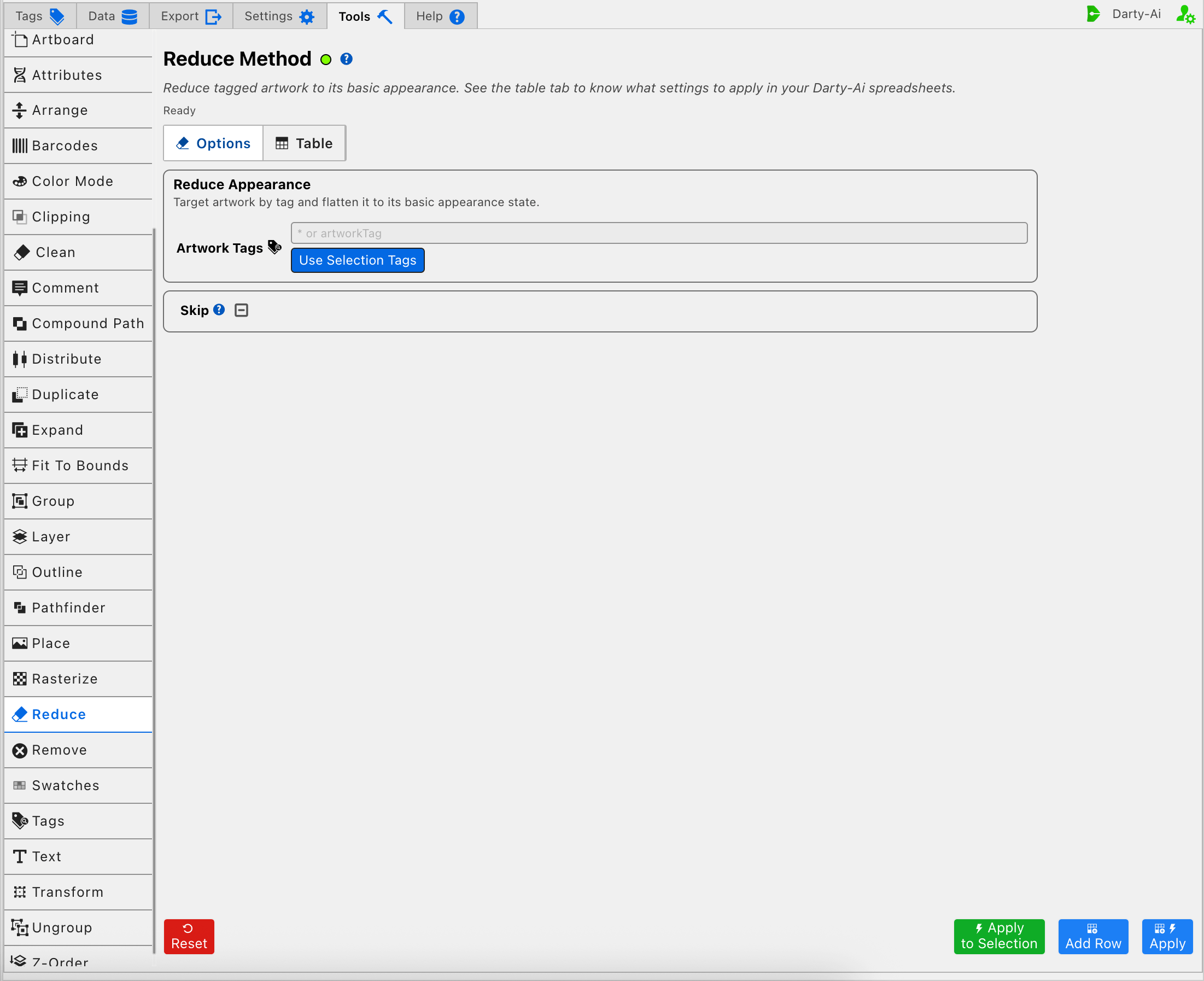
Artwork Tags becomes the generated row's target search. Enter a precise Darty tag or expression for the artwork whose extra appearance should be removed. See Darty Tags for tag-search operators.
Use Selection Tags reads the existing Darty tags from artwork selected in Illustrator and inserts them into Artwork Tags. It helps author a reusable search; it does not reduce the artwork or add tags.
In the Tools editor, blank Artwork Tags is normalized to the target header *. That can reduce all eligible artwork rather than doing nothing. Because Reduce discards appearance information, use a specific tag search unless broad document cleanup is intentional.
Apply to Selection is the safest one-time test. It temporarily targets only the current Illustrator selection, leaves Artwork Tags unchanged, and does not add a row to the Reduce Table.
Understand What Reduce Removes
Reduce invokes Illustrator's basic-appearance reduction for every matched item. It removes live effects and extra fills or strokes from the appearance stack, leaving the item's basic appearance.
This is useful when:
- A production process cannot accept complex live appearances.
- Artwork should be normalized before another scripted method runs.
- Extra effects, fills, or strokes were added during design but should not remain in the final asset.
It is not the same as Expand, Rasterize, or deleting the object:
- Expand converts supported live construction into editable artwork.
- Rasterize replaces editable structure with pixels.
- Reduce removes the extra appearance stack and keeps the basic artwork.
The visual result can change substantially if the design depends on shadows, distortions, multiple fills, multiple strokes, or other effects. Keep an unreduced copy when those settings may be needed later.
Skip a Reusable Reduce Row
Skip is a three-state checkbox that writes skip:
- True writes
skip:trueand bypasses Reduce for that data row. - False writes
skip:falseand explicitly allows it to run. - Unset leaves
skipout of the generated row.
Skip is the clearest way to turn Reduce off for individual records in a reusable sheet. See Skip and *.
Build and Test a Reduce Configuration
A practical workflow is:
- Duplicate or otherwise preserve artwork whose live appearance may be needed again.
- Enter a narrow Artwork Tags search, or select a small test set in Illustrator.
- Use Apply to Selection to inspect the reduced appearance without adding a reusable row.
- Compare fills, strokes, effects, transparency, and overall appearance with the original.
- Use Add Row when the target should be captured without changing Illustrator, or Apply when the reusable row should also run.
- Open the Table and confirm the target before copying or downloading the sheet.
Artwork Tags is the only method-specific input, so a valid target is the essential configuration. Apply to Selection reports No selection. Select artwork first. when nothing is selected. If Apply cannot resolve the stored tags, confirm that matching artwork exists in the active document and that the tag search is spelled correctly.
After Reduce runs, use Illustrator's undo history promptly if the remaining basic appearance is not suitable. Add Row and Table review do not change the document, but Apply and Apply to Selection do.
Control-to-Property Summary
| Editor purpose | Darty property |
|---|---|
| Artwork whose appearance is reduced | Target header / tagSearch |
| Skip the method for a data row | skip |
Capture, Apply, and Review
- Tools Method Actions and Apply Modes explains Reset, Add Row, Apply, and Apply to Selection.
- Tools Method Table Preview explains how to inspect, edit, reorder, copy, download, and apply captured Reduce rows.
- Reduce method reference provides illustrated before-and-after behavior and spreadsheet examples.