
Compound Path Tool
Use Tools → Methods → Compound Path to combine several path objects into one compound path or to separate a compound path back into its component paths. This changes the path structure: it is not the same as grouping artwork, and it is not a clipping-mask operation.
Choose the operation according to the desired result:
- Make turns the matched path artwork into one compound path.
- Release separates a matched compound path and can give the released results numbered Darty tags.
For accepted property names and spreadsheet examples, see the Compound Path method reference.
Choose the Source Artwork
Artwork Tags identifies the paths to combine or the compound path to release. Its value becomes the Darty sheet's target header.
Enter a focused tag search such as outer | inner for Make or logoCompound for Release. If the field is blank, the Table preview normalizes it to *, which can address every eligible object. That broad target is particularly risky for a structural path operation, so prefer explicit tags.
Use Selection Tags copies the existing Darty tags from the artwork currently selected in Illustrator. It fills the search field; it does not create tags or perform the compound-path operation.
Apply to Selection is useful for testing the structural result on the current Illustrator selection without saving its tags as the row target. See Darty Tags for search operators.
Make a Compound Path
Choose Make when separately tagged paths should behave as one compound path.
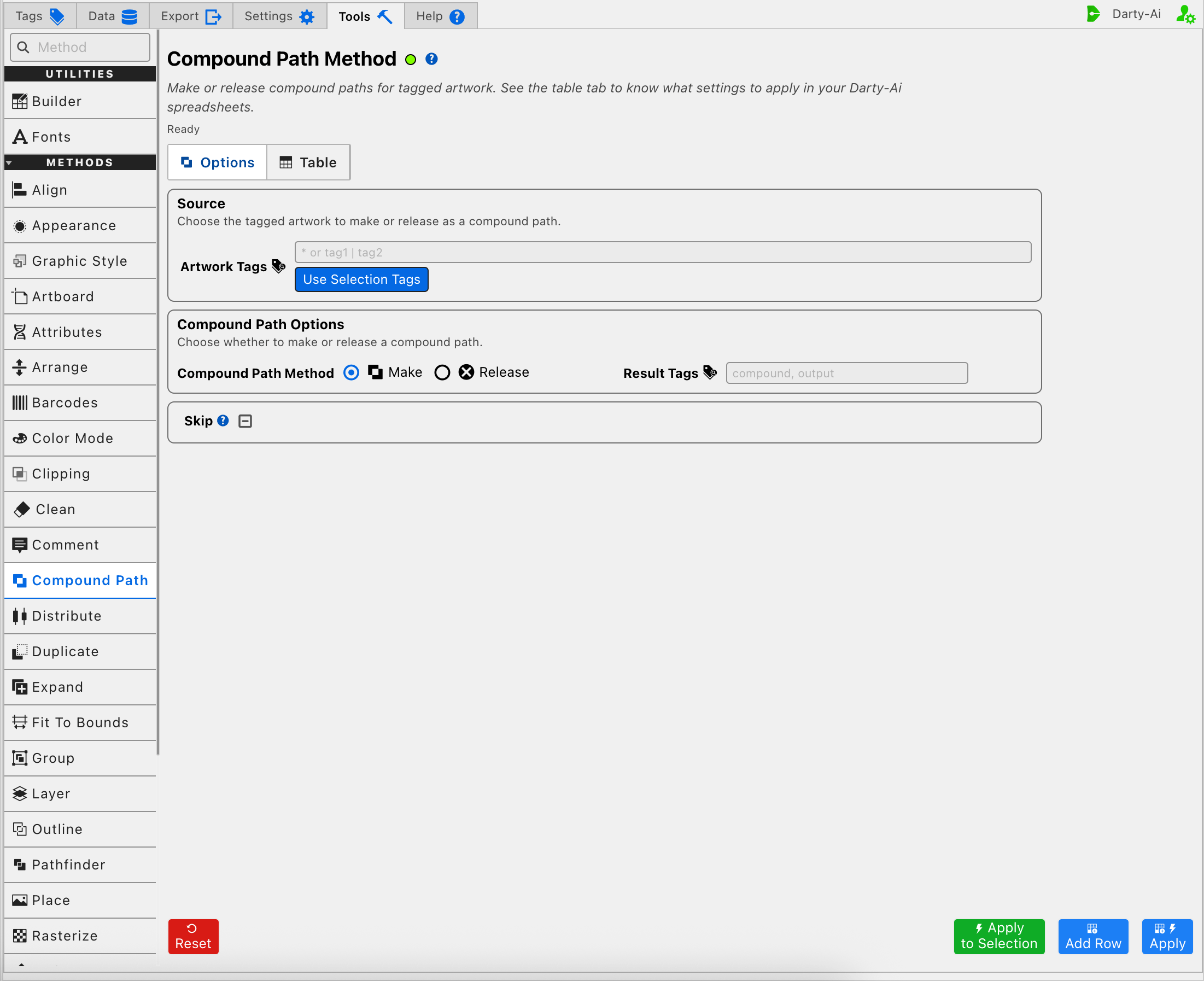
The editor writes mode:make. Illustrator combines the matched paths into a single compound-path structure. Overlapping and nested areas can then form filled regions or holes according to the paths' fill-rule and direction behavior.
Make is useful for artwork such as:
- A letterform whose inner path should cut a hole through its outer path.
- A logo made from several paths that must behave as one compound shape.
- Several path regions that should receive later path-level operations as a single object.
Use compatible path artwork. Text, raster images, and unrelated non-path items do not become useful compound-path components merely because they share a tag.
Tag the Result
Result Tags writes tags as a list of Darty tags to apply to the newly created compound path. Enter values such as compound, output when later rows need to find the result reliably.
Result Tags describe the combined result, not the source search. A clear pattern is to target source tags such as outer | inner, then assign a stable result tag such as logoCompound for the next method.
Release a Compound Path
Choose Release when a compound path's component paths need to become separately addressable artwork again.
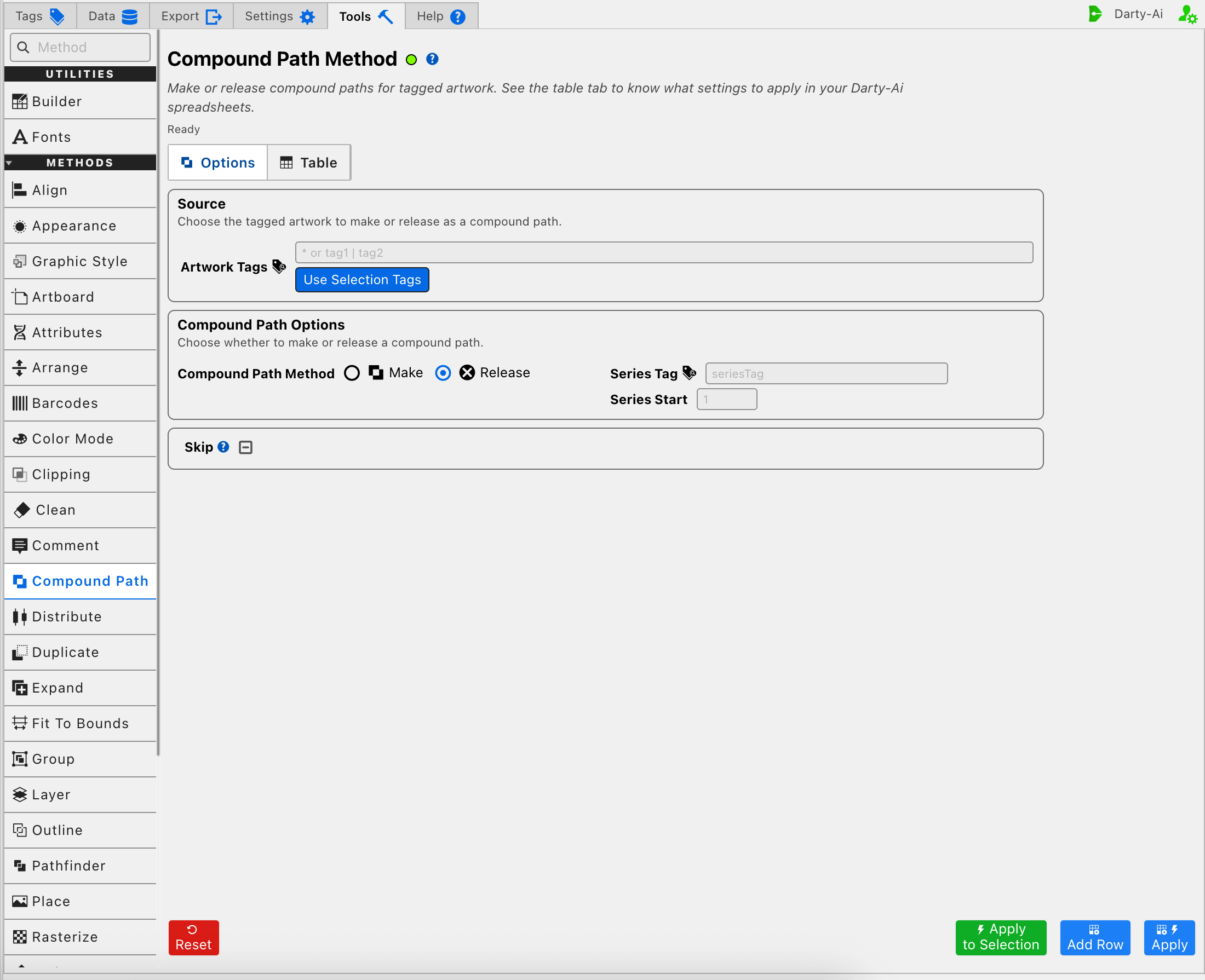
The editor writes mode:release. Target the compound path itself—not an arbitrary collection of separate paths.
Releasing changes the Illustrator structure and can change the visible relationship between filled regions and holes. Test representative artwork before applying the same row broadly.
Give Released Paths Predictable Tags
Release can create several separate path items. Series Tag writes seriesTag and supplies the common tag prefix for those results. Series Start writes seriesStart and chooses the first number.
For example, Series Tag logoPart with Series Start 1 can produce tags such as logoPart1, logoPart2, and logoPart3. Starting at 5 begins the sequence with logoPart5 instead.
Use a series when later methods must target individual released paths. Leave both fields blank when the released items do not need new numbered tags.
Keep Mode-Specific Values Separate
Switching modes changes the result-tagging controls:
- Make exposes Result Tags because the operation produces one combined result.
- Release exposes Series Tag and Series Start because the operation can produce several separate results.
Hidden values from the other mode are not included in the configuration produced from the current editor. Check the Table after switching modes so the captured row contains the intended property set.
Skip a Reusable Compound Path Row
Skip is a three-state checkbox that writes skip only when True or False is selected.
- True writes
skip:trueand bypasses the operation for that data record. - False writes
skip:falseand explicitly allows it to run. - Unset omits the property.
Use Skip when a reusable sheet contains records that should preserve their original path structure. See Skip and *.
Build a Useful Compound Path Configuration
A practical order is:
- Decide whether the final structure should be one compound path or several released paths.
- Enter a narrow Artwork Tags search, or select representative artwork for a one-time test.
- Choose Make or Release.
- For Make, add Result Tags when later rows must target the combined path.
- For Release, add Series Tag and Series Start when later rows must target the separate results.
- Select Add Row to capture the configuration, Apply to capture and run it, or Apply to Selection for a one-time structural test.
- Inspect both the resulting Illustrator structure and the generated row before applying it across a production sheet.
Control-to-Property Summary
| Editor purpose | Darty property | Applicable mode |
|---|---|---|
| Artwork to combine or release | Target header / tagSearch | Make, Release |
| Structural operation | mode | Make, Release |
| Tags for the combined result | tags | Make |
| Numbered tag prefix for released paths | seriesTag | Release |
| First number in the released-path series | seriesStart | Release |
| Skip the method for a data row | skip | Make, Release |
Capture, Apply, and Review
- Tools Method Actions and Apply Modes explains Reset, Add Row, Apply, and Apply to Selection.
- Tools Method Table Preview explains how to inspect, edit, reorder, copy, download, and apply captured Compound Path rows.
- Compound Path method reference documents spreadsheet property names and sample files.