
Clipping Tool
Use Tools → Methods → Clipping to build or release Illustrator clipping groups from tagged artwork. In Make mode, one object becomes the mask and the remaining artwork becomes the clipped content. In Release mode, an existing clipping group is separated so its contents can be targeted again.
The editor is easiest to understand as four decisions:
- Which tagged artwork should the operation use?
- Should Darty make a clipping group or release one?
- When making a group, which object is the mask and how should the content fit beneath it?
- Which Darty tags should identify the resulting artwork?
The selected Clipping Method writes mode. Changing between Make and Release also changes the fields shown in Clipping Options. Fields hidden by the selected mode are not included in the row produced from the editor.
For illustrated fitting examples, accepted tag searches, and the underlying Make and Release behavior, see the Clipping method reference.
Choose the Artwork to Process
Artwork Tags identifies the artwork used by the operation. Its value becomes the Darty sheet's target header rather than a property column.
For Make, the search should find the content to clip and, when no separate Clip Object is supplied, the intended mask. For Release, it should find existing clipping groups. Enter a narrow Darty tag search such as product-photo, photo | mask, or another expression that selects only the intended artwork.
Use Selection Tags reads the existing Darty tags from the artwork currently selected in Illustrator and copies them into Artwork Tags. It does not create tags or run the Clipping method. If the selected artwork contains several tags, the editor can build an OR search such as front | label.
If Artwork Tags is left blank, the Table preview normalizes the target to *, allowing the row to address all eligible artwork. Because making or releasing clipping groups changes document structure, use that broad target deliberately. See Darty Tags for search operators.
Apply to Selection is useful for a one-time test when the current Illustrator selection should be processed without saving its tags as the reusable target. Darty temporarily targets the selection and does not add a row to the Clipping Table.
Make a Clipping Group
Choose Make when tagged content and a mask should become a new clipping group.
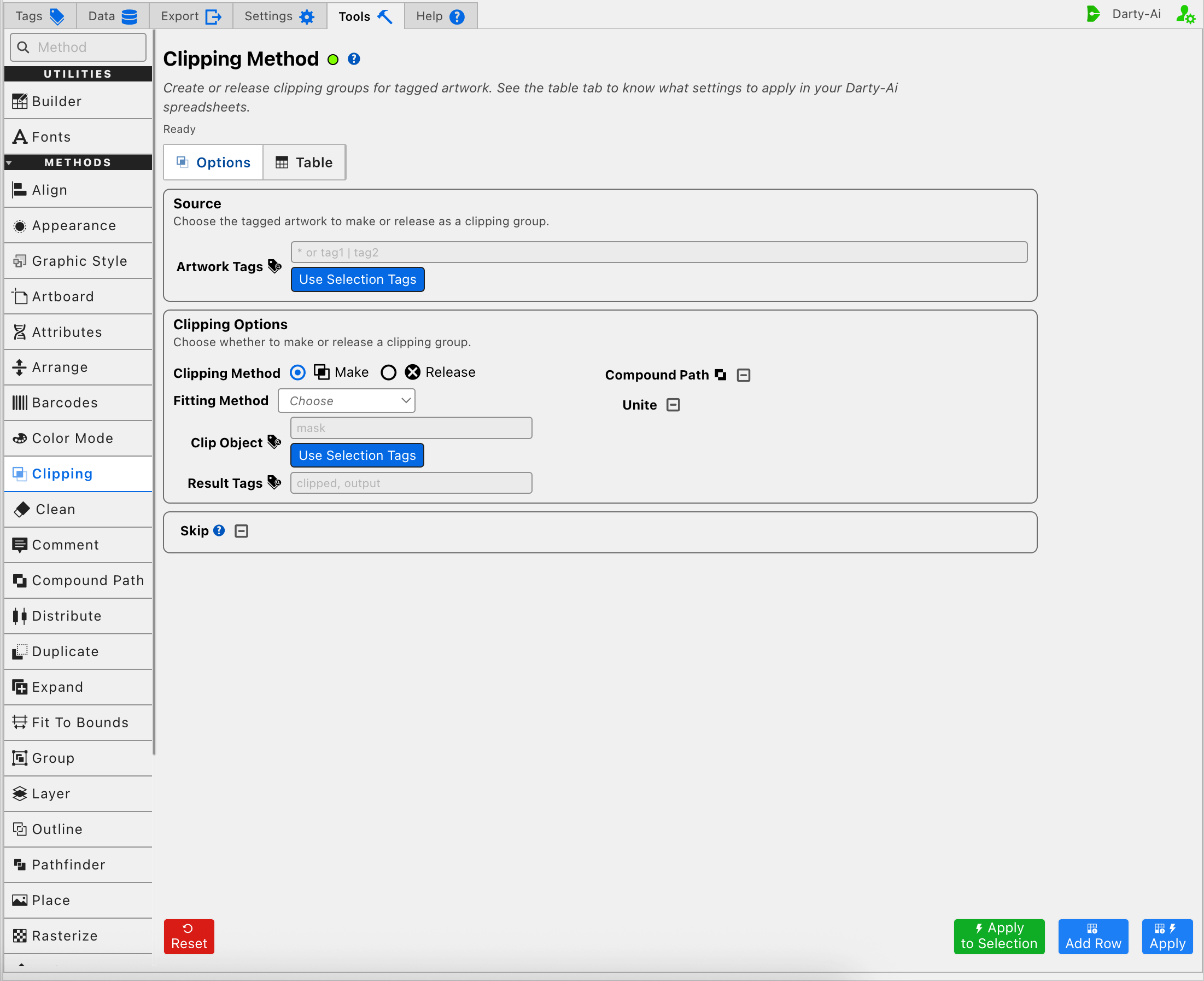
Make is the editor's initial mode and writes mode:make.
Choose the Mask
Clip Object writes clipObject and identifies the artwork that should become the clipping mask. It accepts a Darty tag search, independent of the broader Artwork Tags search.
The adjacent Use Selection Tags action copies the tags from selected Illustrator artwork into Clip Object. It does not automatically choose the visually topmost selected object unless the resulting field is left blank.
If Clip Object is blank, the method uses the top artwork found by Artwork Tags as the mask. That shortcut works well when the mask is intentionally above the content and all required objects share the same target search. Use an explicit, unique Clip Object search when layer order may change or when the mask has its own tag.
The content and the mask may each be groups. Avoid targeting an individual object nested inside a larger group when the entire group is supposed to participate; the method reference expects the selected content and mask to be complete artwork items rather than accidental children of other groups.
Decide How the Content Fits the Mask
Fitting Method writes fit and controls whether Darty repositions or scales the clipped content before creating the group.
| Fitting choice | Generated value | Result |
|---|---|---|
| Leave unselected | Property omitted | Preserve the content's current position and dimensions. |
| As Is | asis | Center the content beneath the mask without scaling it. |
| Fill | fill | Center and scale proportionally until the mask is completely filled; some content may extend beyond the mask. |
| Fit | fit | Center and scale proportionally until the entire content fits inside the mask; empty space may remain. |
| Bounds | bounds | Center and scale the content to the mask's exact bounds; horizontal and vertical scaling can differ. |
Leaving the field unselected and choosing As Is are therefore different. Both preserve the content's dimensions, but As Is centers it beneath the mask while an omitted fit property leaves its position unchanged.
Prepare a Group-Shaped Mask
Unite and Compound Path determine how a mask made from a group is prepared before clipping. They do not normally change a mask that is already a single path.
- Set Unite to True to apply Illustrator's Unite operation and use the combined perimeter as the mask.
- Set Unite to False when the grouped paths must remain separate for the next decision.
- When Unite is False, set Compound Path to True to convert the grouped mask into a compound clipping path, or False to keep it as a group.
Compound Path only affects grouped masks when Unite is False. If Unite is True, the unite operation has already consolidated the mask geometry.
Both options are three-state checkboxes. Leaving either one Unset omits that property and allows the method's documented default behavior to apply. This is useful when the mask is a simple path and neither instruction is needed.
Tag the Result
Result Tags writes tags as a comma-separated list of Darty tags to apply to the newly created clipping group. For example, clipped, product-output makes the result easy to target with later Transform, Arrange, or Export rows.
Result Tags describe the new group; they do not replace Artwork Tags or Clip Object as the searches used to build it.
Release a Clipping Group
Choose Release when an existing clipping group should be separated into its component artwork.
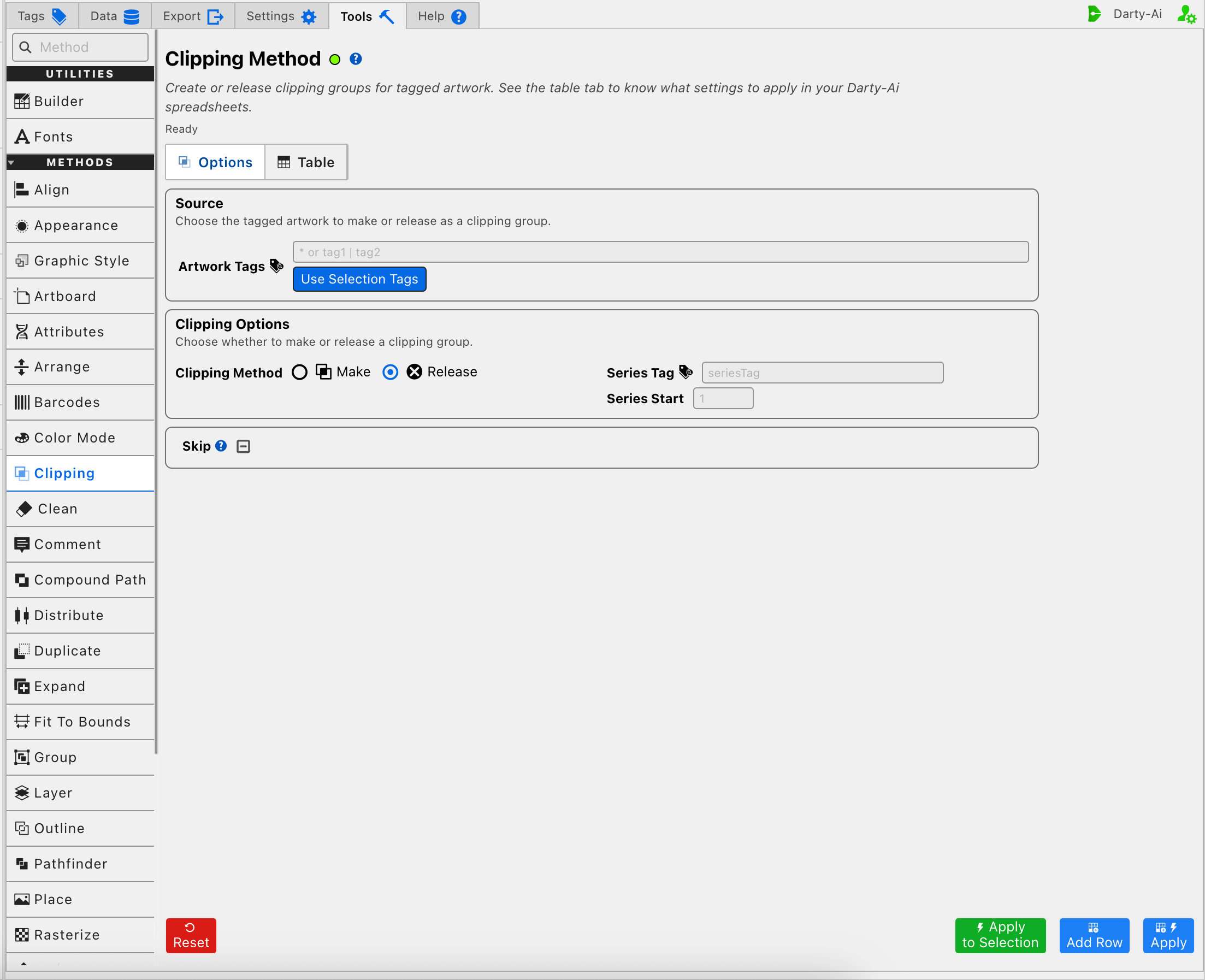
Release writes mode:release. The mask, fitting, Unite, Compound Path, and Result Tags settings disappear because those choices only apply while making a group. Their hidden values are not written to a Release row.
Artwork Tags should identify clipping groups rather than arbitrary items inside them. Releasing removes the clipping relationship; it does not delete the former mask or clipped contents.
Keep Released Items Targetable
Series Tag writes seriesTag and supplies a shared prefix for numbered Darty tags applied to the released items. Series Start writes seriesStart and chooses the first number in that sequence.
For example, a Series Tag of released-part with a Series Start of 1 produces tags beginning with released-part1, then released-part2, and so on. This is useful when later rows need to address the released mask, content, or nested pieces individually.
Series Start matters only when Series Tag is provided. It must be a number; leave both fields blank when the released items do not need numbered tags.
Use Three-State Checkboxes Intentionally
Compound Path, Unite, and Skip use three states so a row can state an explicit choice or leave the decision alone:
- True writes the property as
true. - False writes the property as
false. - Unset omits the property entirely.
Unset does not mean False. For example, leaving Compound Path Unset makes no request about conversion, while False explicitly requests that a grouped mask not be converted when that option applies.
Skip a Reusable Clipping Row
Skip writes skip and controls whether this method runs for the current data record.
- True writes
skip:trueand bypasses the Clipping method. - False writes
skip:falseand explicitly allows it to run. - Unset omits the property.
Skip is most useful when the same spreadsheet contains records that do not all need a clipping operation. See Skip and *.
Build a Useful Clipping Configuration
For Make:
- Enter Artwork Tags that find the content and mask, or plan to test with Apply to Selection.
- Keep Make selected.
- Enter a unique Clip Object search, or deliberately place the mask on top and leave Clip Object blank.
- Choose a Fitting Method only when the content should be centered or scaled.
- Set Unite or Compound Path only when a grouped mask needs that preparation.
- Add Result Tags when later methods must target the new clipping group.
- Use Add Row to capture the configuration, Apply to capture and run it, or Apply to Selection for a one-time test.
For Release:
- Enter Artwork Tags that find the clipping groups to release, or select those groups for Apply to Selection.
- Choose Release.
- Add Series Tag and Series Start when the released pieces need predictable numbered tags.
- Capture or apply the configuration, then inspect the generated target and properties in the Clipping Table.
Validation, Warnings, and Common Problems
- Apply to Selection reports No selection. Select artwork first. when nothing is selected in Illustrator.
- Make needs eligible artwork and a usable mask. If Clip Object is blank, verify that the topmost matched item really is the intended mask.
- A Clip Object search should resolve to one intended mask. When several objects share that search, only one can serve as the clipping object.
- Release should target clipping groups. A matching tag on an unrelated object does not turn it into a releasable group.
- Series Start must contain a numeric starting value and has no purpose without Series Tag.
- If the fitted result looks unexpectedly centered, check whether
fit:asiswas selected. Clear Fitting Method when both the original position and size must remain unchanged.
Use a narrow target and Add Row first when a configuration would restructure many objects. The Table preview makes it possible to confirm the method, target, mode, and optional properties before dispatching them to Illustrator.
Control-to-Property Summary
| Editor purpose | Darty property | Applicable mode |
|---|---|---|
| Artwork to make or release | Target header / tagSearch | Make, Release |
| Operation to perform | mode | Make, Release |
| Tagged artwork used as the mask | clipObject | Make |
| Content positioning and scaling | fit | Make |
| Unite a grouped mask | unite | Make |
| Convert a grouped mask to a compound path | compoundPath | Make |
| Tags for the created clipping group | tags | Make |
| Numbered-tag prefix for released items | seriesTag | Release |
| First number used with Series Tag | seriesStart | Release |
| Skip the method for a data row | skip | Make, Release |
Capture, Apply, and Review
- Tools Method Actions and Apply Modes explains Reset, Add Row, Apply, and Apply to Selection.
- Tools Method Table Preview explains how to inspect, edit, reorder, copy, download, and apply captured Clipping rows.
- Clipping method reference documents fitting behavior, grouped-mask handling, spreadsheet examples, and sample files.