
A Comprehensive Approach to Dynamic Artwork Manipulation
State-management is an innovative methodology that empowers organizations to dynamically control and maintain the appearance of artwork in Adobe Illustrator. By leveraging Excel and the variable-data plugin Darty-Ai, this method integrates data-driven decisions with visual design elements, ensuring artwork remains synchronized with evolving data states.
This approach is particularly valuable for industries like automotive, textile, eSports, hard-goods, product packaging and home-crafts, where product configurations are numerous and require precise adjustments to visual representations.
In this document, we delve into the application of state-management to illustrate a series of configurations for a top-view of a pick-up truck designed for a fictional automotive company.
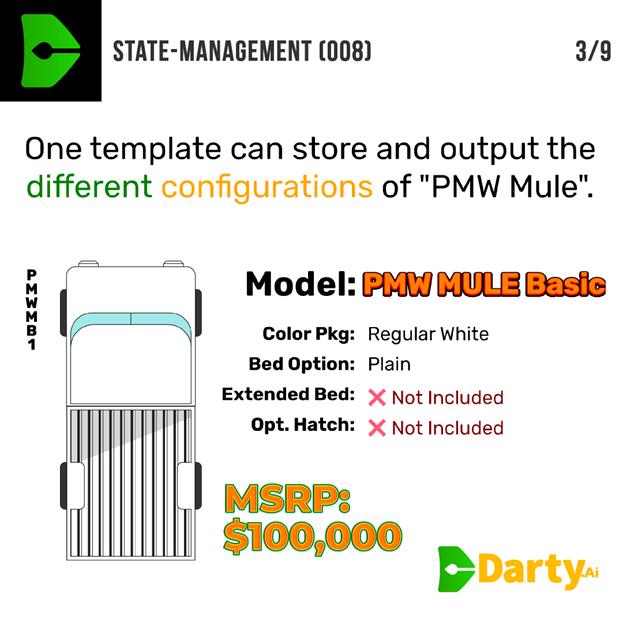
Excel as a Data Driver
Excel serves as the foundation for controlling an Illustrator document’s state, providing a structured framework for managing data variables that influence artwork appearance. By utilizing Excel formulas, organizations can calculate dynamic values such as running prices based on package options.
These formulas can be crafted with tools like ChatGPT to bypass the technical bottleneck and get straight to creativity.
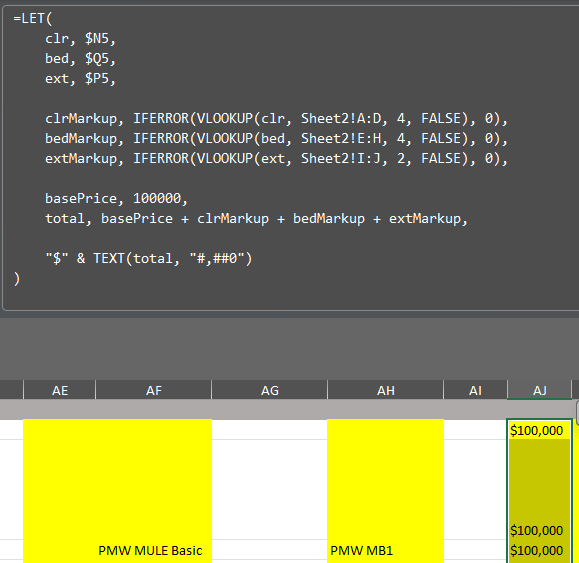
Additional utility workbook tabs can be used to hold lookup values which are used in artwork manipulation.

Darty-Ai Plugin
The Darty-Ai variable-data plugin acts as the bridge between Excel and Adobe Illustrator, facilitating the real-time manipulation of artwork based on data inputs. It offers powerful methods like text, transform, and appearance, which allow for comprehensive control over visual attributes.
Using the [text](https://docs.darty.ai/guide/methods/text.html) method, all the text-items in the Illustrator document are replaced according to spreadsheet data, including text sub-ranges – sometimes multiple times as evidenced by the EmojiOne font applied to one character in the “specs-table”.
Moreover, the text of the product model is automatically fit-to-size in order to not overset.
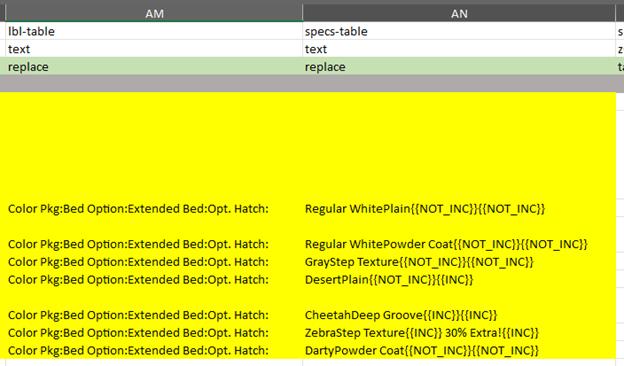
Multiple items are being arranged in stacking order, or move between layers using the [zOrder](https://docs.darty.ai/guide/methods/zorder.html) method.
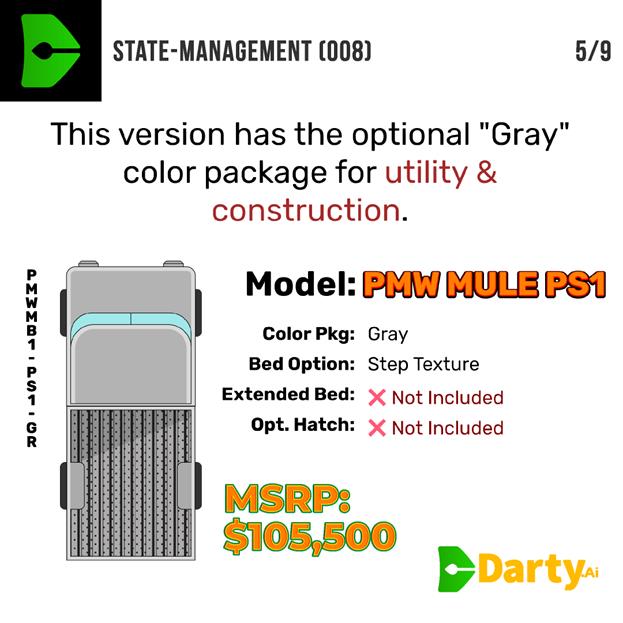
Artwork shapes and fills get colorized using the swatch method, in this case easily affecting multiple shapes at once.
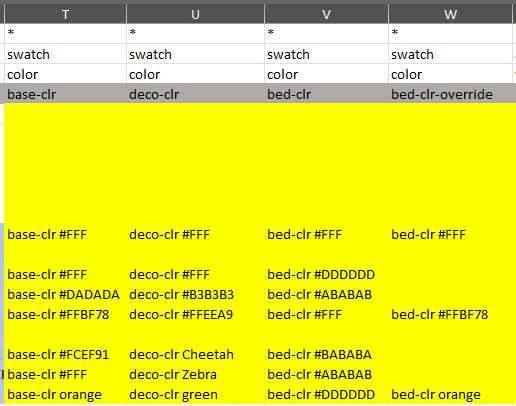
Read more about methods here: https://docs.darty.ai/guide/methods
Combined with state-management principles, Darty-Ai ensures that artwork remains dynamic, responsive, and aligned with organizational requirements.
Practical Applications
Optional Top Hatch Visibility
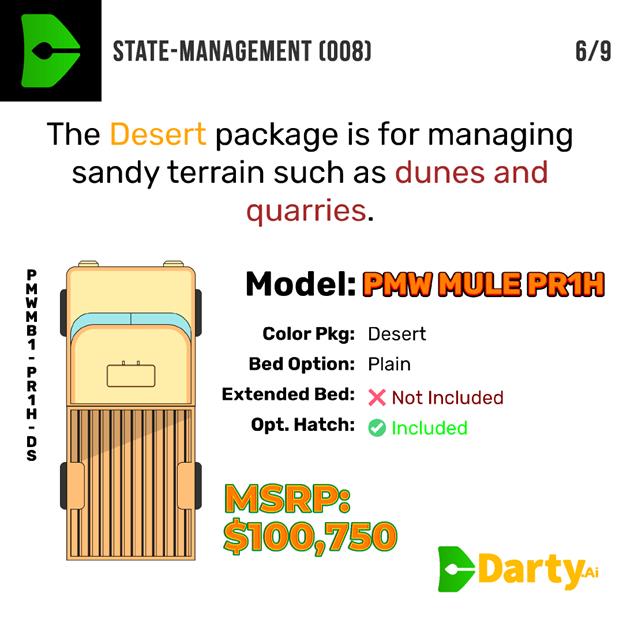
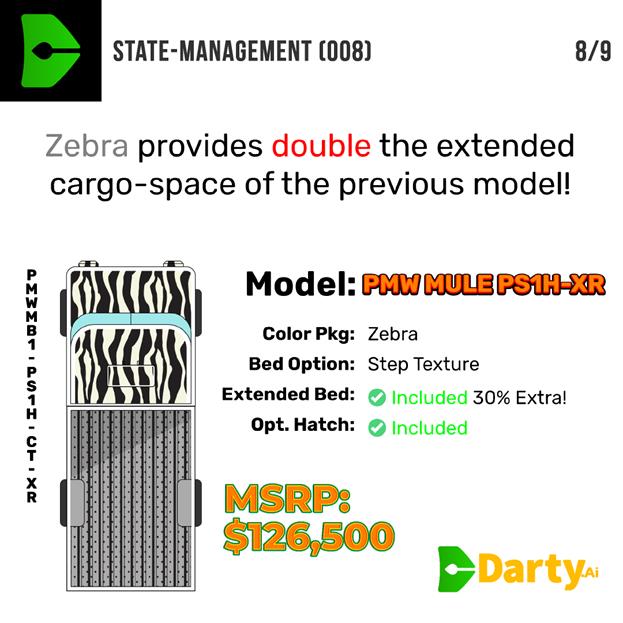
One of the standout features of state-management is its ability to control specific artwork attributes based on data records. For instance, the pick-up truck's optional top hatch on the roof is manipulated by the Darty-Ai [appearance](https://docs.darty.ai/guide/methods/appearance-general.html) method’s visibility parameter. Depending on the option selected in the dataset, the hatch may appear or be hidden in the corresponding visual representation. This ensures that the artwork accurately reflects each SKU item and its unique attributes.
Extended Bed Option
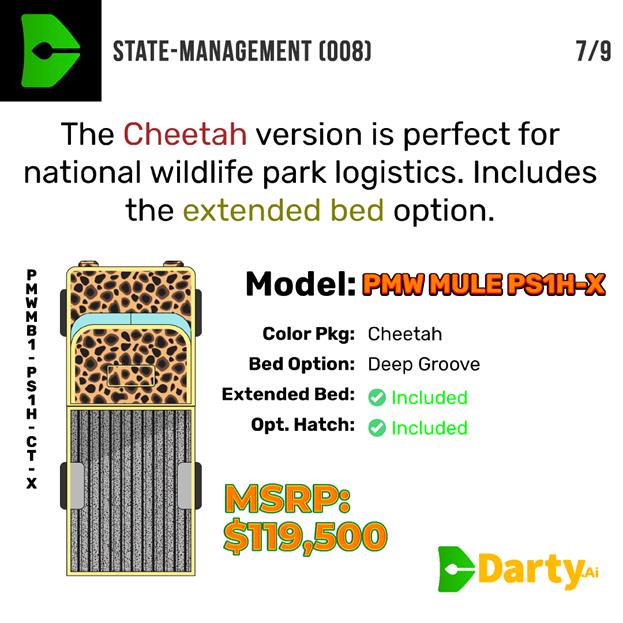
The extended-bed option showcases the power of the Darty-Ai transform method and its anchorPoint parameter. The pick-up truck's bed can be scaled and lengthened to match the configuration specified in the data.
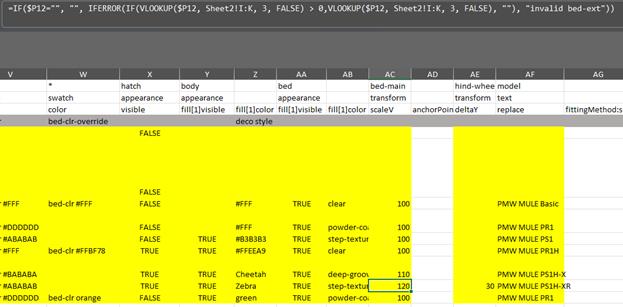
For even more complex customization, such as the double-extended bed, the hind wheels of the truck are repositioned to accommodate the extended design. This record-specific transformation is facilitated effortlessly by Darty-Ai, enabling precision and control in artwork adjustments.
Benefits of State-Managing Adobe Illustrator
- Efficiency: Automating artwork manipulation reduces manual effort and speeds up design processes.
- Accuracy: Synchronizing data with artwork ensures that visual representations are always correct and up-to-date.
- Scalability: The methodology supports a wide range of configurations, making it ideal for complex product lines.
- Customization: Organizations can easily adjust visual elements to reflect unique attributes of each product or SKU.
- Integration: Combining Excel/Google-Sheets, Darty-Ai, and Adobe Illustrator creates a cohesive workflow that bridges data management and design.
- 3rd Party Integration via Google-Sheets: import PIM/PLM/ERP data using an API to Google-Sheets and load into Darty-Ai.
Conclusion
State-management using Excel and Darty-Ai is a game-changer for organizations seeking to maintain dynamic artwork appearance in Adobe Illustrator. By combining structured data with powerful plugin capabilities, this methodology enables unparalleled control and customization of visual designs. Whether it involves managing optional features like a top hatch, colorizing select shapes, or scaling artwork for various configurations, state-management offers a robust solution that enhances efficiency, accuracy, and scalability.
As industries seek to differentiate and provide more personalized and accessible products, for multiple languages and markets, such state-management is key to growing scalable and well-managed assets.