
Swatches Tool
Use Tools → Methods → Swatches to create or edit a document swatch, or to consolidate several source swatches into one target swatch. Swatches are Illustrator document resources, so these methods work at document scope rather than targeting artwork by Darty tags.
The two editor modes perform substantially different jobs:
- Swatch creates a swatch when the named swatch does not exist, or updates and optionally renames an existing swatch.
- Merge Swatches replaces uses of the named source swatches with one target swatch, then removes those source swatches from the document.
For combined color syntax, aliases, channel ranges, and spreadsheet examples, see the Swatch methods reference.
Swatch Mode
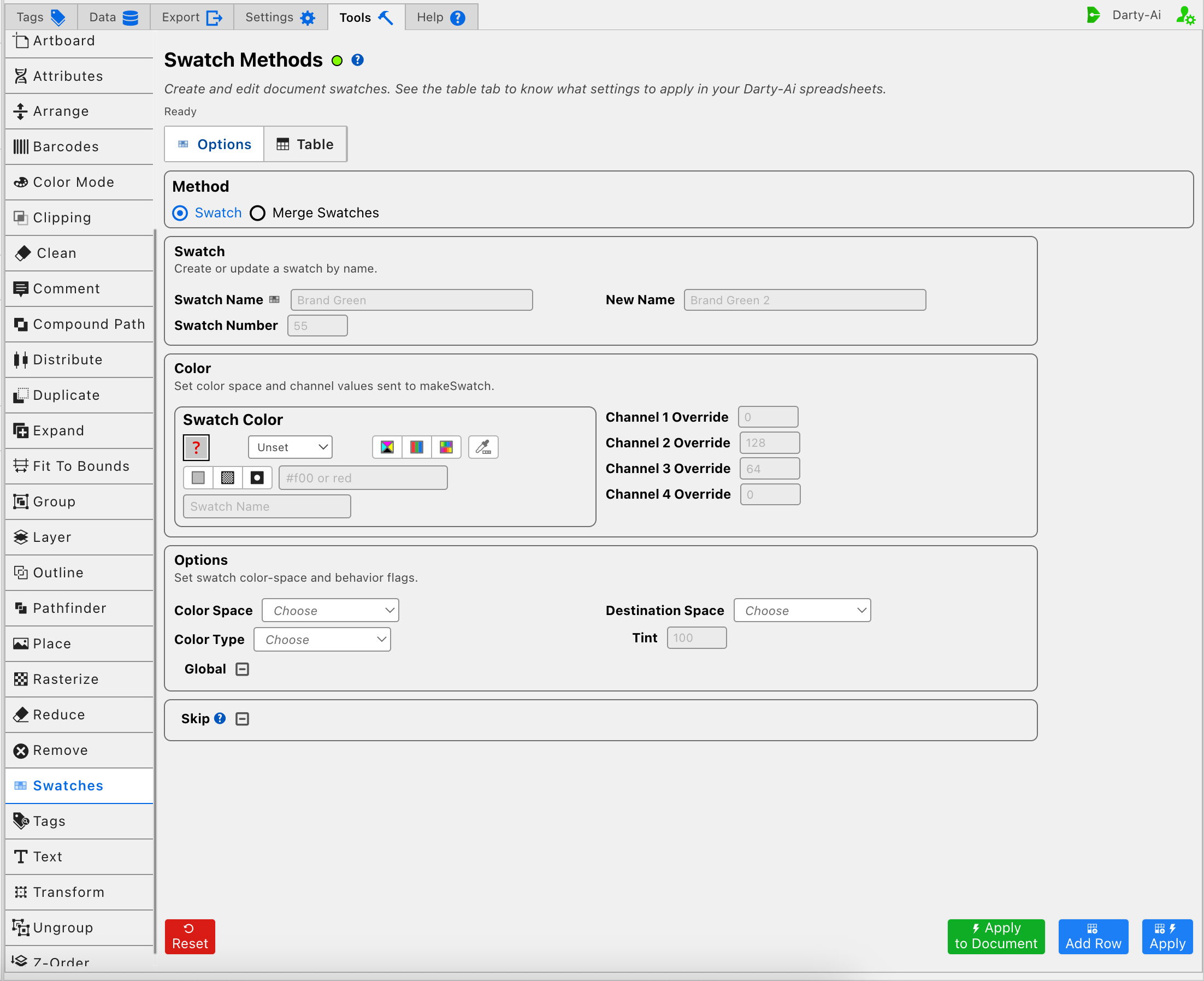
Swatch mode is easiest to use as three decisions: identify the document swatch, define only the color values that should change, and decide whether its Illustrator classification or tint should also change.
Identify, Create, or Rename the Swatch
Swatch Name writes swatchName. If that name already exists, Darty edits the existing document swatch; if it does not exist, Darty creates it from the supplied color definition.
Swatch Number writes swatchNumber and can locate an existing swatch by its document index instead. Supply either Swatch Name or Swatch Number. A descriptive name is usually safer in a reusable sheet because swatch indexes can change when document resources are added, removed, or reordered.
New Name writes newName. Use it when the located swatch should be renamed as part of the same operation. Leaving it blank preserves the current name.
When a row is intended only to rename a swatch, identify it by name or number, enter New Name, and leave every unrelated color, classification, and tint control unset.
Define the Swatch Color
Swatch Color writes the combined color definition. Choose RGB, CMYK, Lab, or grayscale and enter a complete color when you want one control to define the model and all of its channels.
The four channel override fields write channel1 through channel4. Their meanings depend on Color Space:
| Color mode | Channel 1 | Channel 2 | Channel 3 | Channel 4 |
|---|---|---|---|---|
| RGB | Red, 0–255 | Green, 0–255 | Blue, 0–255 | Not used |
| CMYK | Cyan, 0–100 | Magenta, 0–100 | Yellow, 0–100 | Black, 0–100 |
| Lab | Lightness, 0–100 | a, -128–127 | b, -128–127 | Not used |
| Grayscale | Gray, 0–100 | Not used | Not used | Not used |
Use the combined color control for a complete definition. Use the channel fields when a generated row should state or override individual channels. Leave unused channels blank; for example, Channel 4 has meaning for CMYK but not for RGB, Lab, or grayscale.
Color Space writes colorSpace and tells Darty how to interpret separate channel values. Destination Space writes destColorSpace when Illustrator should store the result in a different supported color space. If no conversion is required, leave Destination Space unselected.
The method reference also documents manually authored forms such as rgb, cmyk, lab, hexadecimal colors, and named swatches. The visual editor deliberately presents the supported RGB, CMYK, Lab, and grayscale controls.
Choose Process, Spot, Global, and Tint Behavior
Color Type writes spot:
- Process writes
spot:false. - Spot writes
spot:true. - Leaving the selector unselected omits the property, which is useful when editing a swatch without changing its existing type.
Global is a three-state checkbox that writes global only when True or False is chosen:
- True makes a process swatch global.
- False explicitly makes it non-global.
- Unset omits the property and preserves normal method behavior.
Global and spot swatches can control the appearance of artwork throughout the document. Changing their color may update every Illustrator object that uses them. Leave the checkbox Unset when the row should not make a classification decision.
Tint writes tint as a percentage from 0 to 100 for a spot or global color. Leave it blank when the operation should not assign a tint.
Merge Swatches Mode
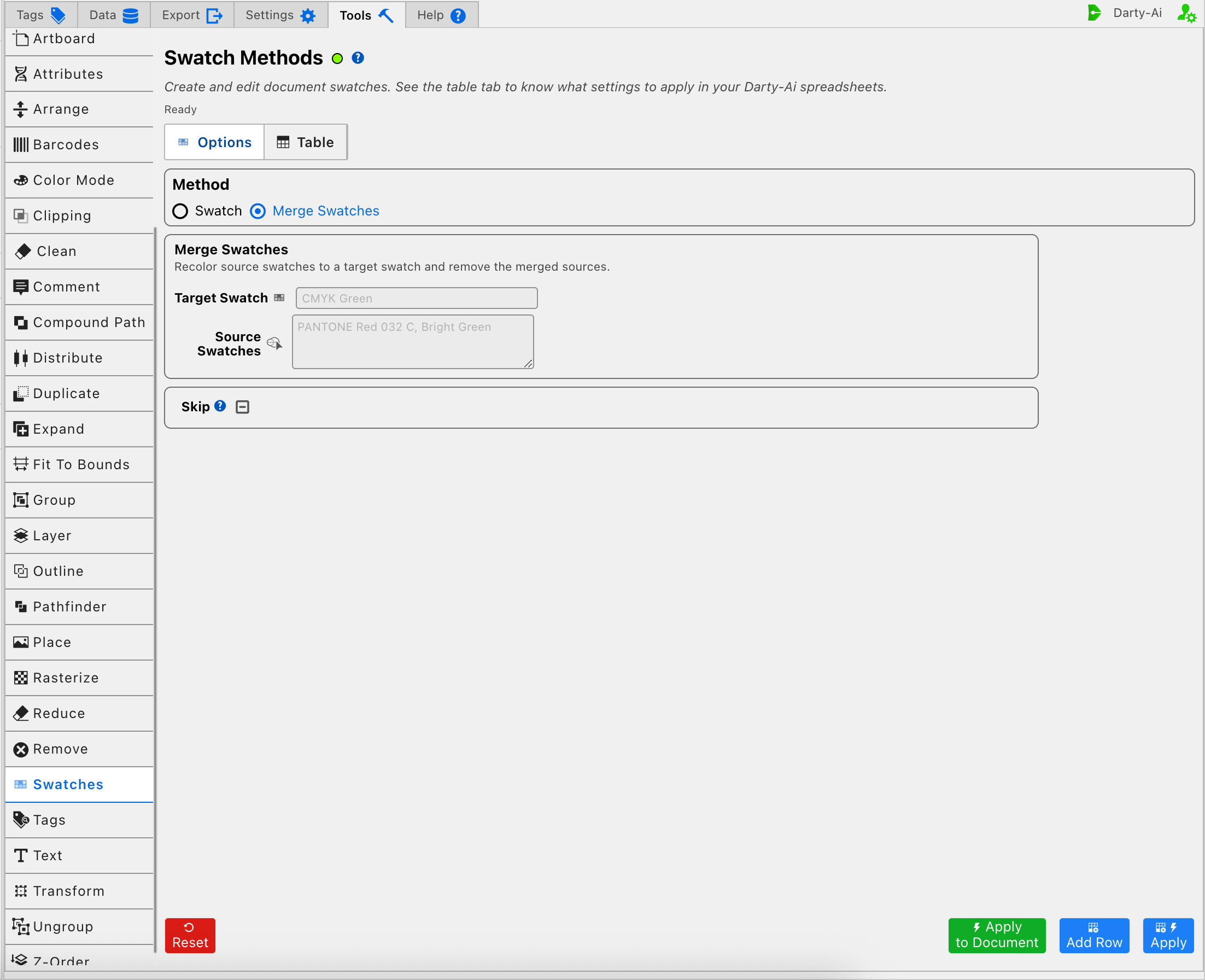
Use Merge Swatches after duplicate or imported document colors have been reviewed and one swatch has been chosen as the canonical result.
Target Swatch writes target and names the swatch that should remain. Enter it explicitly so the surviving definition is unambiguous.
Source Swatches writes the required swatches list. Enter the document swatch names that should be replaced, such as Bright Green, Imported Green. When the row runs, artwork using those source swatches is recolored to the target and the merged source swatches are removed.
Merge Swatches removes document resources after replacing their uses. Save a copy, confirm every name, and make sure the target is not included in the source list before applying the row.
This operation is intentionally document-wide. It is not limited to the current Illustrator selection or to a tagged object, and it cannot be undone by Reset in the Tools panel.
Skip a Reusable Swatch Row
Skip is a three-state checkbox shared by both modes.
- True writes
skip:trueand bypasses this method for the current data record. - False writes
skip:falseand explicitly allows the method to run. - Unset omits the property.
Skip is useful after a Swatch or Merge Swatches configuration becomes part of a reusable spreadsheet whose records do not all need the document-resource change. See Skip and *.
Apply at Document Scope
Because neither mode targets artwork, the secondary action is Apply to Document, not Apply to Selection. It runs the current configuration once against the active document without adding the row to the Swatches Table.
Use the actions according to the intended workflow:
- Add Row captures the current Swatch or Merge Swatches configuration without changing Illustrator.
- Apply captures the row and runs it through the Table workflow.
- Apply to Document runs the current configuration directly without adding a row.
- Reset restores the editor and clears its working Table preview; it does not undo swatches already edited or merged in Illustrator.
The Table can contain rows from both modes. Each row retains its own swatch or mergeSwatches method block when it is edited or dispatched.
Validation and Safe Workflows
For Swatch mode, supply at least one identity field: Swatch Name or Swatch Number. A new swatch also needs a usable color definition. When editing an existing swatch, leave properties blank or unset when they should remain unchanged.
For Merge Swatches mode, Source Swatches is required. Before applying it:
- Confirm the target swatch already exists and has the intended color type and definition.
- Compare the target and source names exactly in Illustrator's Swatches panel.
- Make sure the target is not repeated among the sources.
- Use Add Row first and inspect the generated method and property columns.
- Save a copy of production artwork, apply the row, and inspect both the artwork and Swatches panel.
A practical create-and-consolidate sequence is to apply a Swatch row first so the canonical target exists, then apply a later Merge Swatches row. Method order matters: reversing those rows can ask Merge Swatches to use a target that has not yet been created.
Control-to-Property Summary
| Editor purpose | Darty property |
|---|---|
| Existing or new swatch name | swatchName |
| Existing swatch by document index | swatchNumber |
| Rename the located swatch | newName |
| Combined color definition | color |
| Individual model channels | channel1, channel2, channel3, channel4 |
| Input color model | colorSpace |
| Stored destination color space | destColorSpace |
| Process or spot classification | spot |
| Global process behavior | global |
| Spot or global tint percentage | tint |
| Swatch retained by a merge | target |
| Swatches recolored and removed | swatches |
| Skip the method for a data row | skip |
Capture, Apply, and Review
- Tools Method Actions and Apply Modes explains Reset, Add Row, Apply, and Apply to Document.
- Tools Method Table Preview explains how to inspect, edit, reorder, copy, download, and apply captured rows.
- Swatch methods reference documents aliases, color syntax, accepted ranges, and spreadsheet examples.