
Duplicate Tool
Use Tools → Methods → Duplicate to make copies of tagged Illustrator artwork, place those copies at a deliberate point in the layer stack, and give the results predictable Darty tags. Duplicate controls stacking order rather than visible X and Y spacing; use a later Align, Distribute, or Transform row when the copies must also move across the artboard.
The editor is easiest to understand as five decisions:
- Which artwork should be copied?
- Should the source be limited to a particular layer?
- How many copies should be made?
- Where should the copies appear in the document structure?
- How should the original and copies be tagged afterward?
For spreadsheet examples, accepted aliases, and the underlying duplication behavior, see the Duplicate method reference.
Duplicate Editor
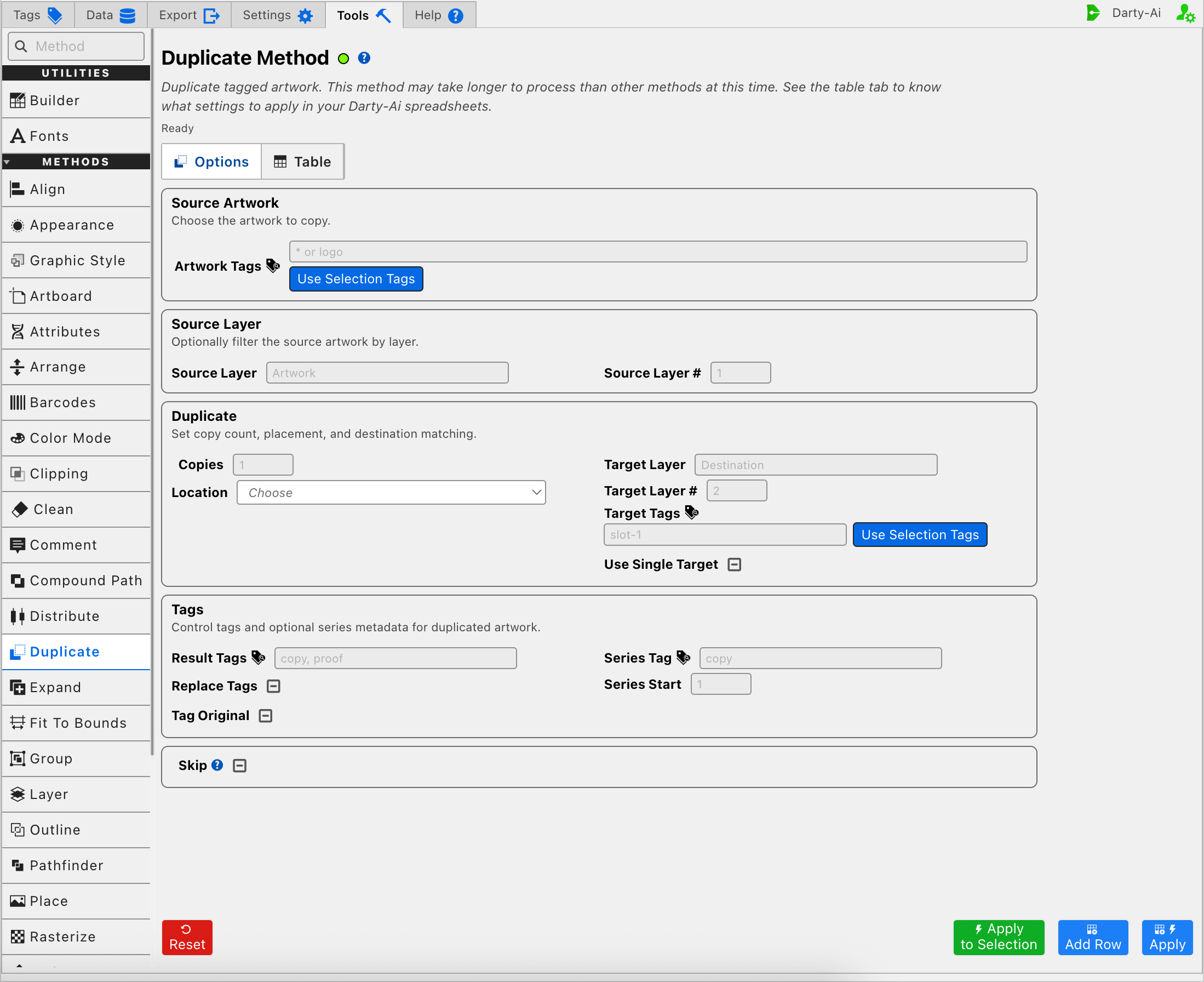
Choose the Source Artwork
Artwork Tags identifies the objects to copy. Its value becomes the Darty sheet's target header rather than a property column.
Enter a Darty tag search such as logo, badge | seal, or a more specific expression. If Artwork Tags is left blank, the Table preview normalizes the target to *, allowing the row to address all eligible artwork. Duplicate can multiply every matched object, so use that broad target deliberately.
Use Selection Tags reads the existing Darty tags from the artwork currently selected in Illustrator and copies them into Artwork Tags. It does not duplicate anything or create new tags. When several tags are found, the editor can build an OR search such as front | label.
For tag operators and matching behavior, see Darty Tags.
Apply to Selection is the one-time alternative when the current Illustrator selection should be copied without saving its tags as the row target. Darty temporarily targets that selection and does not add a row to the Duplicate Table.
Narrow the Source by Layer
Artwork Tags can match similarly tagged objects on several layers. Use Source Layer or Source Layer # to restrict which of those matches becomes the source.
- Source Layer writes
layerNameand limits matching to a named layer. - Source Layer # writes
layerNumberand limits matching to a numbered layer.
Use one clear layer identifier rather than filling both. Leaving both blank allows tagged artwork to be copied regardless of its containing layer.
These fields only filter the source. They do not choose where the duplicate is placed; Target Layer, Target Tags, and Location handle the destination.
Choose the Number of Copies
Copies writes copies and sets how many duplicates are created for each source operation. Use a positive whole number. Leaving the field blank omits the property, and the method creates its normal single copy.
The count describes new copies, not the final total including the original. For example, copies:3 keeps the original and creates three additional items.
When several source objects match, each eligible source can be duplicated. When several destination objects also match and Use Single Target is False, the total operation can grow again because a copy set can be created relative to every destination. Review broad searches and copy counts together before applying the row to a large document.
Place Copies in the Layer Stack
Location writes location and controls stacking order. It does not set the copies' visible coordinates.
| Location | Generated value | Placement |
|---|---|---|
| Above | above | Immediately above the matched target artwork or target layer. |
| Below | below | Immediately below the matched target artwork or target layer. |
| Above All | aboveAll | At the front of the document's artwork stack. |
| Below All | belowAll | At the back of the document's artwork stack. |
| Inside On Top | insideOnTop | Inside the target layer or group, above its existing contents. |
| Inside On Bottom | insideOnBottom | Inside the target layer or group, below its existing contents. |
When Location is left unselected, no location property is written. The Duplicate method's normal behavior places unqualified copies at the front of the document.
Above All and Below All do not need a separate destination. Above, Below, Inside On Top, and Inside On Bottom are most useful with a target that establishes the relative position.
After duplication, use Arrange, Distribute, Align, or the Transform method reference when the new objects also need different positions or dimensions.
Identify the Destination
The destination fields decide which object, layer, or group Location refers to. They do not change the source search.
Target by Layer
- Target Layer writes
targetLayerName. - Target Layer # writes
targetLayerNumber.
A target layer can be the destination itself for an inside placement, or it can limit the layer in which Target Tags are resolved. Use a name or number that remains dependable in the documents where the row will run.
Target by Artwork Tags
Target Tags writes targetTagSearch and finds the artwork used as the relative destination. For example, a source of price with Target Tags product-photo and Location Above places the duplicated price artwork immediately above the matched photo in the layer stack.
The Target Tags Use Selection Tags action reads tags from the current Illustrator selection and copies them into this destination search. It does not change Artwork Tags, apply the row, or tag the selection.
Target Layer and Target Tags can work together: the layer narrows where the tagged destination is found, while the tag search identifies the destination artwork within that layer.
Use One Target or Every Target
Use Single Target writes useSingleTarget and matters when the destination search finds several objects.
- True uses only the first matching target.
- False duplicates relative to every matching target.
- Unset omits the property; the documented default is to use a single target.
False is useful for repeating the same source beside every tagged slot, card, or product region. It can also produce many more objects than expected, especially when Copies is greater than one. Check the target search in Illustrator before applying that combination broadly.
Decide Which Tags the Results Receive
The Tags section can append ordinary tags, assign a numbered series, or replace the existing tags carried by copied artwork.
Apply Result Tags
Result Tags writes tags as a comma-separated list such as copy, proof. By default, those tags are applied to the original source and the duplicates. This makes the whole resulting set easy to address with a later method.
Tag Original writes tagOriginal and decides whether Result Tags and Series Tag also affect the source artwork:
- True includes the original.
- False leaves the original's tags unchanged and tags only the duplicates.
- Unset follows the documented default, which includes the original.
Tag Original does not control whether the original artwork remains in the document; Duplicate always preserves the source. It only controls the tag changes associated with this row.
Append or Replace Existing Tags
Replace Tags writes replaceTags.
- False appends Result Tags and Series Tag to the affected artwork's existing Darty tags.
- True replaces the affected artwork's existing tags with the new tag values.
- Unset follows the documented default append behavior.
Use True carefully. A duplicate normally inherits the source object's tags, which can be useful for later targeting. Replacing them can intentionally separate the copies from the source workflow, but it can also remove the tags that other rows expect. If Tag Original is also True or Unset, replacement can affect the original as well as the copies.
Create Predictable Numbered Tags
Series Tag writes seriesTag and supplies a prefix for numbered Darty tags. Series Start writes seriesStart and chooses the first number.
For example, Series Tag badge and Series Start 5 produce tags such as badge5, badge6, and badge7 across the affected original-and-copy sequence.
The starting point depends on Tag Original:
- When the original is included, it receives the starting number and the copies continue with the next numbers.
- When Tag Original is False, the first duplicate receives the starting number.
Series Start has no effect without Series Tag. It must contain a number. Use a stable prefix when later rows will target an exact item such as badge7, or use a starts-with tag search when they should target the whole numbered series.
Use Three-State Checkboxes Intentionally
Use Single Target, Replace Tags, Tag Original, and Skip use three states so the generated row can make an explicit choice or leave normal method behavior alone:
- True writes the property as
true. - False writes the property as
false. - Unset omits the property entirely.
Unset does not mean False. In Duplicate, several defaults are intentionally affirmative: an omitted Use Single Target uses one destination, and an omitted Tag Original includes the source in tag changes. Select False when the row must override those defaults.
Skip a Reusable Duplicate Row
Skip writes skip and controls whether this method runs for the current data record.
- True writes
skip:trueand bypasses duplication. - False writes
skip:falseand explicitly allows it to run. - Unset omits the property.
Skip is useful when a spreadsheet contains records that do not all need additional artwork. See Skip and *.
Build Useful Duplicate Configurations
Make Several Copies at the Front of the Document
- Enter a narrow Artwork Tags search.
- Enter the number of Copies.
- Leave the destination fields blank and choose Above All, or leave Location unselected to use the method's normal front-of-document behavior.
- Add Result Tags or a Series Tag when later rows need to target the copies.
- Capture the row and inspect it in the Table before applying.
Place a Copy Beside One Tagged Destination
- Choose the source with Artwork Tags and, if necessary, a Source Layer filter.
- Set Copies to the required count.
- Enter Target Tags for the stationary destination.
- Choose Above or Below for the intended layer-stack relationship.
- Leave Use Single Target Unset or set it to True.
- Apply the row, then use an Align, Distribute, or Transform row if the copy must also move visibly.
Repeat a Source for Every Tagged Slot
- Identify the source and set Copies to the number needed at each slot.
- Enter Target Tags that match all destination slots.
- Choose the appropriate relative Location.
- Set Use Single Target to False.
- Use Result Tags or Series Tag so the generated objects remain independently targetable.
- Use Add Row first and verify the source search, target search, count, and target behavior before applying.
Validation, Warnings, and Common Problems
- Apply to Selection reports No selection. Select artwork first. when Illustrator has no current selection.
- Copies, Source Layer #, Target Layer #, and Series Start expect numeric values. Use a positive whole number for Copies.
- Above or Below needs a target artwork or layer when a precise relative position is required. Inside On Top or Inside On Bottom needs a destination that can contain artwork, such as a layer or group.
- If only one copy set appears when Target Tags matches several objects, Use Single Target is True or following its normal single-target behavior. Set it to False to use every target.
- If later methods can no longer find the source tags, check whether Replace Tags removed them from the duplicates or original.
- If numbering begins on the wrong item, review Tag Original together with Series Start.
- Large source searches, multiple destination matches, and high copy counts can take longer to process and create substantially more artwork than any one setting suggests.
Control-to-Property Summary
| Editor purpose | Darty property |
|---|---|
| Artwork to copy | Target header / tagSearch |
| Source layer by name | layerName |
| Source layer by number | layerNumber |
| Number of new copies | copies |
| Layer-stack placement | location |
| Destination layer by name | targetLayerName |
| Destination layer by number | targetLayerNumber |
| Tagged destination artwork | targetTagSearch |
| Use the first or every destination match | useSingleTarget |
| Tags added to the result set | tags |
| Replace rather than append tags | replaceTags |
| Include the original in tag changes | tagOriginal |
| Numbered-tag prefix | seriesTag |
| First series number | seriesStart |
| Skip the method for a data row | skip |
Capture, Apply, and Review
- Tools Method Actions and Apply Modes explains Reset, Add Row, Apply, and Apply to Selection.
- Tools Method Table Preview explains how to inspect, edit, reorder, copy, download, and apply captured Duplicate rows.
- Duplicate method reference documents accepted values, spreadsheet examples, and sample files.