
Text Tool
Use Tools → Methods → Text to replace text, format it, or fit it to a text frame. Find / Replace and Formatting edit the same row, so a single row can locate a word and then change both its content and appearance.
This page is a compact guide to the editor. For accepted values, language support, regular expressions, fitting behavior, and spreadsheet examples, see the Text method reference.
Find / Replace
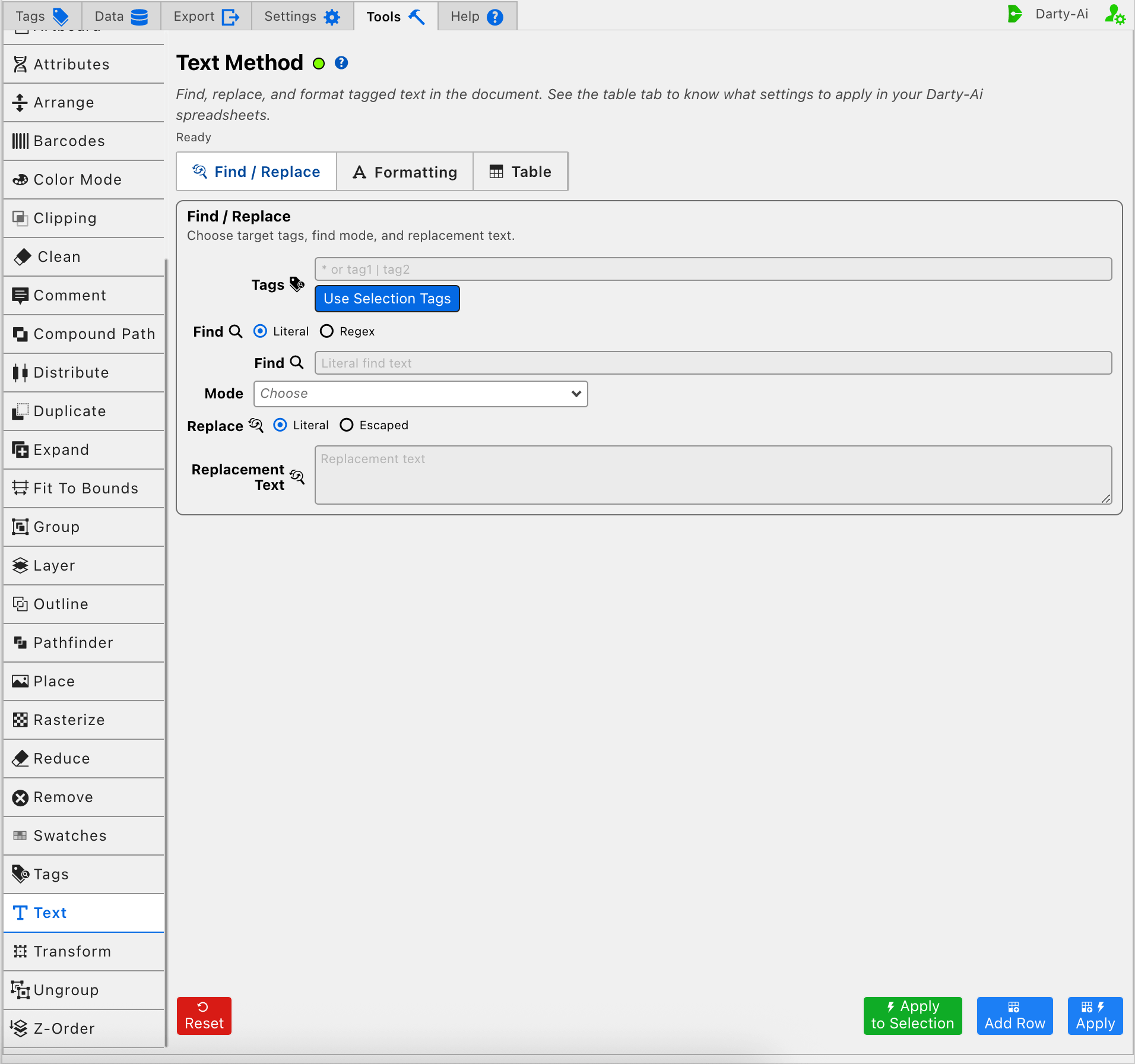
Tags identifies the text frames to search. Its value becomes the sheet's target header / tagSearch rather than a separate property column. A blank target is normalized to *; use that broad target deliberately. Use Selection Tags copies the current selection's existing Darty tags into the field.
Choose how the text itself is found:
- Literal writes
findand searches for the entered text. - Regex writes
grep; Regex Flags writesflags. - Mode writes
modeand controls whether Darty targets template delimiters, all matches, or an entire frame.
The detailed delimiter modes and regex examples belong in Targeting Text, Modes, and Advanced RegEx Targeting.
Choose Literal replacement to write replace. Choose Escaped to write replaceEscaped when typed sequences such as \n, \t, or Unicode escapes should become actual characters. See Replacing and Removing Text and replaceEscaped. To delete matched text, enter an explicit empty string such as ""; a blank replacement field is omitted.
Formatting
The Formatting editor is taller than the extension viewport, so these captures show it in order.
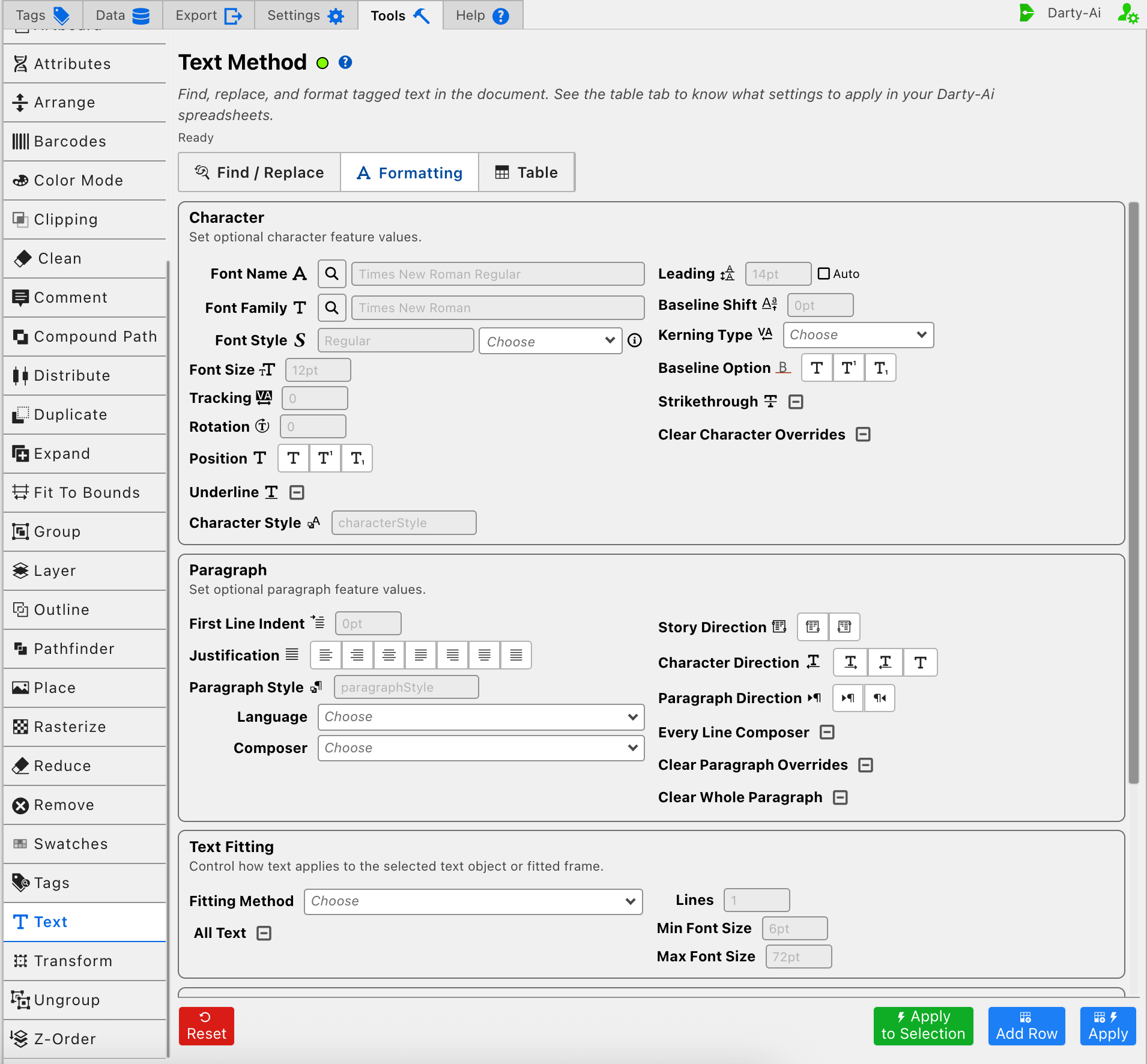
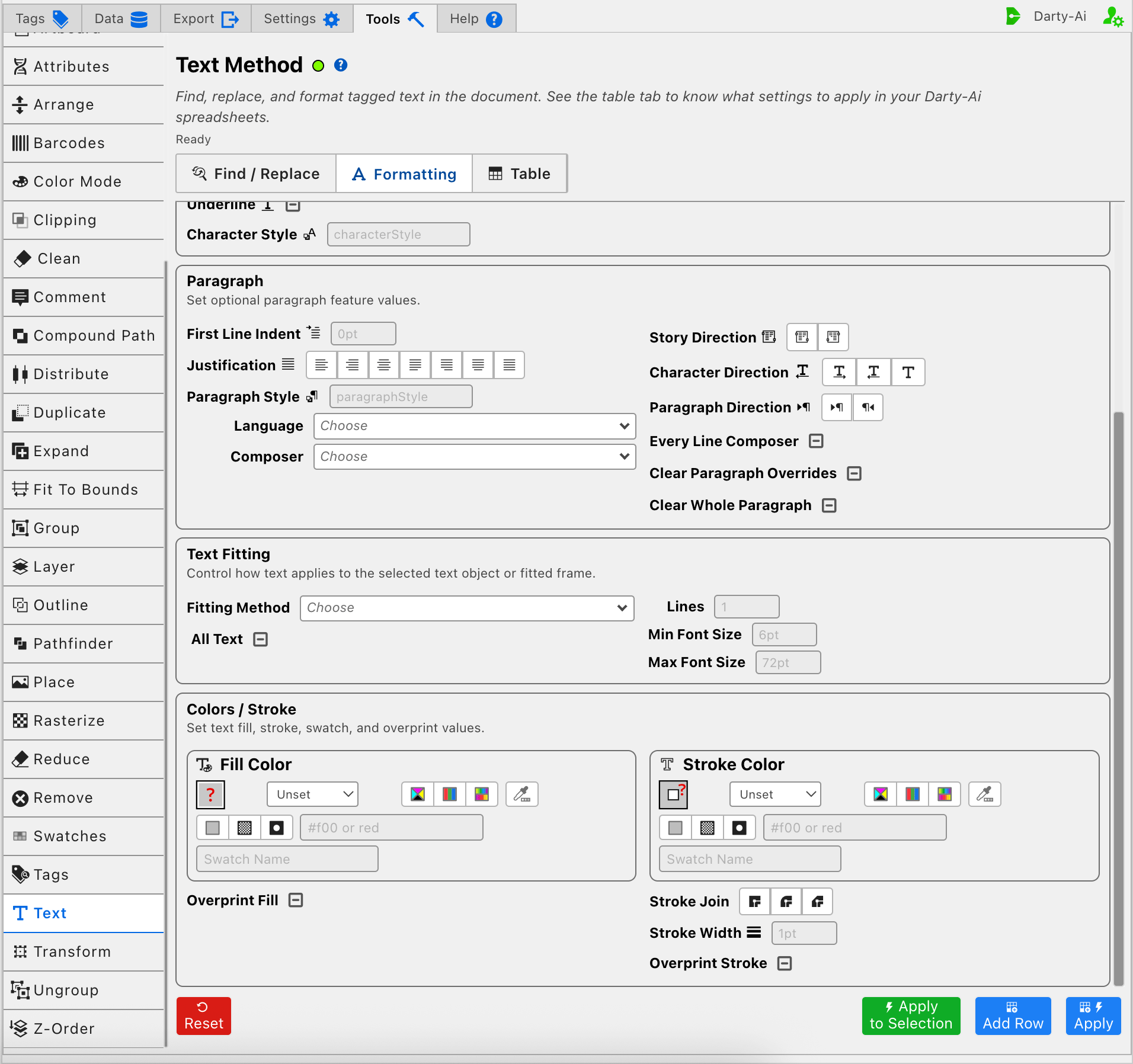
Leave a formatting control Unset when the row should preserve the text's existing value.
Character
| Purpose | Controls and generated properties |
|---|---|
| Typeface | Font Name fontName; or Font Family fontFamily with Font Style fontStyle |
| Size and spacing | Font Size fontSize, Leading leading, Auto autoLeading, Tracking tracking, Kerning Type kerningType |
| Baseline and orientation | Baseline Shift baselineShift, Rotation rotation, Position position, Baseline Option baselineOption |
| Decoration | Underline underline, Strikethrough strikethrough |
| Styles | Character Style characterStyle, Clear Character Overrides clearCharacterOverrides |
Font Name selects a complete installed font face. Font Family and Font Style select the two parts separately. When Leading's Auto option is enabled, autoLeading is written and the manual Leading value is omitted.
Paragraph
| Purpose | Controls and generated properties |
|---|---|
| Layout | First Line Indent firstLineIndent, Justification justification, Paragraph Style paragraphStyle |
| Language and composition | Language language, Composer composer, Every Line Composer everyLineComposer |
| Direction | Story Direction storyDirection, Character Direction charDirection, Paragraph Direction paragraphDirection |
| Overrides | Clear Paragraph Overrides clearParagraphOverrides, Clear Whole Paragraph clearOverridesOfWholeParagraph |
For supported language values, see Language. For right-to-left and complex-script behavior, see Text-Direction & Composer Features. Style and override behavior is covered under Styles and Overrides.
Text Fitting
Fitting Method writes fittingMethod. Depending on the selected mode, Darty can resize text, shrink overflowing text, or resize the frame. All Text writes allText; Lines, Min Font Size, and Max Font Size write lines, minFontSize, and maxFontSize as fitting limits.
See Fitting Methods for mode behavior, supported frame types, and size limits.
Colors / Stroke
The color editors can write an inline color or select an Illustrator swatch.
| Purpose | Generated properties |
|---|---|
| Fill | fillColor, swatchName, overprintFill |
| Stroke | strokeColor, strokeSwatchName, strokeJoin, strokeWidth, overprintStroke |
Three-State Checkboxes
Optional checkboxes use True, False, and Unset. True and False write an explicit value; Unset omits the property. This applies to options such as Underline, Auto Leading, override clearing, All Text, and overprint controls.
Practical Workflow
- Enter Tags or use Apply to Selection.
- Add a literal or regex search only when the row should affect part of the text; omit it to address the targeted frame's text.
- Enter replacement text and/or set only the required Formatting controls.
- Add the row and inspect the Table before applying broad searches or override-clearing operations.
Text requires at least one replacement, search operation, or formatting feature. Otherwise the editor reports Add at least one text operation, replacement, or text feature before continuing.
Capture, Apply, and Review
- Tools Method Actions and Apply Modes explains Reset, Add Row, Apply, and Apply to Selection.
- Tools Method Table Preview explains captured-row editing and application.
- Text method reference contains the full property and language reference.