
Comment Tool
Use Tools → Methods → Comment to place explanations and helper metadata inside a Darty sheet without changing Illustrator artwork. A Comment row can mark the beginning of a section, explain why nearby methods exist, record a production value, or give outside spreadsheet tooling a readable variable/value pair.
Comment is deliberately different from an artwork method:
- It does not target tagged artwork.
- It is ignored by artwork preview and dispatch processing.
- It does not need a Skip setting because there is no Illustrator operation to bypass.
For the stored properties and a sample spreadsheet, see the Comment method reference.
Comment Editor
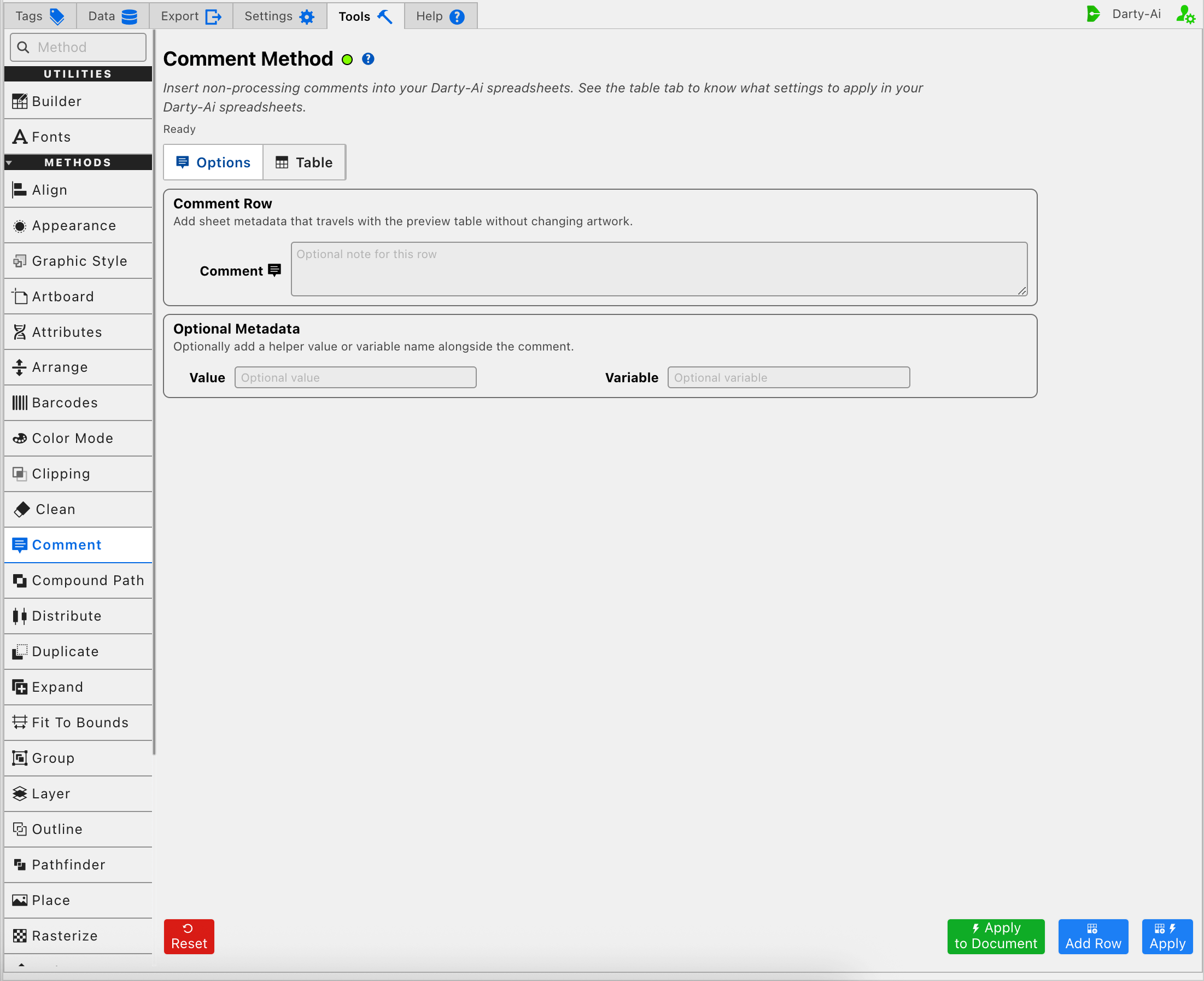
Write a Note That Travels With the Sheet
Comment writes the row's comment property. The older note property name is also accepted when a sheet is written manually, but the editor produces comment.
Use the comment itself for language a person should be able to understand when reading the table later. Good uses include:
Front-panel methods begin belowKeep the regulatory logo at least 24mm wideRows below require the approved packaging templateReview these export settings before production
The text is stored in the spreadsheet. It is not added to the Illustrator canvas, Layers panel, or document notes.
Comment accepts free-form text and does not require a tag target. A completely empty row is technically allowed, but entering a useful note or metadata value makes its purpose clear to future readers.
Attach Optional Metadata
The Optional Metadata section lets the row carry a small named value alongside the human-readable comment.
Value
Value writes value. It can hold a measurement, identifier, status, or other short value related to the comment, such as 24mm, approved, or SKU-BASE.
Value is descriptive sheet data. The Comment method itself does not apply that value to Illustrator artwork.
Variable
Variable writes var. Use it to give Value a stable machine-readable name, such as minimumLogoWidth, approvalStatus, or baseSku.
Keeping the variable name compact and consistent makes the pair easier for another spreadsheet process to recognize. For example:
| Comment | Value | Variable |
|---|---|---|
| Approved minimum logo width | 24mm | minimumLogoWidth |
| Current artwork approval | approved | approvalStatus |
Value and Variable are optional and independent in the editor, but they are most understandable when used together: Value contains the information, while Variable names what that information represents.
Use Comment Rows for Sheet Structure
Comment rows are especially useful in long or shared sheets because they remain visible with the method data while being ignored by Illustrator processing.
Practical patterns include:
Section Marker
Enter a Comment such as Nutrition-panel methods and leave Value and Variable blank. Add the row before the related processing rows so the table is easier to scan.
Production Reminder
Write the instruction in Comment and place the important short value in Value. This keeps the explanation readable while making the key measurement or status easy to find.
Helper Variable
Use Comment to explain the value, Value to store it, and Variable to give it a consistent name for other tooling that understands the sheet convention. The Comment method records the pair; it does not by itself substitute the variable into another Darty property.
Capture the Row
Add Row is the primary Comment action. It adds the current Comment, Value, and Variable fields to the Table without attempting to change Illustrator.
Apply also captures the configured row through the shared action workflow, but Comment is intentionally ignored by artwork dispatch. It should not be used with the expectation that text or metadata will appear inside the Illustrator document.
Some screenshots or earlier builds may show a document-level action in the shared footer. A Comment row has no document operation to perform, and the current implementation does not need a selection or document target.
After adding the row, open Table to review its columns, edit it, change its order, copy the result, or download the focused Comment table.
Build a Useful Comment Row
A practical order is:
- Write the explanation that a future reader should see.
- Add Value when one concise measurement, identifier, or status belongs with the note.
- Add Variable when that value needs a stable machine-readable name.
- Select Add Row.
- Open Table and move the Comment row into the position where it explains the surrounding methods.
Because Comment never processes artwork, it does not need Artwork Tags, Apply to Selection, or a three-state Skip checkbox.
Control-to-Property Summary
| Editor purpose | Darty property |
|---|---|
| Human-readable sheet note | comment |
| Optional associated value | value |
| Optional name for the value | var |
Capture and Review
- Tools Method Actions and Apply Modes explains Reset, Add Row, and Apply.
- Tools Method Table Preview explains how to inspect, edit, reorder, copy, and download captured Comment rows.
- Comment method reference documents the accepted property aliases and sample sheet structure.