
Here are the latest enhancements included in Darty-Ai version 1.7.1, released later February 2026. Some of these improvements were quietly introduced in earlier builds, but this post highlights everything that has been added since our previous “New Features” update in August 2025.
💾 Save As-Is — Exact Document Saving
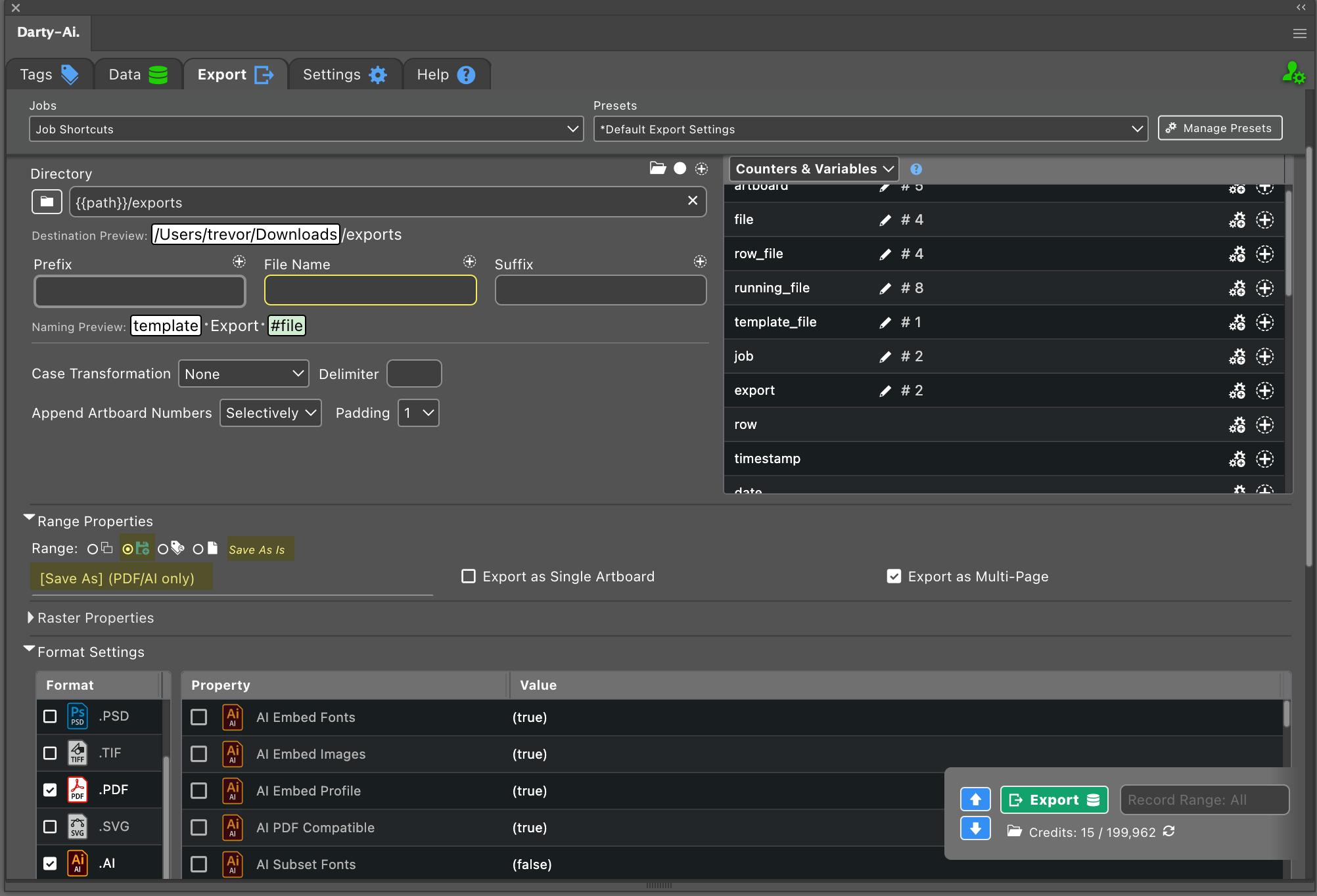
Up until now, export options were based strictly on the Export for Screens workflow:
- Artboards — Export a chosen range (default: all).
- Assets — Export items found via tag searches.
- Full Document — Export the entire document as one artboard.
With version 1.7.0, we’re introducing a brand-new option: 💾 Save As-Is.
This allows you to save the file exactly as Illustrator would using the native Save As command — preserving:
- All layers
- Effects and appearance
- Styles
- Off-artboard artwork
This option is available for AI and PDF formats. If your goal is to export the document intact (not split into multiple artboards), this will likely become your go-to method.
📐 Selected Padding
You now have the ability to apply padding to specific sides of an artboard without altering the opposite sides. For example, you can increase only the top and bottom padding while keeping the left and right dimensions unchanged.
This feature is especially helpful when preparing artwork for long prints — such as continuous-roll production — where controlled vertical padding is essential.
📏 Transform: Shrink or Enlarge
Artwork can now be resized by setting a target width or height and letting Darty-Ai automatically shrink or enlarge it to fit.
Example: If you have outlined text that must maintain its height but should only shrink in width when it exceeds a certain size, this feature makes that easy — especially useful in areas like sports apparel where precise, consistent dimensions matter.
🌐 Languages
The text method now supports a language property, ensuring accurate spell-check behavior and improved language-aware processing throughout your workflow.
📏 Regulatory Min & Max Font Sizes
For compliance-critical industries, you can now set minFontSize and maxFontSize to ensure text never scales outside permitted limits.
When using shrinkToFrame, Darty-Ai normally reduces the font size automatically until the text fits its frame. By setting minFontSize:
- Text will never shrink below your allowed minimum.
- If it cannot fit, Darty-Ai will report an error instead of producing non-compliant output.
This gives you full control and immediate feedback when artwork must follow strict size regulations.
🔍 Regex Support in {{template}} Strings
Regex support has been expanded! In addition to using regexes for standard text transformations (see our regex feature update), you can now use them inside {{template}} fields as well.
For example, if your document contains:
{{name_1}}{{name_2}}{{name_3}}
…you can modify all of them at once using a regex like ^name_. This makes bulk template updates faster and far more flexible.
🐞 Bug Fixes
Alongside the new features, this update includes several important bug fixes that improve stability, reliability, and overall workflow consistency:
- Resolved an issue where certain effects were being removed during raster exports.
- Fixed a problem that caused text files to be placed incorrectly in some cases.
- Corrected an error that occurred when replacement text included carriage returns.
- Fixed a bug where overflowing text on locked or hidden layers was not being fitted to its text frame.
- Shows alert, when the template document is corrupt and the preview or export documents cannot be created.