
Layer Tool
Use Tools → Methods → Layer to create, duplicate, edit, move, or remove Illustrator layers. Layer is a document-scoped method: it identifies layers by name or number and can place them relative to another layer or to tagged artwork.
The editor is easiest to understand as four decisions:
- Should the row add, find-or-add, duplicate, edit, or remove a layer?
- Which existing layer is involved, or what should a new layer be called?
- Where should the resulting layer sit in the document hierarchy?
- Which layer options and appearance settings should be assigned?
Selecting Remove hides the placement, options, and appearance sections because those values have no role when the layer is deleted. Hidden fields are not included in the generated Remove row.
For accepted aliases, spreadsheet examples, and illustrated results, see the Layer method reference.
Choose What Happens to the Layer
Layer Method writes mode and determines how the identity fields are interpreted.
| Action | Generated value | Result |
|---|---|---|
| Add/Edit | addEdit | Edit the named layer when it exists; otherwise add it. This is the initial mode. |
| Add | add | Create a new layer. |
| Duplicate | duplicate | Copy an existing named or numbered layer. |
| Edit | edit | Change an existing named or numbered layer. |
| Remove | remove | Delete an existing named or numbered layer and its contents. |
Add/Edit is useful for reusable documents whose starting layer structure may vary. Choose Edit when the layer must already exist and a missing layer should be treated as a problem; choose Add when the operation must always create a new layer.
Identify and Name the Layer
- Layer Name writes
name. - Layer Number writes
numberand identifies a layer by its numbered position. - New Name writes
newNameand is available for every action except Remove.
When editing, duplicating, or removing, use either Layer Name or Layer Number to identify the existing layer, not both. Layer names are case-sensitive. A name is usually more readable and resilient when layer order may change; a number is useful when every source document has the same structure.
For Add, Layer Name supplies the new layer's name. If it is blank, Illustrator can assign its normal default layer name. For Edit and Duplicate, New Name renames the resulting layer while Layer Name or Layer Number continues to identify the original. Add/Edit uses Layer Name both to find the existing layer and, when no match exists, to name the layer it creates.
Add, Edit, or Duplicate a Layer
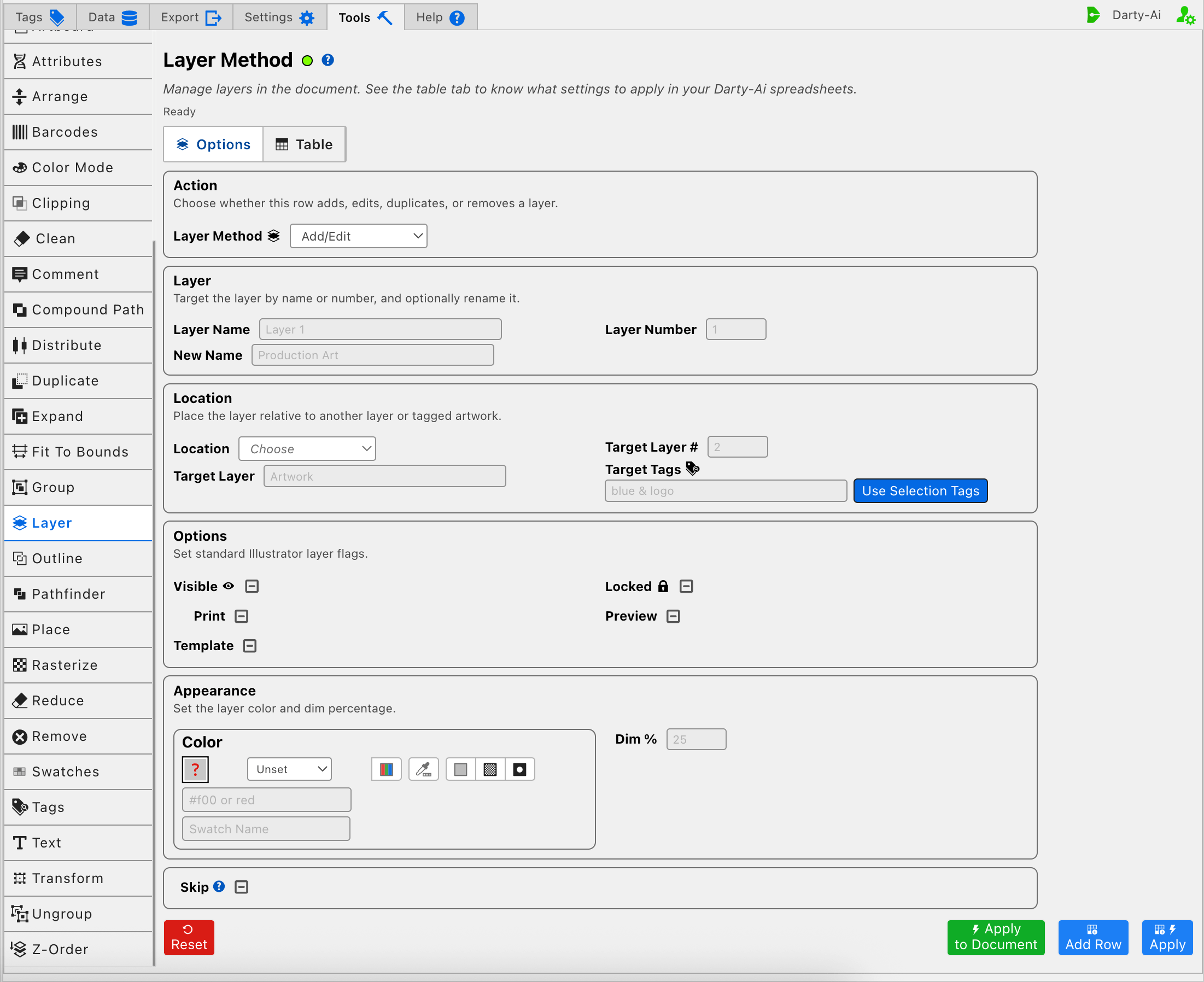
Add, Add/Edit, Duplicate, and Edit share the Location, Options, and Appearance sections. Blank fields and Unset checkboxes are omitted, so the row can make only the intended changes.
Place the Result
Location writes location and describes the new position of the added, duplicated, or edited layer.
| Location | Generated value | Use |
|---|---|---|
| Above | above | Place the layer immediately above a target layer or tagged artwork. This is the method's normal placement when a target is supplied and Location is omitted. |
| Below | below | Place the layer immediately below the target. |
| Above All | aboveAll | Place the layer at the top of the document's layer stack. |
| Below All | belowAll | Place the layer at the bottom of the document's layer stack. |
| Top / Inside On Top | top / insideOnTop | Place the layer at the top inside a target layer or group. |
| Bottom / Inside On Bottom | bottom / insideOnBottom | Place the layer at the bottom inside a target layer or group. |
Above All and Below All do not need a relative target. The other choices become meaningful when one of the target fields identifies the layer, group, or artwork that anchors the placement.
Choose the Placement Target
Use one of these approaches:
- Target Layer writes
targetLayerand finds the reference layer by its case-sensitive name. - Target Layer # writes
targetLayerNumberand finds it by its numbered position. - Target Tags writes
targetTagSearchand places the layer relative to matching artwork.
Use either Target Layer or Target Layer #, not both. Target Tags can stand alone when tagged artwork is the reference. It can also be combined with a target layer so the matching artwork is found within that layer.
The Use Selection Tags action beside Target Tags reads the existing Darty tags from the current Illustrator selection and inserts them into the field. It does not move the layer or apply tags. If no tagged artwork is selected, the status reports that a tagged selection is required.
Layer does not provide Apply to Selection because the layer being processed is identified by Layer Name or Layer Number. The green direct action is Apply to Document; Target Tags remains a placement reference rather than becoming the primary apply target.
Set the Layer's Working Options
Visible, Locked, Print, Preview, and Template are three-state checkboxes. Each one can explicitly enable an Illustrator layer option, explicitly disable it, or leave it unchanged:
- Visible writes
visibleand controls whether the layer's artwork is shown. - Locked writes
lockedand controls whether the layer can be edited manually. - Print writes
printand controls whether the layer participates in printed or exported output where Illustrator honors that setting. - Preview writes
preview. False shows the layer's artwork as outlines rather than fully previewed artwork. - Template writes
templateand controls whether Illustrator treats the layer as a template layer.
For each checkbox:
- True writes the property as
true. - False writes the property as
false. - Unset omits the property from the generated row.
Unset is especially useful in Edit mode because it preserves the layer's existing choice. It is different from False, which deliberately disables that option.
Set the Layers-Panel Appearance
Color writes color and changes the layer color displayed in Illustrator's Layers panel and on the selection edges of artwork belonging to that layer. The current Layer editor accepts RGB and hex color input. The method reference documents additional color forms that can be authored directly in a spreadsheet.
Dim % writes dimPercentage and sets how strongly images on the layer are dimmed, which is especially useful for template layers. Enter a percentage value such as 25; the method reference also documents -1 for no image dimming.
Color does not recolor the artwork itself. It changes Illustrator's layer-identification color.
Remove a Layer
Choose Remove, then identify the existing layer with Layer Name or Layer Number.
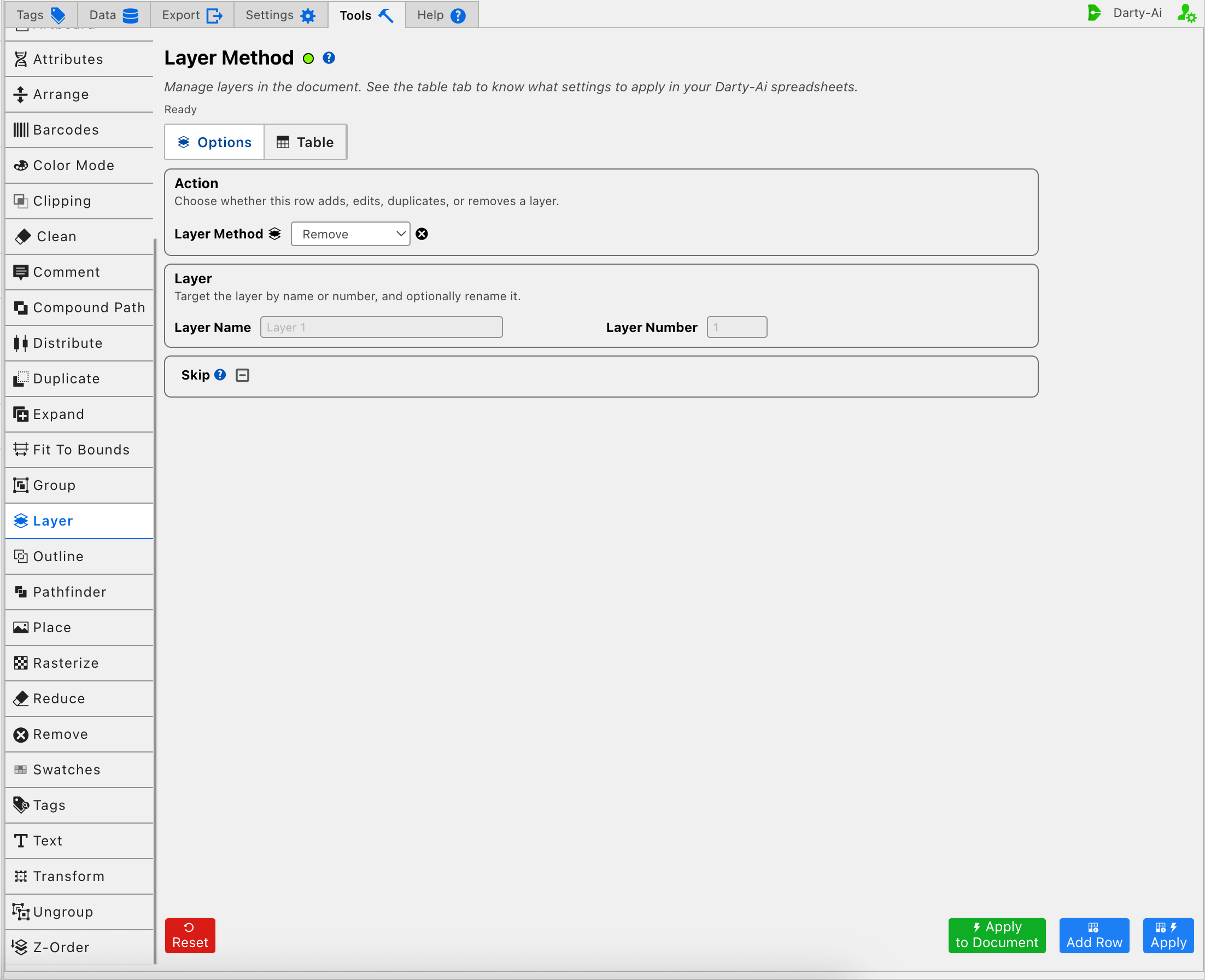
Removing a layer also deletes its sublayers and artwork. Because this changes the document destructively, confirm the case-sensitive name or current layer number before using Apply to Document. Add Row is useful when you want to inspect the generated mode, name, or number values in the Table without deleting anything.
Skip a Reusable Layer Row
Skip is a three-state checkbox that writes skip:
- True writes
skip:trueand bypasses the Layer method for that data row. - False writes
skip:falseand explicitly allows it to run. - Unset leaves
skipout of the generated row.
Skip is useful when the same sheet is used with documents or data records that do not all need the layer operation. See Skip and *.
Build a Useful Layer Configuration
For Add, Add/Edit, Edit, or Duplicate:
- Choose the Layer Method that matches how a missing or existing layer should be handled.
- Name the new layer, or identify the existing source by name or number.
- Enter New Name when an edited or duplicated result should have a different name.
- Choose a Location and its target only when the layer should move away from the method's normal placement.
- Set only the layer-option checkboxes that the row should explicitly control.
- Add a layer color or dim percentage when those panel settings are part of the workflow.
- Use Add Row to review the reusable configuration, Apply to capture and run it, or Apply to Document for a one-time document operation.
For Remove:
- Choose Remove.
- Enter one precise Layer Name or Layer Number.
- Use Add Row first if you want to verify the target without changing Illustrator.
- Use Apply or Apply to Document only after confirming that the layer and all of its contents should be deleted.
The editor always supplies a valid mode, but Illustrator still needs an existing source for Edit, Duplicate, and Remove. If the operation fails, confirm the layer name's spelling and case, make sure a numeric field contains a number, and check whether a layer number changed after earlier rows reordered the document.
Control-to-Property Summary
| Editor purpose | Darty property | Applicable actions |
|---|---|---|
| Layer operation | mode | All |
| Existing layer identity or new layer name | name | All |
| Layer identity or numbered position | number | All |
| Rename the resulting layer | newName | Add/Edit, Add, Duplicate, Edit |
| Relative or document-level placement | location | Add/Edit, Add, Duplicate, Edit |
| Placement target by layer name | targetLayer | Add/Edit, Add, Duplicate, Edit |
| Placement target by layer number | targetLayerNumber | Add/Edit, Add, Duplicate, Edit |
| Placement target by tagged artwork | targetTagSearch | Add/Edit, Add, Duplicate, Edit |
| Show, lock, print, preview, or template the layer | visible, locked, print, preview, template | Add/Edit, Add, Duplicate, Edit |
| Layers-panel identification color | color | Add/Edit, Add, Duplicate, Edit |
| Image dimming percentage | dimPercentage | Add/Edit, Add, Duplicate, Edit |
| Skip the method for a data row | skip | All |
Capture, Apply, and Review
- Tools Method Actions and Apply Modes explains Reset, Add Row, Apply, and Apply to Document.
- Tools Method Table Preview explains how to inspect, edit, reorder, copy, download, and apply captured Layer rows.
- Layer method reference documents aliases, spreadsheet examples, illustrated results, and sample files.