
DocumentationDocumentation
Darty.ai
Get Started
Basics
Methods
Colors
UI
Workflows
Darty.ai
Get Started
Basics
Methods
Colors
UI
Workflows
  • Get Started

    • Installation and Login
    • Your First Darty Document
    • Installers - Instructions and Downloads
    • Licensing
  • Basics

    • Darty Basics
    • Darty Header
    • Darty Tags
  • Methods

    • Darty-Ai Methods
    • Align
    • Appearance - General
    • Appearance - Colors & Swatches
    • Appearance - Effect Properties
    • Artboard Methods
    • Arrange
    • Attributes
    • Barcode
    • Barcode Formats
    • Clean Document
    • Clipping Mask Make and Release
    • Color Mode
    • Comment
    • Compound Path - Make and Release
    • Distribute
    • Duplicate
    • Expand
    • Fit To Bounds
    • Graphic Style
    • Group & Ungroup
    • Layer Methods
    • Outline
    • Pathfinder
    • Place
    • Rasterize
    • Reduce To Basic Appearance
    • Remove
    • Swatch Methods
    • Tags Methods
    • Tables
    • Template
    • Text
    • Transform Methods
    • zOrder
    • Skip and *
  • Colors

    • Color Libraries
  • Sheet Builder
    • Builder Table Anatomy
    • Builder Data Sources and Files
    • Builder Method Blocks
    • Builder Rows, Cells, and Navigation
  • User Interface

    • Darty-Ai User Interface
    • Tools Tab
    • Compress Images
    • Tools Methods
      • Tools Method Actions and Apply Modes
      • Tools Method Table Preview
      • Align Tool
      • Appearance Tool
      • Graphic Style Tool
      • Artboard Tool
      • Attributes Tool
      • Arrange Tool
      • Barcode Tool
      • Color Mode Tool
      • Clean Tool
      • Clipping Tool
      • Comment Tool
      • Compound Path Tool
      • Distribute Tool
      • Duplicate Tool
      • Expand Tool
      • Fit to Bounds Tool
      • Group Tool
      • Ungroup Tool
      • Layer Tool
      • Outline Tool
      • Pathfinder Tool
      • Place Tool
      • Rasterize Tool
      • Reduce Tool
      • Remove Tool
      • Swatches Tool
      • Tags Tool
      • Table Tool
      • Skip Row Tool
      • Template in Sheet Builder
      • Text Tool
      • Transform Tool
      • Z-Order Tool
    • Tags Panel
    • Tables Panel
    • Annotations and Canvas Controls
    • Tags Tab
    • Data Tab
    • Export Tab
    • Settings Tab
    • Help Tab
    • Export Settings
    • Export Validation
    • Job Export Settings
    • Export Counter Variables
    • Export Progress
    • Export Presets
    • Recent Files
    • Color Dialog
  • Cloud Data

    • Darty-Ai Cloud Data Integrations
    • Darty-Ai with Google Sheets
  • Workflows

    • Darty Workflows
    • Darty Preview
    • Darty Export Workflows
    • Darty Data Workflows
  • Site Blog

    • ⭐️What’s new in Darty-Ai 2.5 ⭐️
    • ⭐️Getting Started ⭐️
    • ⭐️Placing Images in Darty-Ai ⭐️
    • 🚀 New Features — Darty-Ai 1.7.8 (March 2026)
    • Creating a Basic Pie-Chart with Line-Art & Data
    • Customer Data and Darty-Ai
    • Darty-Ai Now Supports Google Sheets
    • External SVGs with Darty-Ai
    • Preview Your Documents
    • Self-Adjusting Logo Automation
    • State Management for Artwork Appearance
    • Text Replacements and Formatting
    • Using Private Google Sheets Shared with Business Emails
  • Site Pages

    • 🏠 Home
    • 💰 Pricing
    • Downloads
    • Legal
  • Release Notes
  • Downloads

Annotations and Canvas Controls

Tag annotations identify tagged artwork directly on the Illustrator canvas. Turn them on with View → Show Darty-Ai Annotations, the Show tag annotations checkbox in the Tags panel, or the corresponding control in the Tags tab. Use the same controls to hide them.

These are editing overlays, not text objects added to your design. Hiding them does not remove tags or change which objects a method targets.
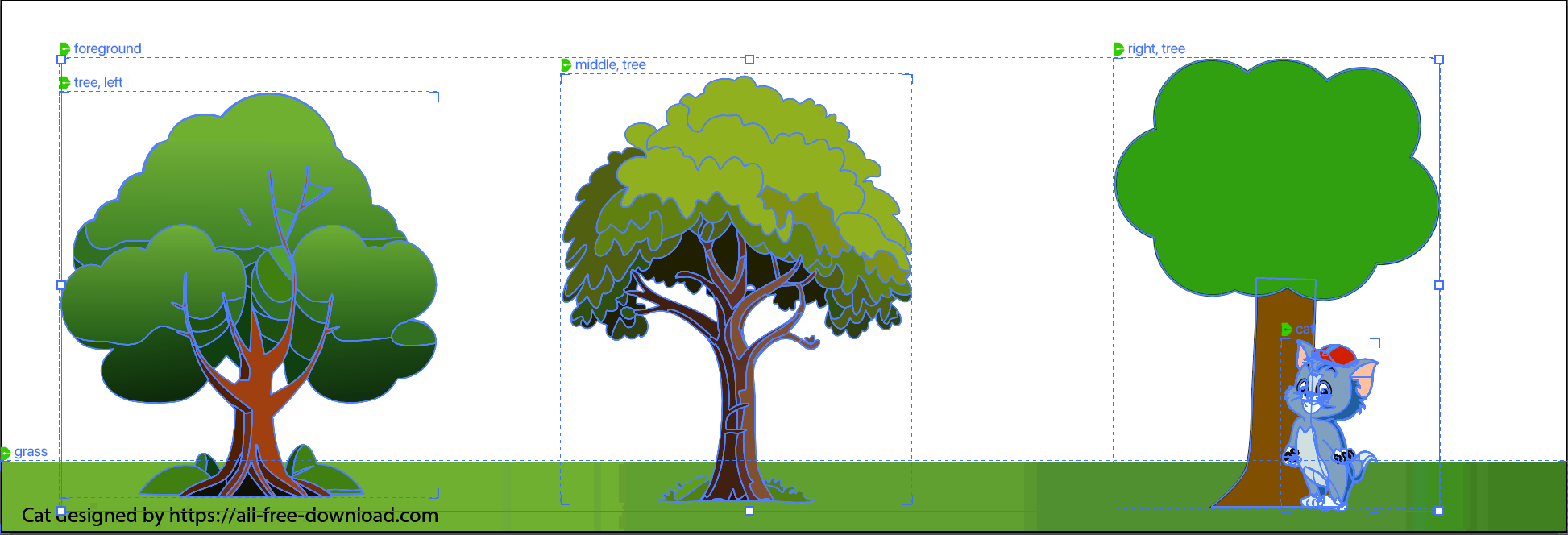
Tag annotations and bounds on nested foreground, tree, cat and grass artwork in Illustrator

Read the labels

Each tagged object has a label and an annotation box at its artwork bounds. When a parent and its descendants would put labels in the same place, Darty-Ai arranges the labels in compact rows: parent above children, then grandchildren. Objects whose labels do not collide keep labels beside their own artwork.

Use annotations to check that a placeholder has the intended role tag before running Text, Place, Barcode, or Tables. Use the Tags panel when a dense or nested design makes the labels hard to read.

Table selectors and live geometry

Managed tables also have on-canvas row/column selectors. Enable Live table features and Illustrator Show Edges, then hover just above a column or beside a row. The arrow marks the selectable band. Click selects its cells; Shift extends and Command on Mac or Ctrl on Windows adds to the selection. Merged cells remain whole.

The table selection is reflected in the Tables panel. Live divider edits reflow dependent table geometry. These controls are separate from tag-label visibility: use the live-table setting for table behavior and Show/Hide Annotations for tag labels.

If the expected label or control is absent

  • Confirm that the object has a Darty-Ai tag, rather than only an Illustrator object name.
  • Check annotation visibility in the Tags panel or View menu.
  • For table selectors, check Show Edges and Live table features, and select a managed table or one of its cells first.
  • Open the Tags hierarchy to distinguish tags on a group from tags on its children.
Last Updated: 11/5/26, 9:33 AM
Contributors: Trevor
Prev
Tables Panel
Next
Tags Tab