
Table Tool
Use Tools → Table to prepare a table method before applying it to Illustrator. In Sheet Builder, choose Add Method Block → Table to put the same configuration into a methods sheet. The sheet method name is tables.
The Table tool shares Source, Fill & Borders, Text, Artwork, Layout, and Styles controls with the Tables panel. Its edits are staged: Apply Source resolves imported data into the draft; use the tool's apply action to write artwork. In Builder, Apply updates the method block or record instead.
Prepare a table
- Choose Blank or Existing, Paste, File, or URL under Source.
- Load the data and inspect the preview. For workbooks, choose a sheet name or number and an optional A1 range.
- Set header/footer counts and import options. Use Parse Markdown for inline text styling.
- Select the whole table, a named group, or specific cells before changing appearance, text, padding, or dimensions.
- Supply a target tag search to replace placeholder artwork or update tagged managed tables. Clear the target and ID to create a separate table.
- Apply to Illustrator, or apply the editor back to Builder and then preview the record from Data.
Builder properties
Builder's boolean controls distinguish Unset, True, and False. Unset omits an instruction; False explicitly turns it off. This matters for Parse Markdown, Trim, Preserve Source Formatting, Use Source Fonts, and Reset Existing Formatting.
Source previews retain the authored path/URL and options in the method. They do not silently replace a reusable source connection with its current resolved cells. Save Table, by contrast, exports a snapshot suitable for recreating the displayed table.
The editor generates ordinary property columns and indexed range columns such as range[1]group and range[1]fillColor. Use the Tables property reference to edit those columns manually.
Common checks
| Symptom | Check |
|---|---|
| A short record leaves unexpected blanks or changes the size | Review explicit rows/columns and trim; test both long-to-short and short-to-long records. |
| All cells change instead of the header | Select Header before editing, and check the generated range selector. |
| A source reload replaces custom styling | Review Preserve Source Formatting and Reset Existing Formatting. |
| The table looks different after saving/reopening a sheet | Check installed fonts, named swatches, saved styles, and referenced artwork. |
| Editing Builder does not change the artboard | Builder changes the sheet. Load Into Data and preview a record. |
Continue with Sheet Builder or live Tables editing.
Editor controls
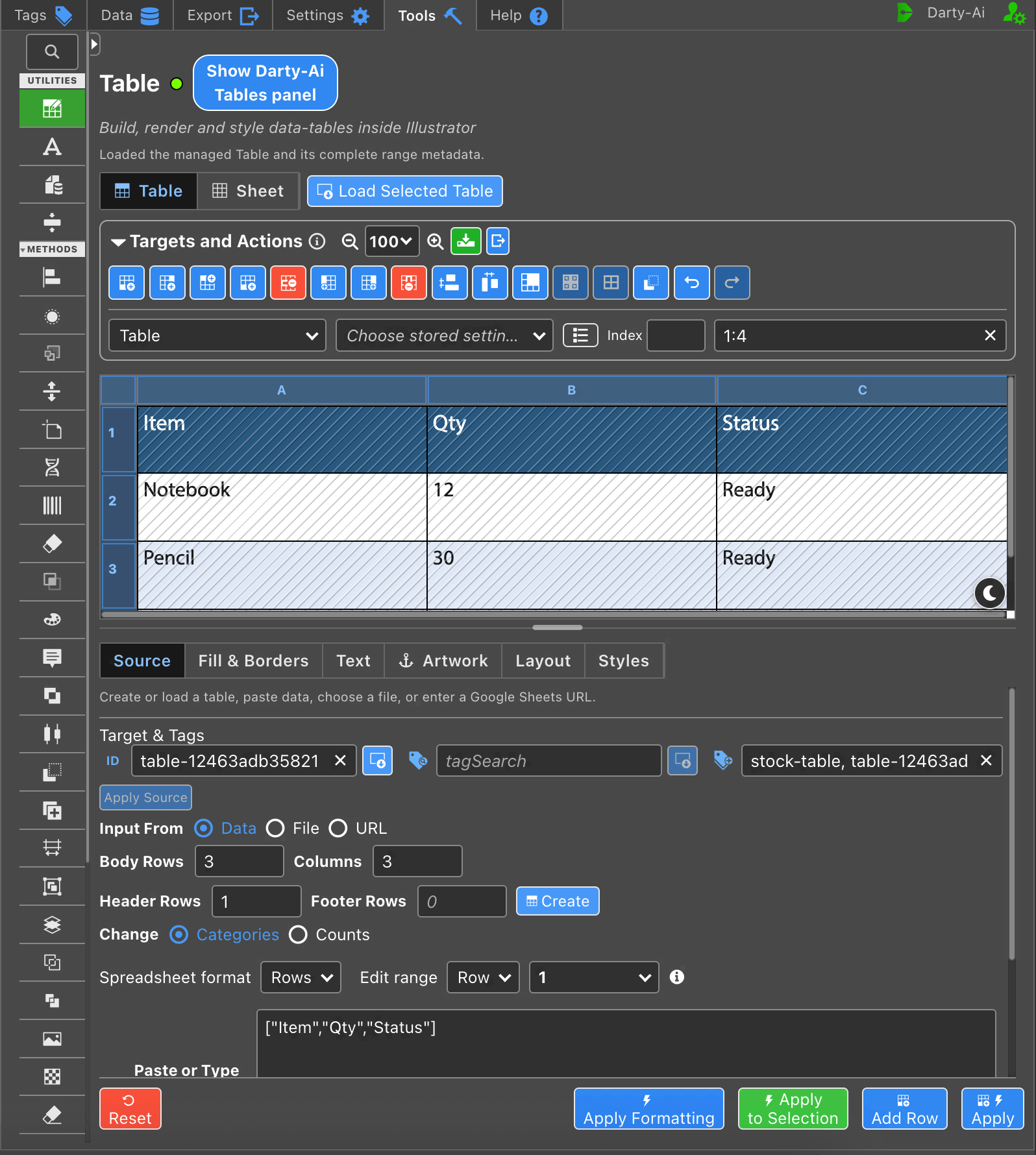
Captured from the running Darty-Ai extension in Illustrator.