
Tags Tool
Use Tools → Methods → Tags to move identifying information between Darty tags and Illustrator object names, or to remove Darty tags without deleting the artwork.
The method selector at the top chooses one of three distinct sheet methods:
- Tags To Name copies Darty tags into Illustrator object names.
- Name To Tags converts Illustrator object names into Darty tags.
- Remove Tags removes selected or all Darty tags from matched artwork.
Changing this selection changes the method and its available controls; it does not write a shared mode property. For the spreadsheet syntax, see the Tags methods reference.
Tags To Name
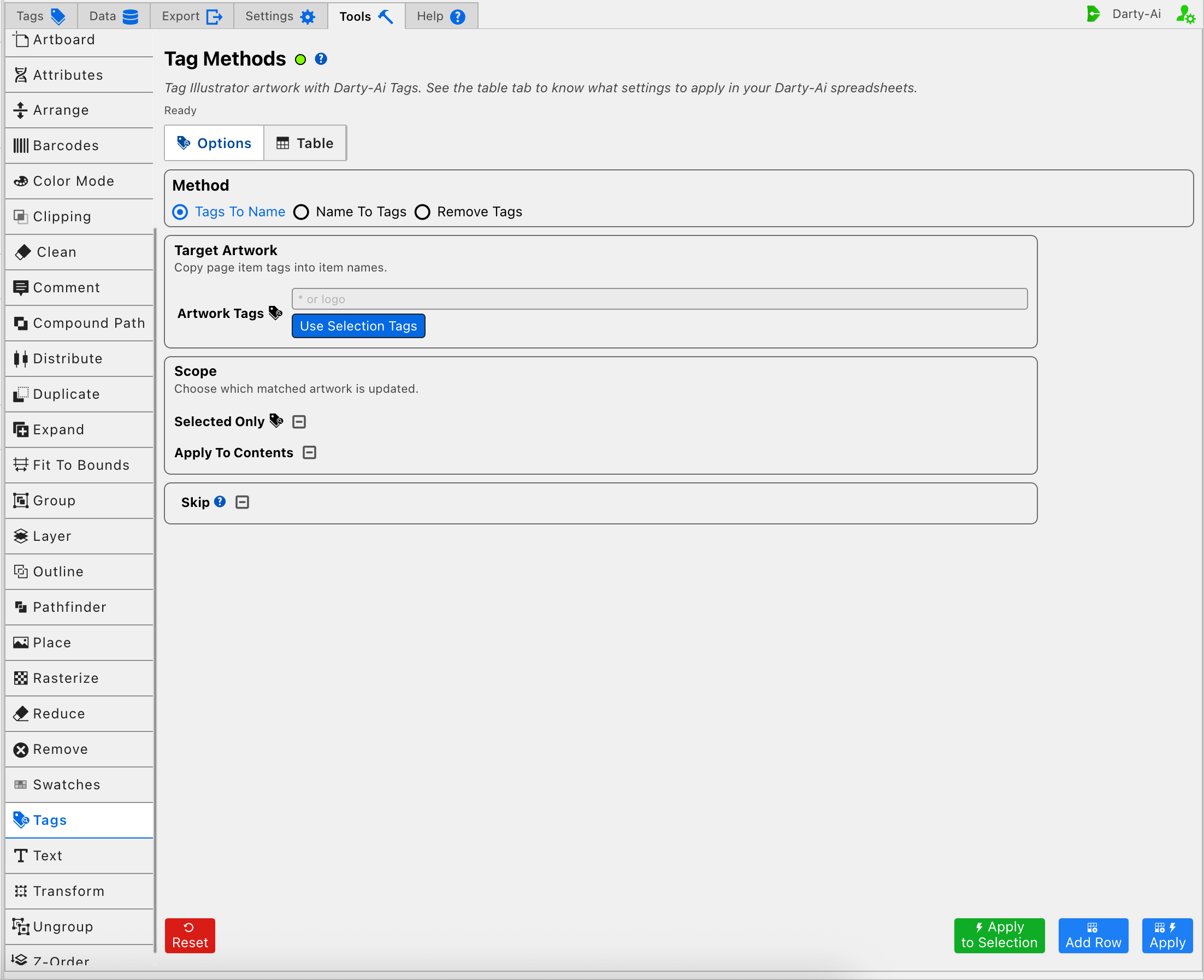
Use Tags To Name when Illustrator's Layers panel or another name-aware workflow should show the Darty tags assigned to an object. If an object has multiple tags, the resulting name uses a comma-separated list.
Choose the Target and Scope
Artwork Tags supplies the target header, represented by tagSearch, and identifies the artwork whose names should be updated. Use Selection Tags copies tags from the current Illustrator selection into the field; it prepares the reusable search but does not by itself restrict execution to the current selection.
The Scope settings determine how far the operation reaches:
- Selected Only writes
selected. Enable it when the method should affect the Illustrator selection at run time rather than every otherwise eligible object. - Apply To Contents writes
applyToContents. Enable it when matched containers should allow the method to continue into their contained artwork.
Both are three-state checkboxes, so they can be True, False, or Unset. Unset leaves the property out of the row rather than forcing a value over an inherited setting.
Name To Tags
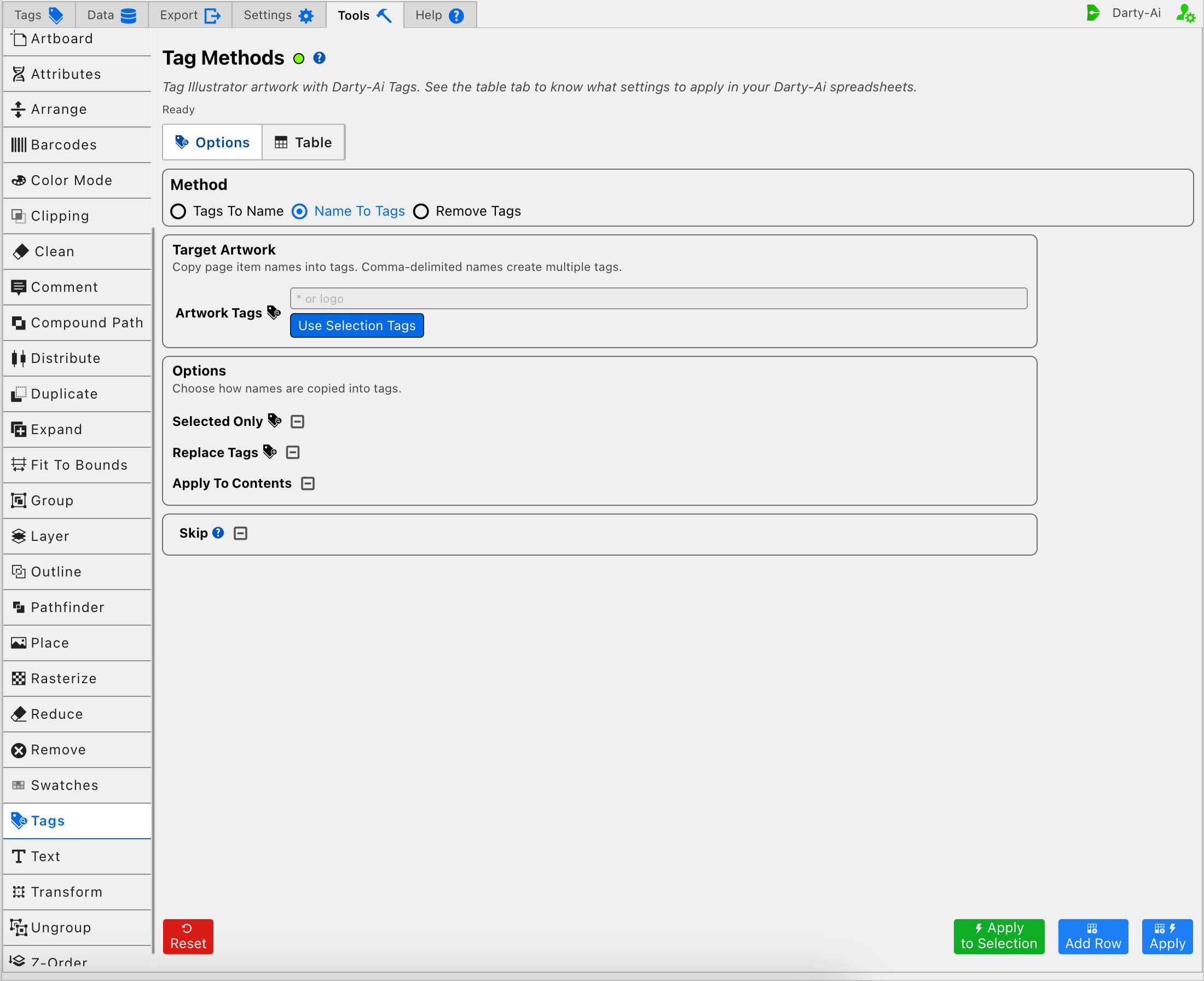
Use Name To Tags to make an Illustrator object name available for later Darty targeting. A name containing commas is split at those commas to create multiple tags.
Choose the Target and Tag Behavior
Artwork Tags and Use Selection Tags configure tagSearch in the same way as Tags To Name. This target identifies which named objects will be converted; it is not the new tag value itself.
The Options settings control the conversion:
- Selected Only writes
selectedand restricts the method to the Illustrator selection at run time. - Replace Tags writes
replaceTags. Enable it to replace the object's existing Darty tags with the tags derived from its name. Disable it when the derived tags should be added without replacing the existing set. - Apply To Contents writes
applyToContentsand allows the method to continue into contained artwork.
These options are three-state checkboxes. Use True or False when the row must make the choice explicitly; leave a checkbox Unset when the row should not override an inherited value.
Because Replace Tags can remove existing targeting information, check later method rows before enabling it. Any later row that searches for a replaced tag may no longer find that artwork.
Remove Tags
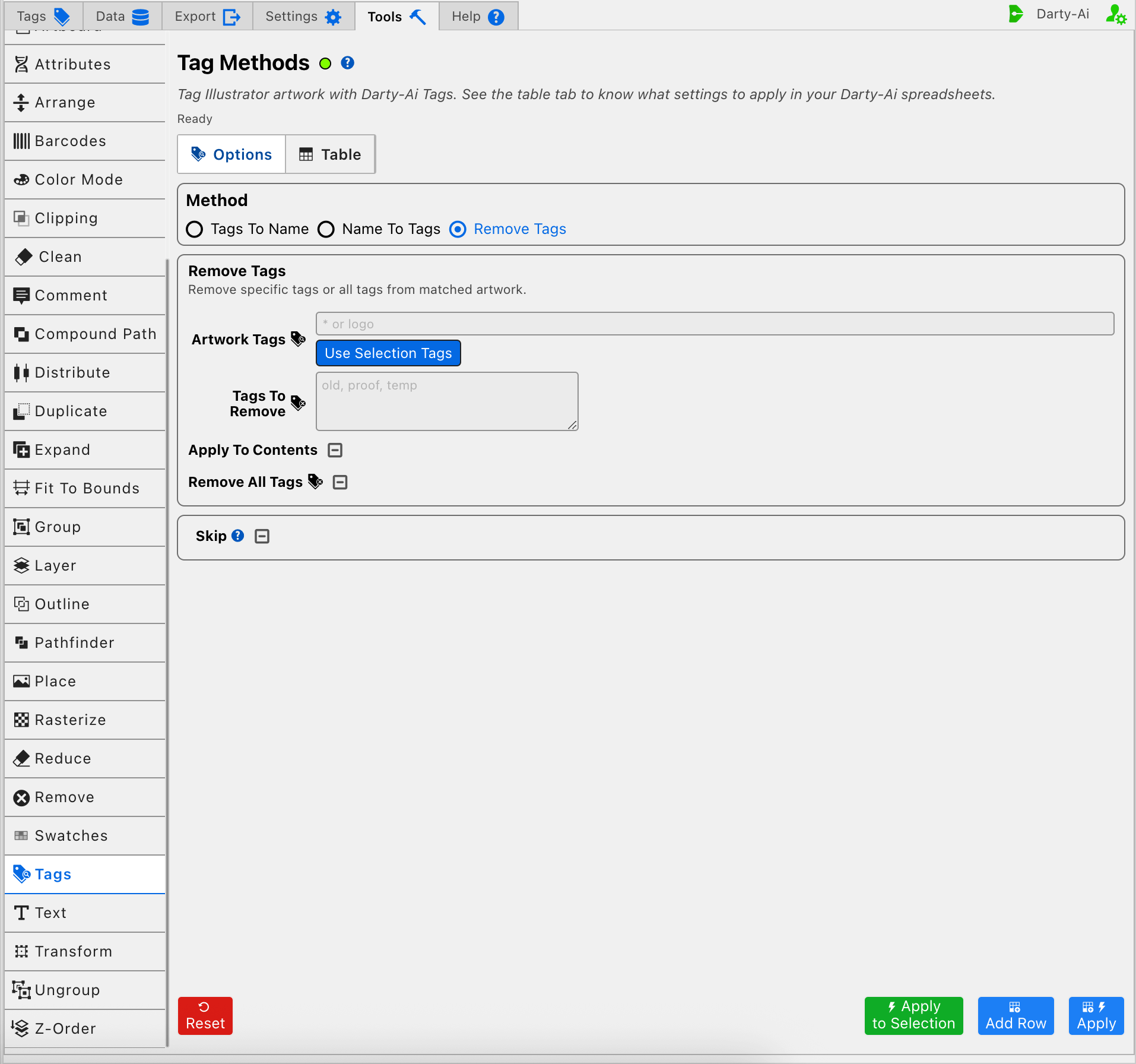
Use Remove Tags to clean Darty tags off artwork while leaving the Illustrator objects in place. This is different from the Remove Tool, which deletes the artwork itself.
Choose the Artwork and Tags to Remove
Artwork Tags writes tagSearch and identifies the artwork whose tags may be changed. Use Selection Tags copies the current selection's tags into that target field.
Then choose the removal scope:
- Enter one or more comma-separated values in Tags To Remove to write the
tagslist and remove only those tags. - Enable Remove All Tags to write
all: trueand clear every Darty tag from the matched artwork. - Use Apply To Contents when tag removal should continue into contained artwork. This setting writes
applyToContentsand uses a three-state checkbox.
The method requires either at least one value in Tags To Remove or Remove All Tags. If neither is supplied, the method has no defined tag-removal action and validation should stop it from being captured or applied.
Remove All Tags is a direct action checkbox, not a three-state override. Leave it off when using the specific tags list.
Removing tags can make later Darty rows stop finding the artwork. Place this operation after any rows that still need the old tags, or deliberately replace the targeting strategy first.
Skip and Three-State Checkboxes
Every Tags mode includes Skip. Its states are:
- True writes
skip: trueand prevents that method from running for the row. - False writes
skip: falseand explicitly allows it to run. - Unset omits the property so an inherited value can remain in control.
The mode-specific three-state checkboxes follow the same pattern:
| Mode | Three-state settings |
|---|---|
| Tags To Name | Selected Only, Apply To Contents |
| Name To Tags | Selected Only, Replace Tags, Apply To Contents |
| Remove Tags | Apply To Contents |
Choose How to Run It
- Apply to Selection performs the chosen Tags operation on the current Illustrator selection as a one-time action and does not add a reusable row.
- Add Row captures the chosen method and its current properties in the method table without changing Illustrator.
- Apply runs the configured method through the normal document workflow.
- Reset restores the current editor's defaults; it does not reverse a Tags operation that has already run.
See Tools Method Actions and Apply Modes for the shared footer behavior and Tools Method Table Preview for the exact row that will be captured.
Practical Workflows
Make Tags Visible in the Layers Panel
- Choose Tags To Name.
- Target the intended artwork with Artwork Tags, or choose Selected Only for a selection-driven row.
- Decide whether contained artwork should also be updated.
- Preview the row and apply it.
Turn Existing Names into Reusable Targets
- Give the Illustrator objects meaningful names; use commas only when one object should receive multiple tags.
- Choose Name To Tags and target the intended artwork.
- Decide whether the new tags should replace or join the existing tags.
- Apply the method, then test a later tag search against the result.
Remove Old Tags Safely
- Choose Remove Tags and identify the artwork to change.
- List only the obsolete tags in Tags To Remove, or deliberately enable Remove All Tags.
- Check that no later method still relies on those tags.
- Inspect the preview and apply the operation.
Control and Property Reference
| Mode | Editor control | Method property | Purpose |
|---|---|---|---|
| All | Artwork Tags | Target header / tagSearch | Identifies the artwork to process. |
| All | Use Selection Tags | Target header / tagSearch | Copies tags from the current selection into Artwork Tags. |
| Tags To Name | Selected Only | selected | Restricts the operation to selected artwork at run time. |
| Tags To Name | Apply To Contents | applyToContents | Extends the operation into contained artwork. |
| Name To Tags | Selected Only | selected | Restricts the operation to selected artwork at run time. |
| Name To Tags | Replace Tags | replaceTags | Replaces rather than preserves the existing tag set. |
| Name To Tags | Apply To Contents | applyToContents | Extends the operation into contained artwork. |
| Remove Tags | Tags To Remove | tags | Lists the specific Darty tags to remove. |
| Remove Tags | Apply To Contents | applyToContents | Extends tag removal into contained artwork. |
| Remove Tags | Remove All Tags | all | Removes every Darty tag when enabled. |
| All | Skip | skip | Prevents or explicitly allows the chosen method to run for a row. |
Validation and Review
Tags To Name and Name To Tags can legitimately produce rows without an optional property cell, depending on how their scope is supplied. Do not add a made-up setting merely to fill an empty-looking table cell.
For Remove Tags, supply either tags or all. Before applying any Tags operation, confirm the current selection when using Apply to Selection, inspect inherited values in the table, and resolve validation messages. Pay particular attention to Replace Tags, Remove All Tags, and Apply To Contents, because each can change a wider set of targeting information than the simplest field values suggest.