
Place Tool
Use Tools → Methods → Place to bring a file, existing tagged artwork, or an Illustrator symbol into a document. The placed content can be fitted to tagged placeholder artwork, left at its original size, clipped to a shape, tagged for later rows, and optionally formatted when the source is text.
The editor is easiest to understand as six decisions:
- What content should be placed?
- Which artwork should receive it?
- How should the content fit and align?
- What should happen to the source and output artwork?
- Which tags should the result receive?
- Does placed text need formatting or direction overrides?
For supported file formats, path resolution, illustrated fitting examples, and spreadsheet properties, see the Place method reference.
Choose the Source
The Source choice changes only the field used to identify the content. The targeting and placement sections below work with all three sources.
File Path
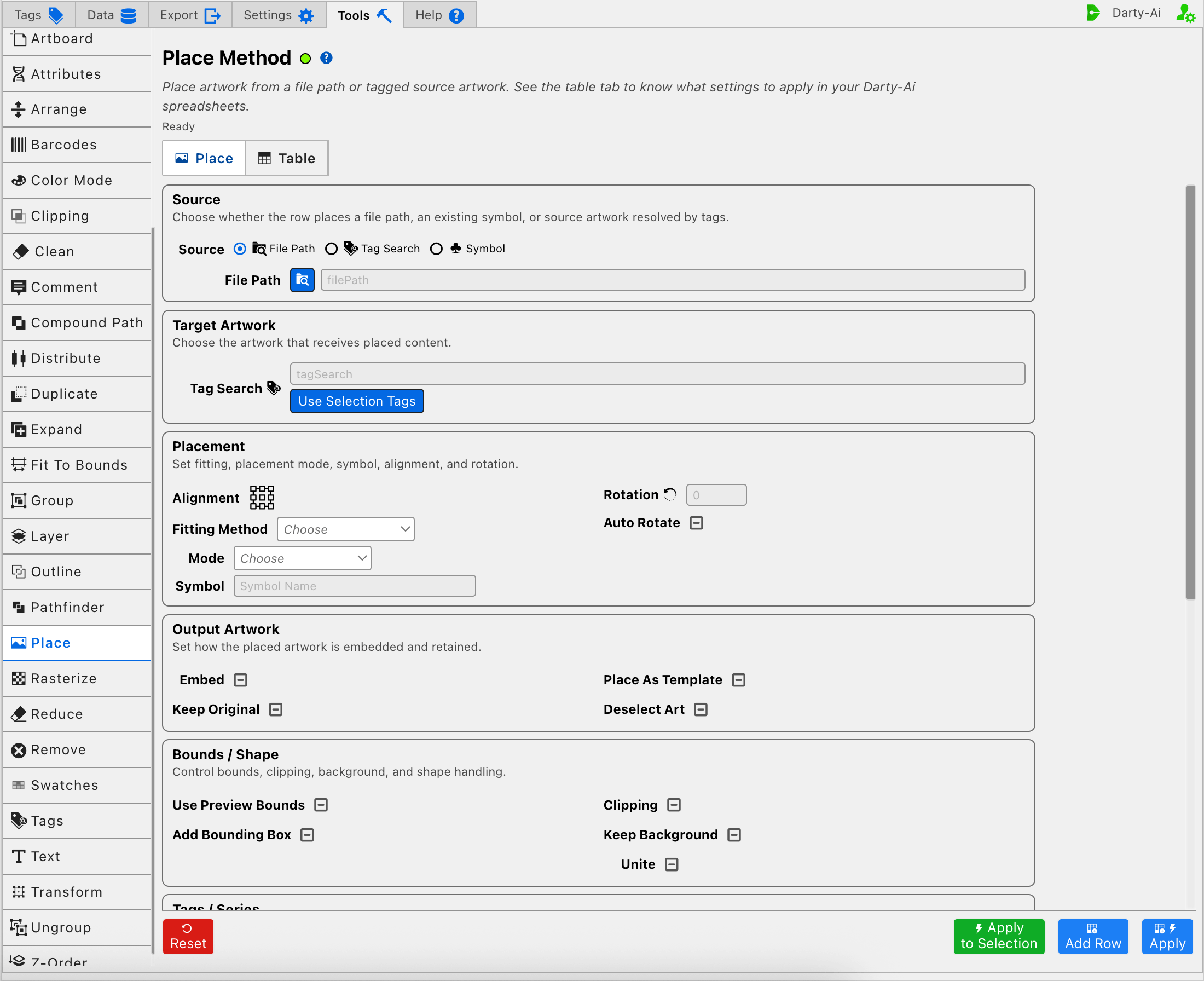
Choose File Path to place an external image, vector, PDF, or supported text document. Enter a path directly or use the file picker. File Path writes filePath and is required for this source mode.
The path can be absolute or relative. Relative paths can resolve from the Illustrator template, the data file, or the configured server location. The method reference explains the ((TEMPLATE)), ((DATA)), ((SERVER)), and home-folder path forms in Path.
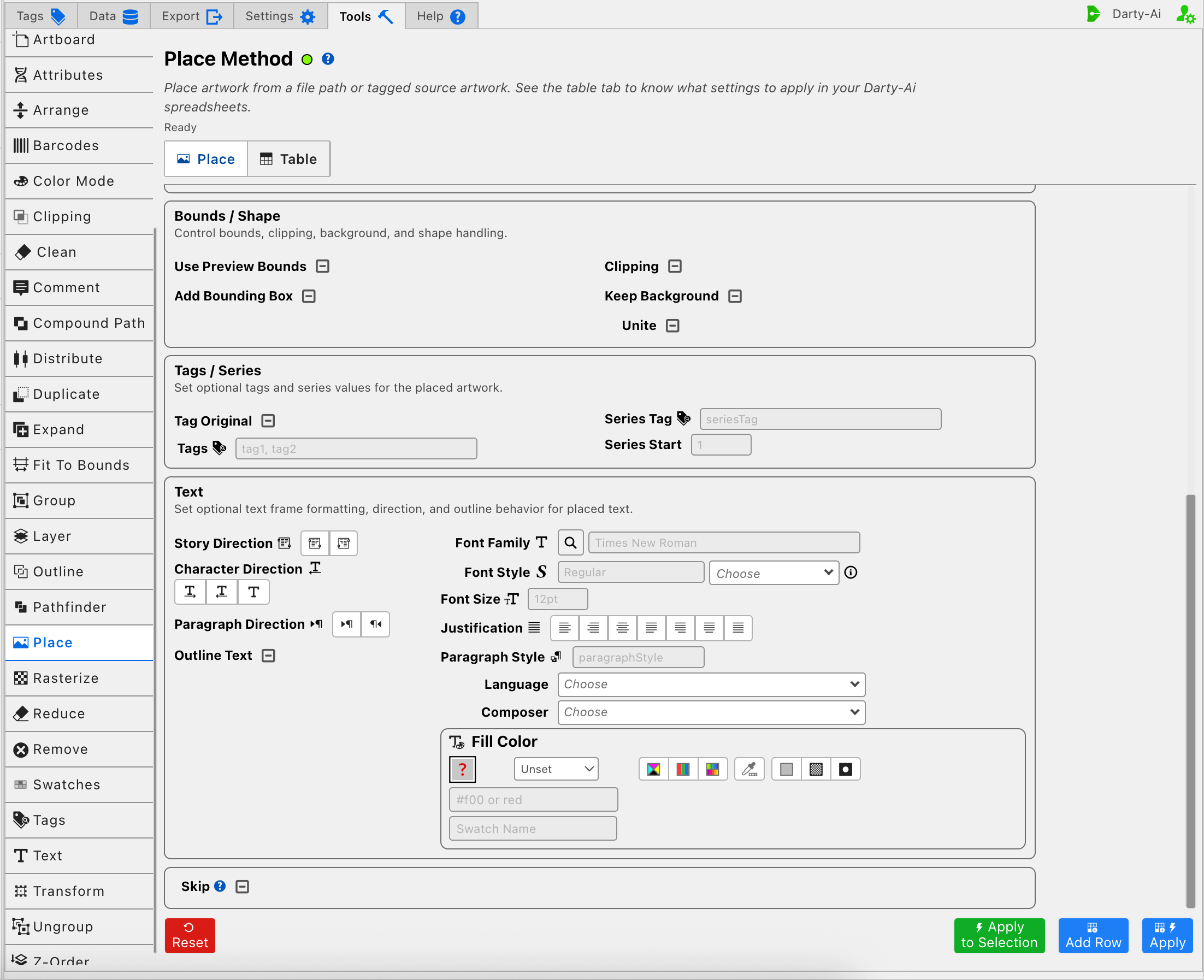
The File Path editor is taller than the extension viewport, so these captures show its upper and lower sections in order.
Tag Search
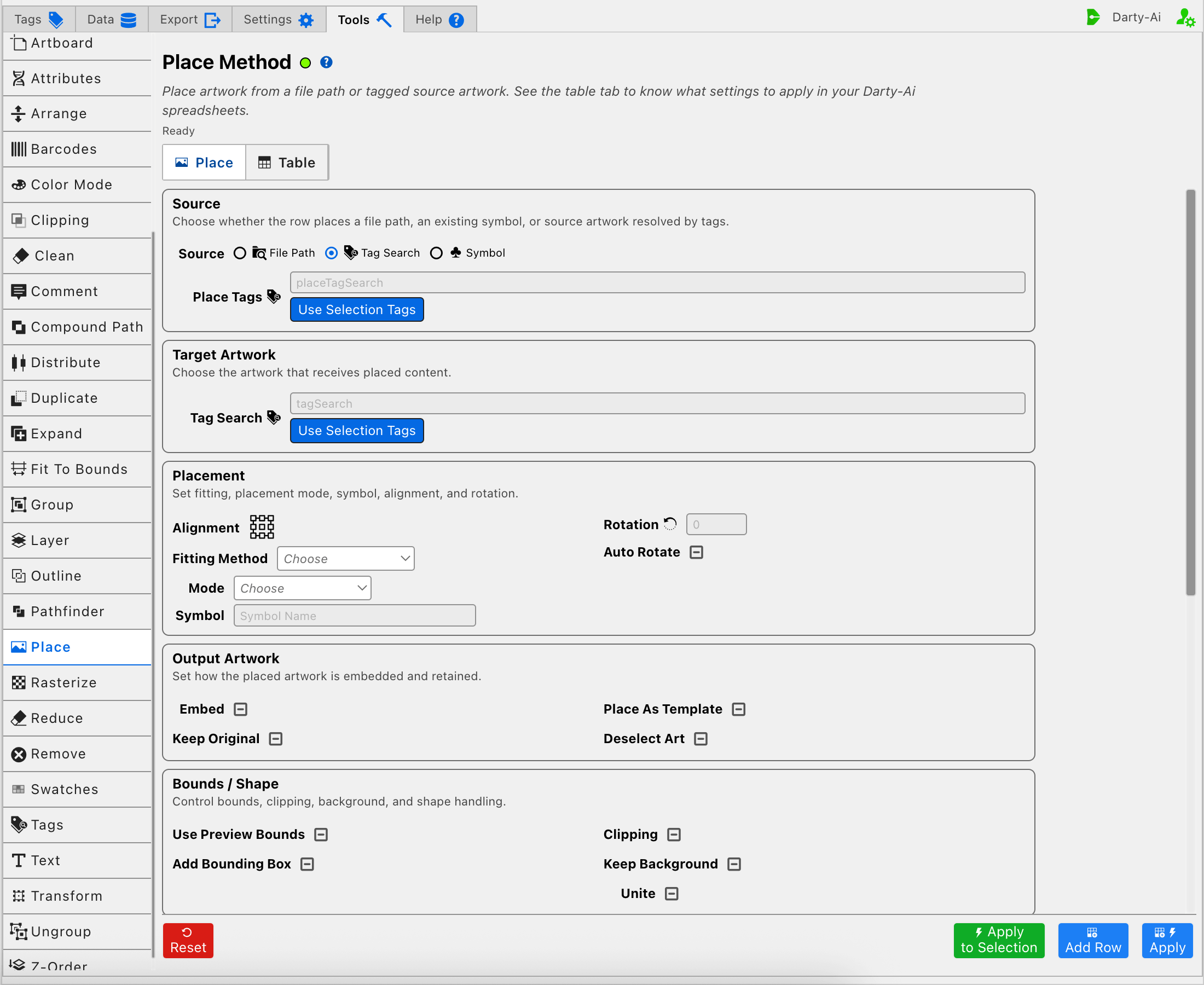
Choose Tag Search to place artwork that already exists in the Illustrator document. Place Tags writes placeTagSearch and identifies the source artwork to reuse.
This source search is distinct from Target Artwork Tag Search:
- Place Tags finds the artwork being placed.
- Target Artwork Tag Search finds the destination or placeholder receiving it.
Use Selection Tags reads the Darty tags from the currently selected artwork and copies them into Place Tags. It does not apply the row or place the selected object immediately.
Symbol
Choose Symbol to place an existing Illustrator symbol. Enter its exact document symbol name. The field writes symbol, which dispatches as symbolName, and is required for this source mode.
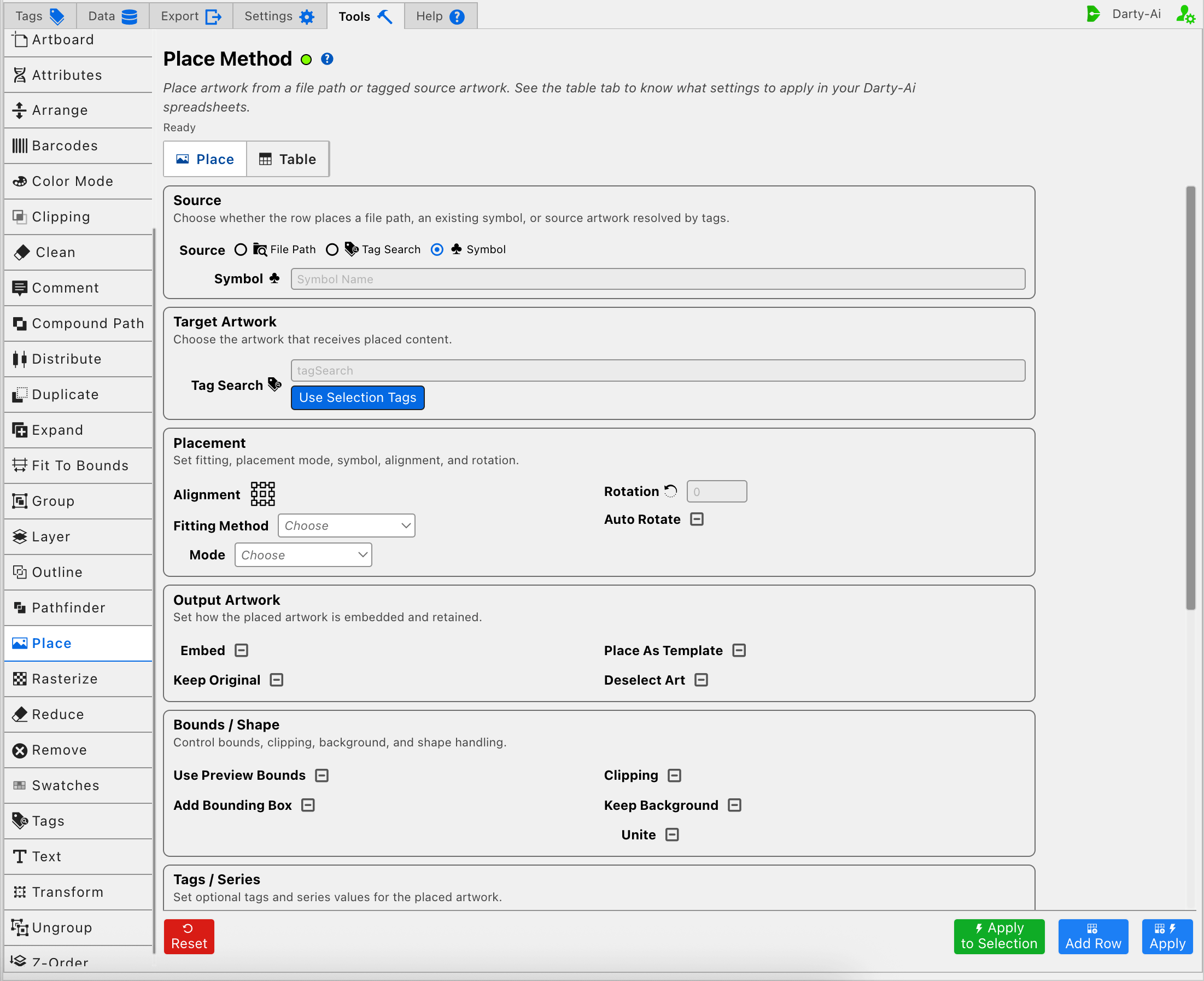
The Source selector itself is an editor choice and is not written as a sourceMode column. Instead, the generated row contains the active source property: filePath, placeTagSearch, or symbol.
Choose the Target Artwork
Tag Search in Target Artwork identifies the destination artwork. Its value becomes the Darty sheet's target header rather than a separate property column.
Use a specific Darty tag search when the placed content must fit a placeholder, replace a tagged image, or align to existing artwork. Suitable placeholders include page items, groups, clipping groups, and images. Avoid targeting a clipping path by itself or a compound path; the Place method reference explains the supported placeholder structures in Where to place files.
If Target Artwork Tag Search is blank, the Table preview uses the * target header. For Place, that represents a row without a designated placeholder; the content is placed in the middle of the document.
Use Selection Tags copies the current selection's existing Darty tags into this target search. Apply to Selection is the one-time alternative when the currently selected artwork should be the destination without saving its tags as the row target.
For tag operators and matching behavior, see Darty Tags.
Fit and Position the Content
Alignment
Alignment writes alignment. Use the nine-point anchor picker to decide which point of the placed content aligns with the corresponding point of the target bounds. Center is the normal choice when no special corner or edge relationship is needed.
Alignment is most visible when the placed artwork is smaller than the target, when clipping is off, or when Original is used as the fitting method.
Fitting Method
Fitting Method writes fittingMethod and controls how the source dimensions are reconciled with the target bounds.
| Choice | Generated value | Result |
|---|---|---|
| Fill | fill | Scales proportionally until the target is covered; some source content may extend beyond the target. |
| Fit | fit | Scales proportionally until the entire source is visible; unused space may remain inside the target. |
| Bounds | bounds | Stretches the source to the target width and height, so its original proportions may change. |
| Original | original | Keeps the source at its original size and uses Alignment to position it relative to the target. |
Placement Mode
Mode writes mode and controls how Place interprets the target and output.
| Choice | Generated value | Use |
|---|---|---|
| Image | image | Replaces a tagged image. When the target is not an image, the target is handled like a mask. |
| Mask | mask | Uses the target artwork to make a clipping mask for the placed content. |
| Bounds | bounds | Replaces each target with a rectangular bounds-based placeholder and places content into those bounds. |
| Symbol | symbol | Requests symbol-based placement behavior. Provide the Symbol name required by that operation. |
Most image and shape placeholders do not require an explicit Mode. Select one when the row must override the normal handling, especially for Bounds or a deliberate mask-versus-image result.
When File Path or Tag Search is the source, the Placement section also exposes Symbol. It writes the same symbol / symbolName property used by Symbol source mode. When Symbol is already the selected source, the duplicate field is hidden.
Rotation and Auto Rotate
Rotation writes rotation as an angle in degrees. Auto Rotate writes autoRotate and lets Darty rotate the placed content when that produces a better fit in its target.
Use an explicit Rotation when every result needs the same orientation. Use Auto Rotate when portrait and landscape targets may vary between records. Leaving Auto Rotate Unset omits the property rather than forcing it on or off.
Control the Output Artwork
The Output Artwork checkboxes let a row make an explicit choice or leave the Place method's normal behavior unchanged.
- Embed writes
embed. Vector artwork and placed text are embedded; raster artwork is normally linked unless Embed is True. - Keep Original writes
keepOriginal. This is most relevant when Tag Search supplies existing source artwork and the row must preserve that source after placing it. - Place As Template writes
placeAsTemplateand requests template-style placement for source artwork intended as a reference or template. - Deselect Art writes
deselectArtand controls whether the resulting artwork remains selected after the operation.
Keep Original concerns whether the source artwork remains. It is separate from Keep Background, which concerns the target placeholder's fill and stroke, and Tag Original, which concerns tags applied to the source.
Control Bounds and Shape Handling
- Use Preview Bounds writes
usePreviewBounds. Use it when fitting should account for Illustrator preview bounds, including visible stroke or effects rather than only geometric bounds. - Add Bounding Box writes
addBoundingBoxand requests an explicit bounding-box path around the placed result. - Clipping writes
clipping. True clips the placed content to the placeholder; False allows content outside the placeholder to remain visible. - Keep Background writes
keepBackground. True retains the placeholder's fill and stroke when the placed content is clipped into it. - Unite writes
unite. True treats multiple matched placeholders as one combined placement area and places one source across that collection. False handles each placeholder separately.
Unite can substantially change the number of results. If three placeholders match, False can place the source three times, while True produces one placement fitted across their combined extent.
Tag the Placed Results
Tags writes tags as a comma-separated list such as product-photo, placed. These tags are added to the placed result so later Darty rows can find it.
Series Tag writes seriesTag, and Series Start writes seriesStart. Together they create predictable numbered tags such as photo1, photo2, and photo3. Series Start has no effect without a Series Tag and must contain a number.
Tag Original writes tagOriginal. It is most relevant when the source is existing artwork found with Place Tags: it decides whether the ordinary Tags and numbered Series Tag also apply to that original source artwork. It does not decide whether the original remains; Keep Original controls that separate behavior.
Format Placed Text
The Text section is optional. Use it when the source is a Word, RTF, or text document and the imported text needs consistent formatting or writing-direction behavior. Image and vector sources can leave these fields unset.
Writing Direction
- Story Direction writes
storyDirectionand selects left-to-right or right-to-left story flow. - Character Direction writes
charDirectionand selects left-to-right, right-to-left, or the inherited/default direction for characters. - Paragraph Direction writes
paragraphDirection, which dispatches to the Place text-direction setting for left-to-right or right-to-left paragraphs. - Outline Text writes
outlineText. True converts the placed text to outlines, so use it only when editable text is no longer required.
Writing direction and Composer should be considered together for Arabic, Hebrew, Indic, and other complex-script content. A right-to-left direction changes flow, while the appropriate Composer controls how Illustrator shapes and lays out the text.
Typeface and Paragraph Formatting
- Font Family writes
fontFamily; choose an installed font family. - Font Style writes
fontStyle; available styles depend on the chosen family. - Font Size writes
fontSize. - Justification writes
justificationand supports Left, Right, Center, Full Left, Full Right, Full Center, and Full. - Paragraph Style writes
paragraphStyleand applies a named Illustrator paragraph style when available. - Language writes
languageand sets the text language used by Illustrator. - Composer writes
composerand chooses the text composition engine. - Fill Color writes
fillColor; selecting an Illustrator swatch can also writeswatchName.
Leave a text property unset when the placed document's existing formatting should remain in control.
Use Three-State Checkboxes Intentionally
Place uses three-state checkboxes for its optional on/off properties:
- True writes the property as
true. - False writes the property as
false. - Unset omits the property and leaves normal method behavior in control.
Unset is not the same as False. For example, Clipping's documented normal behavior is enabled; select False when the placed artwork must explicitly remain unclipped.
Skip a Reusable Place Row
Skip writes skip and controls whether this method runs for the current data record.
- True writes
skip:trueand bypasses the placement. - False writes
skip:falseand explicitly allows it. - Unset omits the property.
See Skip and * for spreadsheet behavior.
Build Useful Place Configurations
Place a File into a Tagged Placeholder
- Choose File Path and select the source file.
- Enter the placeholder's tags under Target Artwork.
- Choose Fit when the entire source must remain visible, or Fill when the placeholder must be fully covered.
- Set Alignment and Clipping for the desired crop.
- Add result Tags when a later row must target the placed artwork.
- Use Add Row and inspect the Table before applying it to the document.
Reuse Existing Tagged Artwork
- Choose Tag Search and enter Place Tags for the source artwork.
- Enter a different target search under Target Artwork.
- Decide whether Keep Original should preserve the source.
- Set Tag Original, Tags, and Series Tag according to whether the source and results should remain addressable together.
- Apply to a small test selection before running the row across many targets.
Place an Illustrator Symbol
- Choose Symbol and enter the exact symbol name from the document.
- Enter the target tags, or leave them blank for document-centered placement.
- Set fitting, alignment, rotation, and clipping as needed.
- Add result tags so later methods can transform or arrange the new instances.
Place a Right-to-Left Text Document
- Choose File Path and select the text document.
- Identify the text-frame or shape placeholders under Target Artwork.
- Choose right-to-left Story, Character, and Paragraph Direction where required.
- Choose a compatible complex-script Composer.
- Set the typeface, language, paragraph style, and fill only when the imported document should be overridden.
- Leave Outline Text Unset during review; enable it only for the final non-editable output when needed.
Validation, Warnings, and Common Problems
- File Path source reports File path is required when Source is File. when no path is supplied.
- Tag Search source reports Tag search is required when Source is Tag Search. when Place Tags is blank.
- Symbol source reports Symbol is required when Source is Symbol. when no symbol name is supplied.
- Apply to Selection reports an error when Illustrator has no active selection.
- A missing file, misspelled symbol, absent font, paragraph style, swatch, or unmatched tag search cannot be resolved at dispatch time; verify document resources and paths before applying a reusable row.
- Fill may crop source content, Bounds may distort it, and Original may extend outside a small placeholder. Choose the fitting behavior deliberately.
- Outline Text removes text editability. Keep Original, clipping, and placeholder replacement settings can also materially change document structure, so test destructive combinations on selected artwork first.
- Broad target searches can place the same source into many objects. Unite changes that many-target result from repeated placements to one combined placement.
Control-to-Property Summary
| Editor purpose | Darty property |
|---|---|
| External source file | filePath |
| Tagged source artwork | placeTagSearch |
| Illustrator symbol name | symbol → symbolName |
| Destination artwork | Target header / tagSearch |
| Alignment point | alignment |
| Fit within target | fittingMethod |
| Placement interpretation | mode |
| Fixed angle | rotation |
| Automatic orientation | autoRotate |
| Embed raster output | embed |
| Preserve tagged source artwork | keepOriginal |
| Template-style placement | placeAsTemplate |
| Deselect the result | deselectArt |
| Use visible preview bounds | usePreviewBounds |
| Add a result bounding box | addBoundingBox |
| Clip to the placeholder | clipping |
| Preserve placeholder fill and stroke | keepBackground |
| Treat multiple targets as one area | unite |
| Include source artwork in tag changes | tagOriginal |
| Tags added to results | tags |
| Numbered-tag prefix and start | seriesTag, seriesStart |
| Text flow | storyDirection, charDirection, paragraphDirection |
| Text appearance | fontFamily, fontStyle, fontSize, justification, paragraphStyle, language, composer, fillColor, swatchName |
| Convert placed text to outlines | outlineText |
| Skip the method for a data row | skip |
Capture, Apply, and Review
- Tools Method Actions and Apply Modes explains Reset, Add Row, Apply, and Apply to Selection.
- Tools Method Table Preview explains how to inspect, edit, reorder, copy, download, and apply captured Place rows.
- Place method reference documents formats, paths, illustrated fitting behavior, and spreadsheet examples.