
Tables Panel
Open Window → Darty-Ai → Darty-Ai Tables in Illustrator. You can also open Window → Extensions → Darty-Ai Tables. Select a managed table or one of its cells to load it into the panel.
The dedicated panel edits Illustrator artwork live. Text fields commit on Enter or when focus leaves them; choices and structural actions commit as you use them. Use Illustrator Undo/Redo to reverse document edits.
Choose the right workspace
Use this panel for live document editing. Use Tools → Table to prepare a staged method, and Sheet Builder to combine Table with other methods and records. A Builder Apply updates the sheet; it does not run the record in Illustrator.
Select cells and formatting targets
The preview shows the loaded table, column letters, and one-based row numbers. Click a cell, row number, or column heading; Shift extends a range and Command on Mac or Ctrl on Windows adds targets. Click the corner to target the whole table. Merged cells remain a single selection.
Choose Header, Footer, Data, odd/even rows, or another standard target for rules that should adapt to table growth. Data includes every non-header cell, including footer rows. Choose a saved rule to revise its formatting. Several rules can address the same cells, so check which rule is selected before editing.
The preview's zoom and light/dark background change the editing view, not the size or colors of Illustrator artwork.
Source
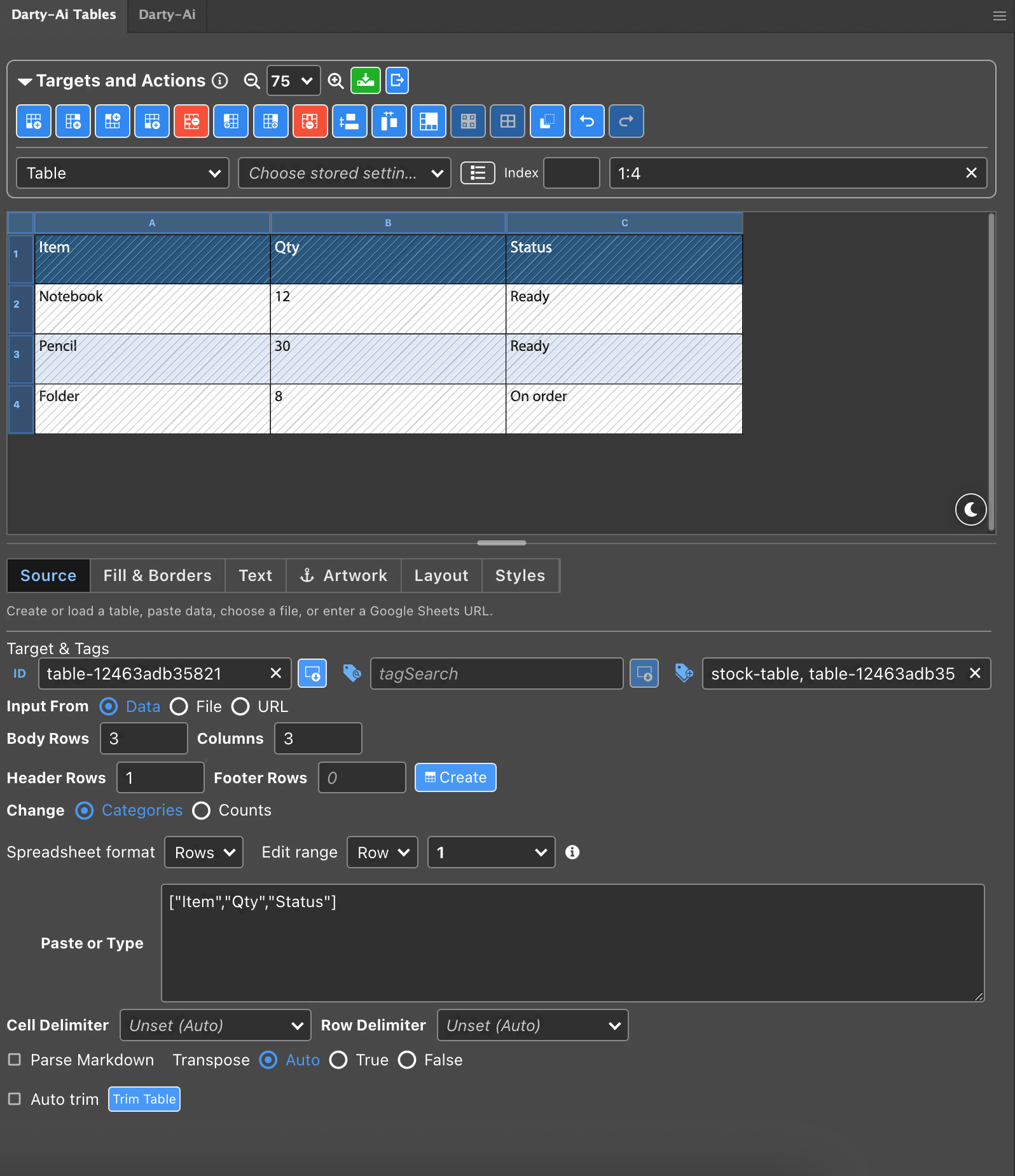
The live Tables panel in Illustrator, with the sample stock table loaded.
| Input | Workflow |
|---|---|
| Blank or Existing | Create a blank table or load one by selection, ID, or tag search. Body rows exclude header/footer rows. |
| Paste | Paste or type delimited text or a Markdown table. Set delimiters if the source needs them. |
| File | Choose XLSX, XLSM, ODS, CSV, TSV, text, or Markdown. A workbook can use a worksheet name or one-based number and an A1 range. |
| URL | Supply a Google Sheets URL, optionally with a worksheet and range. |
In this panel, source edits update the preview and artwork after a short delay. Reload Source rereads the saved connection. Ordinary formatting edits do not reimport data. File and URL maintain separate drafts; an empty active source does not use the other draft.
Preserve Source Formatting imports supported formatting and merges. Use source fonts when available matches fonts installed in Illustrator; missing fonts leave inherited/default faces and report warnings. Reset Existing Formatting controls whether an import starts with cleared formatting. Review it before reloading a carefully styled table.
Parse Markdown turns inline markup such as **bold** and _italic_ into styled text. Authored markup is retained when parsing is toggled. Trim Table removes blank outer rows and columns; Trim on load repeats this for subsequent source loads. Interior gaps remain.
Fill & Borders, Text, and Layout
- Fill & Borders: edit cell backgrounds and dividers separately. The appearance workbenches support multiple paints, gradients, swatches, opacity, and effects. Selecting a swatch applies it; editing colors outside Swatch mode does not redefine that swatch.
- Text: choose font, style, size, alignment, leading, tracking, text fill/stroke, and fitting for the active target.
- Layout: set position, anchor, rotation, dimensions, padding, and bounded row/column auto-fit. Larger public Y values place the table lower on the page.
Set the target first, then the property. For example, select Header before changing its fill, or select column B before changing its width. Use named template swatches when several objects should change color together.
Artwork and structure
The Artwork tab attaches tagged artwork, symbols, or files to cells and borders. Configure the source, target, anchor, offsets, and scaling. Keep source artwork available for future rebuilds.
The action strip provides row/column insertion and deletion, distribution, merge, unmerge, and split. Actions depend on the current preview selection. Structural edits update managed formatting and attachments; use Undo immediately if an action affects the wrong cells.
With Live table features enabled and Illustrator Show Edges on, hovering just above a table column or beside a row reveals a canvas selector arrow. Click to select, Shift to extend, and Command/Ctrl to add. Divider edits can reflow the managed table. See Annotations and canvas controls.
Styles, Save Table, and HTML
Use Styles to save and reuse table formatting. A sheet can reference a saved style using the tableStyle property; explicit method properties override it. A saved style is not a copy of the source workbook.
Save Table exports an .xlsx Darty-Ai methods sheet that recreates the displayed table. It embeds cell content and required structure/formatting. It omits the original source connection and native ID. This differs from Builder's Save Table, which saves its complete methods sheet.
Export as HTML opens a read-only code preview:
- Copy HTML copies a table fragment for a site's HTML editor.
- Save HTML saves a standalone UTF-8 page.
The export includes all rows, supported formatting, merged cells, and row/column dimensions. It omits attached artwork, patterns, and Illustrator effects. Fonts are not embedded, so browser line wrapping may differ. Export is a snapshot, not a live connection.
For property names and a downloadable example, see Tables.