
Clean Tool
Use Tools → Methods → Clean to remove unused swatches and unused symbol definitions from the active Illustrator document. Clean works across the document rather than targeting tagged or selected artwork, making it useful before handing off or exporting a finished file whose Swatches and Symbols panels contain resources that are no longer needed.
Clean deletes resources from the document's collections when it runs; it does not merely hide them. Save the document or work on a copy before cleaning a production file, especially when its unused swatches or symbols are intentionally being kept for later editing.
For spreadsheet examples and the underlying method behavior, see the Clean method reference.
Clean Editor
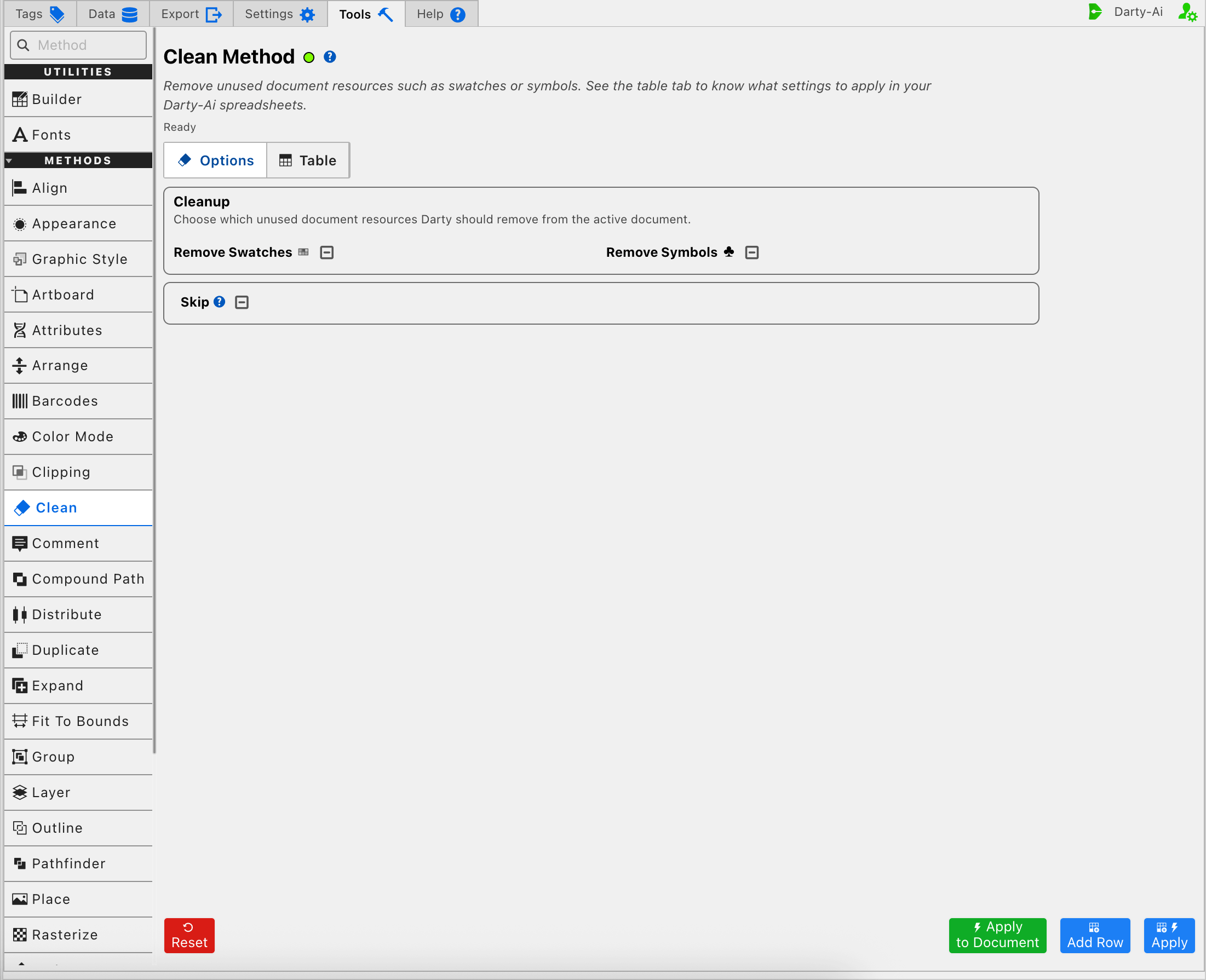
Choose What to Remove
The Cleanup section controls two independent operations:
- Remove Swatches writes
swatchesand controls whether unused entries are removed from the document's Swatches panel. - Remove Symbols writes
symbolsand controls whether unused definitions are removed from the document's Symbols panel.
Darty checks whether these resources are in use before deleting them. Swatches whose colors are found in the artwork are retained, as are symbol definitions referenced by symbol instances. The current swatch cleanup also preserves Illustrator's standard [None], [Registration], White, and Black entries.
Clean does not remove other kinds of document resources such as brushes, graphic styles, or fonts. Those are outside the two operations supported by this method.
Understand the Three Checkbox States
Both cleanup choices are three-state checkboxes. Clean has an important default that differs from many other methods: leaving one of these checkboxes Unset still allows that resource type to be removed.
| Checkbox state | Generated property | Clean result |
|---|---|---|
| True | Writes true | Remove unused resources of that type. |
| False | Writes false | Preserve resources of that type. |
| Unset | Omits the property | Use Clean's default, which is to remove unused resources of that type. |
The starting configuration leaves both checkboxes Unset. Because swatches and symbols both default to removal, running that configuration cleans both collections.
Use the combinations deliberately:
| Intended cleanup | Remove Swatches | Remove Symbols |
|---|---|---|
| Remove unused swatches and symbols | True or Unset | True or Unset |
| Remove only unused swatches | True or Unset | False |
| Remove only unused symbols | False | True or Unset |
| Preserve both resource types | False | False |
Setting both controls to False is accepted, but it asks Clean to preserve both supported resource types and therefore performs no useful cleanup.
Know What “Unused” Can Still Mean to You
A resource can be unused by artwork and still be valuable to a person editing the file. For example, a brand palette may contain approved alternates that are not used in the current design, or the Symbols panel may hold components intended for a later version. Clean treats those as removable because the active artwork does not reference them.
Before running Clean:
- Check the Swatches and Symbols panels for library items that should remain available.
- Set the corresponding cleanup checkbox to False when that entire resource type should be preserved.
- Save the document or make a backup when individual unused resources must remain but other unused resources should be removed. Clean does not provide a per-swatch or per-symbol exclusion list.
The editor also does not offer a dry-run list of the resources it intends to delete. Add Row previews the generated Darty properties, not the names of the swatches or symbols that would be removed.
Apply at Document Scope
Clean has no Artwork Tags field because the operation applies to the active document's resource collections. A selection cannot narrow a cleanup to particular artwork.
The action bar therefore provides Apply to Document instead of Apply to Selection:
- Apply to Document runs the current cleanup choices once without adding or changing a Table row.
- Add Row captures the choices in the Clean Table without changing Illustrator.
- Apply captures the current row and runs it against the active document.
- Reset restores the starting editor state and clears the working Table preview. It does not restore resources already deleted from Illustrator.
A captured Clean row is reusable. When it is later applied from the Table or from a Darty sheet, it cleans whichever document is active for that run—not necessarily the document that was open when the row was authored.
See Tools Method Actions and Apply Modes for the exact differences among the shared actions.
Skip a Reusable Clean Row
Skip writes skip and controls whether the Clean method runs for the current data record.
- True writes
skip:trueand prevents the cleanup from running. - False writes
skip:falseand explicitly allows it to run. - Unset omits
skip, allowing the method to run normally.
Skip is most useful when Clean is part of a larger reusable sheet and cleanup should occur only for some records. It does not change which resource types are selected for removal. See Skip and *.
Validation and Default Rows
Clean does not require a resource checkbox to be set because its default is a valid instruction: remove both unused swatches and symbols. A row with both resource controls Unset is therefore intentional, not an incomplete configuration.
The Table may show a very compact Clean row when both controls are Unset because neither property needs to be written. Setting a control to True records the default explicitly; setting it to False is the important way to override the default and preserve that resource type.
When authoring a spreadsheet manually, consult the Clean method reference for the * property form that can make a default-only row explicit.
Build and Test a Clean Configuration
A cautious workflow is:
- Save the active Illustrator document or open a copy intended for cleanup testing.
- Decide whether unused swatches, unused symbols, or both may be removed.
- Set a checkbox to False for every resource type that must be preserved. Use True when you want the removal recorded explicitly, or leave it Unset to use Clean's removal default.
- Use Add Row if you want to inspect or save the generated Darty configuration without changing Illustrator.
- Use Apply to Document for a one-time cleanup, or Apply when the configuration should also be captured in the Clean Table.
- Inspect the Swatches and Symbols panels after the operation and save the cleaned document only when the remaining resources are correct.
If a cleanup is interrupted or reports an error, inspect both resource panels before trying again. Do not assume that an error means neither cleanup operation ran; swatches and symbols are processed as separate requests within the same method.
Control-to-Property Summary
| Editor purpose | Darty property |
|---|---|
| Remove or preserve unused swatches | swatches |
| Remove or preserve unused symbols | symbols |
| Skip cleanup for a data row | skip |
Capture, Apply, and Review
- Tools Method Actions and Apply Modes explains Reset, Add Row, Apply, and Apply to Document.
- Tools Method Table Preview explains how to inspect, edit, reorder, copy, download, and apply captured Clean rows.
- Clean method reference documents accepted values, spreadsheet examples, and sample files.