
Pathfinder Tool
Use Tools → Methods → Pathfinder to combine, subtract, divide, crop, or outline tagged Illustrator artwork. The selected operation changes the actual path structure; it is not added as an editable live Pathfinder effect.
Pathfinder is most useful when several overlapping objects need to become a new production-ready shape. Because the operation can replace the source objects, remove hidden regions or strokes, and outline text before combining it, test representative artwork or save a copy before applying a reusable row broadly.
For accepted operation values and illustrated spreadsheet examples, see the Pathfinder method reference.
Pathfinder Editor
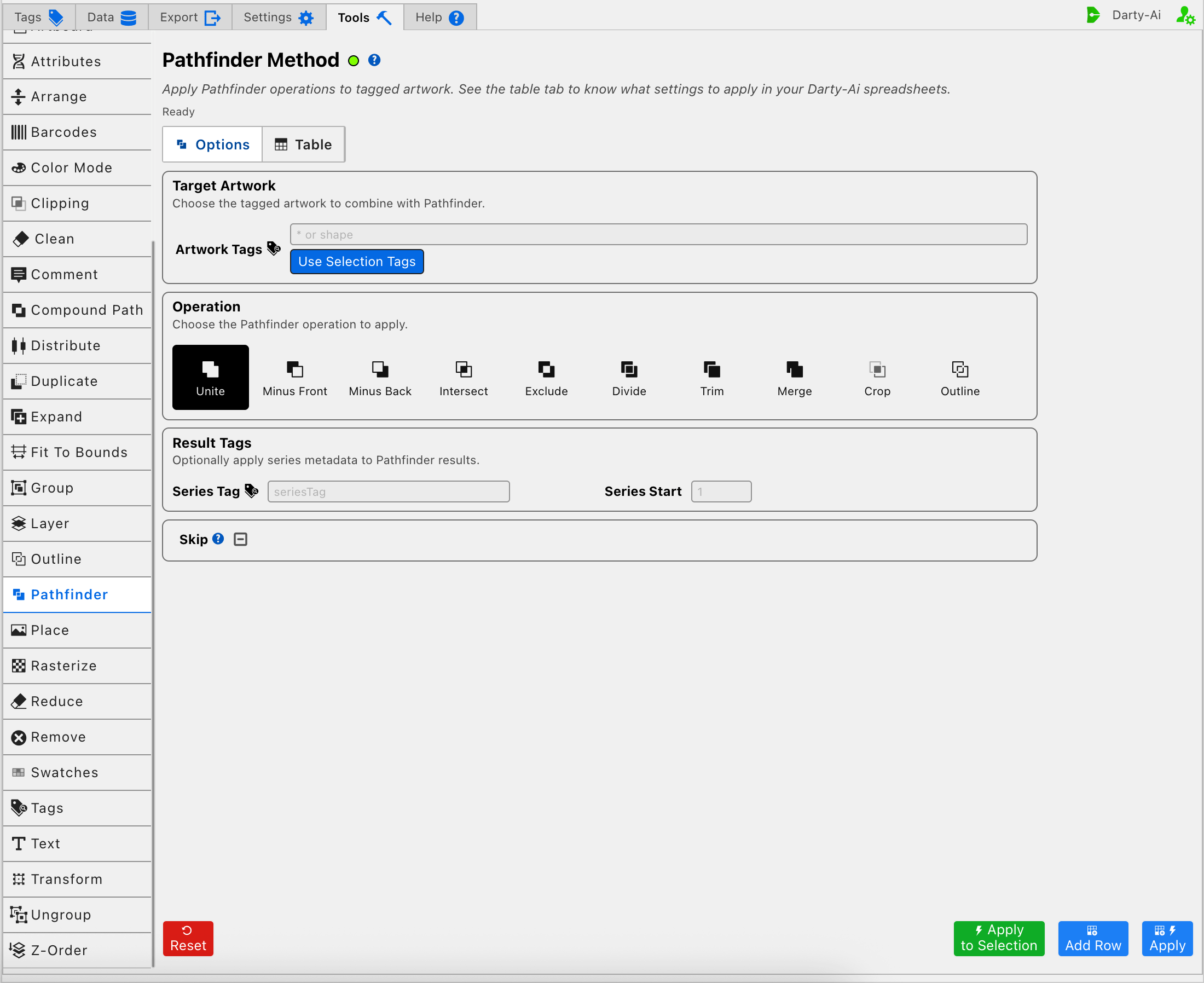
The editor answers three practical questions:
- Which artwork should participate?
- How should those objects be combined?
- Does the returned result need an additional numbered Darty tag?
Choose the Artwork to Combine
Artwork Tags identifies the source artwork and becomes the Darty sheet's target header. Enter a focused tag search such as logo-part, front | back, or another expression that resolves to the complete set of objects required by the operation.
If Artwork Tags is blank, the Table preview normalizes the target to *. That broad target can include far more document artwork than expected, which is particularly risky for a structural operation. Prefer a narrow, verified tag search when saving a Pathfinder row for reuse.
Use Selection Tags copies the existing Darty tags from the current Illustrator selection into Artwork Tags. It does not perform Pathfinder or create tags by itself. When the selected objects do not already share a useful search, use Apply to Selection for a one-time test instead.
Apply to Selection temporarily targets the currently selected Illustrator objects, runs the chosen operation, and does not add a row to the Pathfinder Table. The Artwork Tags value displayed in the editor remains unchanged. See Darty Tags for reusable search syntax.
Stacking order matters. Minus Front, Minus Back, and Crop distinguish frontmost and backmost objects according to Illustrator's paint order, not the order in which tags appear in the search.
Choose the Resulting Geometry
The Operation selector writes mode. Unite is selected by default, so every captured Pathfinder row contains a valid operation even when the user does not change the selector.
Choose the operation by the result the artwork needs:
| Operation | Generated value | Result |
|---|---|---|
| Unite | unite | Combines overlapping paths into one object using the front object's appearance. |
| Minus Front | minusFront | Cuts the front objects and their overlapping areas out of the backmost object. |
| Minus Back | minusBack | Cuts the back objects and their overlapping areas out of the frontmost object. |
| Intersect | intersect | Keeps only the region shared by the source objects. |
| Exclude | exclude | Removes shared overlap while keeping non-overlapping regions. |
| Divide | divide | Splits the artwork into pieces wherever object boundaries intersect. |
| Trim | trim | Removes hidden overlaps behind front objects and removes strokes. |
| Merge | merge | Combines adjoining areas with matching fills, removes hidden overlaps, and removes strokes. |
| Crop | crop | Uses the frontmost object as the cropping shape and keeps artwork inside it. |
| Outline | outline | Converts the objects into unfilled, unstroked path segments along their boundaries. |
These modes follow Illustrator Pathfinder concepts, so the same practical concerns apply:
- Unite, subtraction, intersection, and exclusion are appropriate when the desired output is a consolidated silhouette or cutout.
- Divide, Trim, Merge, Crop, and Outline can produce a result containing several internal pieces even though Darty receives one returned result object or container.
- Trim and Merge intentionally remove strokes.
- Crop depends on the frontmost object's position in the stacking order.
- Text among the source artwork is converted to outlines before Pathfinder runs, so it will no longer remain editable text afterward.
Pathfinder is designed for compatible vector artwork. A valid tag search is not proof that the matched object types, overlap, and paint order can produce the intended result.
Preserve and Add Darty Tags on the Result
Darty reads the source objects' existing Darty tags before Pathfinder changes their structure and writes the combined set of source tags onto the returned result. This helps later rows continue to find the new geometry using tags that described its inputs.
The optional Result Tags section adds one predictable numbered tag:
- Series Tag writes
seriesTagand supplies the prefix. - Series Start writes
seriesStartand supplies the number appended to that prefix. Its default is1when a Series Tag is used without another starting number.
For example, Series Tag pathResult with Series Start 5 adds the tag pathResult5 to the Pathfinder result.
In this method, Series Tag does not assign a different number to every piece produced inside Divide, Trim, or Outline. The numbered tag is written to the single result object or result container returned by Pathfinder. Use a later structural method when internal pieces must become separately tagged targets.
Series Start has no effect without Series Tag. Leave both fields blank when the preserved source tags are enough for later targeting.
Skip a Reusable Pathfinder Row
Skip is a three-state checkbox that writes skip only when True or False is chosen.
- True writes
skip:trueand bypasses Pathfinder for the current data record. - False writes
skip:falseand explicitly allows it to run. - Unset omits the property and allows normal execution.
Skip is useful when a larger sheet contains records that must keep their original paths. See Skip and *.
Validation, Errors, and Safe Testing
Add Row can capture a configuration without checking the active document. It confirms how the editor serializes the target, operation, and result tags; it does not prove that the target exists or that Illustrator can combine the matched objects.
When Pathfinder runs, the status can report:
Tagged art not foundwhen the target search or temporary selection target resolves to no artwork.Can't combine objectswhen Illustrator cannot complete the chosen operation on the matched geometry.Invalid modefor a manually authored row whose mode is not one of the supported values. The visual selector itself only offers valid modes.
If Apply to Selection finds no current Illustrator selection, the method does not run and asks for artwork to be selected first.
Before applying to production artwork:
- Confirm that every intended source object is included and unrelated artwork is excluded.
- Check front-to-back order for subtraction and Crop.
- Duplicate the artwork or save the document when the original editable construction may still be needed.
- Use Apply to Selection for a one-time trial when the intended source set is already selected.
- Inspect fills, strokes, holes, grouping, text editability, and Darty tags after the operation.
Reset restores the editor and clears its working Table preview, but it does not restore geometry already changed in Illustrator.
Build a Useful Pathfinder Configuration
A practical order is:
- Decide what final geometry is required: a union, cutout, overlap, split, crop, or outline.
- Prepare the source objects' stacking order, especially for Minus Front, Minus Back, and Crop.
- Enter a narrow Artwork Tags search, or select representative artwork for Apply to Selection.
- Choose the Pathfinder operation and review its stroke, fill, and text consequences.
- Add a Series Tag and Series Start only when the returned result needs an additional predictable target.
- Use Add Row to capture without changing Illustrator, Apply to capture and run the row, or Apply to Selection for a one-time test.
- Inspect both the generated Table row and the resulting Illustrator structure before reusing the configuration.
Control-to-Property Summary
| Editor purpose | Darty property |
|---|---|
| Artwork to combine | Target header / tagSearch |
| Pathfinder geometry operation | mode |
| Prefix for the additional numbered result tag | seriesTag |
| Number appended to Series Tag | seriesStart |
| Skip the method for a data row | skip |
Capture, Apply, and Review
- Tools Method Actions and Apply Modes explains Reset, Add Row, Apply, and Apply to Selection.
- Tools Method Table Preview explains how to inspect, edit, reorder, copy, download, and apply captured Pathfinder rows.
- Pathfinder method reference documents operation values and illustrated spreadsheet results.