
Ungroup Tool
Use Tools → Methods → Ungroup to release the contents of tagged Illustrator groups. The former members become separate objects again, which allows later Darty rows to target, transform, or remove them independently.
Ungroup changes the document structure but does not release compound paths, clipping masks, or expanded appearance results. Use the corresponding structural method when the target is not an ordinary Illustrator group.
For spreadsheet syntax and accepted properties, see the Group and Ungroup method reference.
Choose the Group to Release
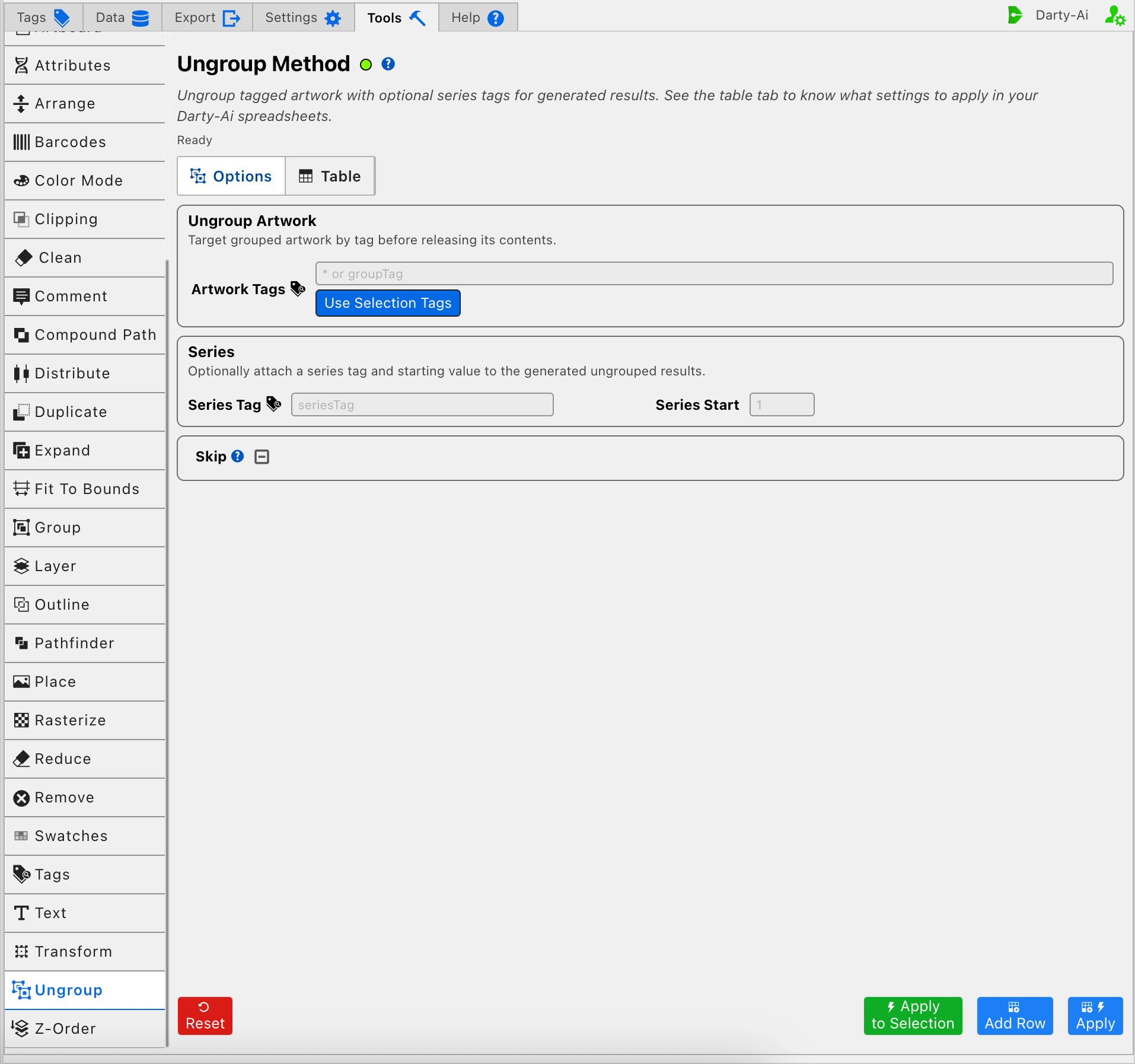
Artwork Tags identifies the grouped artwork whose contents will be released. Target the group itself with a focused value such as assembledProduct; do not use the individual members' old tags as a substitute for identifying their containing group.
The * target is deliberately broad and may release every eligible tagged group in scope. Prefer explicit group tags when preserving unrelated document structure matters.
Use Selection Tags copies Darty tags from the currently selected Illustrator artwork into Artwork Tags. Select the group, not one of its nested members, when using this shortcut to build a reusable target.
Apply to Selection performs the current Ungroup configuration directly on selected grouped artwork. Use it to inspect the released structure before capturing or applying the same operation broadly. Use Selection Tags only fills the reusable target field; it does not run Ungroup.
Give Released Objects a Series
One group can release several objects. The optional Series fields let Darty assign predictable numbered tags to those generated results so later rows can address them separately.
Series Tag writes seriesTag and supplies the shared tag prefix. Series Start writes seriesStart and selects the first number in the sequence.
For example, Series Tag panel with Series Start 1 can tag the released results as panel1, panel2, panel3, and so on. Starting at 5 begins the sequence with panel5.
Use the series fields when the released objects feed later operations such as individual positioning or text replacement. Leave both blank when the existing member tags are sufficient and no numbered result tags are needed.
When Series Tag is used, supply a valid starting number. A Series Start without a useful Series Tag does not provide a meaningful prefix for later targeting.
Skip the Ungroup Row When Needed
Skip is a three-state checkbox that writes skip only when True or False is selected.
- True writes
skip:trueand preserves the group for that data record. - False writes
skip:falseand explicitly allows Ungroup to run. - Unset omits the property and leaves the row to its normal behavior.
This is useful when some records need access to a group's contents while others must keep the grouped structure. See Skip and * for the equivalent spreadsheet patterns.
Avoid Common Ungrouping Problems
- Target an ordinary group. Ungroup is not the release command for compound paths or clipping masks.
- Tag the group before relying on its nested members' tags for targeting.
- Use a narrow target instead of
*when other groups must remain intact. - Add Series Tag and Series Start only when numbered output tags help a later workflow.
- Check the released objects' stacking and structure before applying the row across a production sheet.
Build a Useful Ungroup Configuration
- Select or identify the group whose members must become independent objects.
- Enter its Artwork Tags search, or use the selected group's tags.
- Add Series Tag and Series Start when later rows need predictable numbered targets.
- Set Skip only when the operation varies by data record.
- Use Apply to Selection to inspect one result, or Add Row to capture the reusable configuration.
- Review the generated properties in the Table before using Apply across the intended records.
Control-to-Property Summary
| Editor purpose | Darty property |
|---|---|
| Group whose contents will be released | Target header / tagSearch |
| Numbered tag prefix for released objects | seriesTag |
| First number in the released-object series | seriesStart |
| Skip Ungroup for a data row | skip |
Capture, Apply, and Review
- Tools Method Actions and Apply Modes explains Reset, Add Row, Apply, and Apply to Selection.
- Tools Method Table Preview explains how to inspect, edit, reorder, copy, download, and apply captured Ungroup rows.
- Group and Ungroup method reference documents the spreadsheet properties and examples.