
Artboard Tool
Use Tools → Methods → Artboard to create and manage Illustrator artboards from a Darty row. Unlike artwork-targeted methods, Artboard works at the document level: you choose an operation, identify an artboard when that operation needs one, and describe the result.
The editor is easiest to understand as four jobs:
- Edit an existing artboard's identity, geometry, ruler origin, or display options.
- Add one or more artboards at a chosen size, position, spacing, and order.
- Remove a named or numbered artboard.
- Rearrange the document's artboards into a layout or an explicit order.
Selecting an Action changes which sections are relevant and writes that choice to the row's mode property. Fields hidden by the selected mode are not included in the configuration produced from the editor.
For accepted aliases, template names, layout values, spreadsheet examples, and the underlying method behavior, see the Artboard method reference.
Identify an Existing Artboard
Edit and Remove need a clear existing artboard target. Rearrange also exposes the same identity fields, although a normal layout operation applies to the document's artboards as a group.
- Artboard Name writes
artboardName. Names are case-sensitive. - Artboard # writes
artboardNumberand uses Illustrator's one-based numbering: the first artboard is1.
Use the name or the number, not both. A meaningful name is easier to understand when a document's ordering may change; a number is convenient when the document structure is fixed.
Add mode hides these target fields because it describes a new artboard rather than selecting one that already exists.
Edit an Artboard
Choose Edit when an existing artboard should be renamed, resized, moved, or given different artboard-specific settings.
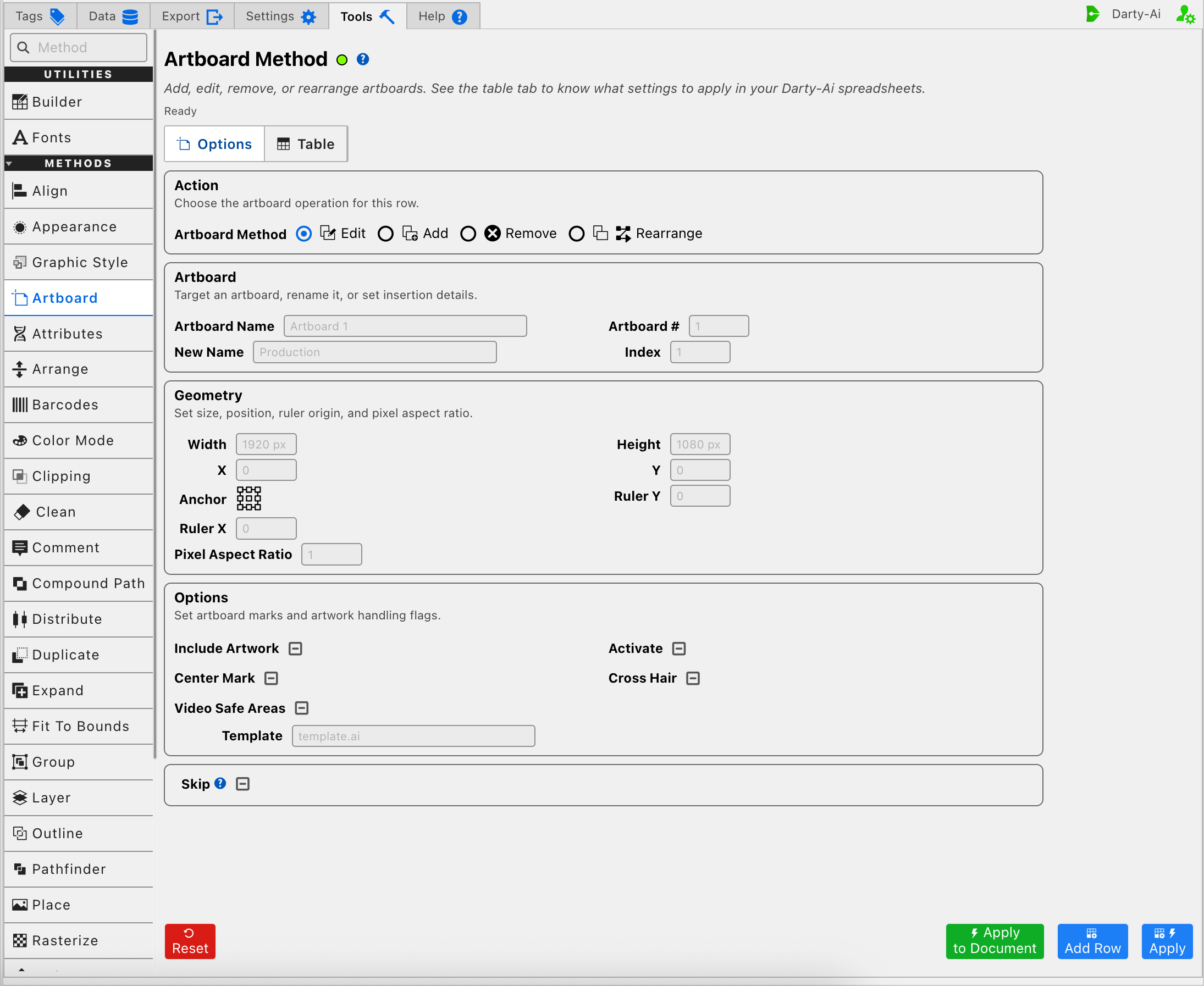
Start by identifying the artboard by name or number. New Name writes newName and changes that artboard's name without changing how the row originally finds it.
The current editor also displays Index in Edit mode. The documented Artboard method supports index when adding a new artboard, not as the way to reorder an existing one. Use Rearrange when existing artboards need a new sequence.
Change Its Size or Position
Width and Height resize the artboard, while X and Y position it on Illustrator's global rulers. All four values accept Darty measurements such as 800px, 210mm, or 8.5in.
Anchor decides which of the artboard's nine reference points the geometry uses. It is the point placed at X and Y, and the point held in place while Width or Height changes. For example:
- Choose Top Left when X and Y should locate the upper-left corner and resizing should grow away from that corner.
- Choose Center when the artboard should remain centered while its dimensions change.
- Choose Bottom Right when the lower-right corner must stay fixed.
Leaving a geometry field blank omits that property, so an Edit row can change only the width, only the position, or any other intentional subset.
Set Its Ruler Origin and Pixel Shape
Ruler X and Ruler Y set the origin shown by that artboard's local rulers. They do not move the artboard on the document canvas; use X and Y for that.
Pixel Aspect Ratio writes par. The usual square-pixel value is 1; non-square values are useful for production formats that require them.
Decide What Travels With the Edit
Include Artwork determines whether artwork associated with the artboard moves with position or geometry changes. Turn it off when the artboard boundary should move independently of the artwork it currently contains.
Activate requests that the resulting artboard become Illustrator's active artboard after the operation. This is useful when a later manual action should begin on the artboard that Darty just edited.
Center Mark, Cross Hair, and Video Safe Areas write the corresponding artboard-display flags. Because these are three-state choices, leave one Unset to preserve the method's normal behavior, or choose True/False when the row must explicitly enable or disable it.
Template writes template and supplies the artboard settings associated with that template. The method reference documents templates primarily for creating artboards, where a template establishes Width, Height, and Pixel Aspect Ratio. When editing, use explicit geometry whenever the intended change should be unambiguous.
Add Artboards
Choose Add when the row should create a new artboard or a run of similarly configured artboards.
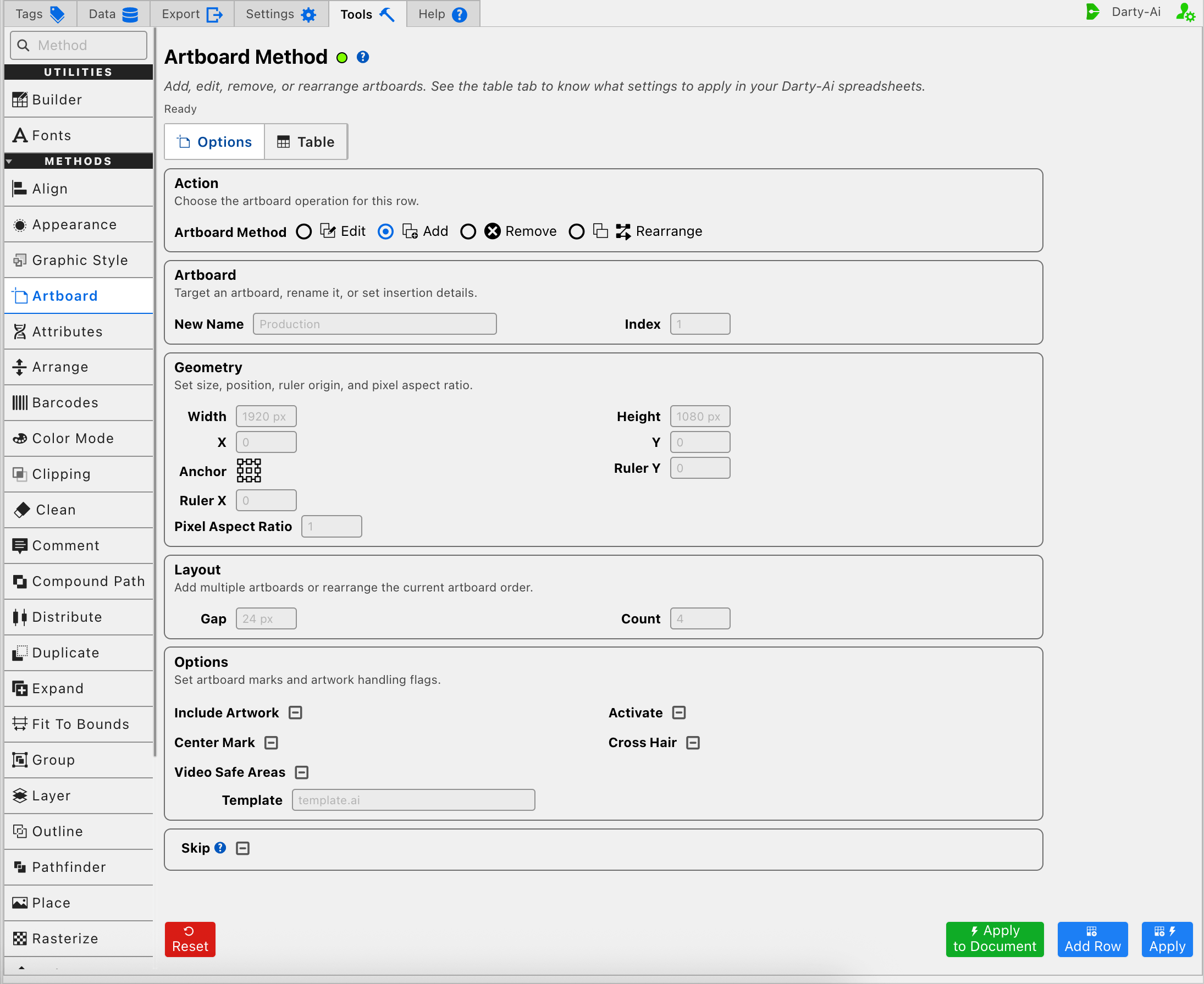
New Name gives the first new artboard its name. When the method creates several, it appends numbers to keep the names distinct.
Index chooses the new artboard's place in Illustrator's artboard order. That order affects later rearranging and the sequence used when artboards are exported.
Use the Geometry section to create a custom size and position. Anchor controls how X, Y, Width, and Height are interpreted in exactly the same way as Edit mode. Alternatively, Template can provide a recognized production size and pixel aspect ratio; the method reference lists the accepted template values.
Add More Than One
Count writes numberOfArtboards and determines how many artboards the row creates. Gap sets the distance between them when the method places them automatically. Gap applies when X or Y does not already prescribe the new artboard's position.
Illustrator cannot add artboards beyond its available pasteboard area. A large Count, large dimensions, or large Gap can therefore prevent the requested set from being created.
Include Artwork is used when the add operation copies an existing artboard context: enabling it copies that artboard's artwork as well as its boundary. For a wholly new blank artboard, leave it Unset unless the workflow supplies such a source through the underlying Artboard method.
Use Activate when the newly created result should become the active artboard. Center Mark, Cross Hair, Video Safe Areas, local ruler coordinates, and Pixel Aspect Ratio let the new artboard begin with its required production settings instead of relying on document defaults.
Remove an Artboard
Choose Remove, then identify the artboard by its case-sensitive name or one-based number.
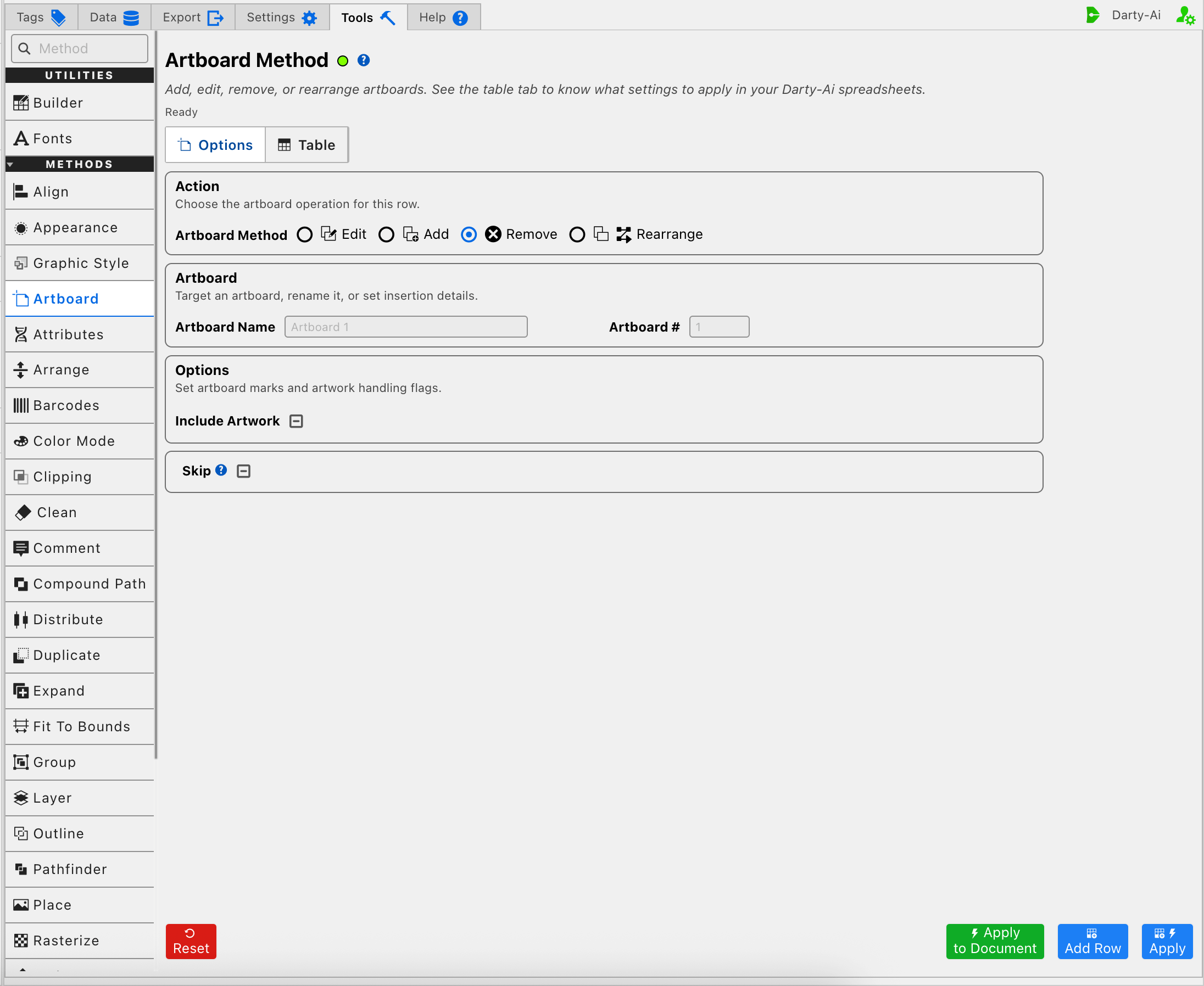
Removing an artboard removes its artboard boundary; the documented method does not delete the artwork that was on it. The current editor displays Include Artwork in this mode, but it should not be treated as a promise to delete artwork. If artwork must also be removed, handle that explicitly with an artwork method rather than relying on the Artboard removal row.
Because removal changes the current document immediately, use Apply to Document only when the target is certain. Add Row is useful for inspecting the name or number in the Table before anything is dispatched to Illustrator.
Rearrange Artboards
Choose Rearrange to organize the document's existing artboards spatially, change their sequence, or do both in one configured row.
Choose a Spatial Layout
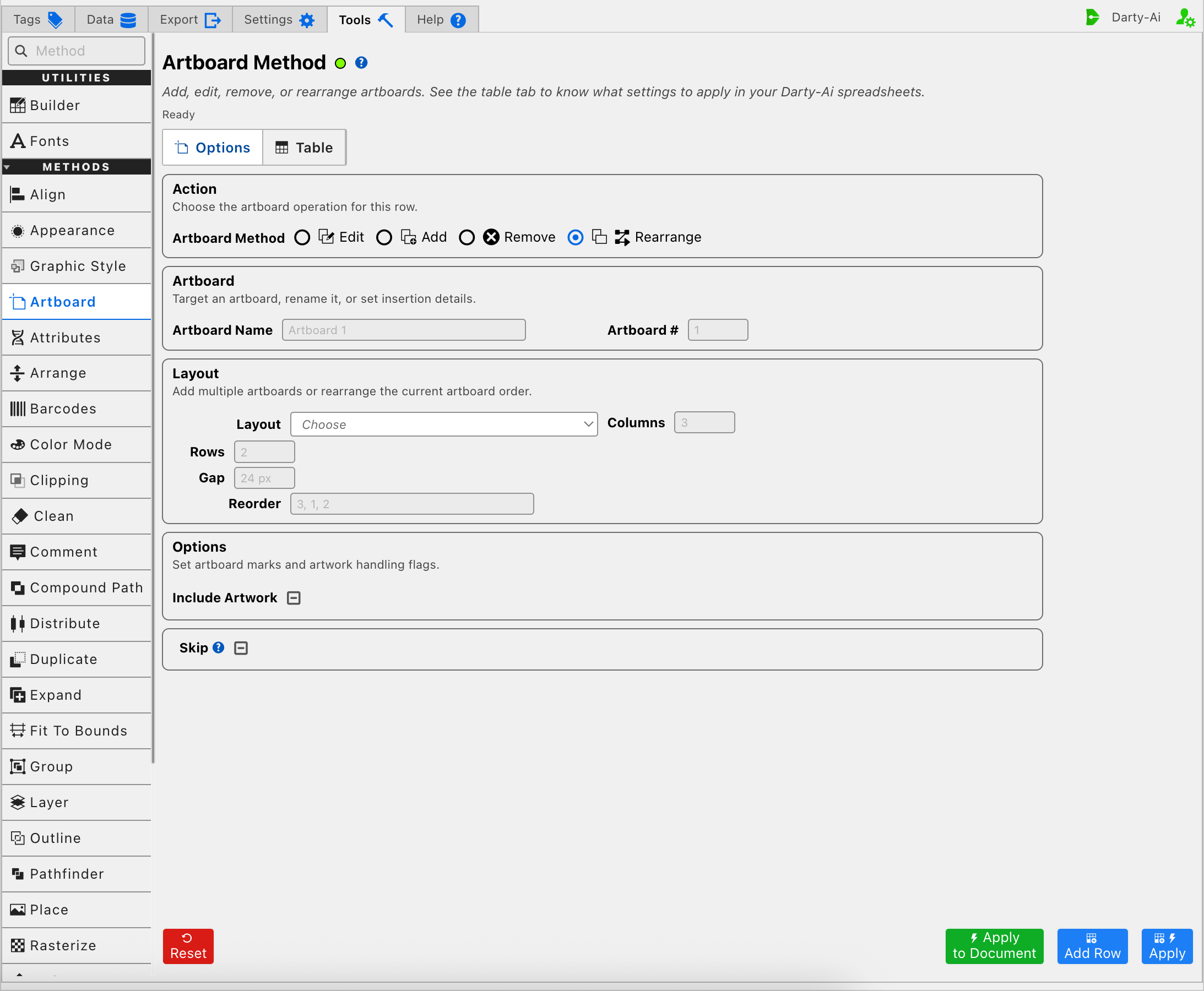
Layout writes layout and chooses whether Illustrator arranges artboards by row, by column, or in a grid. The available choices also include right-to-left variants for documents that need the opposite reading direction.
Columns controls how many artboards appear in each row. Rows controls how many appear in each column. Use the control that corresponds to the selected layout rather than forcing both values into every row.
Gap sets the distance between neighboring artboards in the arrangement. It accepts the same Darty measurement syntax as the Geometry fields.
Choose an Explicit Order
Reorder writes a comma-separated list of artboard numbers in the desired sequence, such as 3, 1, 2. The list must contain the indexes of all artboards in the document, not merely the ones that are changing position.
Layout answers where the ordered artboards are placed; Reorder answers which artboard comes first, second, and so on. They can therefore describe different parts of the same rearrangement.
Include Artwork determines whether artwork moves with the artboards while the new arrangement is applied. Enable it when each artboard and its design should travel as a unit; disable it when only the artboard boundaries should move.
Leave Optional Properties Unset Deliberately
Blank measurement and text fields do not become properties in the generated row. The three-state option controls behave similarly:
- True writes the property as
true. - False writes the property as
false. - Unset omits the property and leaves the method or Illustrator to use its normal behavior.
This makes it possible to create a narrow Edit row that changes one artboard detail without restating every other setting.
Skip a Reusable Artboard Row
Skip controls whether this method should run for the current data row and writes skip.
- True writes
skip:trueand bypasses the Artboard operation. - False writes
skip:falseand explicitly allows it to run. - Unset omits the property.
Skip is most useful after the configuration becomes part of a reusable spreadsheet in which only some data records should add, edit, remove, or rearrange artboards. See Skip and *.
Build a Useful Artboard Configuration
A practical order is:
- Choose Edit, Add, Remove, or Rearrange.
- For Edit or Remove, identify the existing artboard by name or number.
- Configure only the identity, geometry, layout, or option values the operation should change.
- Leave unrelated optional fields blank or Unset.
- Use Add Row to capture the configuration for review, Apply to capture and run it, or Apply to Document for a one-time document operation.
- Inspect the resulting properties in the Artboard Table before reusing the row across documents.
Control-to-Property Summary
| Editor purpose | Darty property | Applicable action |
|---|---|---|
| Operation to perform | mode | All |
| Existing artboard by name | artboardName | Edit, Remove, Rearrange |
| Existing artboard by number | artboardNumber | Edit, Remove, Rearrange |
| Resulting artboard name | newName | Edit, Add |
| New artboard's order | index | Add |
| Artboard dimensions | width, height | Edit, Add |
| Global position | x, y | Edit, Add |
| Geometry reference point | anchorPoint | Edit, Add |
| Local ruler origin | rulerX, rulerY | Edit, Add |
| Pixel aspect ratio | par | Edit, Add |
| Spatial arrangement | layout | Rearrange |
| Grid size | rows, columns | Rearrange |
| Space between artboards | gap | Add, Rearrange |
| Explicit artboard sequence | reorder | Rearrange |
| Number of artboards to create | numberOfArtboards | Add |
| Move or copy associated artwork | includeArtwork | Depends on operation |
| Make the result active | activate | Edit, Add |
| Artboard display marks | centerMark, crossHair, videoSafeAreas | Edit, Add |
| Template-provided artboard settings | template | Add; also exposed by the current Edit UI |
| Skip the method for a data row | skip | All |
Capture, Apply, and Review
- Tools Method Actions and Apply Modes explains Reset, Add Row, Apply, and Apply to Document.
- Tools Method Table Preview explains how to inspect, edit, reorder, copy, download, and apply captured Artboard rows.
- Artboard method reference documents aliases, accepted values, spreadsheet examples, and sample files.