
Z-Order Tool
Use Tools → Methods → Z-Order to change where tagged Illustrator artwork appears in the document's stacking structure. Z-Order moves existing artwork forward, backward, or inside a destination layer or group; it does not change the artwork's visible X and Y coordinates.
The editor separates the operation into three decisions:
- Which artwork should move?
- Where should it appear in the stack?
- Which artwork, layer, or group establishes that destination?
For accepted aliases, spreadsheet examples, and illustrated layer-panel results, see the Z-Order method reference.
Z-Order Editor
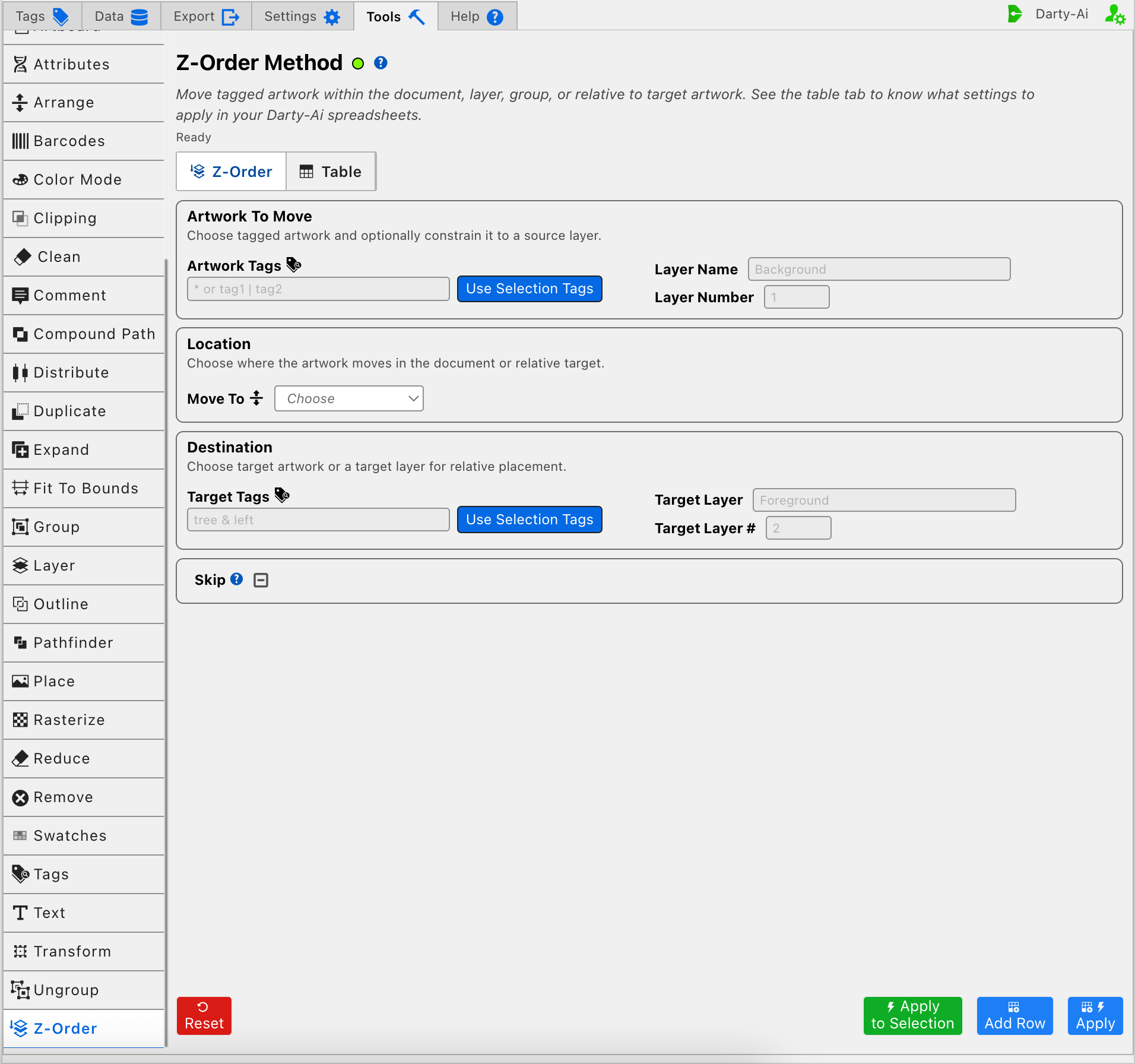
Choose the Artwork to Move
Artwork Tags identifies the source artwork and becomes the Darty sheet's target header. Enter a focused search such as price, badge | seal, or another expression that resolves to the objects whose stacking order should change.
If Artwork Tags is blank, the Table preview normalizes the target to *. That broad target can move all eligible artwork, so use it deliberately rather than as an accidental blank.
Use Selection Tags reads existing Darty tags from the current Illustrator selection and copies them into Artwork Tags. It does not move or retag the selected artwork. For search operators and matching rules, see Darty Tags.
Limit the Source to a Layer
Artwork Tags can match identically tagged objects on several layers. The source layer controls narrow which matches may move:
- Layer Name writes
layerNameand limits the source to a named layer. - Layer Number writes
layerNumberand limits the source to a numbered layer.
Use one dependable layer identifier rather than filling both. Leaving both blank allows matching source artwork to move regardless of its current containing layer. These fields filter what moves; they do not choose the destination.
Choose the Stack Location
Move To writes location. Choose it by the relationship the result needs:
| Location | Generated value | Result |
|---|---|---|
| Above | above | Move immediately above the target artwork or target layer. |
| Below | below | Move immediately below the target artwork or target layer. |
| Above All | aboveAll | Move to the front of the document's artwork stack. |
| Below All | belowAll | Move to the back of the document's artwork stack. |
| Top | top | Move to the top inside a target layer or group. |
| Bottom | bottom | Move to the bottom inside a target layer or group. |
| Inside On Top | insideOnTop | Move inside a target layer or group, above its existing contents. |
| Inside On Bottom | insideOnBottom | Move inside a target layer or group, below its existing contents. |
Top and Inside On Top are accepted forms of the same inside-top placement; Bottom and Inside On Bottom are the corresponding inside-bottom forms. The explicit Inside labels are useful when you want the row's structural intent to be unmistakable.
Above All and Below All operate at document scope and do not need a separate destination. Above and Below need an artwork or layer target when a precise relative position is required. An inside placement needs a destination capable of containing artwork, such as a layer or group.
When Move To is left unselected, no location property is written. The underlying method's documented default is Above, so provide a destination whenever that default must resolve to a particular object or layer.
Identify the Destination
The Destination section anchors relative and inside placements. It does not replace or broaden the source search.
Target Tagged Artwork
Target Tags writes targetTagSearch and finds stationary artwork used as the relative destination. For example, source Artwork Tags price, Target Tags product-photo, and Move To Above places the price artwork immediately above the matched photo in the layer stack.
The Target Tags Use Selection Tags action copies existing tags from the current Illustrator selection into this destination field. It does not change Artwork Tags and does not run the method.
Target a Layer or Group
- Target Layer writes
targetLayerName. - Target Layer # writes
targetLayerNumber.
A target layer can be the destination itself for an inside placement, or it can constrain where Target Tags are resolved. A named layer is often easier to understand and more stable in reused sheets; a number can be useful when every destination document has the same fixed layer order.
Target Tags and a target layer can work together: the layer narrows the search area while the tag search identifies the exact destination artwork inside it.
Apply to Tagged Artwork or the Current Selection
Apply to Selection provides a one-time source override. Darty temporarily targets the currently selected Illustrator artwork, keeps the configured Move To and Destination values, and runs the operation without adding a row to the Z-Order Table. The Artwork Tags field shown in the editor remains unchanged.
This is useful for testing a destination relationship before deciding on a reusable source tag search. If nothing is selected, the method reports:
No selection. Select artwork first.
Apply uses the row's Artwork Tags target, captures the row in the working Table, and dispatches it. Add Row captures without changing Illustrator.
Skip a Reusable Z-Order Row
Skip is a three-state checkbox that writes skip only when True or False is selected.
- True writes
skip:trueand leaves the matching artwork in its current stack position. - False writes
skip:falseand explicitly allows the method to run. - Unset omits the property.
Skip is most useful after a Z-Order row becomes part of a reusable spreadsheet whose records do not all need the structural move. See Skip and *.
Structural Cautions and Operation Order
Z-Order changes document structure, not just a visual overlap. Above and Below can change the source artwork's relationship to nearby objects, while inside placements move it into the target container. That can affect the Layers panel hierarchy and later methods that rely on source or target layer filters.
Apply rows in the order their structure requires. For example, create or rename a destination layer before a Z-Order row targets it, and perform the move before a later row expects the artwork to be found inside its new layer.
Before applying a broad or reusable row:
- Confirm that Artwork Tags identifies only the objects that should move.
- Confirm that Target Tags and target-layer fields resolve to the intended stationary destination.
- Check whether the selected location is relative to, or inside, that destination.
- Use Add Row first and inspect the generated target, location, and destination columns.
- Use Apply to Selection on representative artwork when a one-time structural test is safer.
- Inspect the Illustrator Layers panel afterward, not only the visible canvas.
Reset restores the editor and clears its working Table preview. It does not move artwork back to its former stacking position.
Validation and Common Problems
The editor will not add or apply a row containing only Artwork Tags. Configure at least one location, source-layer filter, target artwork search, or target-layer field. Otherwise the status reports:
Set a location, source layer, target artwork, or target layer before continuing.
Other common checks are:
- Layer Number and Target Layer # expect numeric values.
- Above or Below without a usable destination cannot establish a precise relative result.
- Inside placement requires a layer or group that can contain the source artwork.
- If the correct tag moves from the wrong layer, add a source Layer Name or Layer Number filter.
- If the destination tag exists in several layers, combine Target Tags with a target-layer constraint.
- If later rows cannot find the artwork where expected, verify whether this row moved it into a different container before those rows ran.
Build a Useful Z-Order Configuration
Move Artwork Relative to a Tagged Object
- Enter the source Artwork Tags.
- Add a source layer filter only when the search matches the same tags in several layers.
- Choose Above or Below.
- Enter Target Tags and, if necessary, a target-layer constraint.
- Capture the row and inspect both target searches before applying.
Move Artwork Inside a Layer
- Identify the source artwork.
- Choose Inside On Top or Inside On Bottom.
- Enter Target Layer or Target Layer #.
- Apply to a representative selection first when moving between containers may affect a larger workflow.
- Confirm the new parent and stack position in Illustrator's Layers panel.
Move Artwork to a Document Extreme
- Identify the source artwork.
- Choose Above All or Below All.
- Leave destination fields blank unless they are needed by another deliberate constraint.
- Check that the source target is narrow enough to avoid moving unrelated document artwork.
Control-to-Property Summary
| Editor purpose | Darty property |
|---|---|
| Artwork that moves | Target header / tagSearch |
| Limit the source by layer name | layerName |
| Limit the source by layer number | layerNumber |
| Stack relationship or inside placement | location |
| Stationary tagged destination | targetTagSearch |
| Destination layer by name | targetLayerName |
| Destination layer by number | targetLayerNumber |
| Skip the method for a data row | skip |
Capture, Apply, and Review
- Tools Method Actions and Apply Modes explains Reset, Add Row, Apply, and Apply to Selection.
- Tools Method Table Preview explains how to inspect, edit, reorder, copy, download, and apply captured Z-Order rows.
- Z-Order method reference documents accepted values, spreadsheet examples, and illustrated results.