
DocumentationDocumentation
Darty.ai
Get Started
Basics
Methods
Colors
UI
Workflows
Darty.ai
Get Started
Basics
Methods
Colors
UI
Workflows
  • Get Started

    • Installation and Login
    • Your First Darty Document
    • Installers - Instructions and Downloads
    • Licensing
  • Basics

    • Darty Basics
    • Darty Header
    • Darty Tags
  • Methods

    • Darty-Ai Methods
    • Align
    • Appearance - General
    • Appearance - Colors & Swatches
    • Appearance - Effect Properties
    • Artboard Methods
    • Arrange
    • Attributes
    • Barcode
    • Barcode Formats
    • Clean Document
    • Clipping Mask Make and Release
    • Color Mode
    • Comment
    • Compound Path - Make and Release
    • Distribute
    • Duplicate
    • Expand
    • Fit To Bounds
    • Graphic Style
    • Group & Ungroup
    • Layer Methods
    • Outline
    • Pathfinder
    • Place
    • Rasterize
    • Reduce To Basic Appearance
    • Remove
    • Swatch Methods
    • Tags Methods
    • Tables
    • Template
    • Text
    • Transform Methods
    • zOrder
    • Skip and *
  • Colors

    • Color Libraries
  • Sheet Builder
    • Builder Table Anatomy
    • Builder Data Sources and Files
    • Builder Method Blocks
    • Builder Rows, Cells, and Navigation
  • User Interface

    • Darty-Ai User Interface
    • Tools Tab
    • Compress Images
    • Tools Methods
      • Tools Method Actions and Apply Modes
      • Tools Method Table Preview
      • Align Tool
      • Appearance Tool
      • Graphic Style Tool
      • Artboard Tool
      • Attributes Tool
      • Arrange Tool
      • Barcode Tool
      • Color Mode Tool
      • Clean Tool
      • Clipping Tool
      • Comment Tool
      • Compound Path Tool
      • Distribute Tool
      • Duplicate Tool
      • Expand Tool
      • Fit to Bounds Tool
      • Group Tool
      • Ungroup Tool
      • Layer Tool
      • Outline Tool
      • Pathfinder Tool
      • Place Tool
      • Rasterize Tool
      • Reduce Tool
      • Remove Tool
      • Swatches Tool
      • Tags Tool
      • Table Tool
      • Skip Row Tool
      • Template in Sheet Builder
      • Text Tool
      • Transform Tool
      • Z-Order Tool
    • Tags Panel
    • Tables Panel
    • Annotations and Canvas Controls
    • Tags Tab
    • Data Tab
    • Export Tab
    • Settings Tab
    • Help Tab
    • Export Settings
    • Export Validation
    • Job Export Settings
    • Export Counter Variables
    • Export Progress
    • Export Presets
    • Recent Files
    • Color Dialog
  • Cloud Data

    • Darty-Ai Cloud Data Integrations
    • Darty-Ai with Google Sheets
  • Workflows

    • Darty Workflows
    • Darty Preview
    • Darty Export Workflows
    • Darty Data Workflows
  • Site Blog

    • ⭐️What’s new in Darty-Ai 2.5 ⭐️
    • ⭐️Getting Started ⭐️
    • ⭐️Placing Images in Darty-Ai ⭐️
    • 🚀 New Features — Darty-Ai 1.7.8 (March 2026)
    • Creating a Basic Pie-Chart with Line-Art & Data
    • Customer Data and Darty-Ai
    • Darty-Ai Now Supports Google Sheets
    • External SVGs with Darty-Ai
    • Preview Your Documents
    • Self-Adjusting Logo Automation
    • State Management for Artwork Appearance
    • Text Replacements and Formatting
    • Using Private Google Sheets Shared with Business Emails
  • Site Pages

    • 🏠 Home
    • 💰 Pricing
    • Downloads
    • Legal
  • Release Notes
  • Downloads

Tags Panel

Open Window → Darty-Ai → Darty-Ai Tags. This dockable Illustrator panel shows the selected artwork as a hierarchy, including child objects when you expand a group. The CEP Tags tab also provides a control to show or hide it.
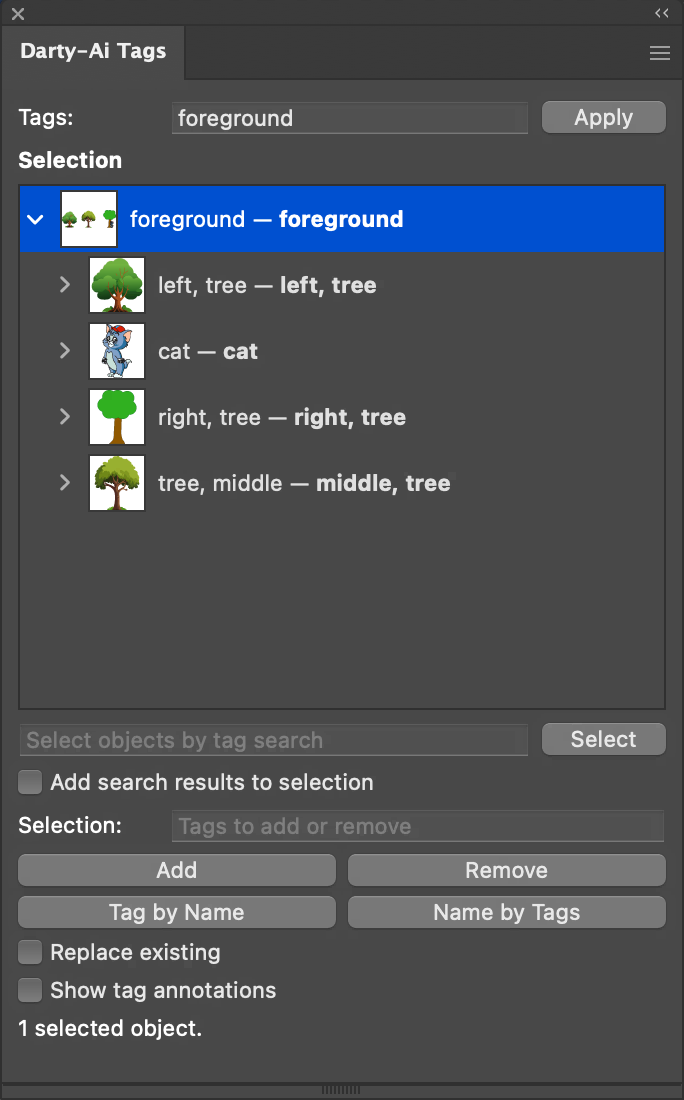
Native Tags panel showing the foreground group and its nested tree and cat artwork

Choose the objects to tag

Select artwork in Illustrator, then choose rows in the panel. Click a name or thumbnail to choose one row. Shift-click selects a visible range; Option-click on Mac or Alt-click on Windows toggles rows. Command-click/Ctrl-click also toggles rows.

Highlighted panel rows are the targets for tag editing. They do not change Illustrator's artwork selection. A new artwork selection resets the panel targets; collapsing a branch removes its hidden rows from the targets.

Replace, add, or remove tags

ControlResult
Tags → ApplyReplaces all tags on the highlighted rows. The field initially shows tags common to those rows. Applying an empty field removes their tags.
Selection → AddAdds the entered tags while preserving each target's other tags.
Selection → RemoveRemoves only the entered tags.
Inline tag fieldEdits one row's tags. Enter or leaving the field commits; Escape cancels. Empty input removes that row's tags.

For example, to add approved to several differently tagged objects, use Add. Applying approved in the top Tags field would replace their existing role tags.

Tags appear in bold next to the regular-weight object name. Wide hierarchies scroll horizontally. Panel edits participate in Illustrator Undo/Redo.

Find artwork

Enter a tag search and choose Select. The panel also searches after two seconds without typing, or when the field loses focus. Add search results to selection preserves the existing Illustrator selection while adding matches.

This search selects artwork in Illustrator. It is separate from highlighting rows to choose tag-editing targets.

Names, thumbnails, and annotations

Tag by Name and Name by Tags operate on Illustrator's selected objects and their descendants. Replace existing chooses replacement rather than append behavior. Their scope is broader than an inline edit on one panel row.

The flyout menu offers Small Rows (No Thumbnails), Medium, Large, and Extra Large. Choose Small for a compact tree. Thumbnails are generated for visible artwork; a blank thumbnail does not mean the object has no tags.

Use Language… in the flyout to choose a panel language. Show tag annotations controls the labels on the Illustrator canvas and stays synchronized with the View-menu command and CEP Tags tab. See Annotations.

Last Updated: 11/5/26, 9:33 AM
Contributors: Trevor
Prev
Tools Methods
Next
Tables Panel