
Distribute Tool
Use Tools → Methods → Distribute to spread tagged artwork evenly. You can distribute the objects by one of their reference points, place equal space between their visible edges, and use either tagged artwork or an artboard as the area across which they are distributed.
The editor is easiest to understand as four decisions:
- Which tagged objects should move?
- Should they distribute among themselves, relative to key artwork, or across an artboard?
- Should their anchor points or the spaces between their edges be equal?
- Should the operation run horizontally, vertically, or on both axes?
For accepted aliases, illustrated results, spreadsheet examples, and sample files, see the Distribute method reference.
Choose the Distribution Reference
Reference Type changes the right side of the editor between Tagged Artwork and Artboard. This is an editor choice rather than a Darty property. The active reference fields determine what is included in the generated row; fields hidden by the other reference type are omitted.
Tagged Artwork
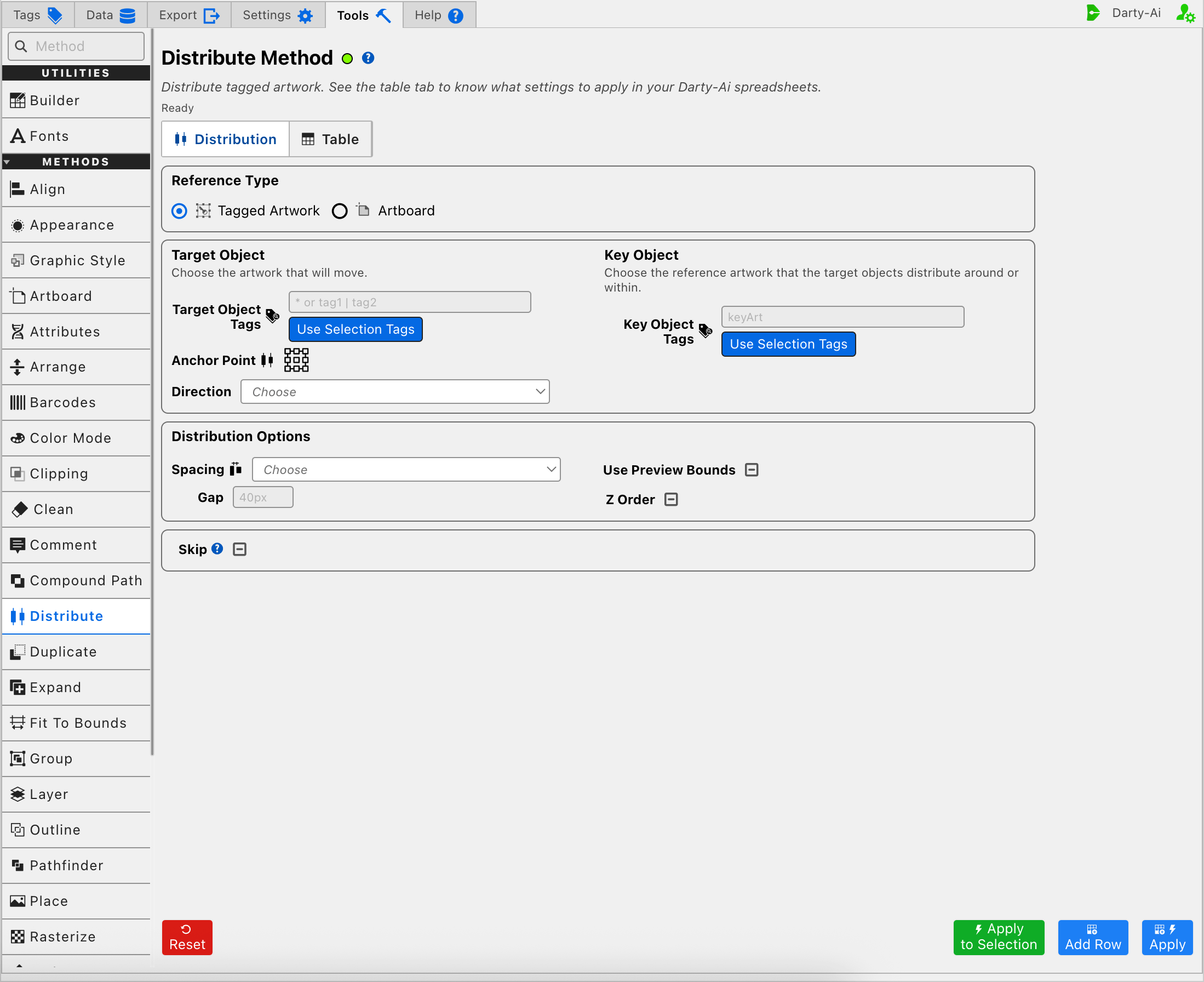
Tagged Artwork supports two related arrangements:
- Leave Key Object Tags blank to distribute the target objects relative to one another.
- Enter Key Object Tags to write
keyArtand use the matching artwork as the reference area.
Without a Gap, key artwork supplies the bounds within which the other objects are distributed. When a Gap is provided, the moving objects are spaced around the key artwork on the applicable axis or axes.
The key artwork is the reference, not another member of the moving target set. Give it a distinct tag search so the intended stationary reference is clear.
Use Selection Tags beneath Key Object Tags reads the existing Darty tags from the artwork currently selected in Illustrator and places them in the field. It constructs the reusable search; it does not distribute the selection or create new tags.
Artboard
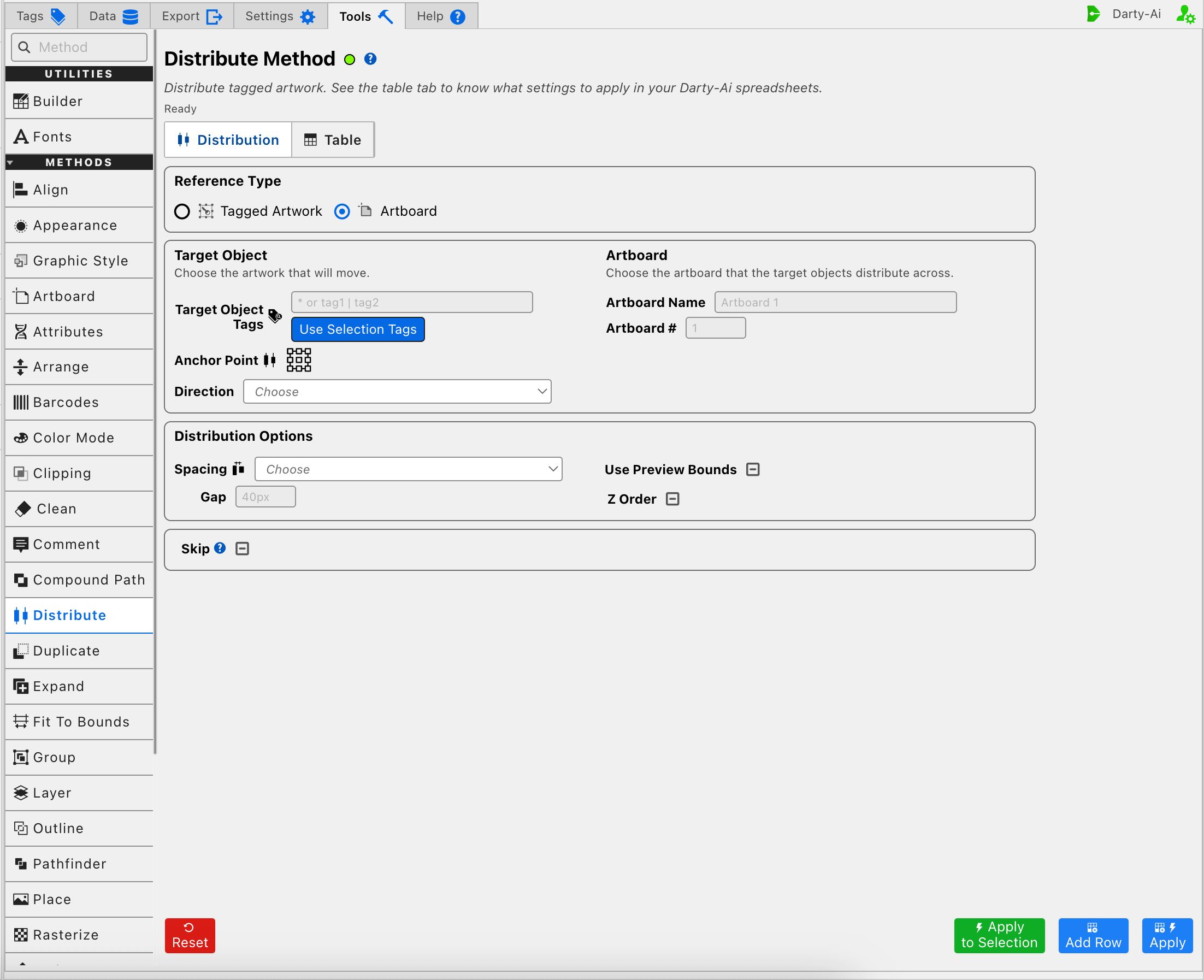
Use Artboard when the target objects should spread across an Illustrator artboard rather than within artwork bounds.
- Artboard Name writes
artboardNameand is case-sensitive. - Artboard # writes
artboardNumberusing the document's numbered artboard position.
Use either the name or the number, not both. A stable artboard name is easier to understand when artboards may be reordered; a number is convenient when the document structure is fixed.
Choose the Artwork That Moves
Target Object Tags becomes the generated row's target search. Enter the Darty tags for the complete set of objects that should be distributed. A search such as label | icon can match artwork carrying either tag; see Darty Tags for the available search operators.
The adjacent Use Selection Tags action reads tags already attached to the current Illustrator selection and uses them to construct Target Object Tags. It does not alter or distribute the artwork by itself.
If Target Object Tags is left blank, the Table preview normalizes the target header to *. That broad target can address all eligible artwork, so use it deliberately.
Apply to Selection provides a safer one-time alternative when the current Illustrator selection should move regardless of its tags. It temporarily targets that selection, preserves the configured reference and distribution options, and does not add a row to the Distribute Table.
Distribute by an Anchor Point
Use Anchor Point when matching points on the target objects should be evenly separated. The nine-point picker writes distribute and chooses the coordinate measured on every moving object:
- Left, Center, and Right distribute horizontal coordinates.
- Top, Center, and Bottom distribute vertical coordinates.
- Corners combine a horizontal edge with a vertical edge.
For example, Left distributes the objects by the X position of each left edge, while Bottom distributes them by the Y position of each bottom edge. Center can distribute both the horizontal and vertical centers.
Direction writes direction and can restrict or extend the axes used by the selected anchor:
| Direction | Generated value | Practical effect |
|---|---|---|
| Horizontal | h | Distribute only along the X axis. |
| Vertical | v | Distribute only along the Y axis. |
| Horizontal + Vertical | hv | Distribute on both axes. |
Leaving Direction on Choose lets the method infer its normal axis from Anchor Point. Left and Right normally imply horizontal movement; Top and Bottom imply vertical movement. Center and the four corners normally use both axes. Set Direction when Center should affect only one axis or when you intentionally want to override an anchor's inferred direction.
Distribute the Space Between Objects
Use Spacing when the empty distance between object bounds should be even rather than the coordinates of their anchor points.
| Spacing choice | Generated value | Practical effect |
|---|---|---|
| Horizontal | h | Equalize the horizontal space between neighboring objects. |
| Vertical | v | Equalize the vertical space between neighboring objects. |
| Horizontal + Vertical | hv | Equalize spacing on both axes. |
Spacing writes distributeSpacing. Gap writes gap and sets a specific separation such as 40px, 6mm, or 0.25in. Without a Gap, the method calculates an equal distance from the available distribution area. With a Gap, it uses the requested production distance.
Anchor distribution and spacing distribution answer different questions. Anchor Point evens out selected coordinates; Spacing evens out the clear space between object bounds. For the clearest reusable row, configure the family that describes the intended result rather than filling both without a specific reason.
Gap also affects key-artwork distribution: it places the moving artwork at the requested separation around the key reference instead of distributing it only within the key artwork's bounds.
Decide Which Bounds Count
Use Preview Bounds is a three-state checkbox that writes usePreviewBounds and determines what is measured for spacing and reference bounds:
- True includes stroke width and effect dimensions in the measured edges.
- False uses the underlying geometric bounds without those visible extensions.
- Unset omits the property so the method follows the applicable Illustrator preview-bounds setting.
This distinction matters when thick strokes, shadows, glows, or other effects extend beyond the paths. Choose True when visible edges should have equal gaps; choose False when the path geometry should control the result.
Use Stacking Order Around Key Artwork
Z Order is a three-state checkbox that writes zOrder. It is most useful with Key Object Tags, where targets on either side of the key artwork can be ordered according to their Illustrator stacking order.
- True asks the method to honor stacking order; the documented horizontal behavior places the frontmost items toward the left.
- False explicitly distributes without that z-order behavior.
- Unset leaves the property out so the method follows its normal behavior.
Z Order controls which matching object occupies each distributed position. It does not change the objects' stacking order itself; use the Arrange Tool or Z Order Tool when the stack needs to change.
Skip a Reusable Distribute Row
Skip is another three-state checkbox and writes skip:
- True writes
skip:trueand bypasses the Distribute method for that data row. - False writes
skip:falseand explicitly allows it to run. - Unset leaves
skipout of the generated row.
Skip is useful after the configuration becomes part of a reusable sheet in which only some data rows should redistribute artwork. See Skip and *.
Build a Useful Distribution
A practical order is:
- Enter the Target Object Tags, or plan to test the current Illustrator selection.
- Leave Key Object Tags blank to distribute the targets among themselves, identify tagged key artwork, or switch to Artboard and identify one artboard.
- Choose an Anchor Point for coordinate-based distribution or choose Spacing for equal gaps.
- Set Direction when the anchor should use a different axis than it normally implies.
- Enter Gap only when the spacing must use a specific production distance.
- Decide whether geometric or visible preview bounds should be measured.
- Enable Z Order only when its ordering behavior around key artwork is part of the intended result.
- Use Add Row to inspect the reusable configuration, Apply to capture and run it, or Apply to Selection for a one-time test.
Target tags by themselves are not a complete Distribute configuration. If no distribution, spacing, reference, bounds, or z-order value has been set, Add Row and Apply stop with this validation message:
Set at least one distribution, spacing, key object, artboard, bounds, or z-order value before continuing.
Apply to Selection also requires at least one selected Illustrator object. With no selection, the method is not dispatched and the status asks you to select artwork first.
If a configured tag search, key object, or artboard cannot be resolved, check the status near the method title, confirm the spelling and case of names, and verify that the targets exist in the active document.
Control-to-Property Summary
| Editor purpose | Darty property |
|---|---|
| Artwork that should move | Target header / tagSearch |
| Point on each target used for distribution | distribute |
| Axis restriction or override | direction |
| Equal edge-to-edge spacing axis | distributeSpacing |
| Requested separation distance | gap |
| Tagged artwork used as the reference | keyArt |
| Named artboard reference | artboardName |
| Numbered artboard reference | artboardNumber |
| Include visible strokes and effects in bounds | usePreviewBounds |
| Order distributed positions by stacking order | zOrder |
| Skip the method for a data row | skip |
Reference Type itself is not written to the row. The Tools editor uses the property names above; the method reference documents additional accepted aliases and long-form values.
Capture, Apply, and Review
- Tools Method Actions and Apply Modes explains Reset, Add Row, Apply, and Apply to Selection.
- Tools Method Table Preview explains how to inspect, edit, reorder, copy, download, and apply captured Distribute rows.
- Distribute method reference provides illustrated behavior, aliases, spreadsheet examples, and sample files.